On this page
How to send from a Microsoft 365 shared mailbox
Send as a shared address, such as info@, through your own Microsoft 365 account. Add the shared address once, then choose it in From when you send.
What you need
- A Microsoft 365 work or school account. Personal Outlook.com and Hotmail accounts can’t send from a shared mailbox.
- Send As permission on the shared mailbox. The person who manages your Microsoft 365 gives this in the Exchange admin center.
- Groupmail 7 0.31.0 or later.
Add the shared address
- Open Settings → Sending accounts, select + Add sending account, then choose Microsoft.
- Sign in as yourself, not as the shared address, and select Accept.
- Select Send from a shared address.
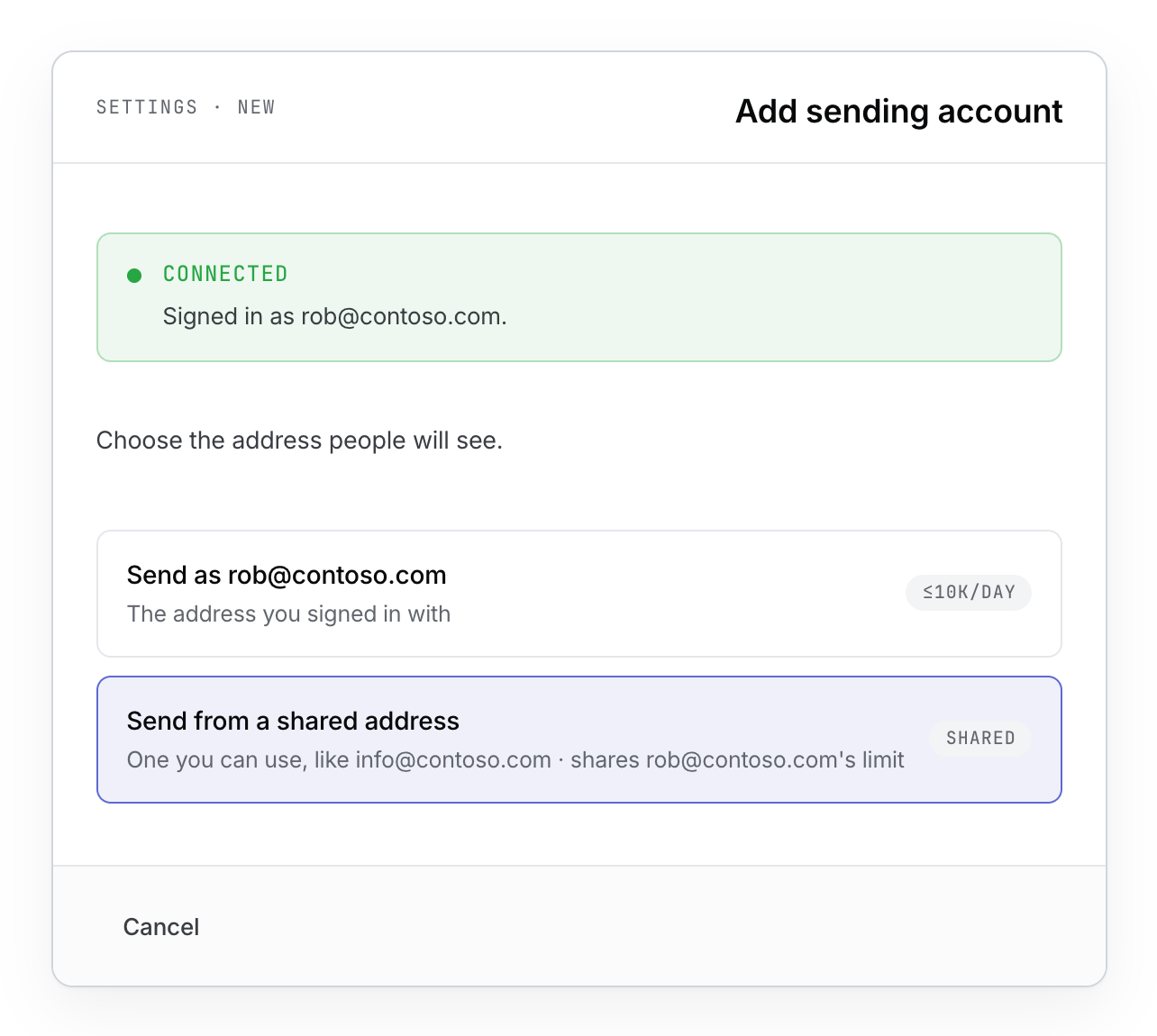 Fictional addresses.
- Enter the Shared address and, if you like, a From name. Select Send test.
- If Groupmail asks, select Sign in to Microsoft and accept the new permission.
- Open the test email. If it shows the shared address without “on behalf of”, select Yes, it’s right.
Already connected your own account? Choose Microsoft again and sign in as the same account to reach the shared address step.
Send from the shared address
In Compose, open From and choose the shared address.
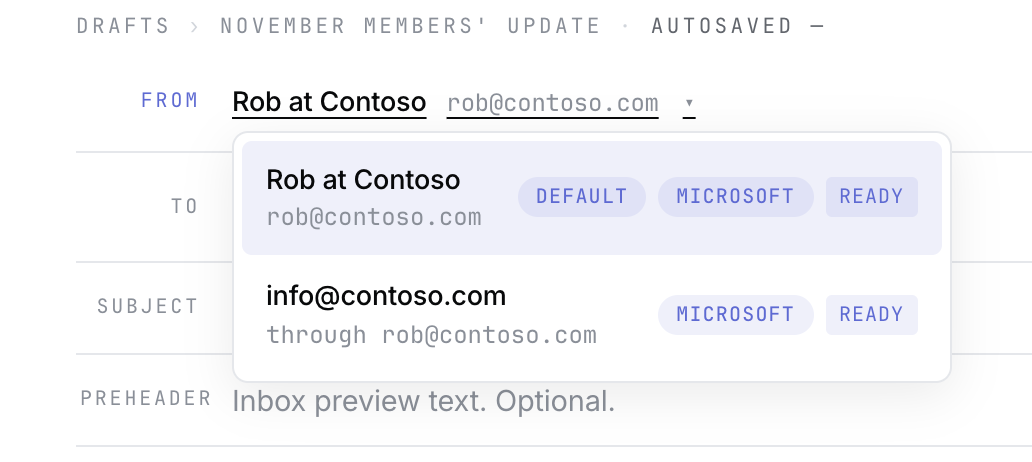 Fictional addresses.
New emails start on your default account. To start on the shared address instead, open it in Settings → Sending accounts and select Make default.
Sending limits
A shared address uses your own account’s limit: about 30 emails a minute and 10,000 a day. For lists of thousands, use SMTP2Go. See every Microsoft 365 limit.
Keep a copy in the shared mailbox’s Sent Items
Microsoft saves sent emails in your own Sent Items. To keep a copy in the shared mailbox too, the person who manages your Microsoft 365 runs this once in Exchange Online PowerShell:
Connect-ExchangeOnline

Set-Mailbox -Identity "[email protected]" `
    -MessageCopyForSentAsEnabled $true `
    -MessageCopyForSendOnBehalfEnabled $true
Replace [email protected] with your shared address.
If it doesn’t work
- The test says “on behalf of”: your account has Send on Behalf, not Send As. Select No, ask for Send As, then send another test.
- Microsoft didn’t send the test: check the shared address and your Send As permission. New permissions can take up to an hour.
- Shared-address sending wasn’t allowed: select Try again and accept the permission at Microsoft.
- Microsoft 365 approval needed: ask the person who manages your Microsoft 365 to approve Groupmail, then try again.
- The test hasn’t arrived: check Junk or Spam and wait a minute.
- Reconnect needed: reconnect your own Microsoft account in Sending accounts.
Related Docs
Stuck? Contact Groupmail Support with your operating system and Groupmail 7 version. Never email a sign-in link or sign-in code.