On this page
How to reuse drafts and starting designs
Continue an autosaved draft from Drafts, use Copy as draft to reuse a sent message without its recipients, or choose a bundled starter to create a new editable Advanced Email draft.
Continue an autosaved draft
- Open Drafts under Messages.
- Select the draft you want to continue.
- Edit the subject, preheader, recipients or content.
- Wait for the footer to show the saved state before leaving, previewing or sending.
In 0.17.0 and later, an Advanced Email draft also keeps its exact custom accent colour when it is saved and reopened. To choose one, open Email style ▾, select Custom… under Accent, enter a six-digit hex colour and select Apply. See How to design your email.
Groupmail autosaves after you pause typing and when you leave an edited field. Save now and the standard save shortcut force the same save. Merely opening a draft does not count as an edit.
The draft keeps its original editor mode. Markdown remains Markdown; HTML Source remains source-owned HTML; an Advanced Email draft reopens with its structured blocks. There is no mid-draft mode switch.
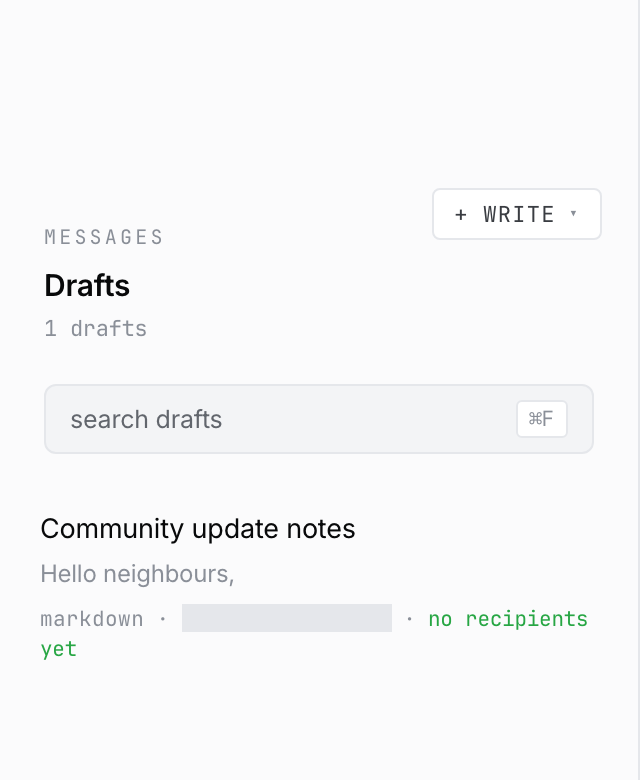 Product illustration with deterministic fictional content and a privacy-masked relative time: the Drafts list shows the editor mode and recipient state. Open the full-size image · Light-theme image · Dark-theme image.
Reuse a sent message
- Open Sent and select the message.
- Select Copy as draft.
- Groupmail opens a new draft with the subject, content, preheader, editor mode and message assets copied. An Advanced Email copy also retains its custom accent colour.
- Choose a sending account and recipients for the new send.
- Review, test and send it as a separate message.
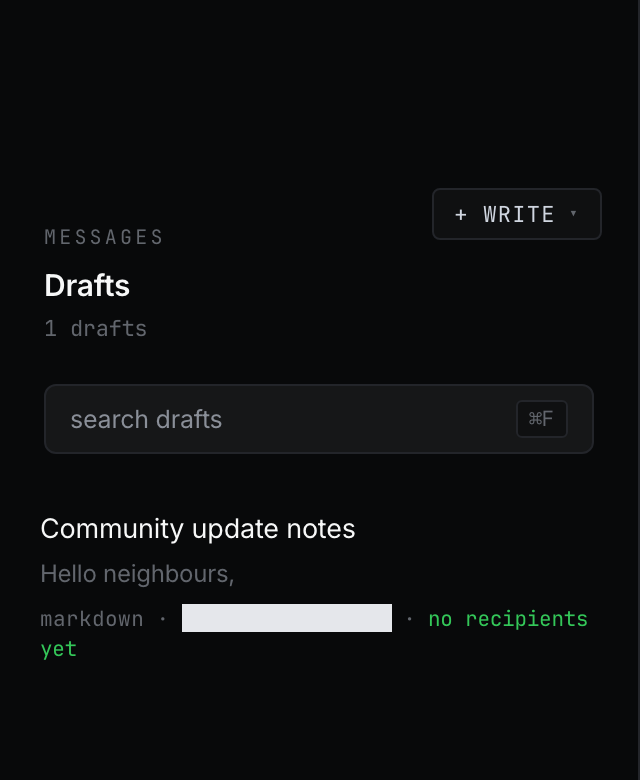
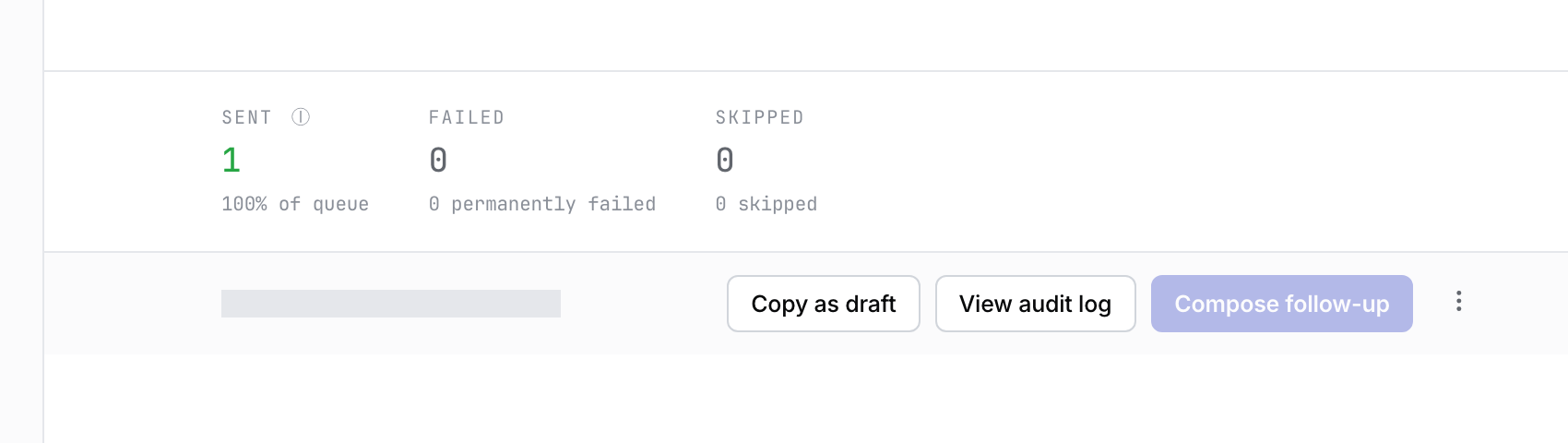 Product illustration from a deterministic fictional sent message: Copy as draft starts a separate draft. The relative send time is masked. Open the full-size image · Light-theme image · Dark-theme image.
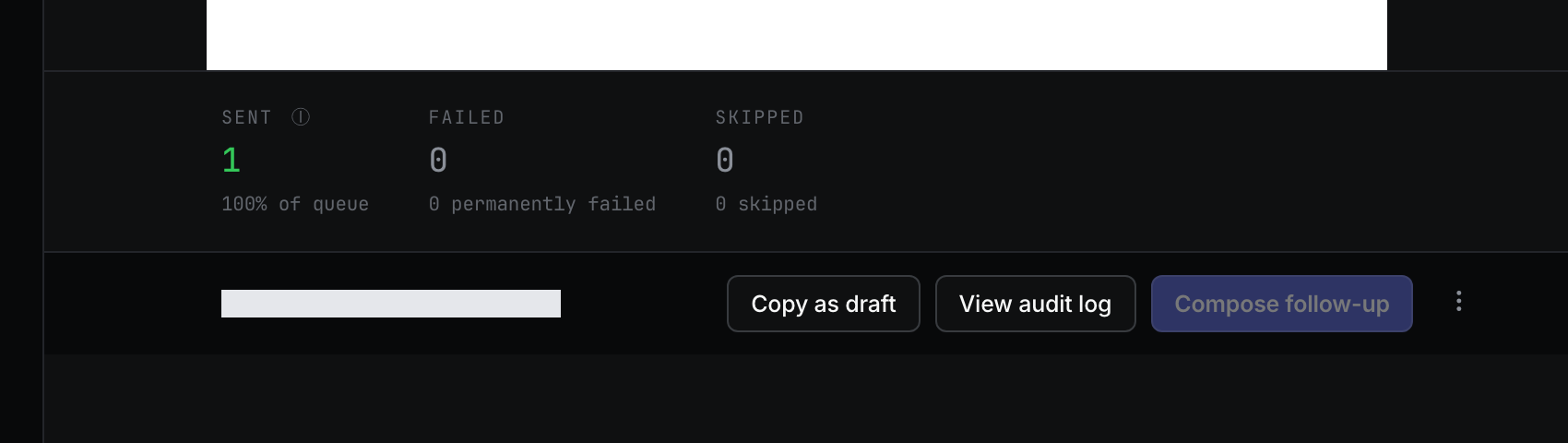
The new draft has its own saved content and style. Changing its accent does not change the sent message or other copies. Choose a preset to replace its custom colour, or keep the colour and edit the wording for your next mailing.
Recipient selections and previous delivery outcomes are deliberately not copied. This prevents an old audience from becoming a new send by accident.
For a Groupmail X email or a GroupMail 6 draft with a retained original, a copy made in 0.15.0 or later also keeps the imported editing and Restore imported version options. A copy made before 0.15.0 does not gain those options automatically; contact support if an older copy needs investigation.
Start with a bundled design
- Select Templates in the sidebar, or open the + Write menu and choose Start from template….
- On Start from a template, select a preview to inspect the complete email. The gallery has thirteen starters, including two-column newsletters and a picture-led Flyer.
- Select Use this starter.
- Edit the new Advanced Email draft, choose its audience and sending account, then run a test send.
In 0.16.0 and later, Flyer, Simple Editorial and Bulletin also let you choose the email’s width before you select Use this starter. See How to design your email.
Each use creates a separate draft; changing it does not alter the bundled starter. These are starting designs supplied with Groupmail, not a library of user-saved templates.
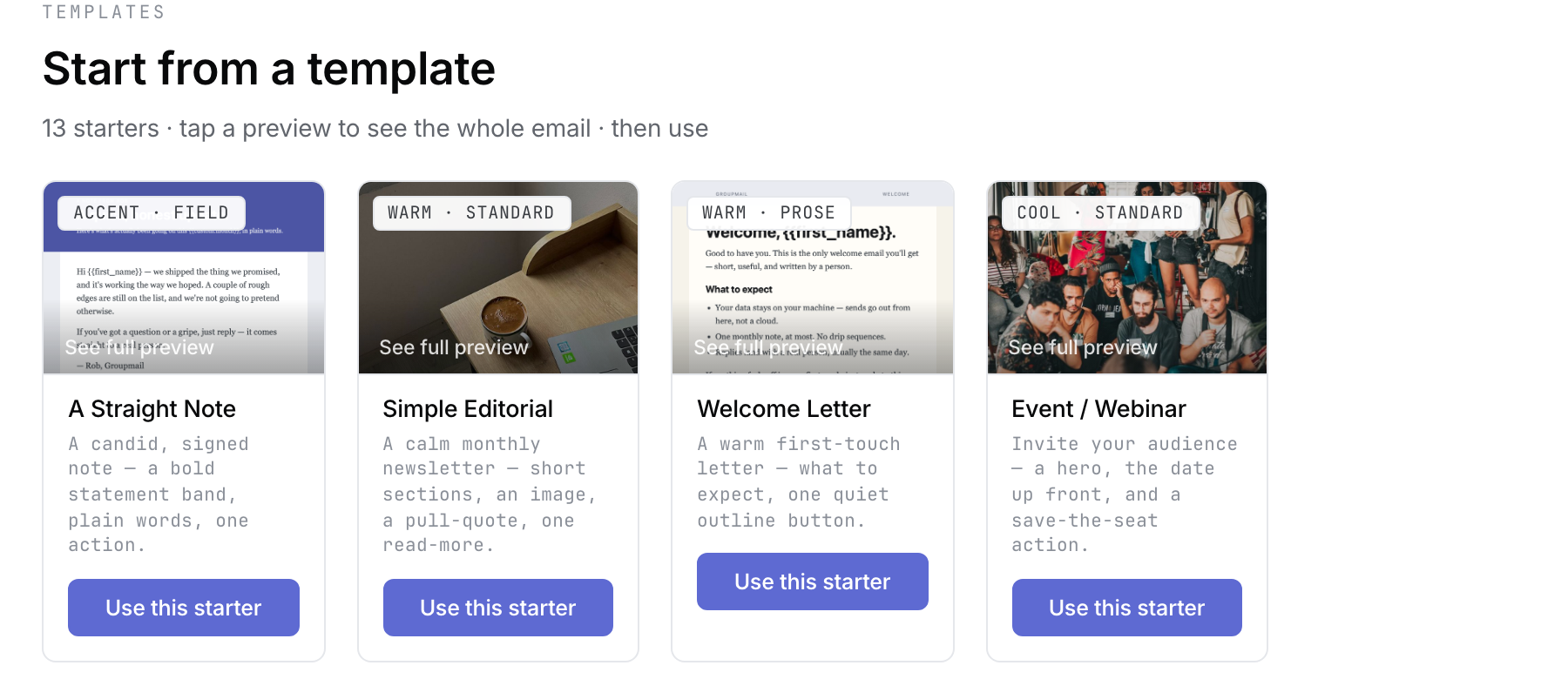 Product illustration from the current deterministic fixture: the gallery names thirteen starters and the first row shows the preview and Use this starter controls. Open the full-size image · Light-theme image · Dark-theme image.
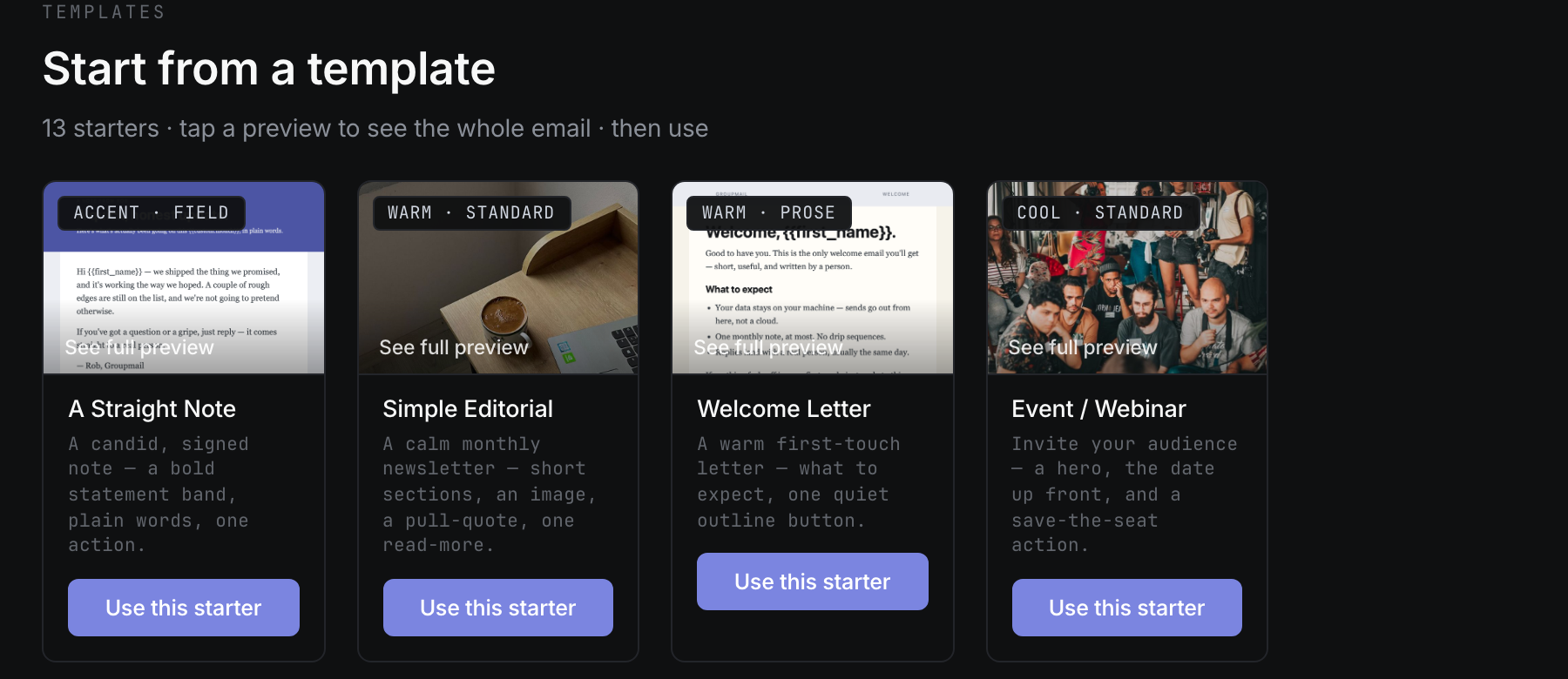
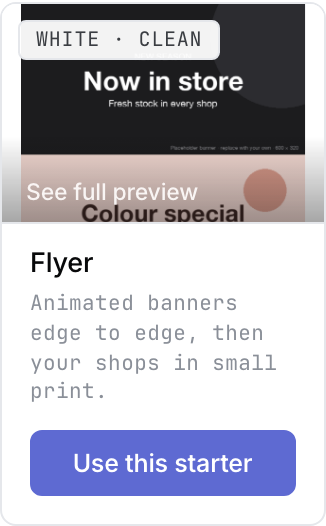 Product illustration from the same current gallery: Flyer is a picture-led starter with a full preview and a separate Use this starter action. Open the full-size image · Light-theme image · Dark-theme image.
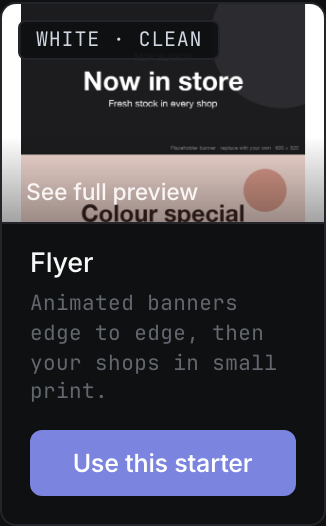
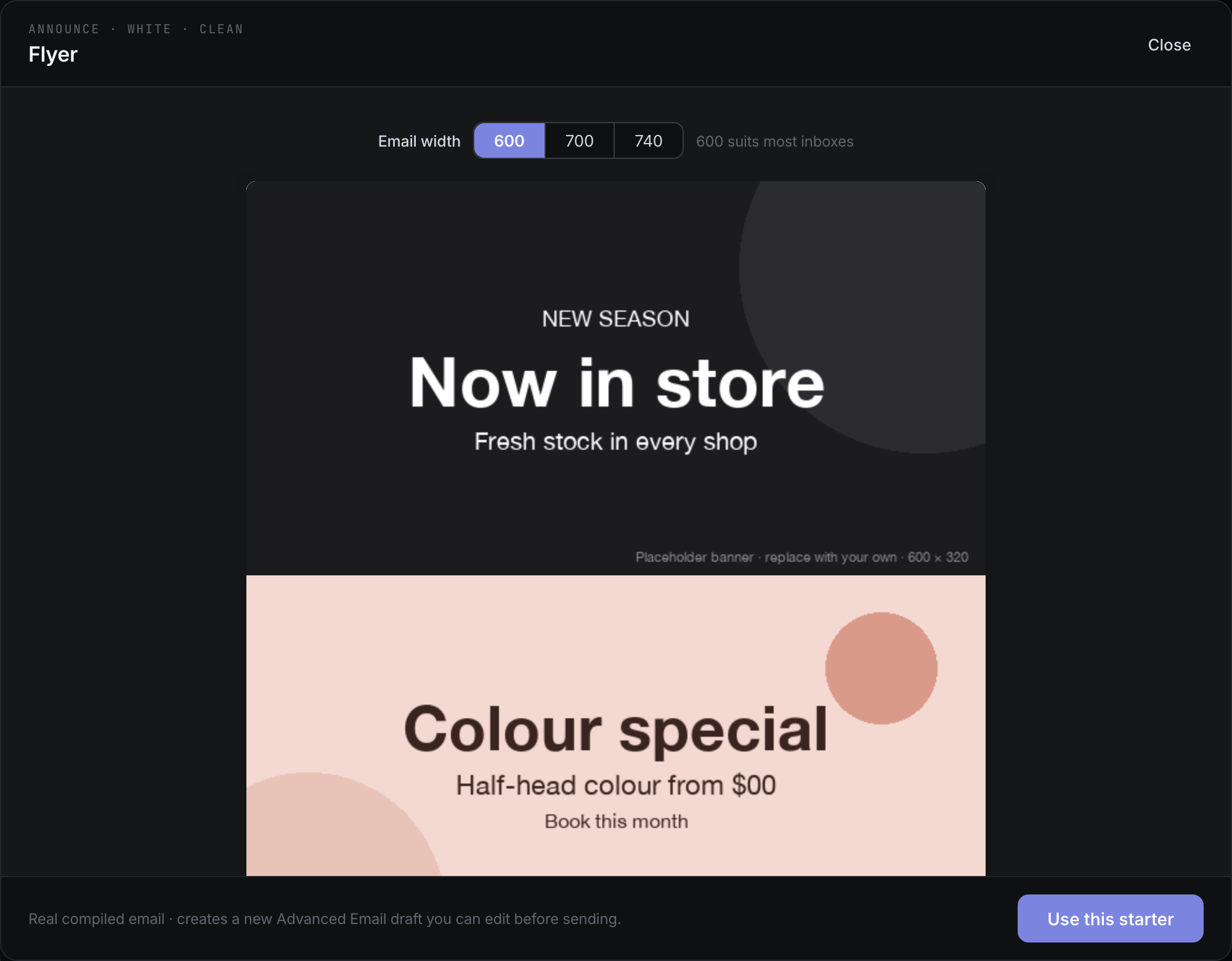
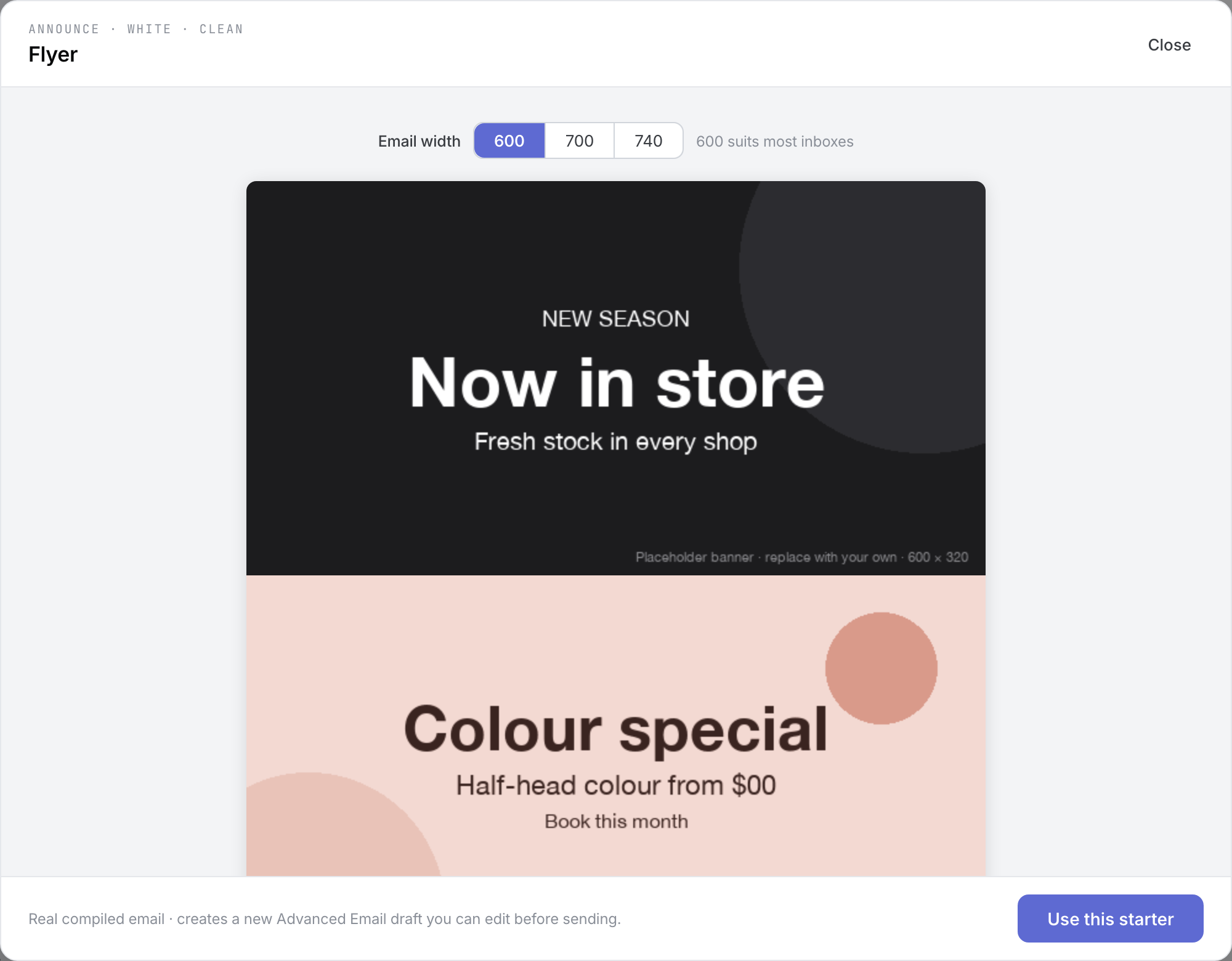 Product illustration from a deterministic fictional gallery: inspect the complete Flyer using the scrollable preview before choosing the starter. Open the full-size image · Light-theme image · Dark-theme image.
Know what is not available
Save as template and general saved-template management are not available in this release. You cannot save an arbitrary draft as a reusable personal template, edit a master template and update all copies, or convert imported GroupMail 6 templates into Groupmail templates.
To reuse your own previous content, keep a draft or use Copy as draft from Sent. GroupMail 6 drafts can be imported for review, but GroupMail 6 templates are detected only.
If reuse does not work as expected
- The new draft has no recipients: this is expected after Copy as draft. Choose the current audience yourself.
- A starter cannot be created: try again. A failed starter creation does not leave a usable half-built draft.
- An imported GM6 draft looks different: review it in the editor Groupmail opens for that draft. Use HTML Source only if Groupmail opened the draft there. Check any reported missing image, attachment, merge field or unsubscribe wording before sending.
- The latest edit was not saved: keep the draft open, retry Save now, and copy important on-screen text before leaving if Groupmail reports that saving still failed.
Related Docs
- How to write and personalize a message
- How to design your email
- How to review, test send and understand results
- How to import from GroupMail 6
Stuck? Contact Groupmail Support with your operating system and Groupmail 7 version. Never email a sign-in link or sign-in code.