On this page
How to import from GroupMail 6
Groupmail 7 brings across your GroupMail 6 groups, contacts, custom fields, exclusions, sending accounts and drafts. It finds GroupMail 6 on the same Windows PC, or you browse to the folder. You see the counts first and choose what to bring in. GroupMail 6 is only read, never changed.
Find your GroupMail 6 data
- Open Settings → Import from GroupMail 6. You can also choose Import from GroupMail 6 when you first start Groupmail 7.
- If Groupmail found GroupMail 6 on this PC, select it. Otherwise select Browse for a folder… and choose the GroupMail folder. To find it, type
%LOCALAPPDATA%\Infactain the folder box and press Enter. - Select Preview →.
If Groupmail says the folder doesn’t look like GroupMail 6, choose the folder that contains the Groups folder.
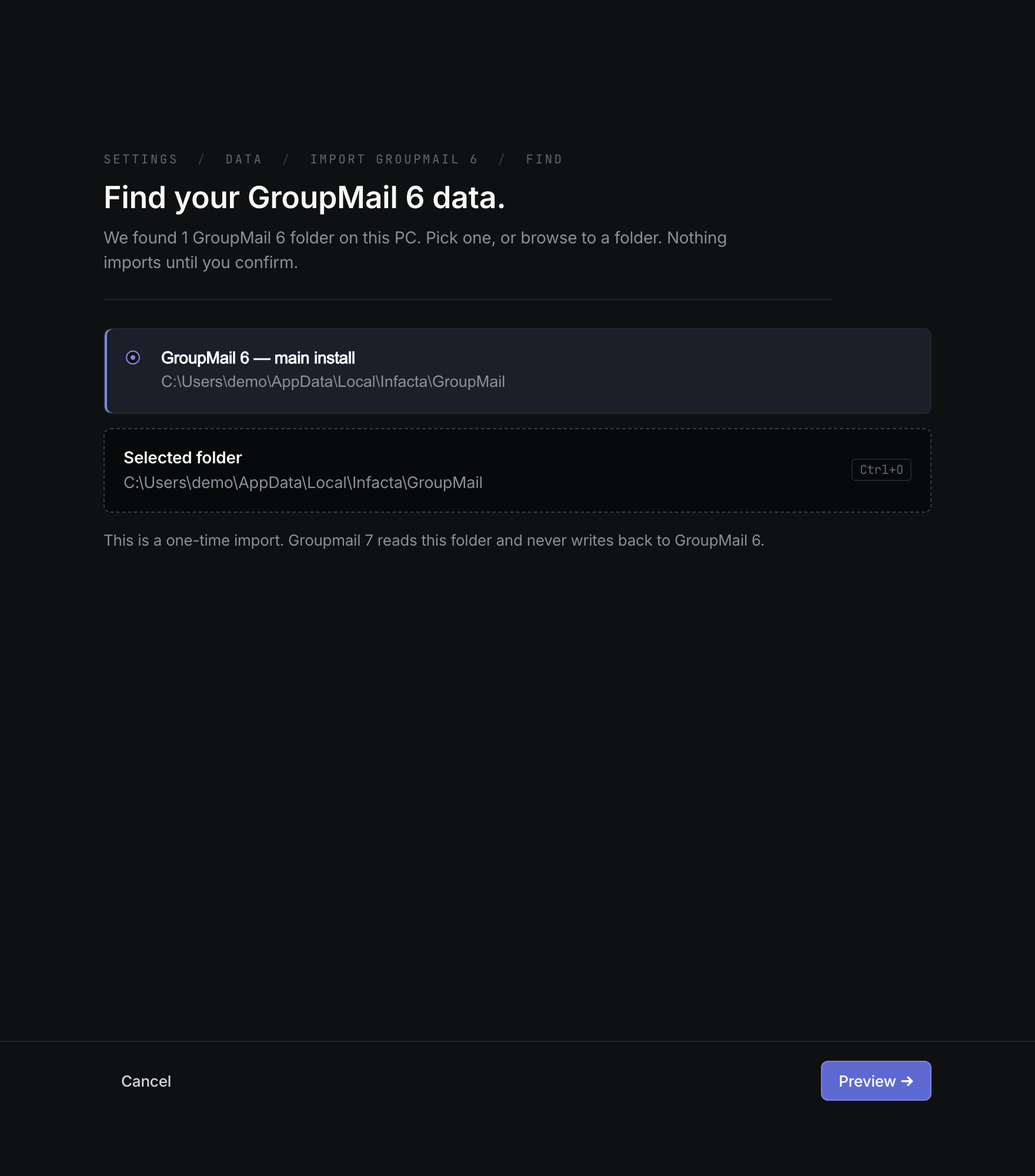
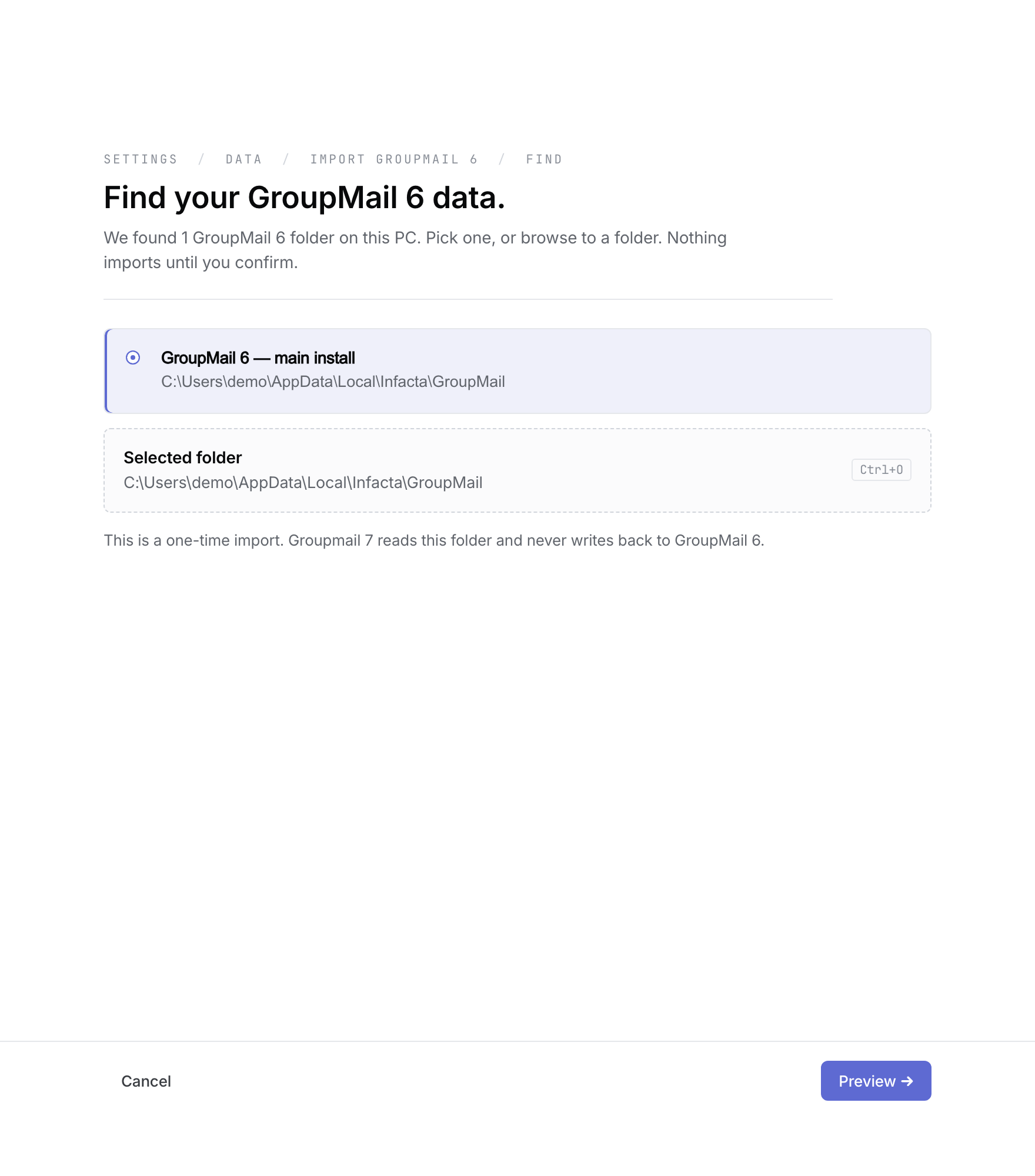 Pick the folder Groupmail found, or browse to another one. Open the full-size image · Light-theme image · Dark-theme image.
Moving to a Mac
GroupMail 6 is a Windows program, so copy its folder to the Mac first.
- On your Windows PC, close GroupMail 6.
- In File Explorer’s address bar, type
%LOCALAPPDATA%\Infactaand press Enter. - Copy the GroupMail folder to a USB stick or a cloud drive.
- On the Mac, copy the folder from there, then open Settings → Import from GroupMail 6 and select Browse for a folder… to choose it.
Check the preview
The preview shows what is in the folder: groups, contacts, duplicate email addresses, custom fields, drafts, sending accounts and exclusions. Nothing has been imported yet.
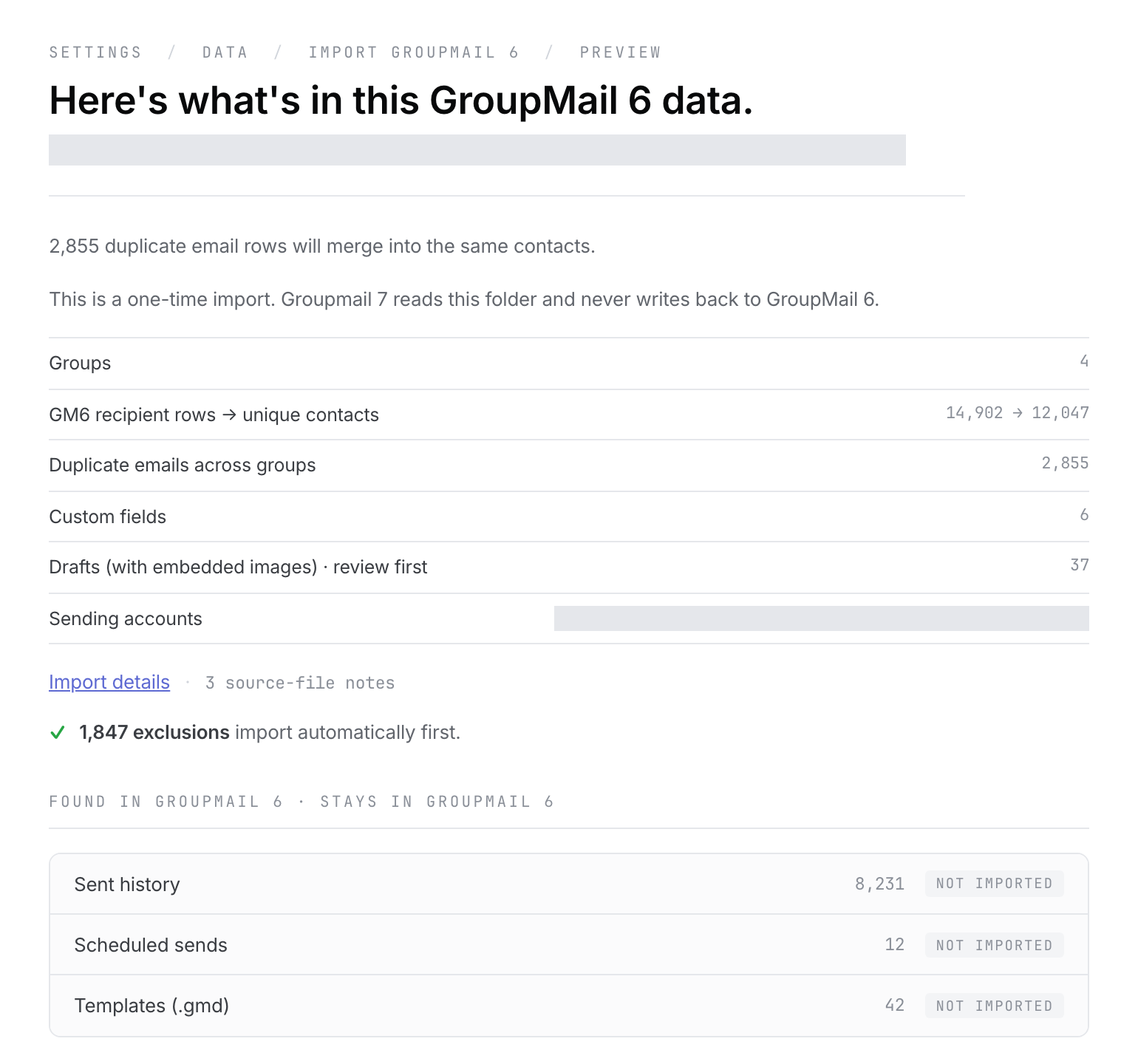 Check the counts before you choose anything. Open the full-size image · Light-theme image · Dark-theme image.
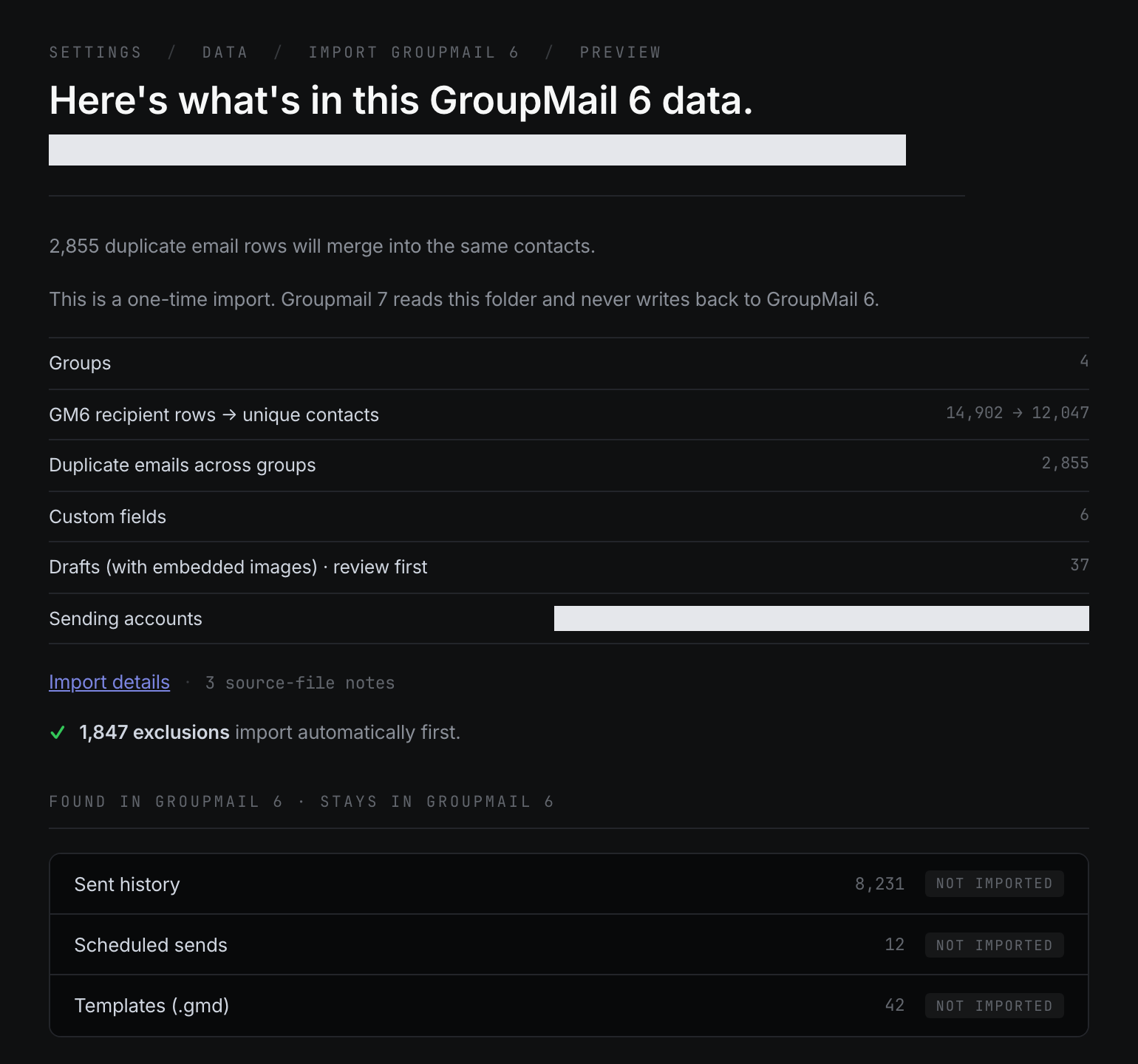
Templates, sent history and scheduled sends stay in GroupMail 6; the preview counts them so you know what is there. GroupMail Subscriber rules, automatic responses and workflows also stay in GroupMail 6; only the mailbox connection comes across (see Your Subscriber mailbox).
If Groupmail says the data looks damaged, it has stopped before writing anything. Try a fresh copy of the folder.
Choose what to bring in
- Select Choose what to import →.
- All groups, drafts and usable sending accounts are selected to start with. Select Change next to Groups & contacts, Sending accounts or Drafts to leave something out.
- Select Start import.
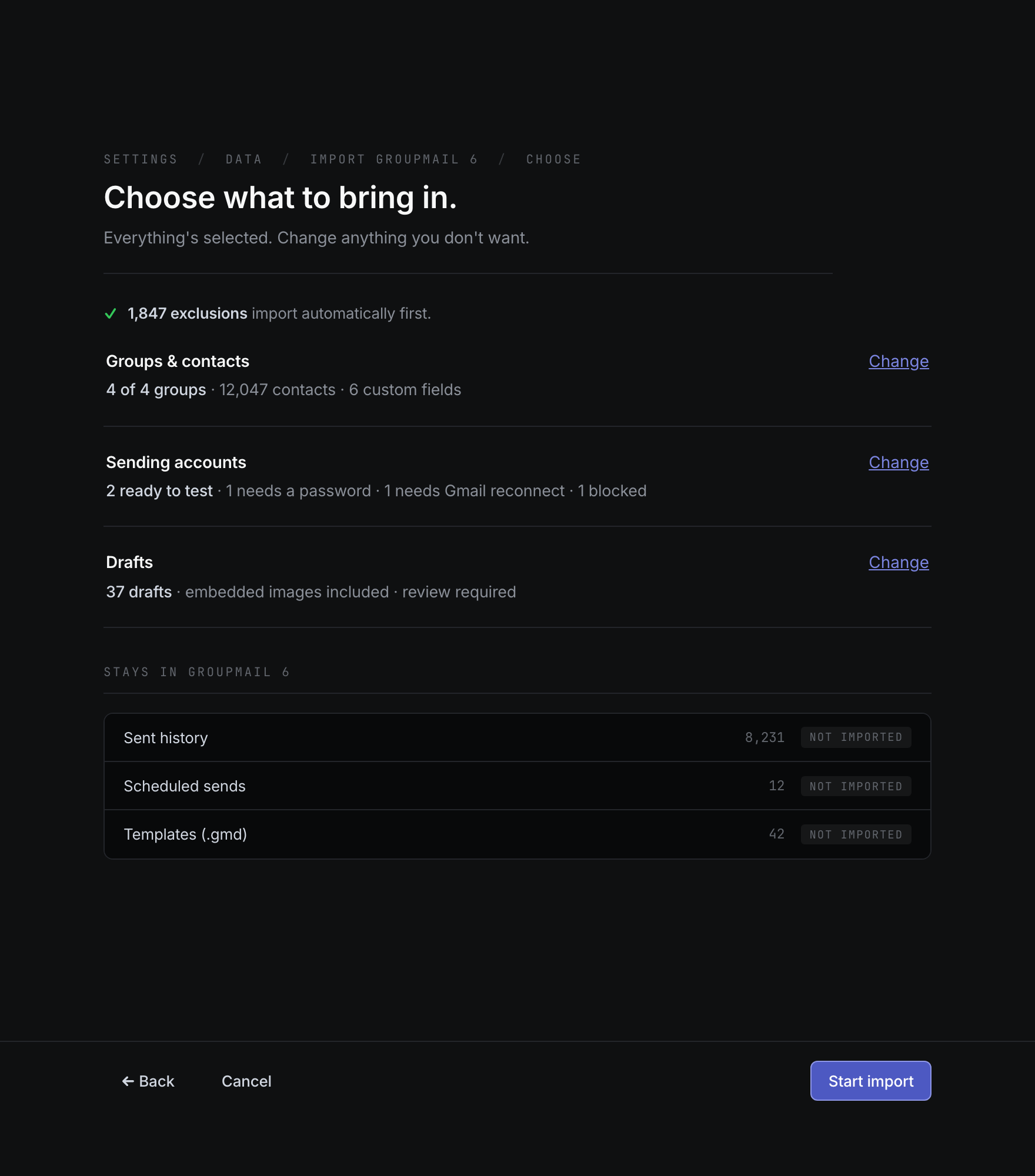
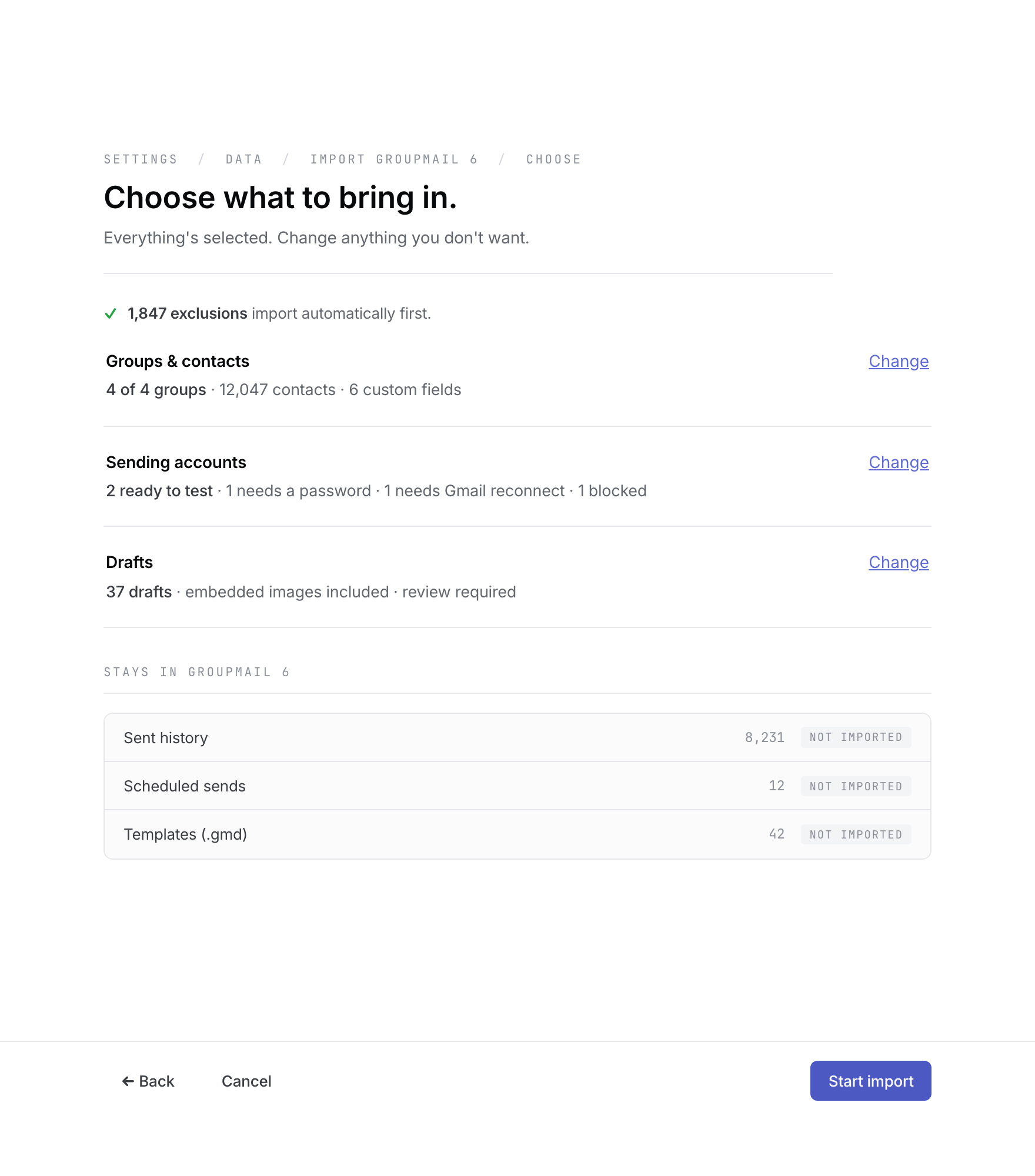 Groups, sending accounts and drafts are separate choices. Open the full-size image · Light-theme image · Dark-theme image.
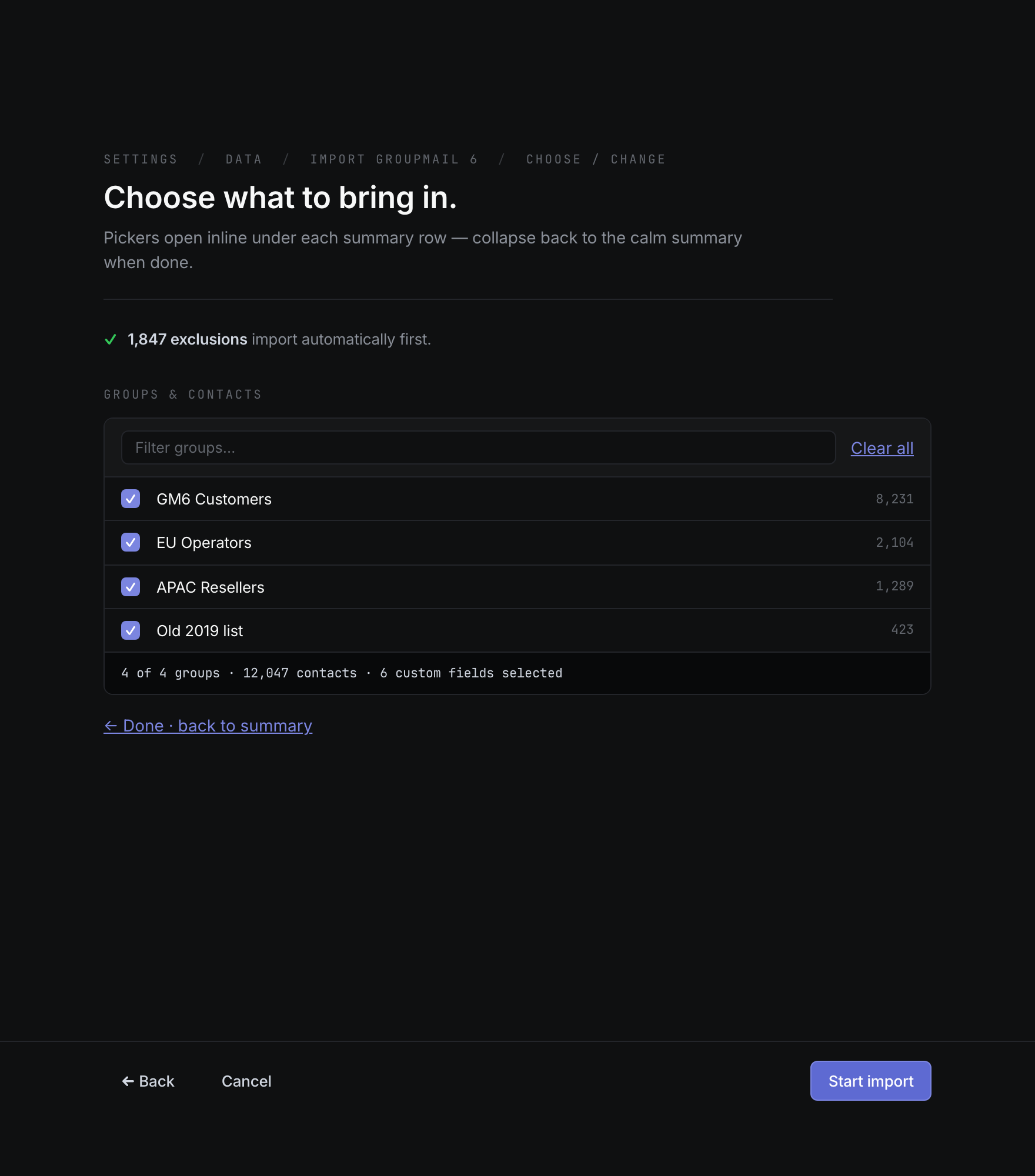
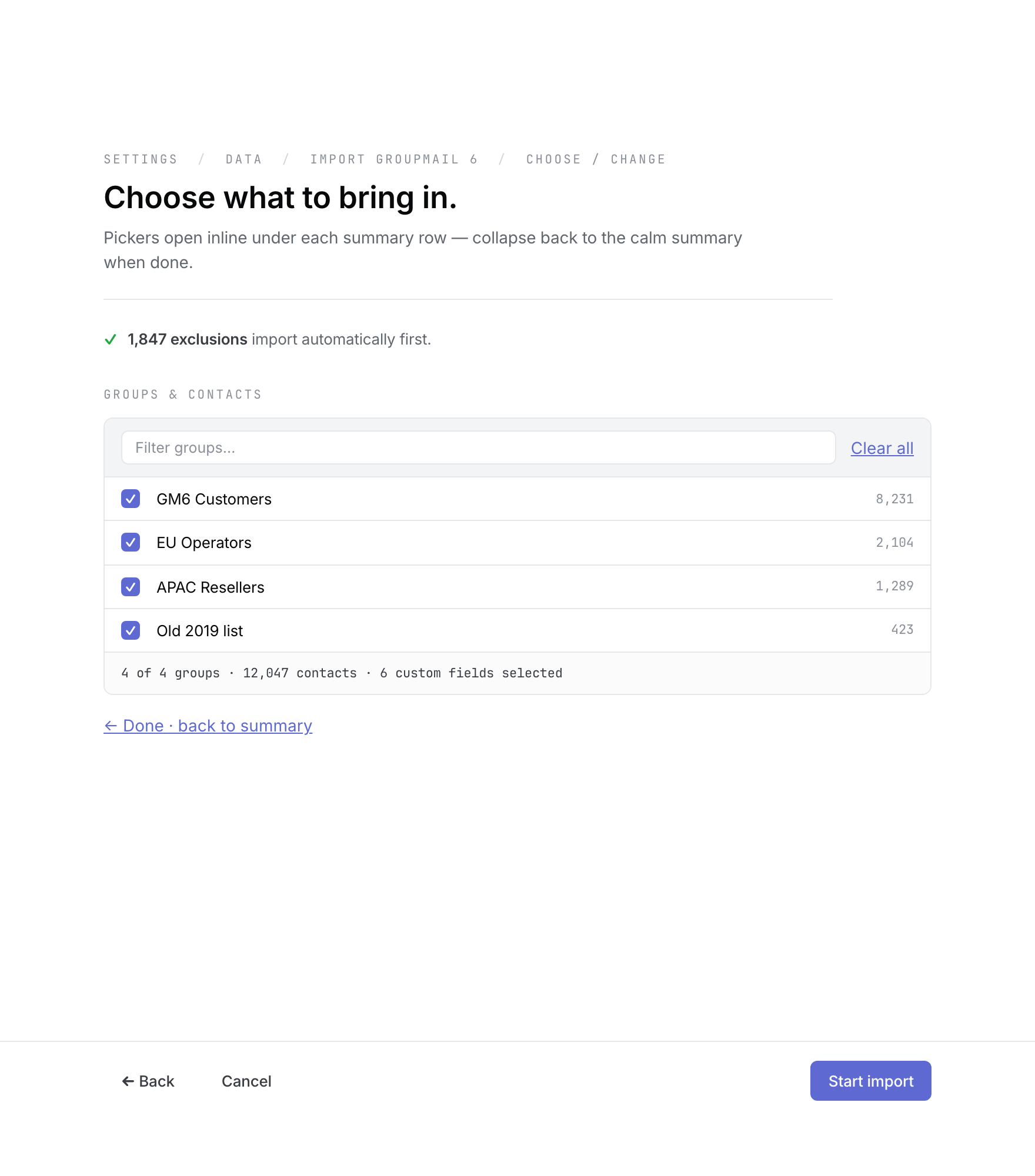 Untick any group you don’t want. Open the full-size image · Light-theme image · Dark-theme image.
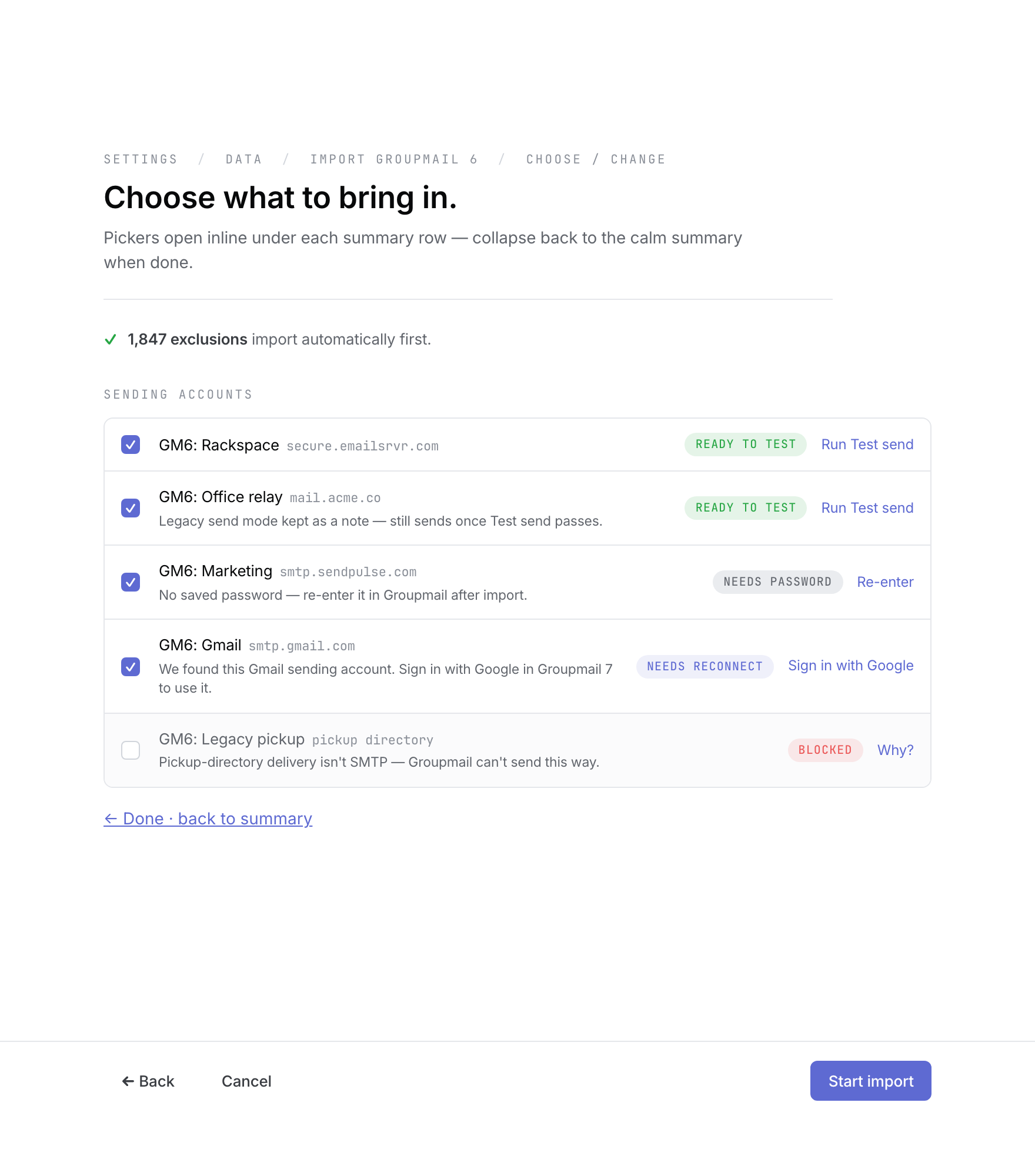 Each account shows what it needs next. Open the full-size image · Light-theme image · Dark-theme image.
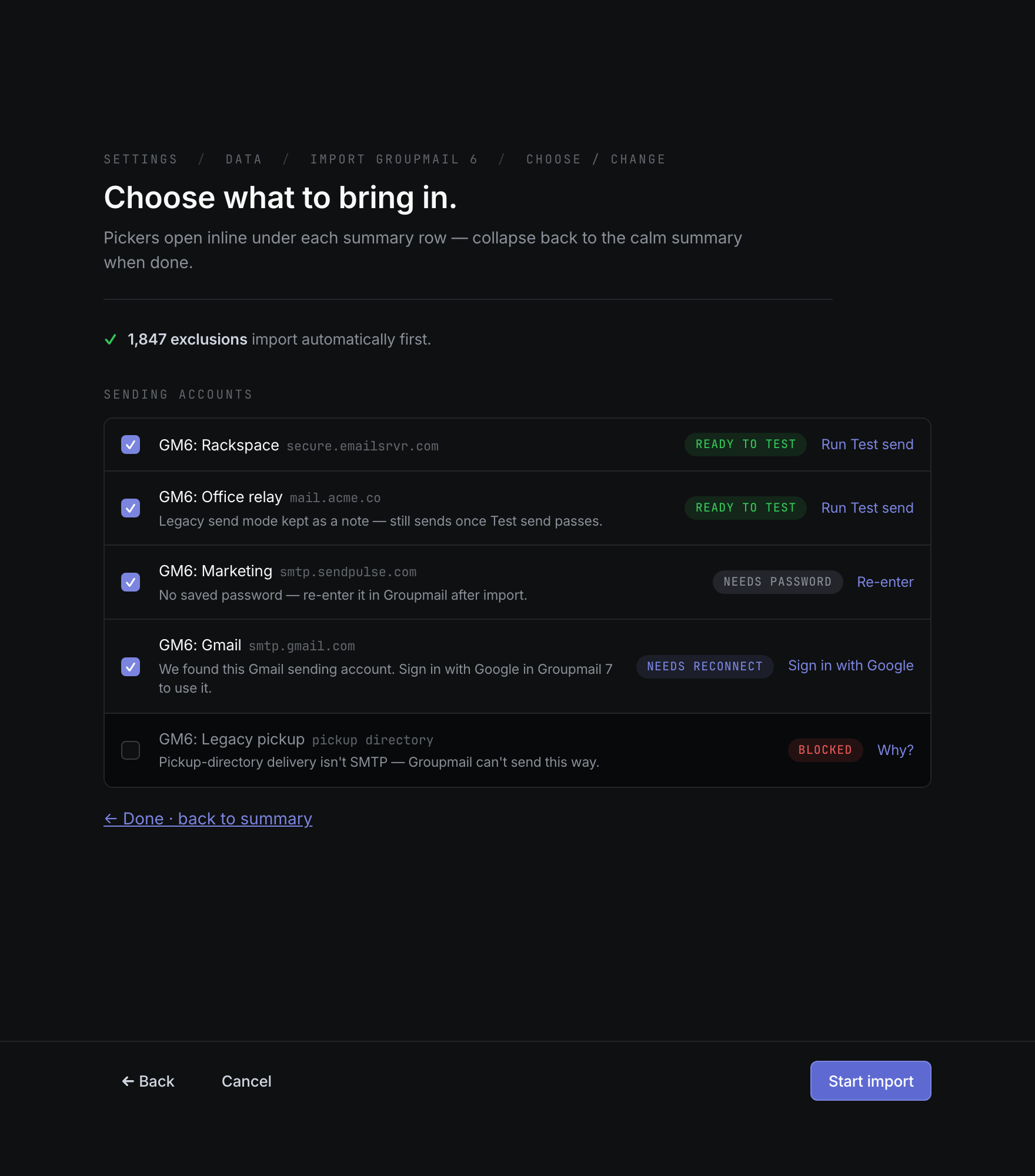
A blocked account uses a setting Groupmail 7 can’t send with, such as an old sign-in method. It isn’t selected and isn’t imported. Its reason is shown under its name, next to Why?. Add that account again in Settings → Sending accounts after the import.
Exclusions always import, and they import first. An exclusion for one group stays with that group. If you leave that group out, its exclusions apply to all your groups instead.
What comes across
- Contacts and groups. Contacts are matched by email address, so someone in several groups becomes one contact who belongs to each of those groups.
- Linked (database) groups. If a group was linked to a spreadsheet or database, the contacts GroupMail 6 had saved in that group come across. The live link isn’t reconnected. Live database linking is coming later.
- Drafts. Drafts come in as Groupmail drafts with their embedded images. They are never sent automatically. Review each one before sending.
- Merge tags. Most GroupMail 6 merge tags become Groupmail fields such as
{{first_name}}. Any tag that can’t be matched to a field stays as it was and is flagged, so you can fix it before sending.
Let the import finish
- Wait for Import completed., or select Continue in background and keep working. Once started, the import runs to the end.
- Review the totals.
- If something needs attention, select Import details. Select Save the problem report to keep a full list on your computer. It can include email addresses from your own data, so treat it with care.
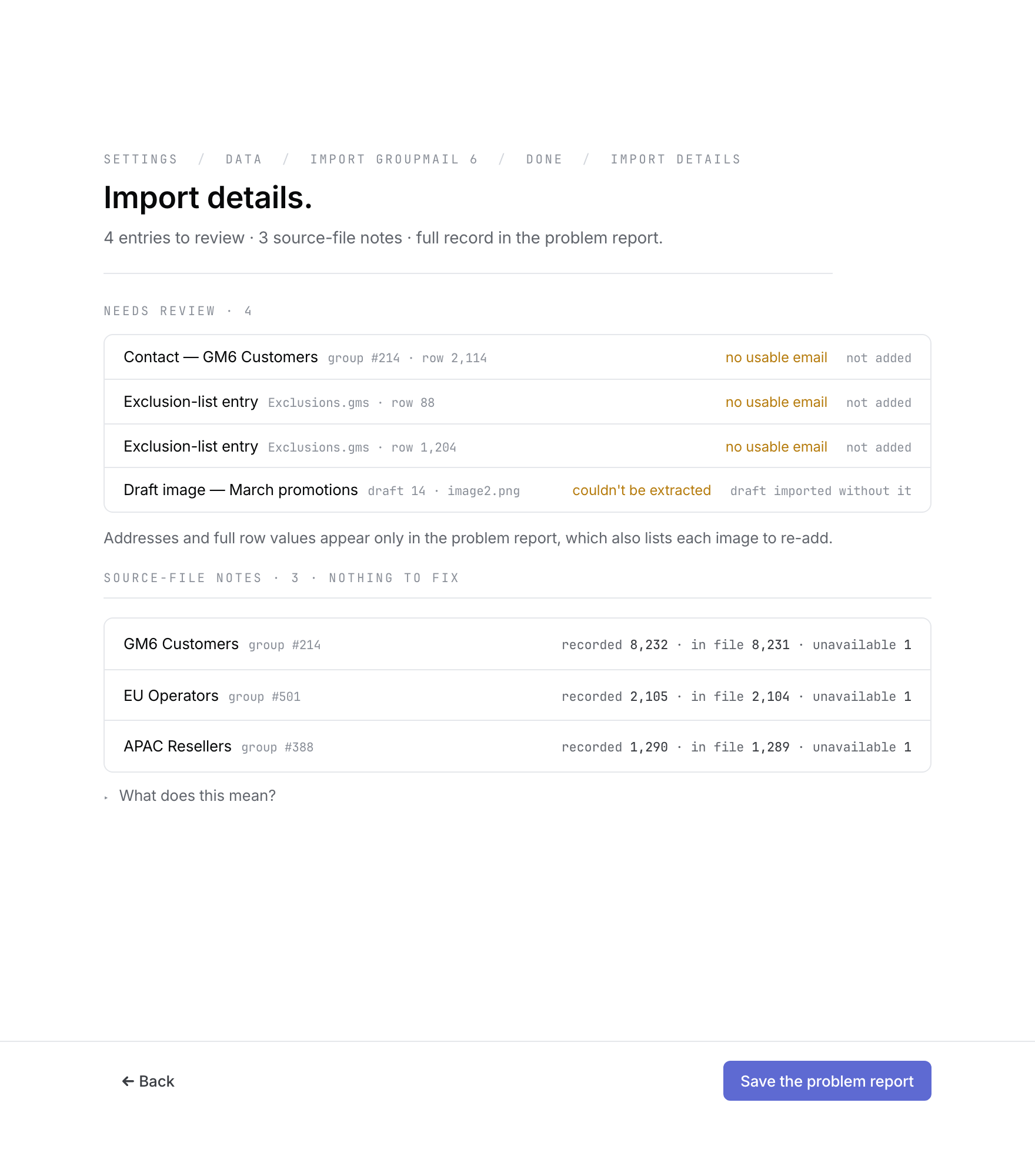 Import details lists anything that needs a look. Open the full-size image · Light-theme image · Dark-theme image.
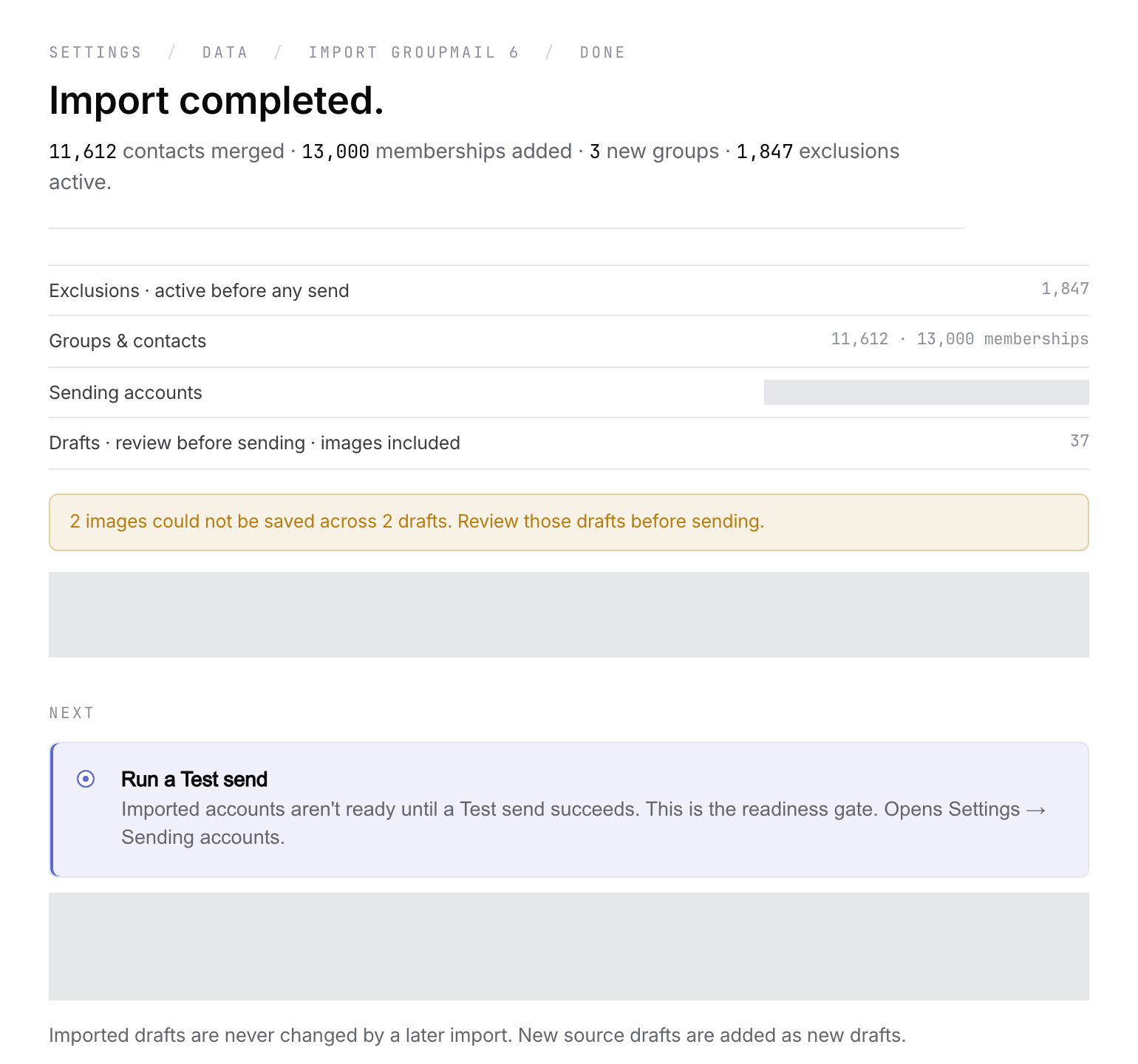 When the import finishes, test your sending accounts next. Open the full-size image · Light-theme image · Dark-theme image.
Test your sending accounts
Imported sending accounts keep their server settings. Saved passwords come across and are kept in your computer’s secure password store. GroupMail 6 is not changed.
- Select Run Test send and run a Test send on each imported account. An account isn’t ready to send until its Test send succeeds.
- If an account asks for its password, enter it again.
- A Gmail account that used Google sign-in in GroupMail 6 needs you to select Sign in with Google.
- If a Microsoft (Outlook, Hotmail or Microsoft 365) account’s Test send fails, add it again in Settings → Sending accounts and choose Microsoft. See How to set up a sending account.
Your Subscriber mailbox
If GroupMail 6 checked a mailbox for bounces and unsubscribes (with GroupMail Subscriber, or a sending account’s incoming mailbox), Groupmail tries to connect it to Inbox. It uses the saved address and password and finds the secure incoming server for that address. It connects only when an imported or existing Groupmail 7 account that uses your own mail server or SMTP2Go sends from that same address. Gmail and Microsoft mailboxes can’t be checked.
Checking starts from the connection; older mail is not imported into Inbox. For an account on your own mail server, Inbox then handles matching bounces and “Unsubscribe” requests for emails sent from Groupmail 7 by adding the address to your suppression list for all groups. For an SMTP2Go account, the connected mailbox adds replies only; SMTP2Go still handles bounces and unsubscribes. Subscriber rules, automatic responses and per-group opt-outs aren’t carried over.
- If Inbox says Can’t sign in, select Fix and enter the mailbox password. Check the incoming server settings if needed.
- If the mailbox isn’t connected, for example because the original GroupMail 6 folder is no longer available, connect it from Inbox instead.
- If you imported with 0.22.0 or earlier, Groupmail tries to connect the mailbox after upgrading when that import saved the mailbox details and the original GroupMail 6 folder is still in the same place. You don’t need to import again; if it isn’t connected, connect it from Inbox.
- Importing the same folder again keeps an existing mailbox connection, including a stopped one, and doesn’t restart its mailbox history.
Import again
You can run the import again at any time. Groupmail shows the date you last imported that folder.
- Contacts that match by email address aren’t duplicated. Their names in Groupmail 7 are kept, and their custom fields are refreshed from GroupMail 6. Contacts you deleted in Groupmail 7 are not brought back.
- Drafts you already imported are left alone, so your edits are kept. New GroupMail 6 drafts are added.
- GroupMail 6 is still only read.
Related Docs
- How to set up a sending account
- How to use Inbox for replies, bounces and unsubscribes
- How to reuse drafts and starting designs
Stuck? Contact Groupmail Support with your operating system and Groupmail 7 version. Never email a sign-in link or sign-in code.