On this page
How to download and install Groupmail 7
To try Groupmail 7, download it free from groupmail7.com and start a 30-day trial in the app with your email. If you already have a licence, download it from your signed-in account portal, which offers the newest installer your account and operating system are eligible to use. Only download Groupmail 7 from these two places.
Before you begin
- Use an Apple-silicon Mac running macOS 11 or later, or a Windows computer. Phones and tablets do not show installer buttons or start a trial.
- If GroupMail 6 is installed, leave it in place. Groupmail 7 installs separately and uses GM6 only as an import source.
- Before installing over an existing Groupmail 7 version, pause any active send and wait until no recipient is actively sending.
Download the free trial
- On your Mac or Windows computer, go to groupmail7.com.
- Select Download free trial. The download page opens, and the installer for your computer should start downloading. If it doesn’t, select Download again; Need it for Windows? or Need it for Mac? gets the other one. On a phone, the page helps you send the link to your computer.
- Install Groupmail 7 as described below, open it and enter your email on the welcome screen. Your trial starts when you enter the code Groupmail emails you. No card is needed.
The trial is the full app for 30 days. There is one free trial per email address and one per computer. See Free trial for what happens when it ends.
Download from your account
- Sign in to the Groupmail 7 portal.
- Select Download for macOS or Download for Windows. If your account is eligible to start a trial, this same action starts your free 30-day trial and begins the download. No card is required.
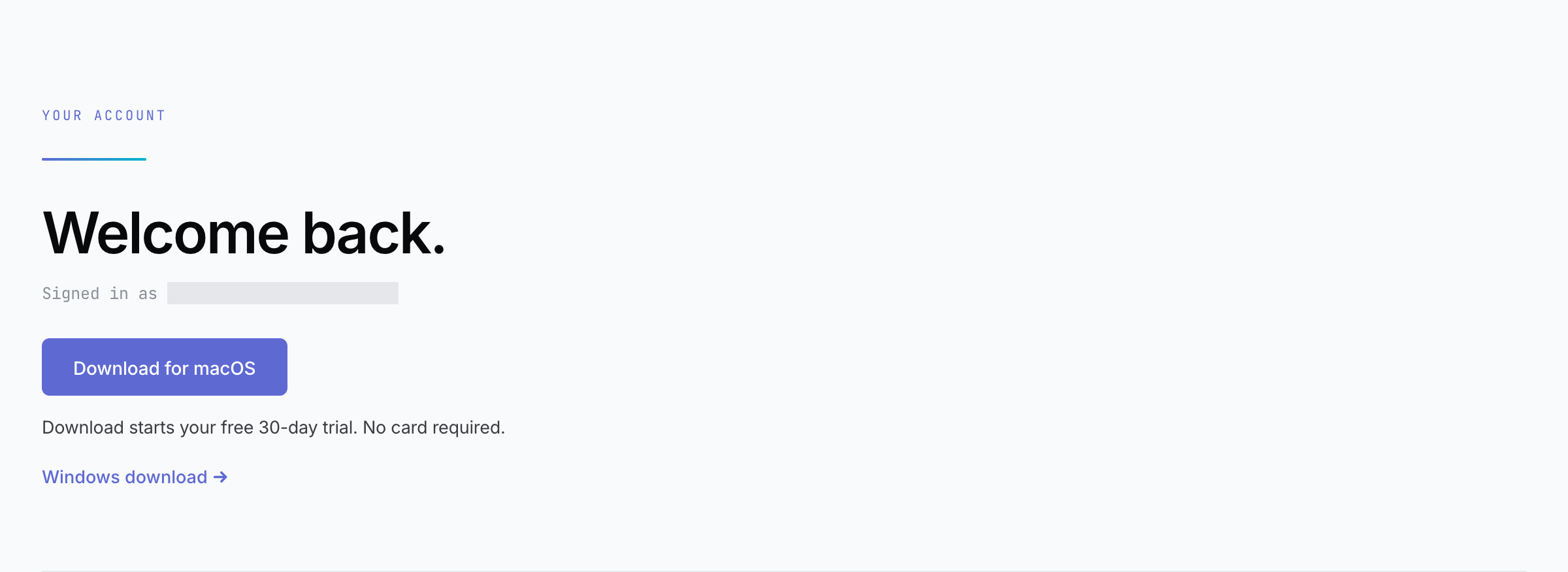
Illustration from the current portal source using a fictional account before its trial. Download starts the trial and installer handoff; purchase controls are omitted. Open the full-size image
- If the other operating system is available, use the secondary platform link below the main download button. On an unrecognised desktop, the portal shows both choices.
- Wait for the download to finish before opening the file. If the trial starts but the download does not begin, use Try download for macOS again or Try download for Windows again; the trial is already active and is not restarted.
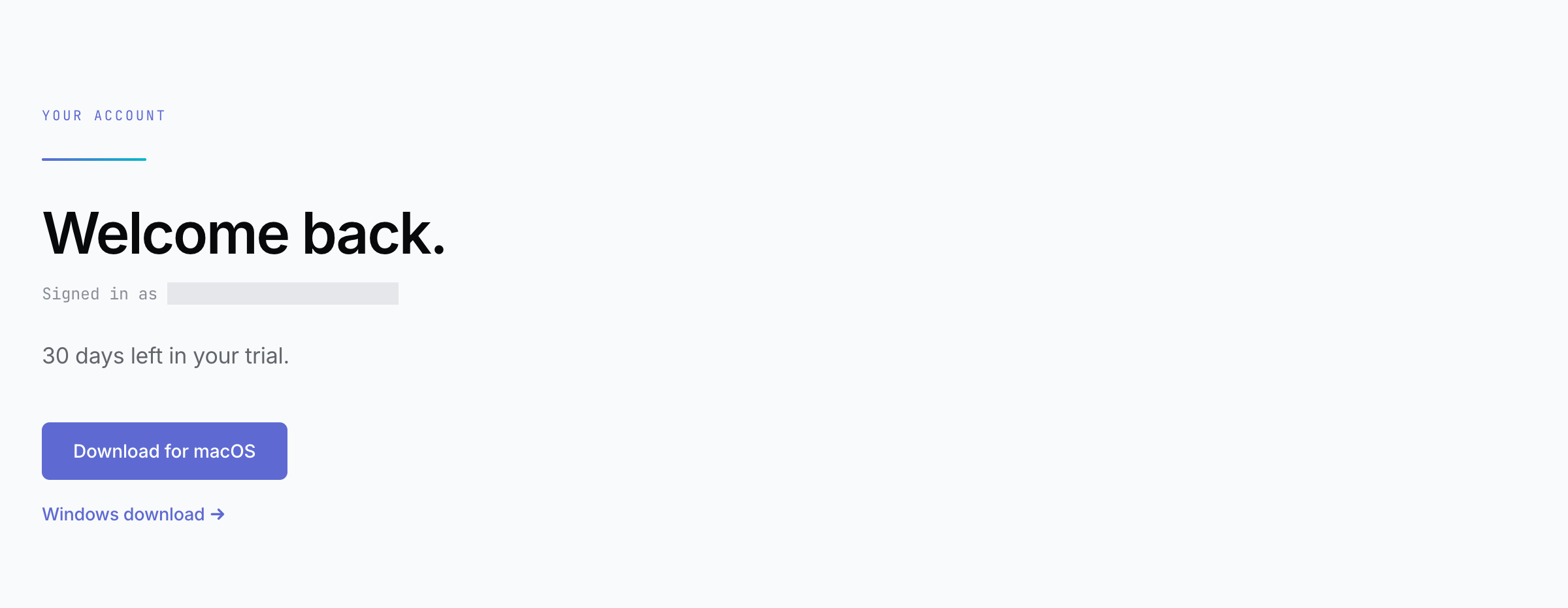
Illustration from the current portal source using a fictional trial at day one. Your portal shows your actual days remaining; purchase controls are omitted. Open the full-size image
The macOS download is the signed and notarised Apple-silicon DMG. The ordinary Windows download is the signed NSIS installer. The MSI is reserved for enterprise or support-assisted installation and is not the ordinary customer download.
Download links are time-limited. If an old link no longer works, return to the portal and request a fresh download.
Install on macOS
- Open the downloaded signed and notarized Groupmail 7 disk image.
- Move Groupmail 7 to Applications when prompted.
- Open Groupmail 7 from Applications.
- On first launch, the welcome screen asks for your email. Enter it and the code Groupmail emails you. A new email starts your free 30-day trial; an email with a licence signs in to that licence.
Do not bypass macOS security warnings for an unsigned or unidentified copy. Contact support if the official installer does not pass the normal macOS verification.
Install on Windows
- Open the downloaded signed Groupmail 7 installer.
- If a blue Windows protected your PC box appears, select More info and check that Publisher says Groupmail Ltd. If it does, select Run anyway. If it shows anyone else, or Unknown publisher, select Don’t run and contact [email protected].
- Follow the installer prompts.
- Launch Groupmail 7 from the Start menu.
- On first launch, the welcome screen asks for your email. Enter it and the code Groupmail emails you. A new email starts your free 30-day trial; an email with a licence signs in to that licence.
Groupmail 7 is installed separately from GroupMail 6 and must not overwrite the GM6 program or data folders.
Verify the installation
Open Groupmail 7 and confirm that the main window appears. Then open Settings → Account to check the signed-in account and machine activation state.
Troubleshooting
- No download is shown on a phone or tablet: sign in on the Mac or Windows computer where you want to install Groupmail 7.
- No download is shown on a computer: refresh the portal. If your detected platform says its installer is not available yet, use the other-platform link only for another compatible computer or contact support.
- Your trial started but the download did not begin: use the displayed Try download action. Your trial remains active.
- The download link expired: download again from groupmail7.com or the portal.
- “Too many download requests”: wait a minute and try again.
- Your platform is not offered: that build may not be available for your account yet. Do not use another customer’s installer link.
- Windows shows “Windows protected your PC”: this can appear for a new release. Select More info; if Publisher says Groupmail Ltd, select Run anyway.
- The installer is blocked, appears unsigned, or names another publisher: stop and contact [email protected]. Do not disable operating-system security checks.
Related Docs
- How to activate Groupmail 7 and manage your computers
- How to update Groupmail 7 or recover from a failed update
Stuck? Contact Groupmail Support with your operating system and Groupmail 7 version. Never email a sign-in link or sign-in code.