On this page
How to create and manage a group
A group is a set of people you write to together. Create one from the Groups area, add contacts by CSV, paste or direct entry, and archive it when you no longer need it in the active list.
Create a group
- Open Groups from the sidebar.
- Select + Add group in the All groups pane. You can also select the + beside Groups in the sidebar.
- Enter a name in New group.
- Select Create group.
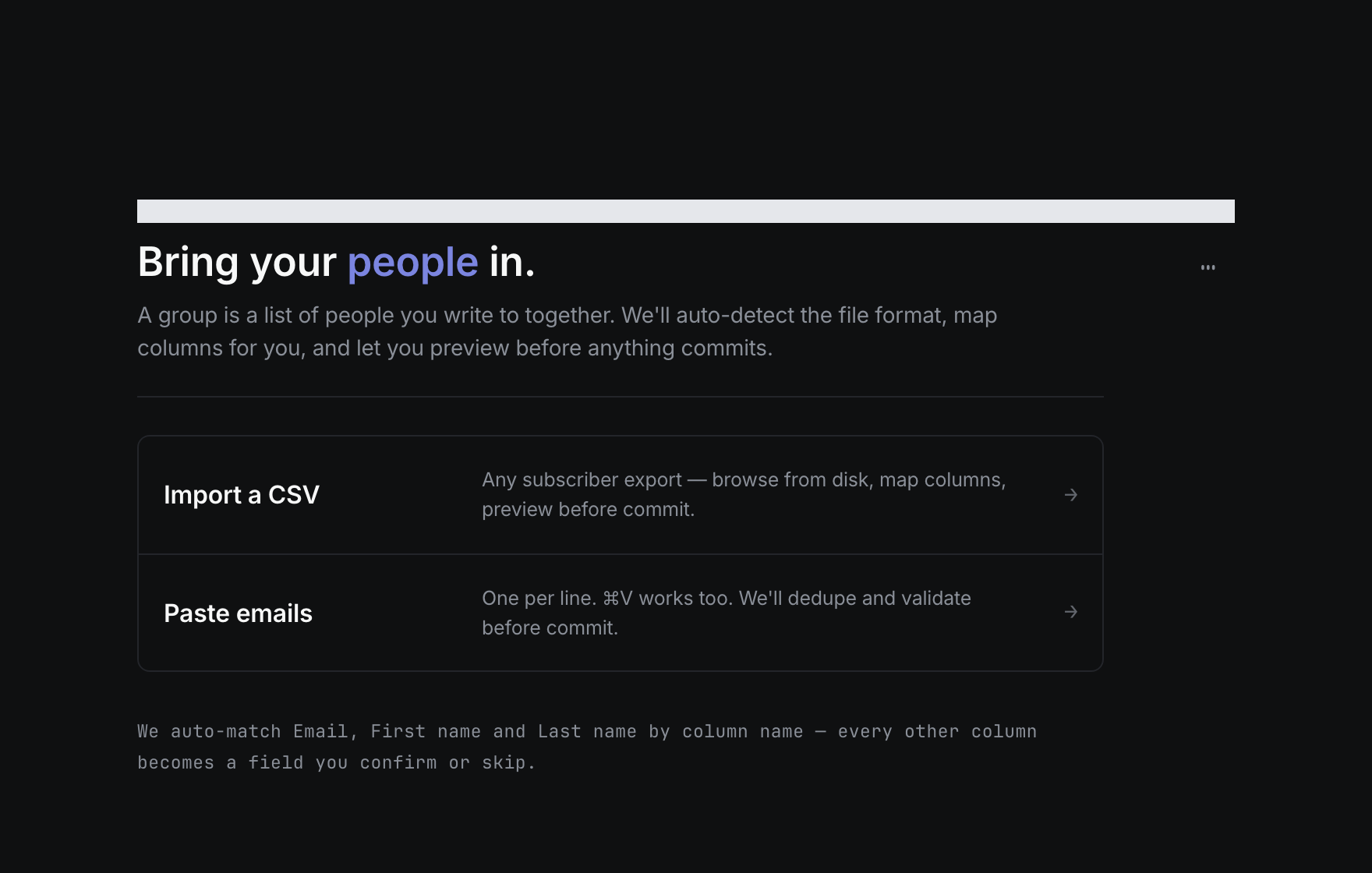
Groupmail opens the new group. An empty group shows Bring your people in. with actions to Import a CSV or Paste emails.
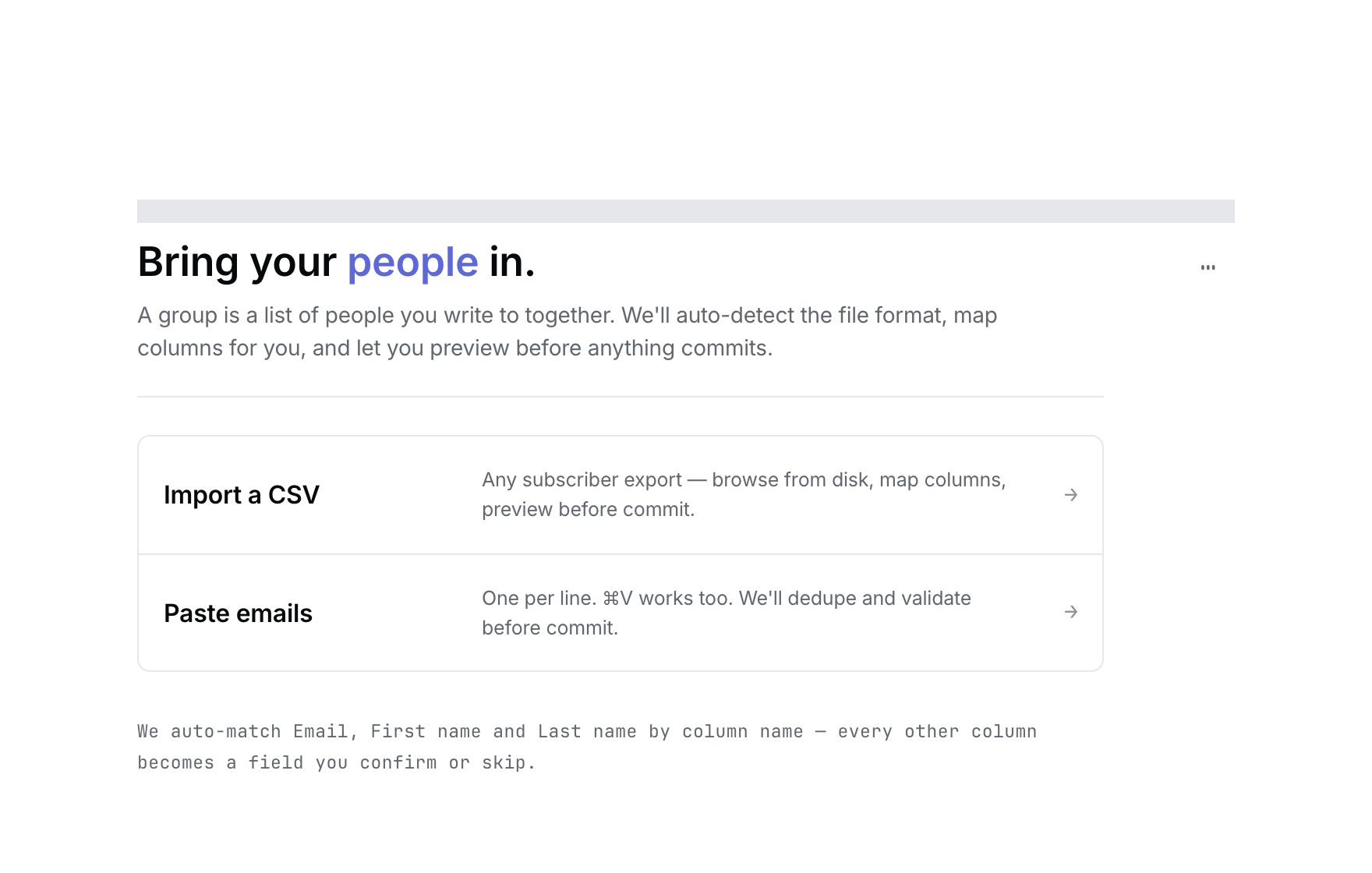 Product illustration with deterministic fictional data: a newly created group and its two import choices. Open the full-size image · Light-theme image · Dark-theme image.
Add people to the group
- Open the group.
- For a spreadsheet export, select Import a CSV in an empty group or CSV file under Import in a populated group.
- To enter addresses directly, select Paste emails. To add one person to a populated group, select + Add one contact.
- Review the result before you send.
A contact can belong to more than one group. Adding an email that already exists updates that contact according to Groupmail’s import rules and adds the group membership; it does not create a separate copy for each group.
Rename a group
- Open the group and select More actions (…).
- Select Rename group.
- Enter the new name and confirm it. In a populated group, you can also finish the inline rename by pressing Enter or moving focus away.
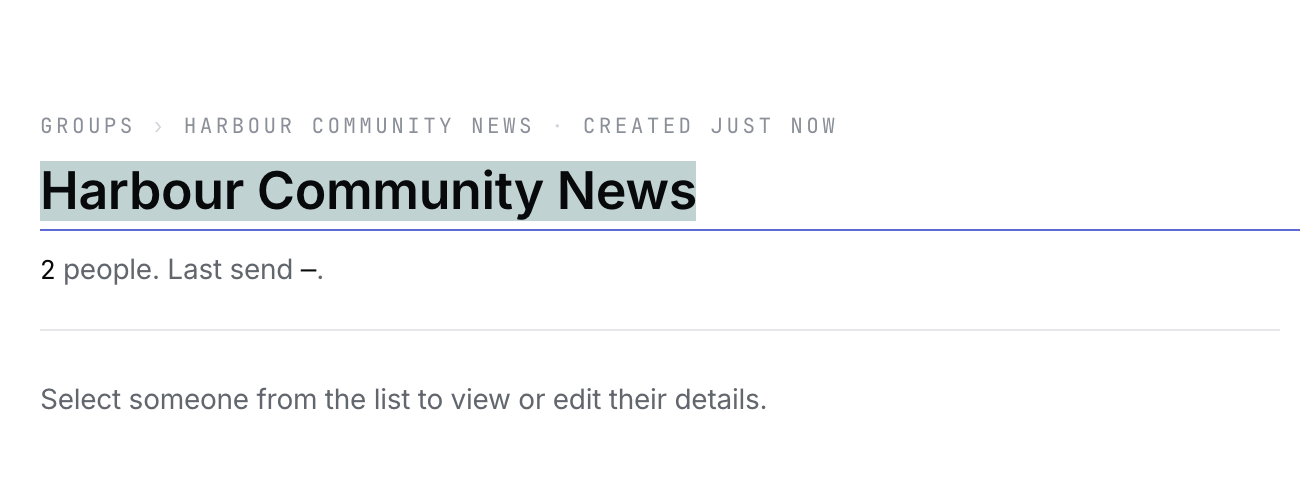 Product illustration with deterministic fictional state: rename the group from its title field. Open the full-size image · Light-theme image · Dark-theme image.

Renaming a group does not change its contacts or sent history.
Archive or restore a group
- Open the group’s More actions menu and select Archive group.
- To find it later, open Groups, then select Show archived.
- Open the archived group, select More actions, then select Unarchive.
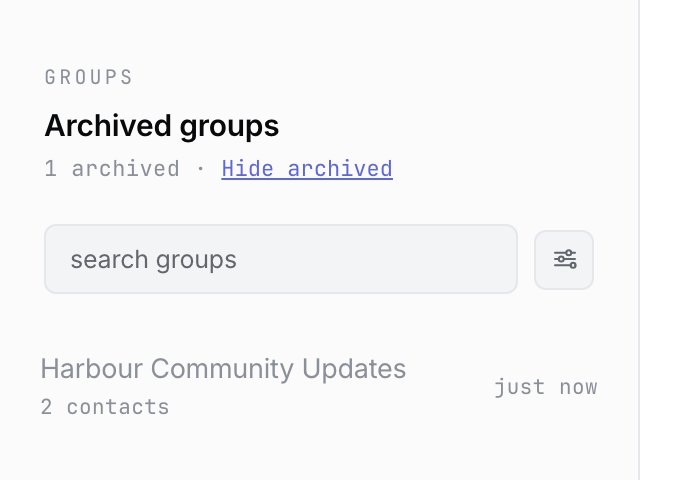 Product illustration with deterministic fictional state: Show archived reveals a group that can be restored. Open the full-size image · Light-theme image · Dark-theme image.

An archived group cannot be used for a new send or import until it is restored.
Delete a group
- Archive the group first.
- Open Show archived, select the group and open More actions.
- Select Delete group.
- Type the group name when asked, then confirm the deletion.
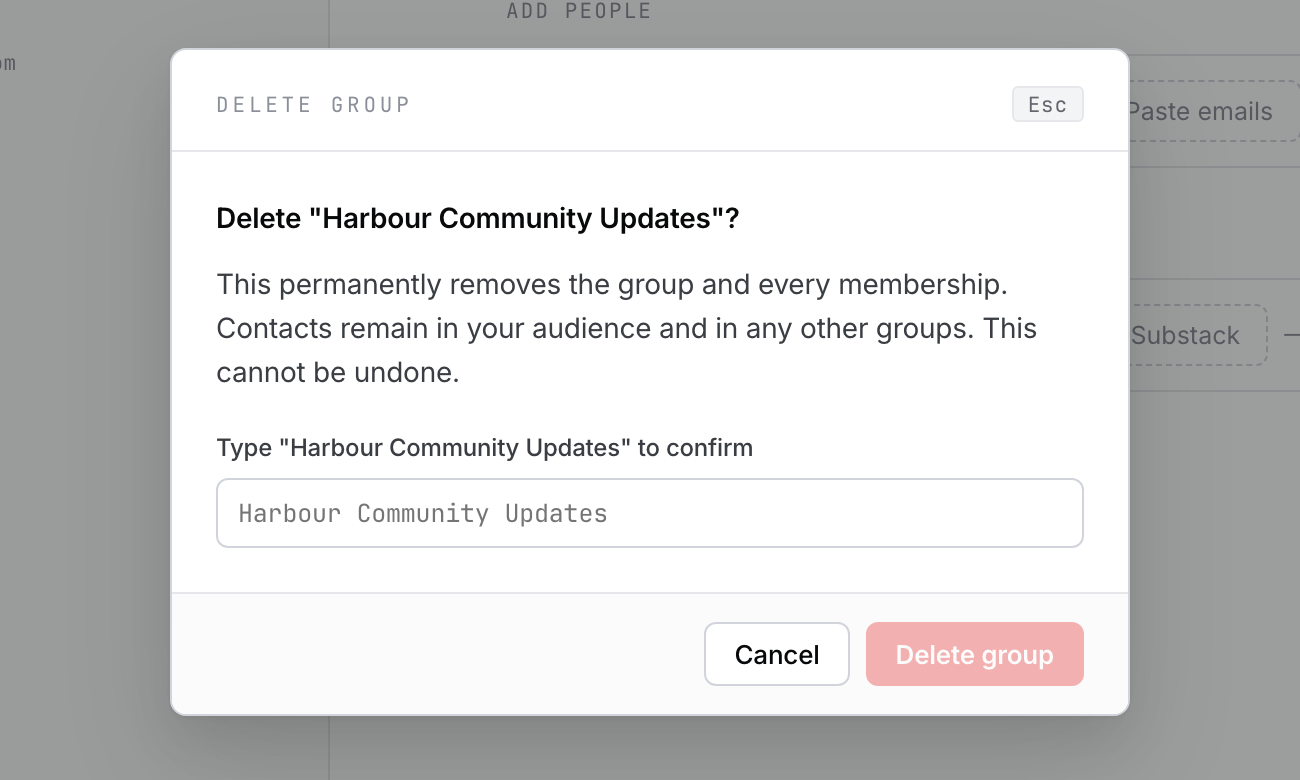 Product illustration with deterministic fictional state: review the permanent group deletion before confirming. Open the full-size image · Light-theme image · Dark-theme image.
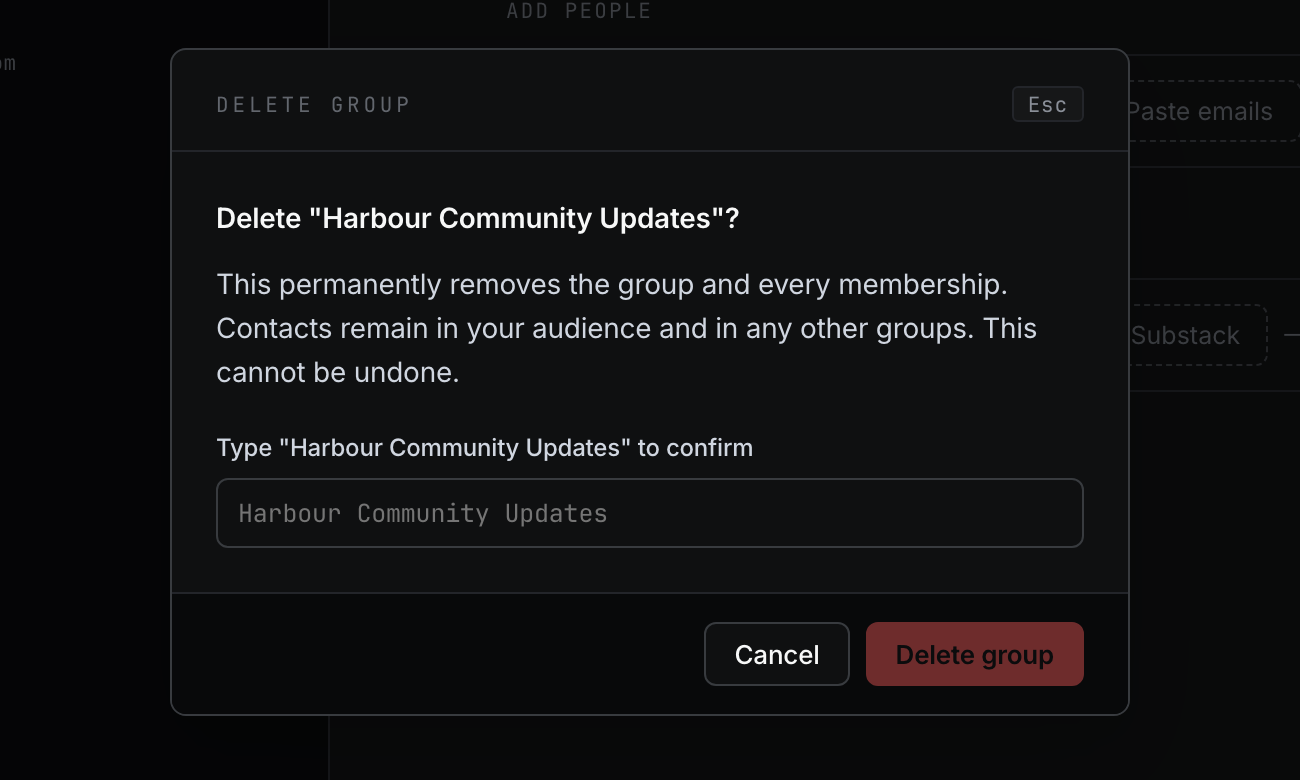
Deleting a group permanently removes the group and its membership links. The contacts remain in your audience and in any other groups they belong to.
If you cannot continue
- Create group is unavailable: enter a non-empty group name.
- Send is unavailable: add at least one contact and make sure the group is not archived.
- Import actions are unavailable: restore the group first.
- You cannot find an archived group: open All groups and select Show archived.
Related Docs
Stuck? Contact Groupmail Support with your operating system and Groupmail 7 version. Never email a sign-in link or sign-in code.