On this page
How to activate Groupmail 7 and manage your computers
Sign in inside Groupmail 7 with your account email and a one-time code. The customer portal shows the machine allowance for your plan and lets you free a place without deleting local data on that computer.
Activate this computer
- Open Groupmail 7. The first time you open it, the welcome screen Start your free 30-day trial asks for your email. Later, use Settings → Account.
- Enter the email address connected to your trial or licence. If you already bought Groupmail 7, use the same email you used at checkout. A new email starts a free 30-day trial.
- Select Email me a code.
- Check for a message from Groupmail [email protected].
- Enter the eight-character code in Groupmail 7 within 15 minutes.
- Select Activate this Mac (on Windows, Activate this PC). In Settings → Account the button reads Sign in & activate this Mac or Sign in & activate this PC.
The code works once, and only the newest code sent to you is valid. A successful first activation uses one place in your account’s machine allowance.
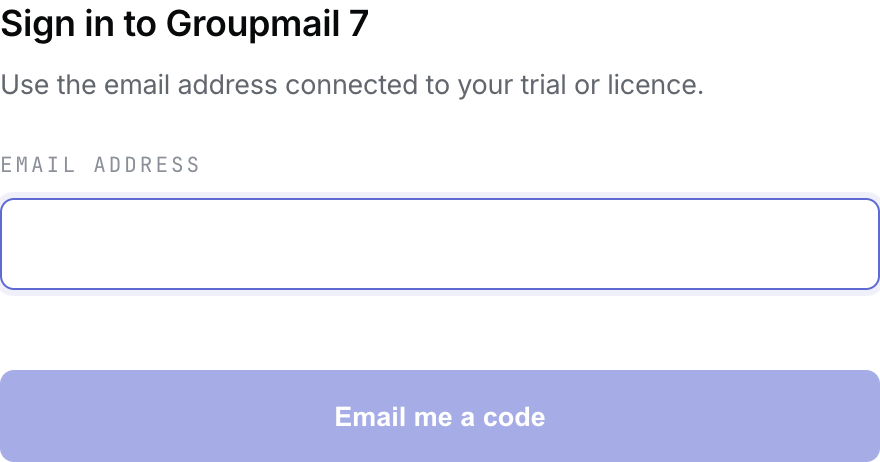
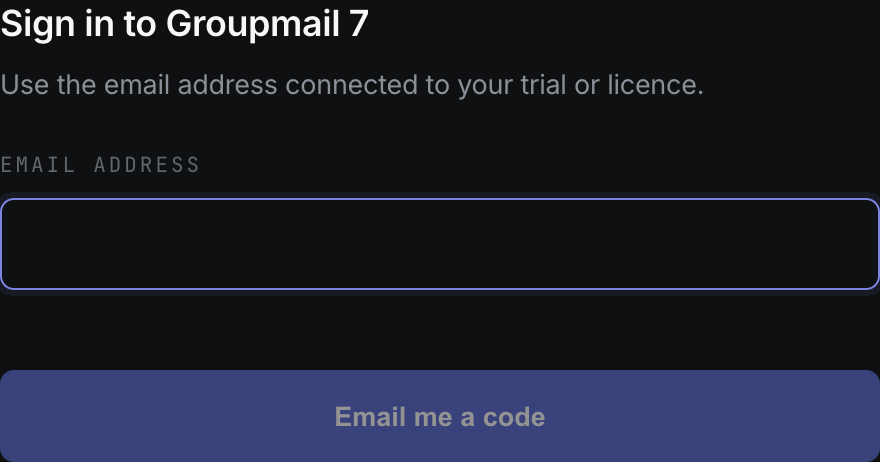
Illustration from the current app source in Windows platform mode. Signed physical-build reports remain the authority for the Windows activation journey. Open the full-size image · Light-theme image · Dark-theme image.
Free another computer’s slot
- Sign in to the customer portal.
- Go to Machines.
- Find the computer you no longer use and select Revoke.
- Type the displayed machine name to confirm.
- Return to the new computer and request a fresh sign-in code.
Revoking the old computer frees its place but does not erase or lock its local data. After its next licence refresh, that copy may no longer start new sends until it is activated under an eligible licence. Freeing a place does not stop an active send on that computer.
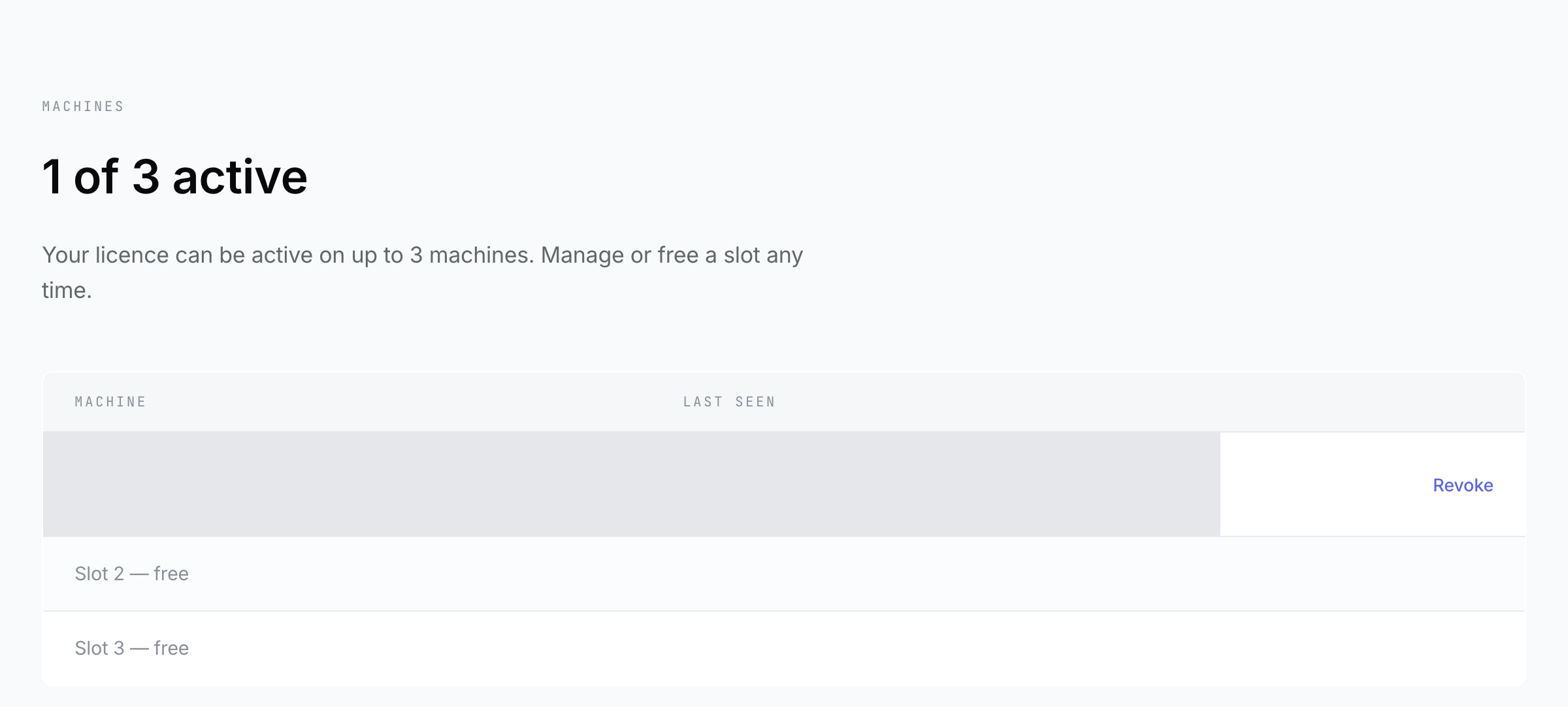
Illustration from the current portal source. Machine identity and last-seen details are obscured. Open the full-size image.
If your machine allowance is full
Groupmail does not activate another computer beyond the allowance shown in the portal. Open the portal, free an existing machine place, then request a new code on the computer you want to activate.
Troubleshooting
- The code is wrong: use the newest email and enter all eight characters.
- The code expired: request a new one; codes expire after 15 minutes.
- The activation result is unknown: request another code on the same installation. Retrying the same installation does not intentionally consume another slot.
- You no longer control an old computer: free its slot in the portal.
- Your account has no eligible licence: check your plan in the portal or contact [email protected].
Related Docs
- Understand eligibility, trials, licences and cover
- Troubleshoot account, download and activation problems
Stuck? Contact Groupmail Support with your operating system and Groupmail 7 version. Never email a sign-in link or sign-in code.