On this page
How to import a CSV contact list
Import a CSV from inside the group that should receive the contacts. Groupmail lets you check the file, map every column and review the backend-calculated result before it writes anything.
Before you begin
- Create or open the destination group.
- Export the source list as CSV. UTF-8 and common Windows spreadsheet encoding are supported; UTF-16 is not.
- Make sure one column contains an email address for each usable row.
- Keep GroupMail 6 migration separate. Use the dedicated GroupMail 6 import journey when you want to migrate a full GM6 installation.
Check the file
- In an empty group, select Import a CSV. In a populated group, select CSV file under Import.
- Drop the CSV onto Check your file, or select the drop area to browse.
- Confirm Header row. Choose the row containing the column names, or choose No header row if every row is data.
- Check the sample rows, then select Next.
If the file cannot be read, correct the CSV and choose it again. An unclosed quoted field is rejected before any contact is written.
Map the columns
-
On Map your columns, make sure exactly one column maps to Email. Email is required.
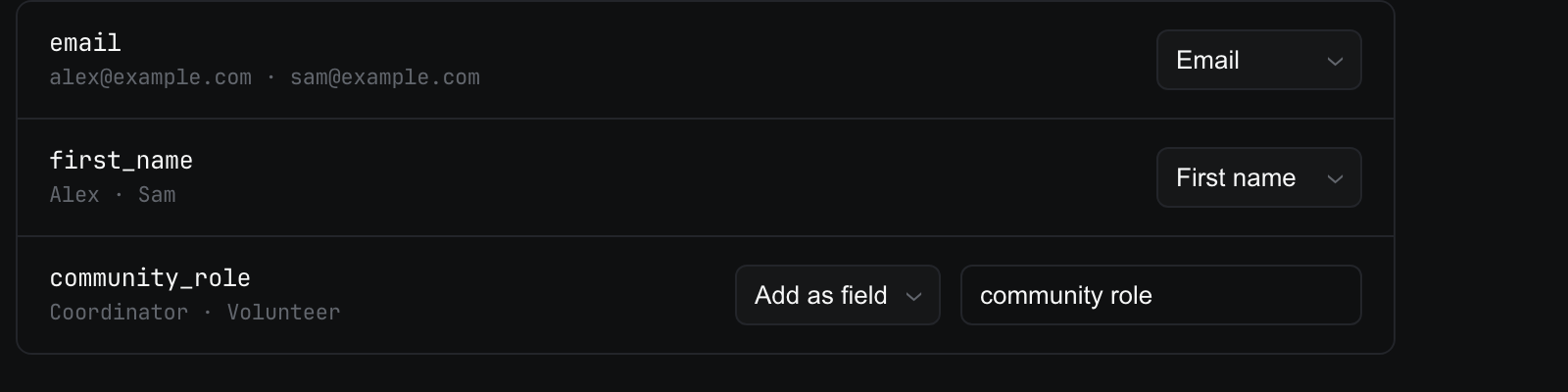
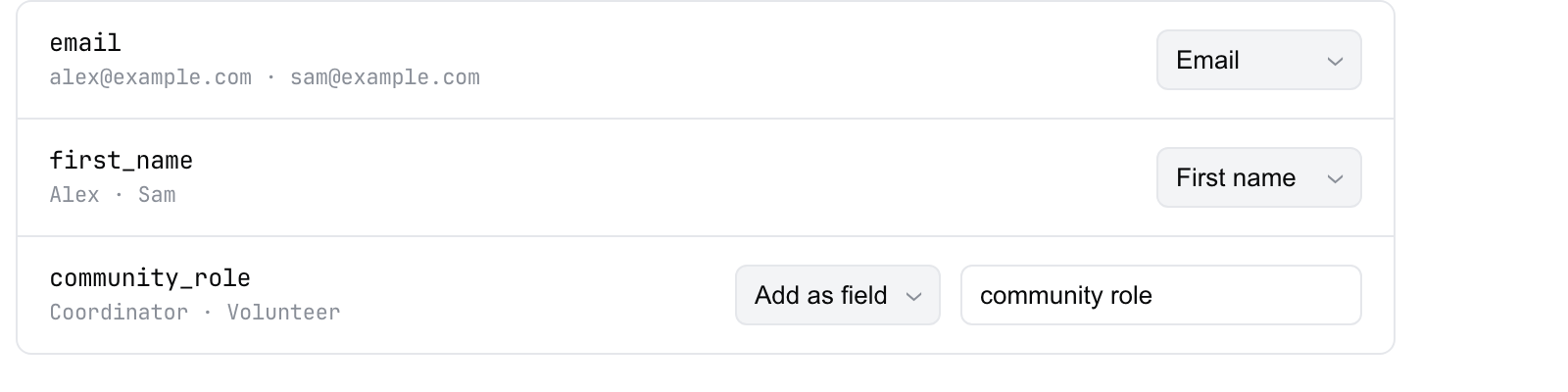 Fictional mapping showing the required Email column and an extra custom field. Open the full-size image · Light-theme image · Dark-theme image.
 -
Confirm or change the optional First name and Last name mappings.
-
For each other column, keep Add as field, rename the field if needed, or choose Skip.
-
Select Next — review.
Groupmail auto-matches only deterministic column-name synonyms. It does not guess ambiguous headings. A column matching an existing custom field is mapped to it; renaming that mapping creates a new field instead.
Review what will happen
-
Read the total beside Review and import and check the counts for new and existing contacts.
-
Check Your data, mapped to confirm the field names and sample values.
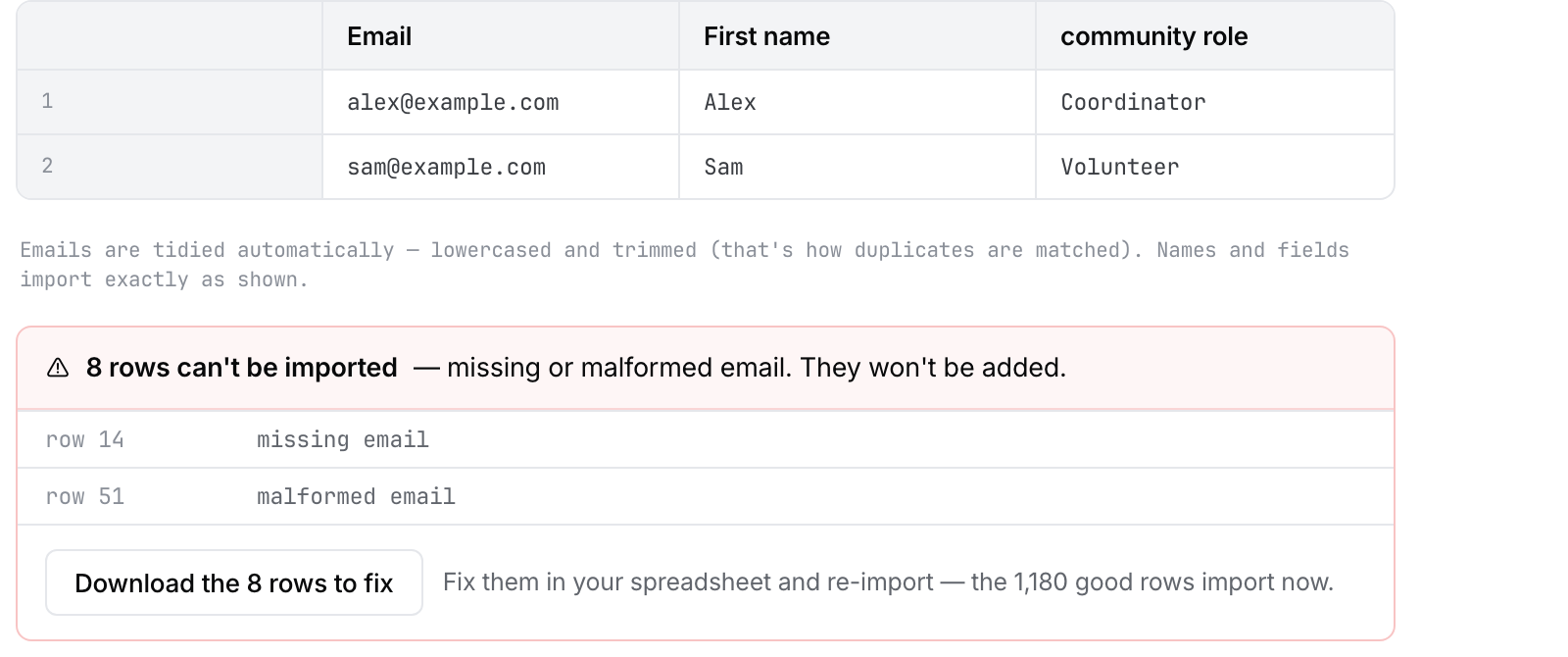 Fictional review. Confirm your calculated counts and repair rows with missing or malformed email. Open the full-size image · Light-theme image · Dark-theme image.
 -
Review any suppressed contacts. They stay in the group but are skipped when you send.
-
Review rows that cannot be imported and any merged duplicates.
-
Select Import N contacts only when the preview is correct.
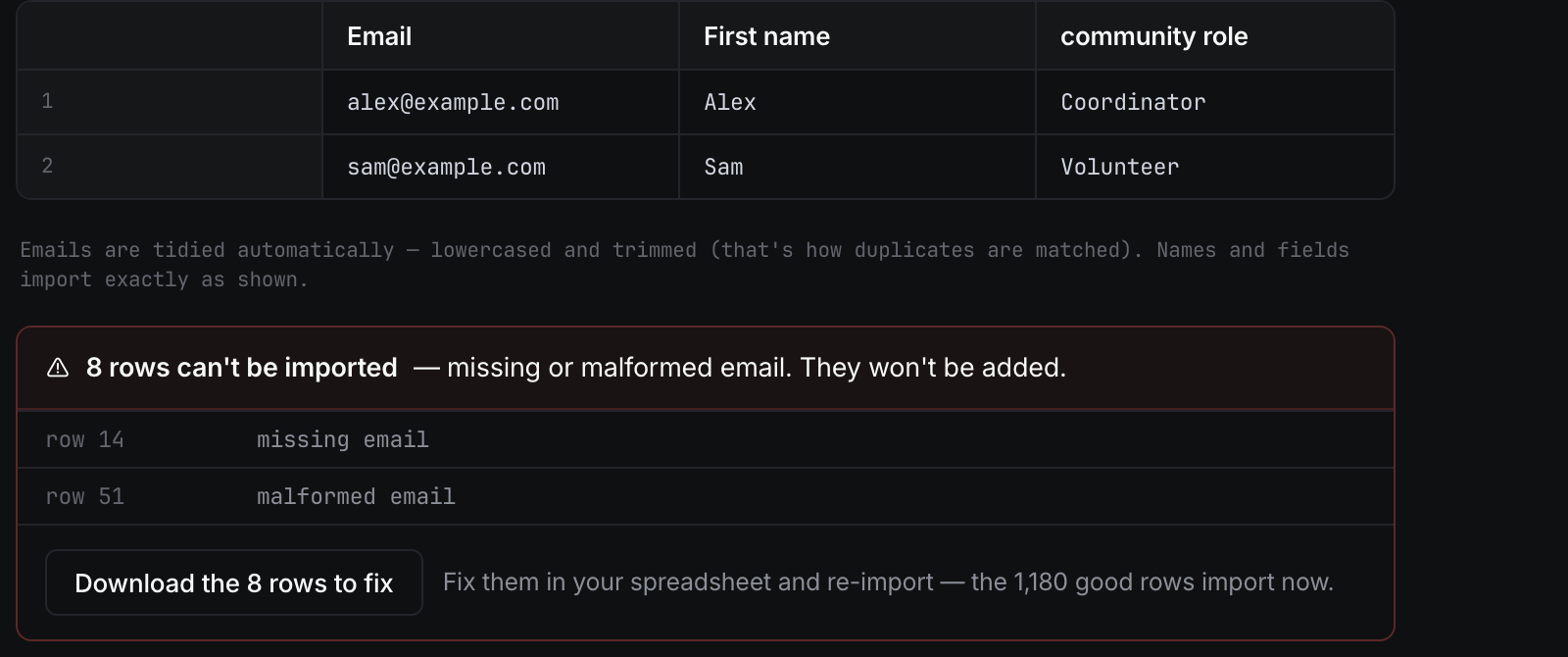
Email addresses are lowercased and trimmed for matching. If an email appears more than once in the file, the latest row is kept. Existing contacts are updated by email and gain membership in this group; contacts already in the group are not duplicated.
Fix skipped rows
-
In Review, find the warning for rows with a missing or malformed email.
-
Select Download the N rows to fix.
-
Correct the exported CSV in your spreadsheet.
-
Import that corrected file again.
The downloaded file contains only the rows that could not be imported and adds a _skip_reason column. Good rows can be imported now; re-importing later is safe because Groupmail matches contacts by normalized email.
During and after the import
- Leave the progress screen open, or select Continue in background.
- To stop future work, select Cancel import. Rows already added stay added.
- When the import finishes, review the new, existing, duplicate, skipped and custom-field counts.
- Select Open group, or select Import more for another file.
If the import stops with an error, correct the reported problem and run it again. Groupmail’s email matching and group-membership rules make a retry idempotent for rows already committed.
Related Docs
Stuck? Contact Groupmail Support with your operating system and Groupmail 7 version. Never email a sign-in link or sign-in code.