On this page
How to review, test send and understand results
Use Preview and Test send to check one real copy before sending to the full audience. After a message is handed to the provider, use Sent and the audit log to distinguish submitted, failed, skipped, cancelled and bounced recipients.
Review the draft before testing
- Confirm that the correct groups or contacts appear in To.
- Confirm that From shows the intended verified sending account.
- Check the subject, body, merge fields, links, images and attachments.
- Select Preview and inspect the rendered message.
- Read the footer readiness line. Continue only when it shows ✓ ready to send.
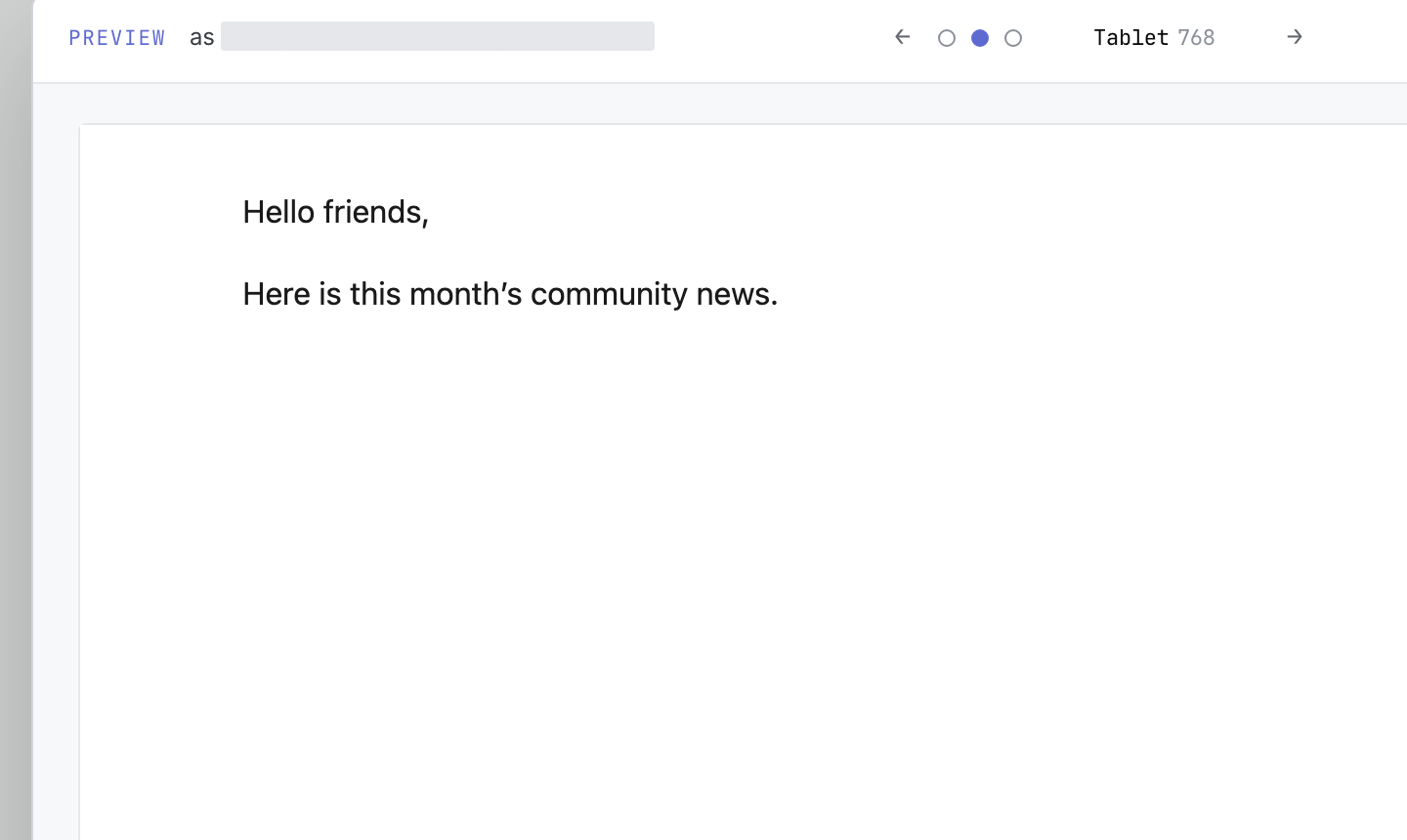 Product illustration from a deterministic fictional draft: Preview shows the rendered body for review; the sample recipient identity is masked. Open the full-size image · Light-theme image · Dark-theme image.
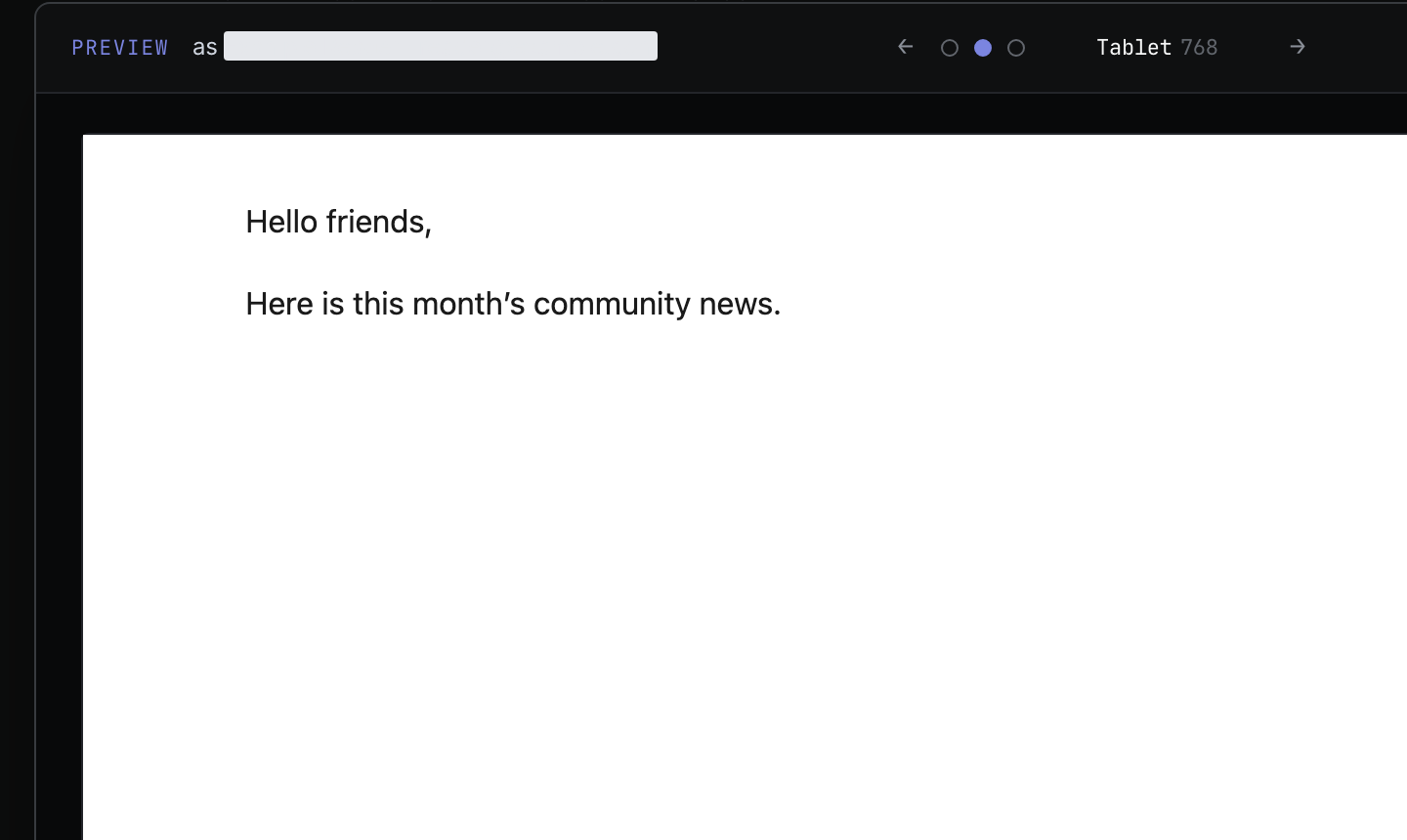
Preview can use sample values even before recipients are selected. A real test requires a usable sending account.
Send one real test
- Select Test send.
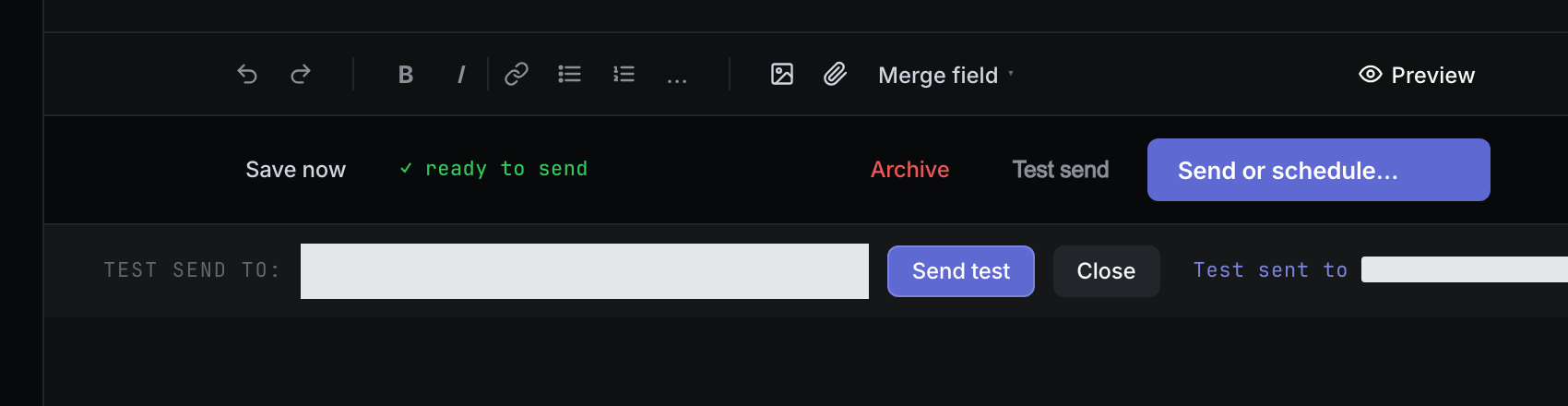
- Enter or confirm the address beside Test send to:.
- Select Send test.
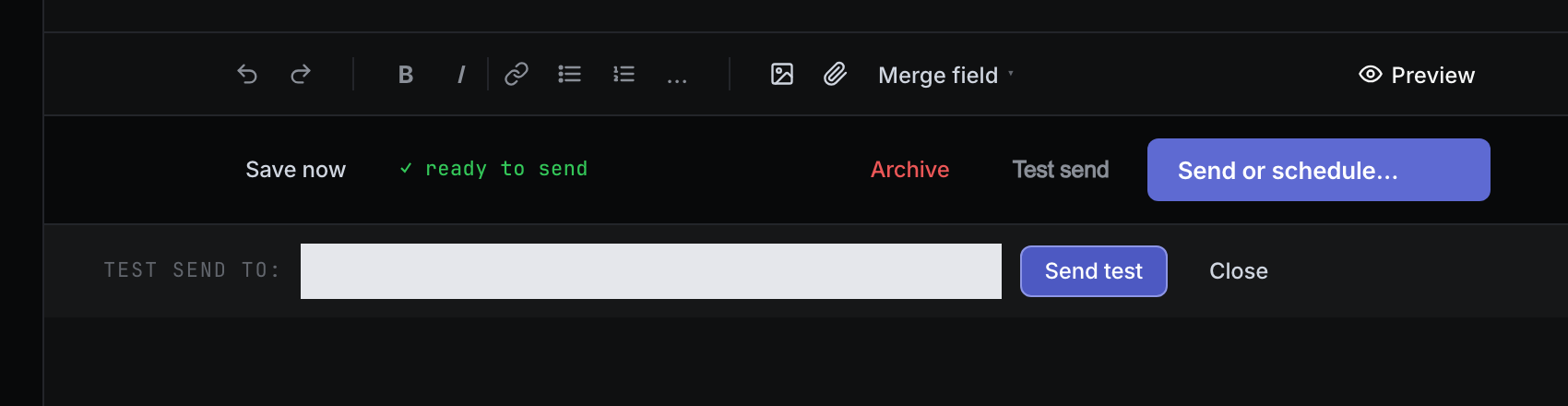
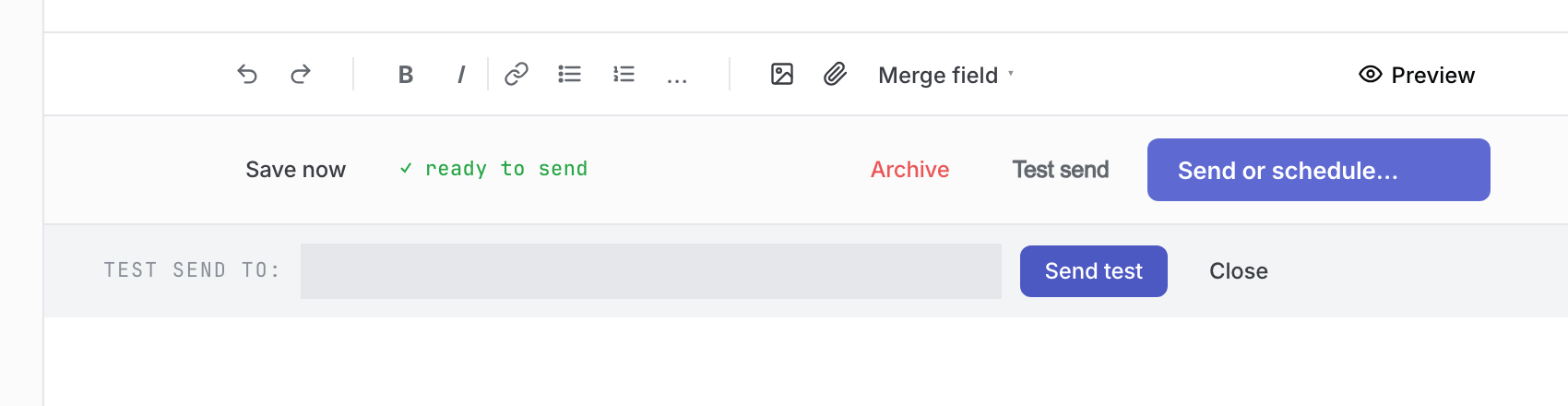 Product illustration from a deterministic fictional draft: enter a test address before sending a single test. The illustrated address is masked. Open the full-size image · Light-theme image · Dark-theme image.
- Wait for Test sent to address, then check the receiving inbox.
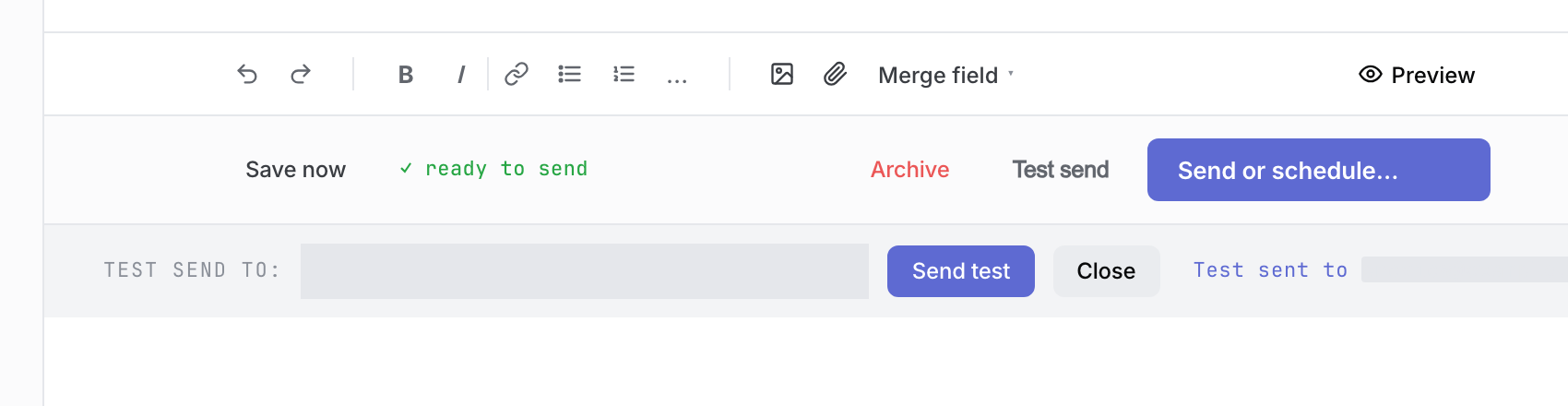 Browser-fixture illustration only: the simulated test confirmation shows where to look; verify actual receipt in your inbox. The illustrated address is masked. Open the full-size image · Light-theme image · Dark-theme image.
- Check the From name, subject, formatting, personalized values, links, images and attachments in the received message. In 0.16.0 and later, large pictures are sent at a sensible size automatically, and Preview and the test send show them as they will be sent. See How to design your email.
A Compose test send uses the same message rendering and assembly path as the full send, but sends immediately to only the test address. It does not start the full send. A suppressed or previously deleted test address is refused.
Hand the message to Groupmail
-
Return to the draft and make any corrections found in the test.
-
Wait for the latest edits to autosave and re-run Preview or Test send if the content changed materially.
-
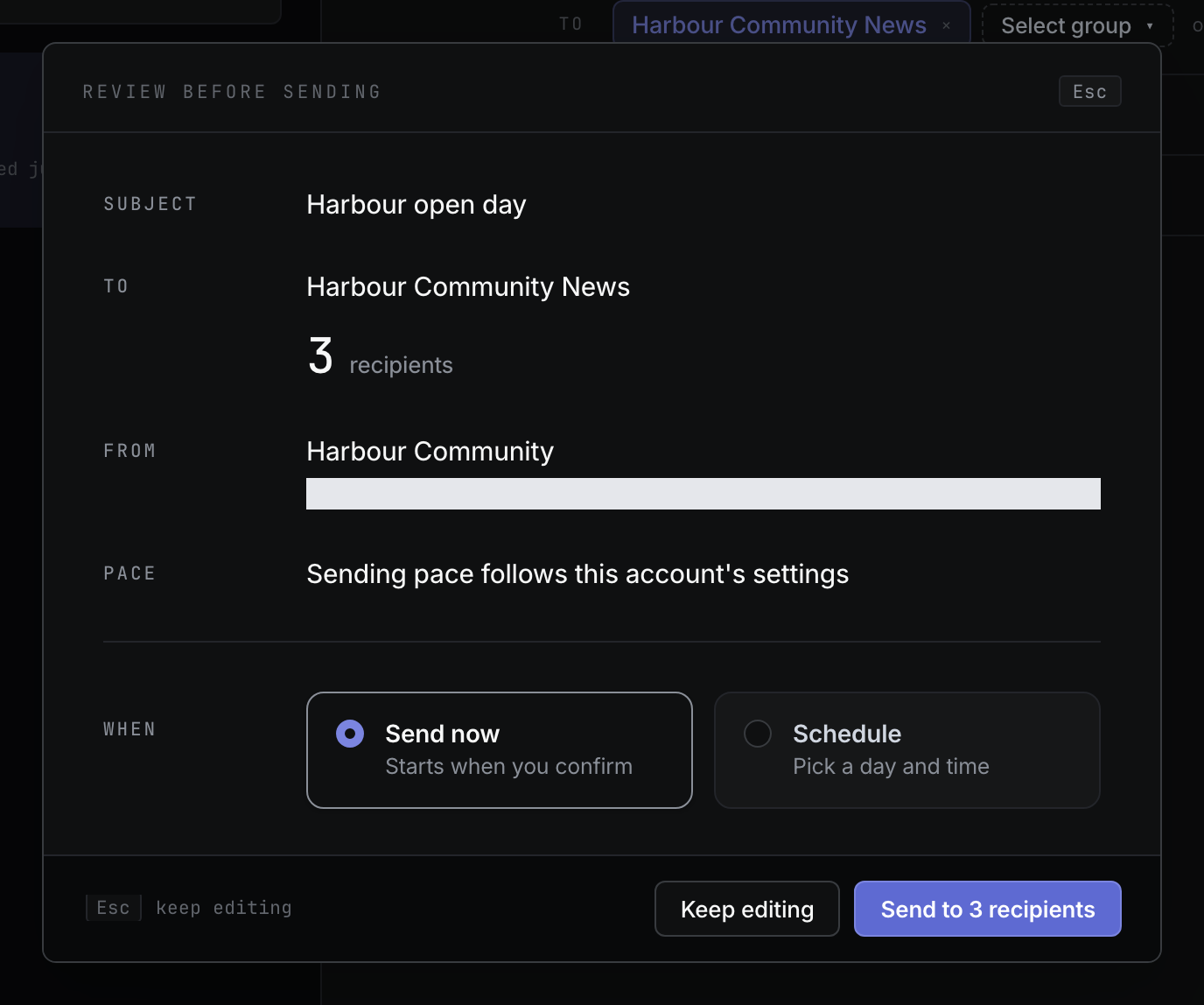
In 0.18.0 and later, select Send or schedule…. A review opens showing the subject, who it goes to and how many recipients, the sending account and the pace. Keep editing closes the review without sending.
-
Under When, leave Send now selected and select Send to N recipients. To send later instead, choose Schedule, pick a day and time, then select Schedule for that time. See How to schedule a message.
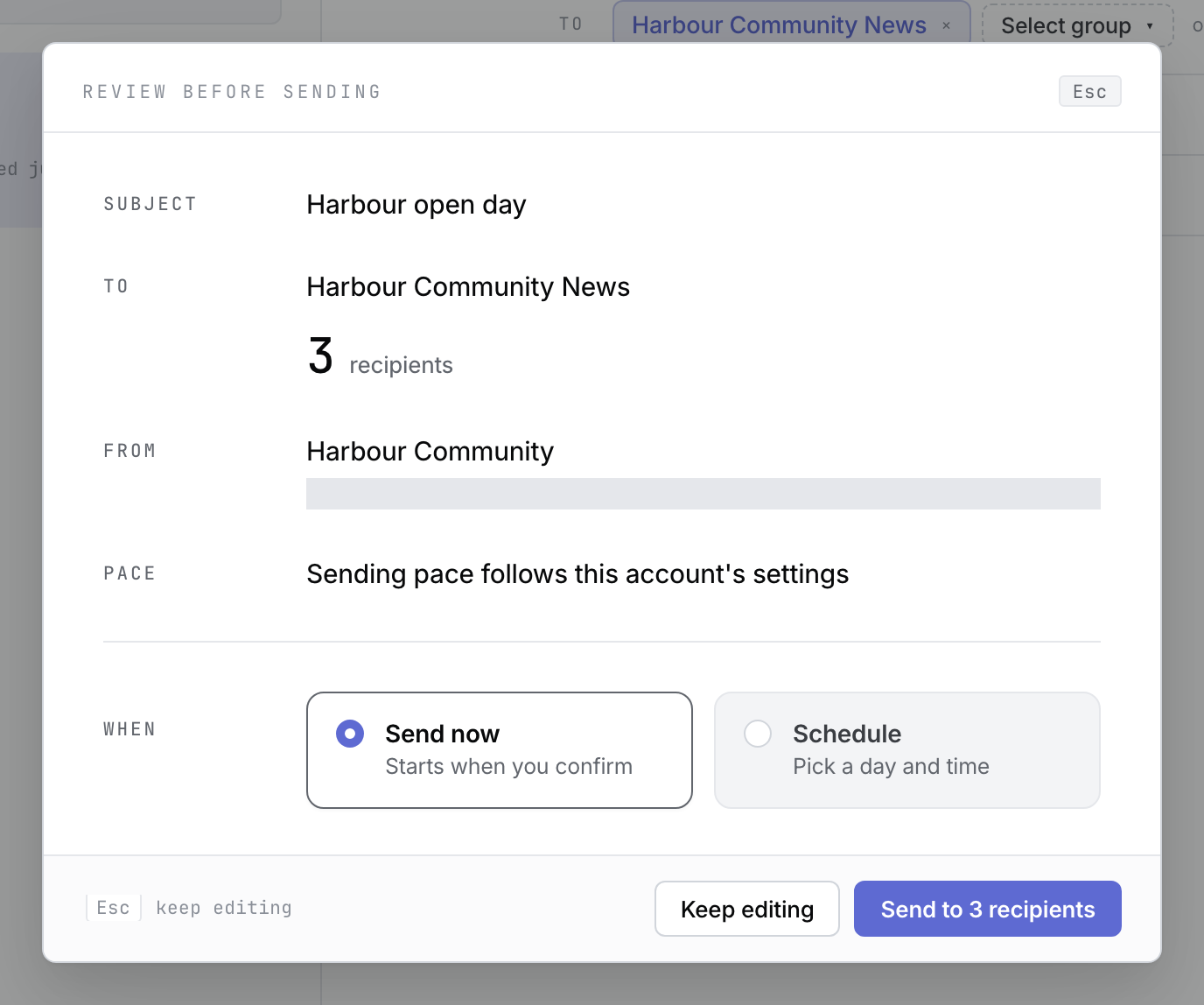 Browser-fixture illustration from a fictional draft: the review shows what will be sent before anything goes out. The sending address is masked. Open the full-size image · Light-theme image · Dark-theme image.
 -
In earlier versions, select Send to N recipients in the draft footer instead.
-
Keep Groupmail open while it prepares and sends. The Send to N recipients button shows Preparing… until send admission succeeds.
-
Follow progress under Sent. You can leave the send canvas without cancelling the send.
If Groupmail refuses the send, no successful handoff has occurred. In 0.18.0 and later, the review stays open and shows the reason above its buttons; correct the problem, then select Send to N recipients again. In earlier versions, correct the visible problem and use Retry. Do not treat Preparing… as proof that recipient delivery has started.
Understand the results
- Open Sent and select the message.
- Read the outcome counts:
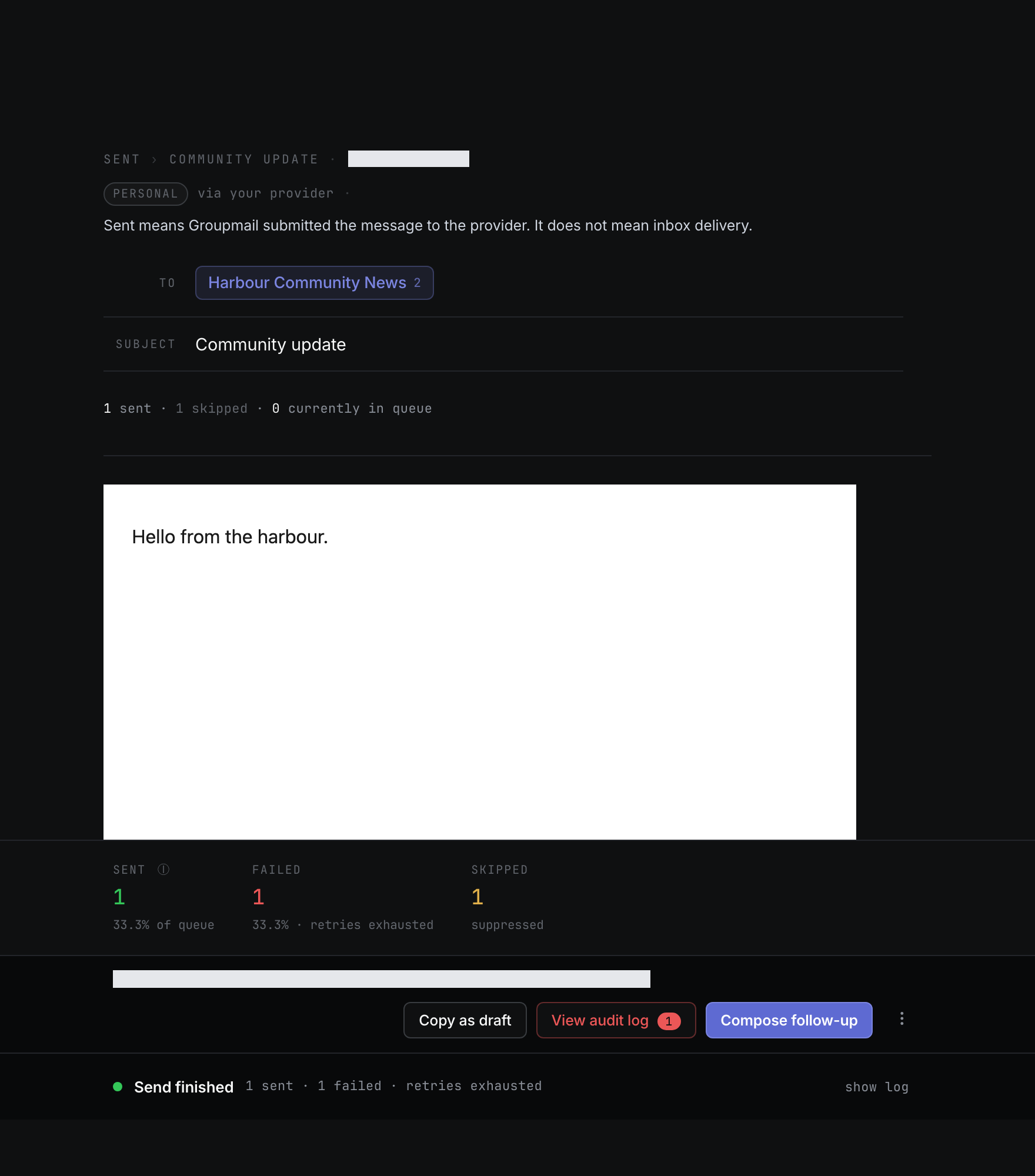
- Sent means Groupmail submitted the message and received the provider’s positive acceptance. It does not prove inbox delivery.
- Failed means the recipient could not be submitted successfully after the applicable attempts.
- Skipped means the recipient was suppressed and was not sent the message.
- Cancelled includes rows stopped before send and may also include safe skips because an address changed, was removed or was deleted.
- Bounced appears when Groupmail has a known bounce at send time or, for an enabled relay integration, after provider acceptance.
- Select View audit log to inspect recipient-level outcomes and the available filters. Its Export menu offers Recipients, After-delivery events when available, and Diagnostic report when available. Event times use one format, and rows follow the time each event happened.
- Check the list in Sent for a status pill. needs review means some recipients are held or their delivery is uncertain. needs attention means the send is paused or stalled. Use the message’s review action before archiving or retrying anything.
Provider capability matters. Every account reports submission failures. What happens after a message is accepted depends on the account:
- SMTP2Go reports later bounces and unsubscribes to Groupmail without changing the original Sent count.
- Your own mail server: connect the account’s mailbox in Inbox. Groupmail then adds matching permanent bounces and “Unsubscribe” requests to your suppression list and shows replies. Without a connected mailbox, Groupmail doesn’t see what happens after acceptance.
- Gmail and Microsoft accounts report submission failures only; their mailboxes can’t be checked.
Recognised SMTP2Go provider block-list rejections add suppressions with the original reason; this release does not add a new Sent outcome for those rejections.
While a message is still sending, the live audit log includes correlated SMTP2Go hard-bounce events after Groupmail imports them, and refreshes its Bounced count and filter. Polling is periodic, so a zero count does not prove that no provider bounce has occurred. Use the last successful check and SMTP2Go activity when checking a very recent event. Imported after-delivery events do not rewrite the original submission history.
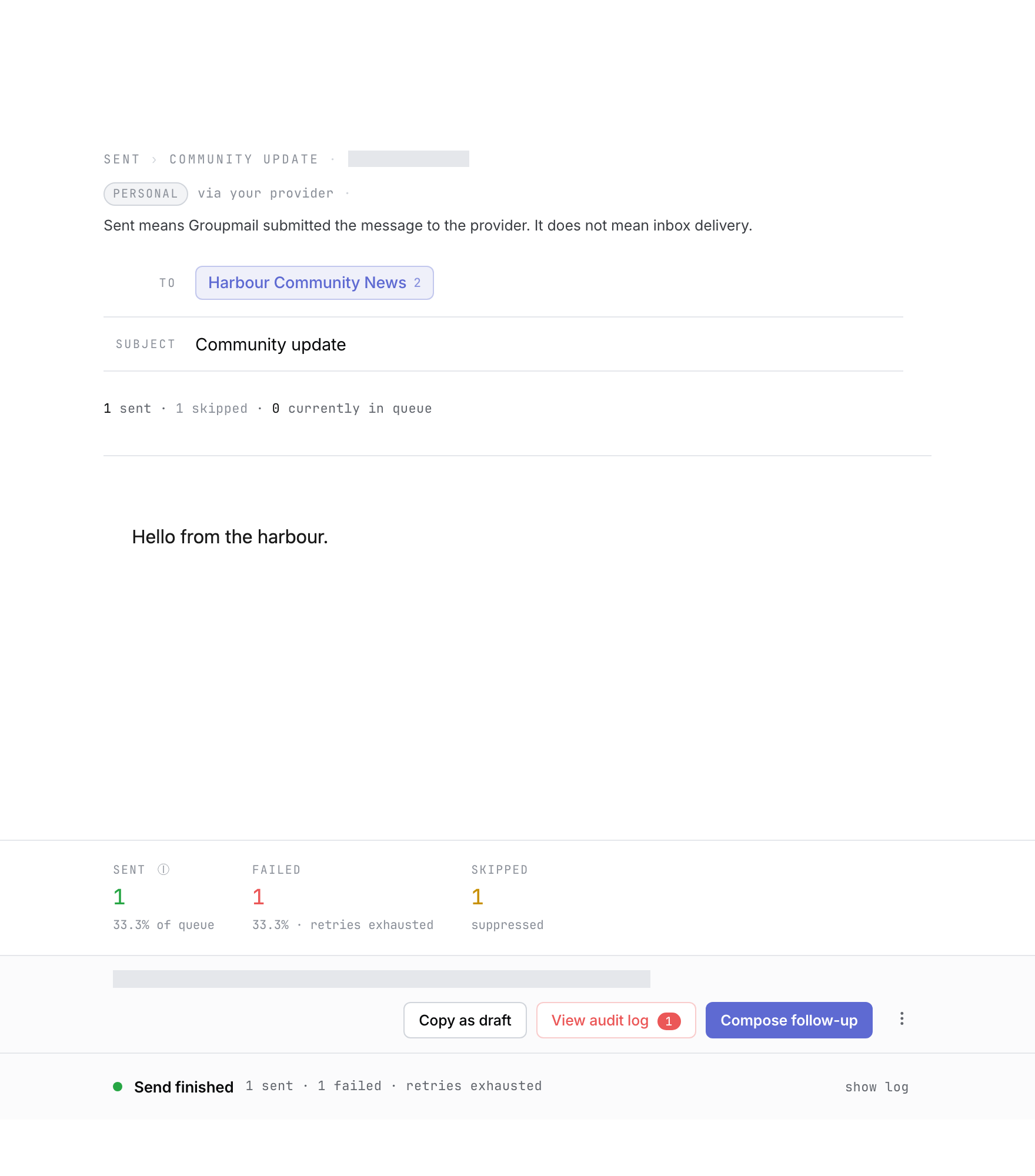 Product illustration from a deterministic fictional send: Sent, Failed and Skipped are separate outcomes. Open the full-size image · Light-theme image · Dark-theme image.
Decide emails we couldn’t confirm
Sometimes the mail server doesn’t clearly say whether it took an email, for example when the connection drops mid-send. Groupmail never sends those again on its own, because that could send them twice. Instead the send shows We couldn’t confirm N emails were delivered and waits for you.
- Open the message from Sent. Select Review emails in the band at the top, or open the message’s actions and select Resolve now →.
- Read the list. Each email shows Not confirmed by the server.
- If you know an email arrived, select Mark as sent. Nothing is sent again.
- If you think it didn’t arrive, select Send again. Groupmail warns you once: anyone who did get it will get it twice. Select Send again to confirm. Groupmail sends it again in a new follow-up send, to exactly those people.
- To decide them all at once, use Mark these N as sent or Send these N again at the top of the list. Sending them all again becomes available when the send finishes.
- A row that says Still checking with the server was attempted in the last few minutes. You can choose for it once it unlocks; it does that on its own.
- For a row held before it was ever sent, such as Not opted in or Needs a decision, select Approve & send only if you want Groupmail to send it now. Otherwise leave it held.
Either choice finishes the send and clears the warning. After Send again, a short line tells you what actually happened, for example how many were sent again and how many were skipped because they were still being checked or had already been delivered in an earlier resend. Rarely, the server confirms the first email after you sent it again; the audit log then says delivered after all, and Groupmail cancels the second email if it hasn’t gone yet.
Choose the safe next action
- For a total account failure, fix or reconnect the sending account and run another account test first.
- For failed or stopped-before-send recipients, choose the offered resend action and review its confirmation.
- Confirm the counts before selecting Resend to N. Groupmail creates a new send only for people proven not to have received the previous one.
- Emails Groupmail couldn’t confirm are not part of this resend. Decide them in the review list with Mark as sent or Send again instead.
- Use Copy as draft when you want to reuse the content without reusing the previous recipient outcome scope.
Suppressed recipients and emails Groupmail couldn’t confirm are excluded from the resend-to-unreceived action. People already marked Sent are not sent the same message again by that action.
Related Docs
- How to use Inbox for replies, bounces and unsubscribes
- How to write and personalize a message
- How to set up a sending account
- How to schedule a message
Stuck? Contact Groupmail Support with your operating system and Groupmail 7 version. Never email a sign-in link or sign-in code.