On this page
How to set up a sending account
Open Settings → Sending accounts to choose how Groupmail sends. Enter your email address and password, and Groupmail finds the sending settings for you. You can also connect a Microsoft or Gmail mailbox, or use the recommended SMTP2Go relay for larger lists.
Choose an account type
-
Open Settings → Sending accounts.
-
Enter the address that should receive account tests in Test sends go to. Groupmail saves and reuses this address for every account test.
-
Select + Add sending account.
-
Choose one of the available options:
- Your email address — Any address you own · Groupmail finds the sending settings. Use it for an address on your own domain, a hosting company’s mailbox, a self-hosted server, or a sending service such as SendGrid, Amazon SES or Mailgun.
- Microsoft for Microsoft 365 or Exchange Online sign-in.
- Gmail for Gmail or Google Workspace sign-in.
- SMTP2Go for the recommended sending relay.
Mailbox providers impose their own daily limits. Groupmail shows guidance and paces supported mailbox sends automatically; use a relay when the list is too large for a personal mailbox.
In 0.18.0 and earlier, the first option is Custom SMTP, which asks you to type the server host, port, security and username yourself.
Add your email address
-
Choose Your email address. The Add your email address dialog opens.
-
Enter your Email address and Password or app password. Groupmail fills in Nickname and From name from the address; change them if you like.
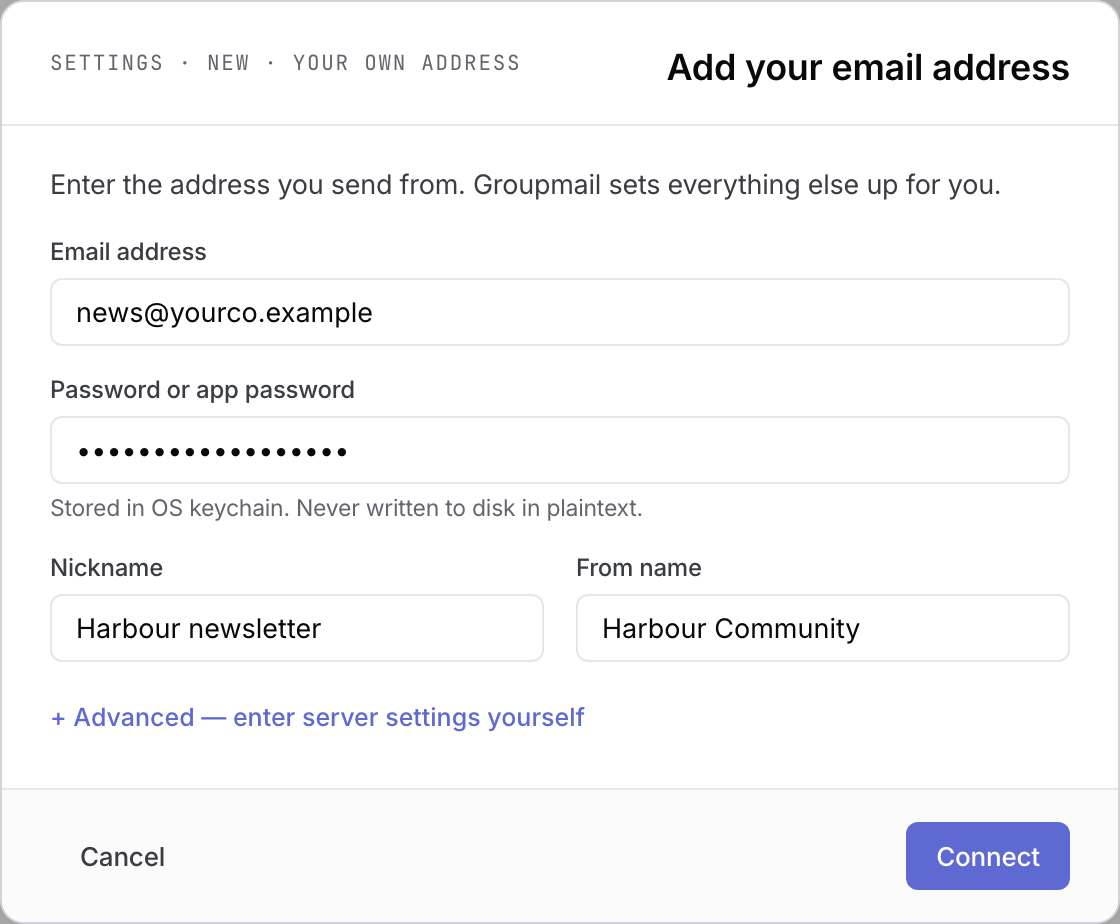 Fictional address and password. Open the full-size image · Light-theme image · Dark-theme image.
 -
Select Connect. One progress line shows Finding your mail server settings… and then Checking outgoing mail….
-
When the check passes, Groupmail shows CONNECTED with Sending — ready. To see the server, port and security it found, select + Advanced — see the settings Groupmail found.
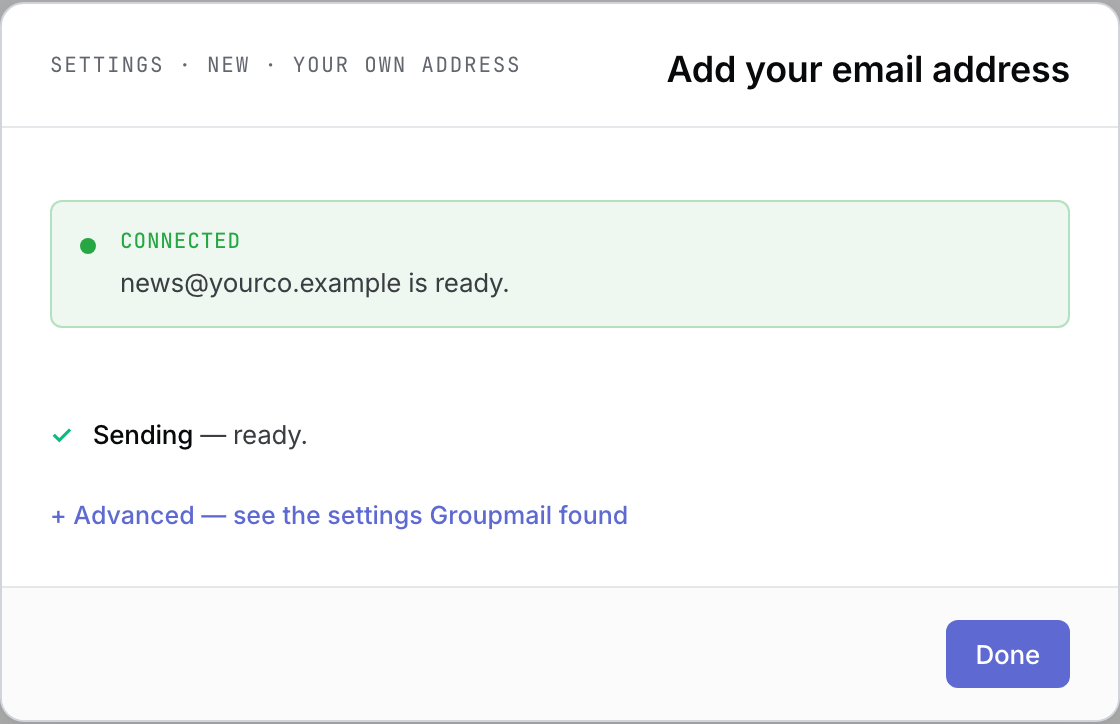 Simulated connection result; your own check runs against your mail server. Open the full-size image · Light-theme image · Dark-theme image.
 -
Select Done. The new account row opens.
-
Select Send test email.
-
Confirm that Groupmail shows TEST EMAIL SENT and that the message reaches Test sends go to.
 Simulated account-test result; verify delivery in your real inbox. Open the full-size image · Light-theme image · Dark-theme image.
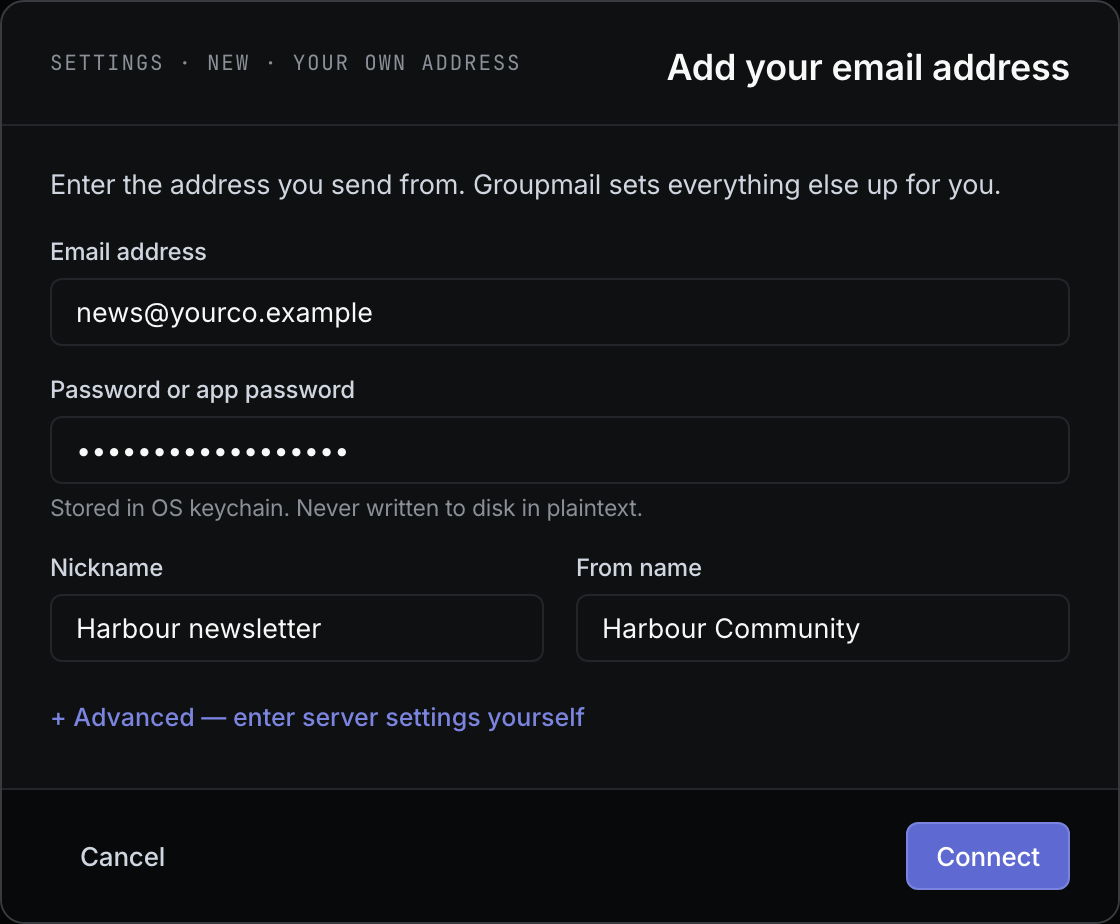
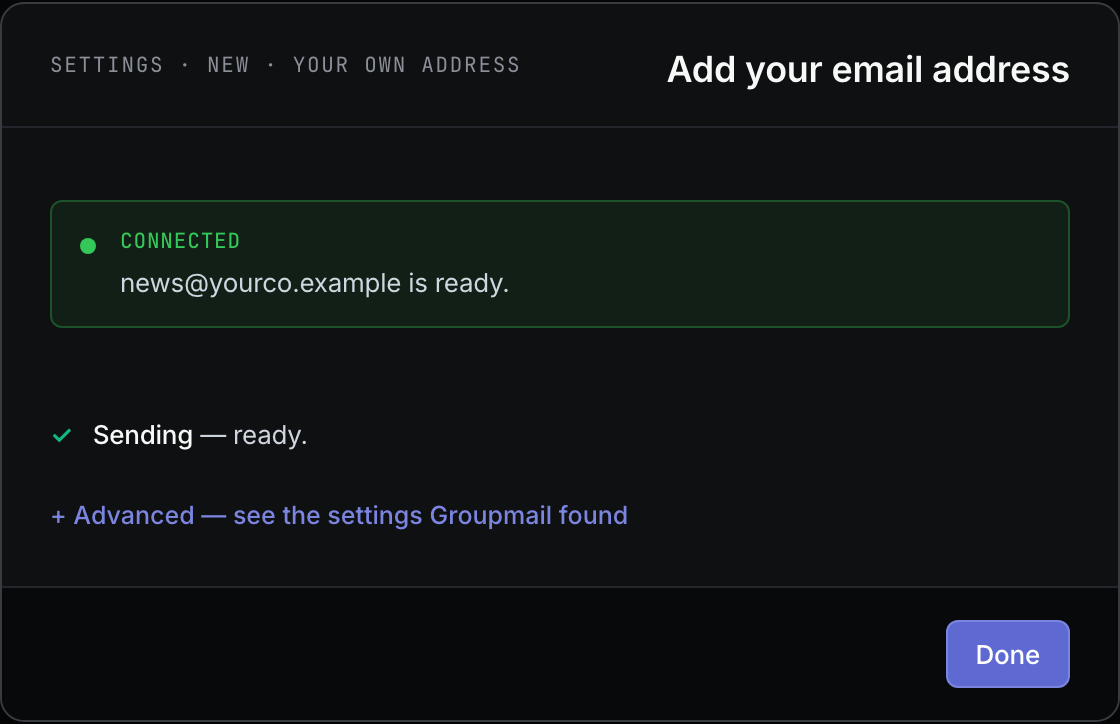

Connect checks that Groupmail can sign in to your outgoing mail server; it does not send an email. Finding the settings never sends your password anywhere. Your password goes only to your outgoing mail server, and is kept in the operating-system keychain.
An account added this way appears as Custom SMTP in the sending-account list.
If Groupmail needs something else from you
Some addresses need one more step. Every one of these states also offers + Advanced — enter server settings yourself if you would rather type the settings in.
- THIS ADDRESS USES MICROSOFT SIGN-IN: Microsoft personal addresses and Microsoft 365 domains connect by signing in. Select Continue with Microsoft sign-in and complete the sign-in in your browser. Groupmail never stores this password.
- GMAIL NEEDS AN APP PASSWORD (or Yahoo, iCloud, AOL, Fastmail, Zoho or Google Workspace): your normal password won’t work in other apps. Select the Open … app-password page → link, create an app password there (Gmail and Google Workspace need 2-Step Verification turned on first), paste it into App password, then select Connect. For a Gmail address you can instead select Use Gmail sign-in instead, which stores no password.
- These settings point at {host}, outside {domain} — continue? The settings Groupmail found belong to another company. That is normal when a hosting company runs your mail. Select Continue if you recognize that company. If you don’t, select Cancel, or open + Advanced — enter server settings yourself and enter the settings from your provider’s help page.
- COULDN’T CONNECT: the line underneath gives the reason. Check the password, or create an app password if your provider uses them, then select Connect again. If the reason points at the server, open + Advanced — enter server settings yourself and check the settings against your provider’s help page.
- THIS SERVER CAN’T BE TRUSTED: the server’s secure connection failed its identity check, so Groupmail stops and won’t send your password to it. You can’t continue with that server. Check the email address for a typo, or open + Advanced — enter server settings yourself and enter the outgoing server from your provider’s help page.
- Groupmail couldn’t find this provider’s settings automatically. Enter them from your provider’s help page. Groupmail opens the Advanced fields for you. Fill them in as described below, then select Connect.
- Proton Mail needs the Proton Mail Bridge app running on this computer. Groupmail shows this note for Proton Mail addresses and opens the manual settings for you. Start Proton Mail Bridge, enter the settings it gives you, then select Connect.
Enter server settings yourself
Use + Advanced — enter server settings yourself when your provider’s help page gives you server settings, or when you send through a service such as SendGrid, Amazon SES or Mailgun. While Advanced is open, Connect uses the settings you typed and skips the automatic lookup.
- Enter Outgoing (SMTP) host and Port.
- Choose Security: STARTTLS — usually port 587, SSL / TLS — usually port 465 or None — only for local/plain servers. None is accepted only for a server on your own computer or local network. For any other server, Groupmail shows Pick SSL/TLS or STARTTLS — this server is on the internet.
- Check Username. It follows your email address until you change it. Sending services give you their own username.
- Leave Max simultaneous connections as it is unless your provider allows more. It accepts 1 to 8. It starts at 4 for a recognised sending service (SMTP2Go, SendGrid, Mailgun, Amazon SES, Postmark, Brevo or Sendinblue, Mailjet, SparkPost, Elastic Email and Resend) and at 1 for any other server.
- Select Connect, then Done, and send a test from the new account row.
Use SendGrid, Amazon SES, Mailgun or a similar service
- Choose Your email address and enter the address you send from in Email address.
- In Password or app password, paste the SMTP password or API key from your sending service.
- Open + Advanced — enter server settings yourself. Enter the SMTP host and port from your service’s SMTP settings page, and choose STARTTLS or SSL / TLS as the service says.
- Change Username to the one your service gives you. SendGrid uses
apikey. Amazon SES and Mailgun show an SMTP username with their SMTP credentials. - Select Connect. Max simultaneous connections starts at 4 for these services.
This also works when your domain’s mail runs on Microsoft 365 or Google: open Advanced from the Microsoft sign-in or app-password state and enter your sending service’s settings.
When you first start 0.18.0 or later, existing Custom SMTP accounts on a known sending relay that are still at 1 connection are raised to 4 once. A value you set afterwards is kept. Accounts with a send in progress or paused are updated at a later start.
Add SMTP2Go
- Choose SMTP2Go.
- Enter a nickname, From name and From email. Add a Reply-to email or organization only if needed.
- Enter an SMTP2Go API key that is allowed to send email.
- Select Save and verify. This checks the account but does not send an email.
- After the account is verified, select Send test email.
- Confirm that Groupmail shows TEST EMAIL SENT and that the message reaches Test sends go to.
Credentials and OAuth tokens are kept in the operating-system keychain, not in the Groupmail database.
Connect Microsoft or Gmail
- Choose Microsoft or Gmail under Your own mailbox or server.
- Complete the provider sign-in and permission steps in your browser. Groupmail returns to the sending-account row when the connection succeeds.
- Open the connected account and select Send test email. Confirm that the test reaches Test sends go to before sending to a group.
If sign-in is refused or the connection later needs attention, reconnect that provider account. Do not enter its password under Your email address to work around a failed provider sign-in.
Choose a default account
- Open a sending-account row.
- Select Make default.
- Confirm that the row shows DEFAULT.
New drafts use the enabled default automatically. If several accounts exist and none is the default, each new draft asks you to choose a sender.
If setup does not finish
- Connect stops with a message: find it under If Groupmail needs something else from you above and follow the step for that state.
- SMTP2Go verification failed: check the visible reason, correct the API key, then select Save and verify again.
- Send test email is unavailable: add a valid Test sends go to address and save or verify the latest account changes first.
- The account is Disabled: select Enable account before choosing it or sending a test.
Connecting or verifying is not the same as a test send. Complete both before using the account for a customer message.
See replies, bounces and unsubscribes
A sending account only sends. To see replies and handle bounces and “Unsubscribe” requests, connect the account’s incoming mailbox in Inbox. This works for accounts that use your own mail server and for SMTP2Go (replies only; SMTP2Go already handles bounces and unsubscribes). For SMTP2Go, use the mailbox’s own password, not your API key. Gmail and Microsoft mailboxes can’t be checked. See How to use Inbox for replies, bounces and unsubscribes.
Related Docs
- How to write and personalize a message
- How to review, test send and understand results
- How to use Inbox for replies, bounces and unsubscribes
Stuck? Contact Groupmail Support with your operating system and Groupmail 7 version. Never email a sign-in link or sign-in code.