On this page
How to back up, export and recover local data
Use Export Groupmail backup when you need a restorable move-computer file. Export records as JSON is a readable, redacted data copy for inspection or support and cannot be imported back into Groupmail.
Create a restorable backup
- Open Settings → Data → Backup.
- Select Export Groupmail backup.
- Protect the backup with a password if you want to carry sending-account passwords, API keys and refresh tokens.
- Choose where to save the
.gm7backupfile and wait for Backup saved. In 0.23.0 and later, the backup copies your workspace as it was at one moment, so it stays consistent even if Groupmail is busy while it saves. - Store the file and its password securely in separate places.
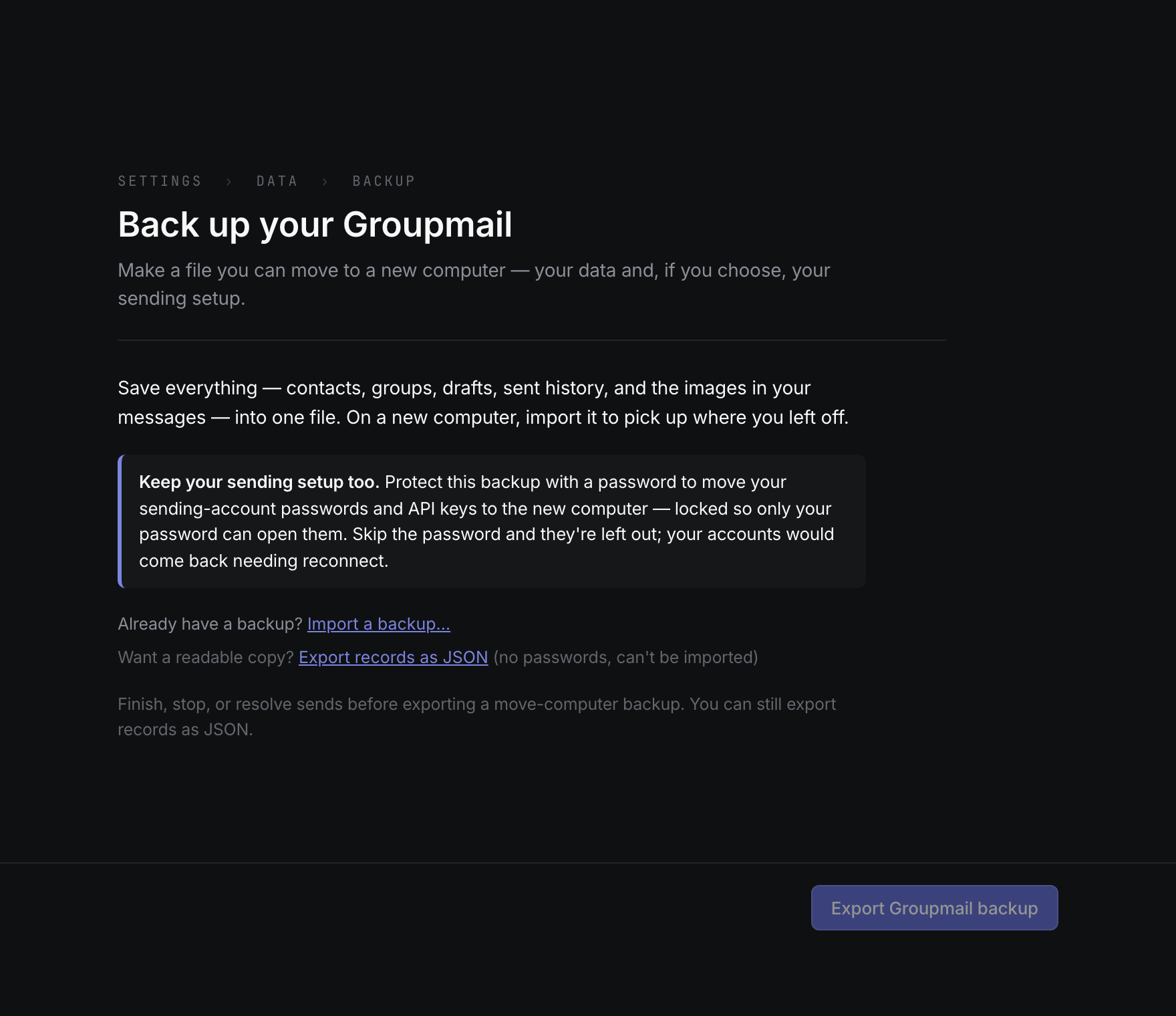
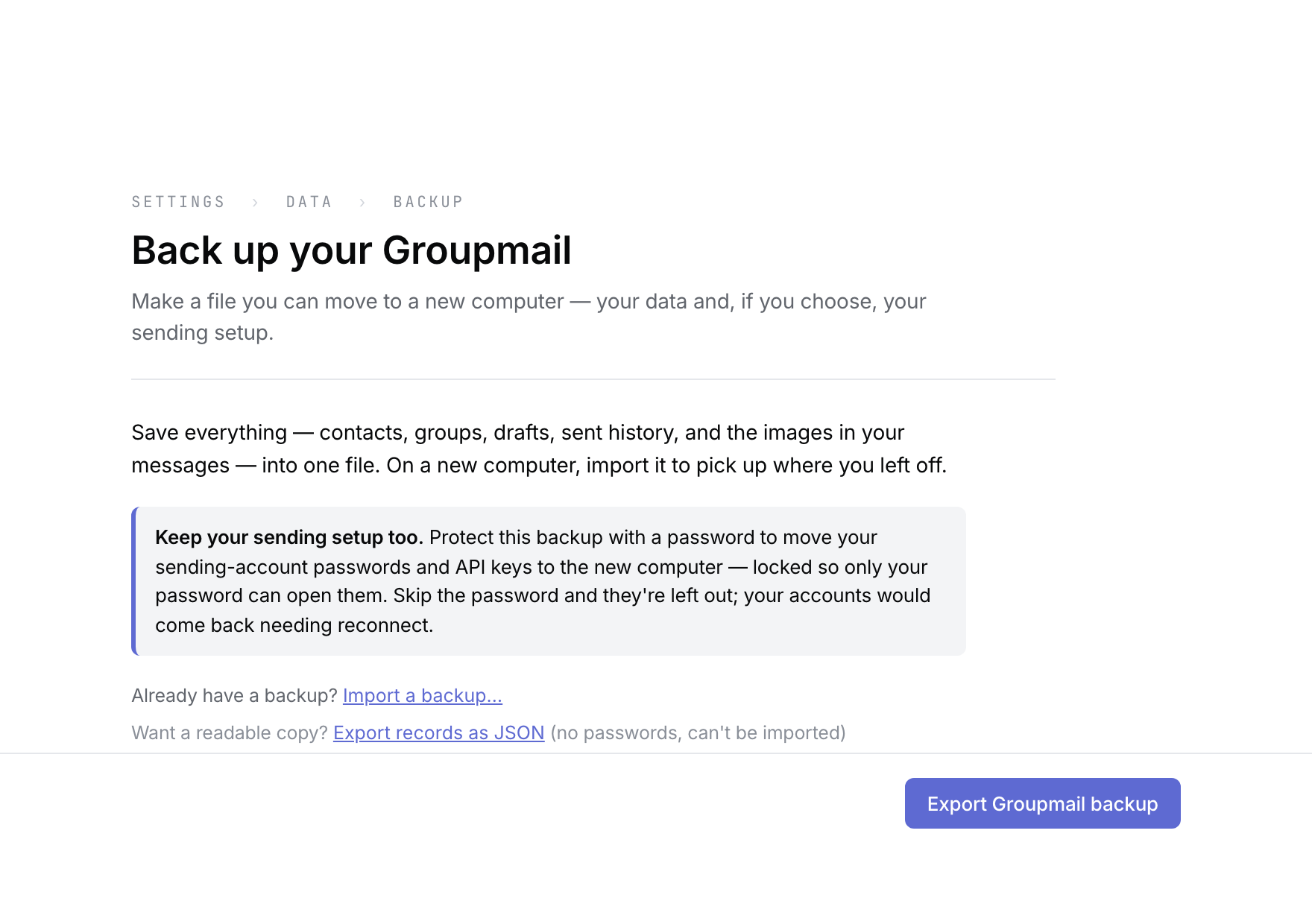 Product illustration from a deterministic empty workspace: the primary action creates a restorable bundle; the quieter links import a bundle or export readable JSON. Open the full-size image · Light-theme image · Dark-theme image.
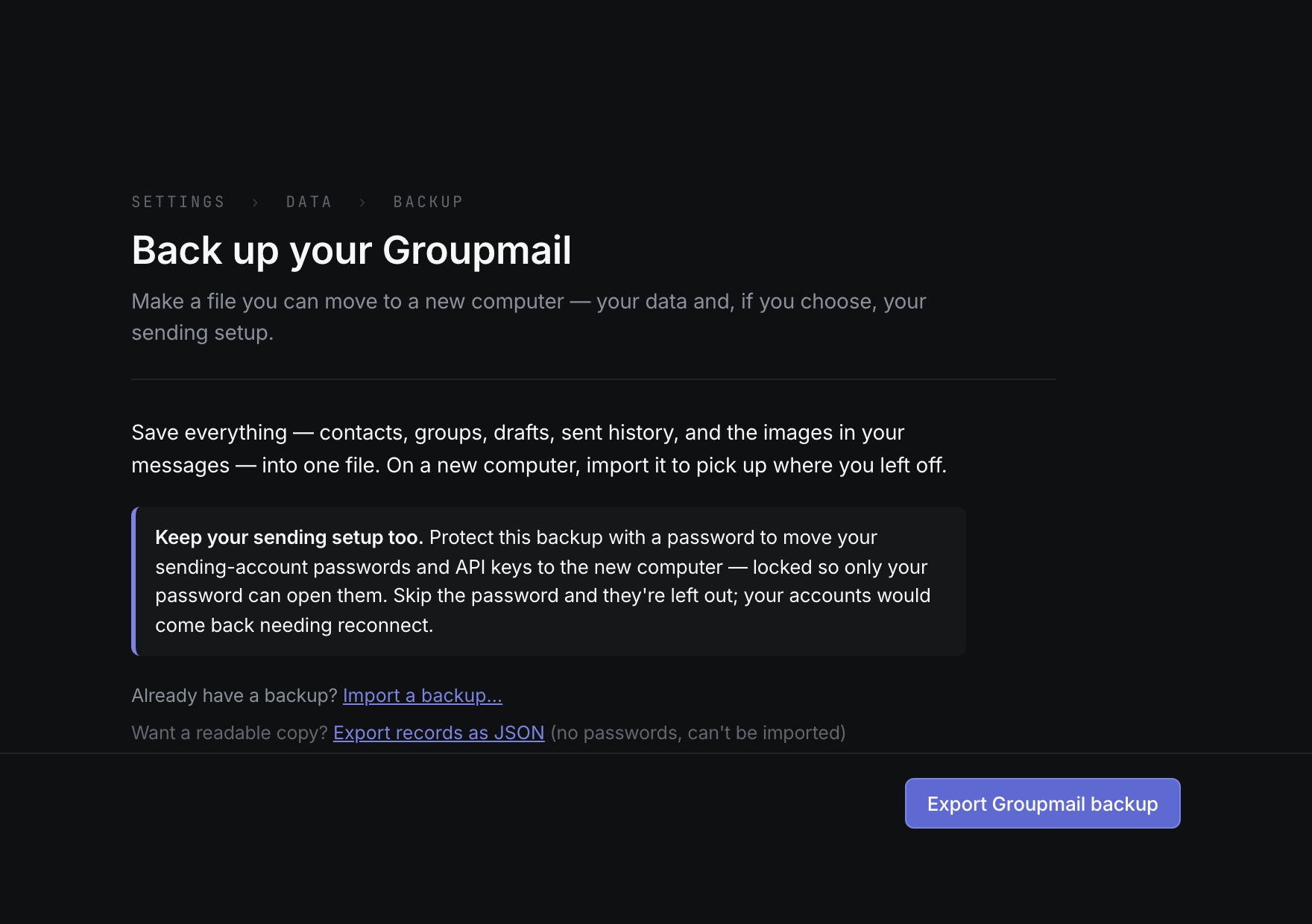
The backup contains contacts, groups, memberships, custom fields, suppressions, drafts and sent history, message images and attachments, and local import history. A protected secrets section is included only when requested and successfully read from the operating system’s secure storage.
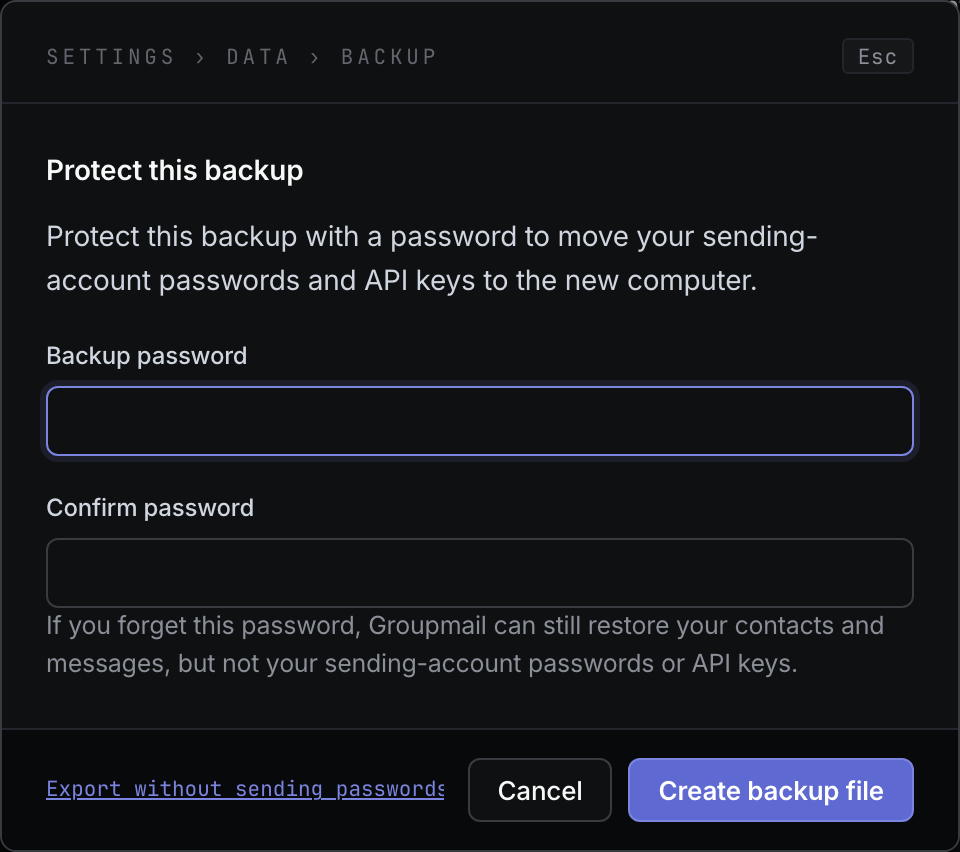
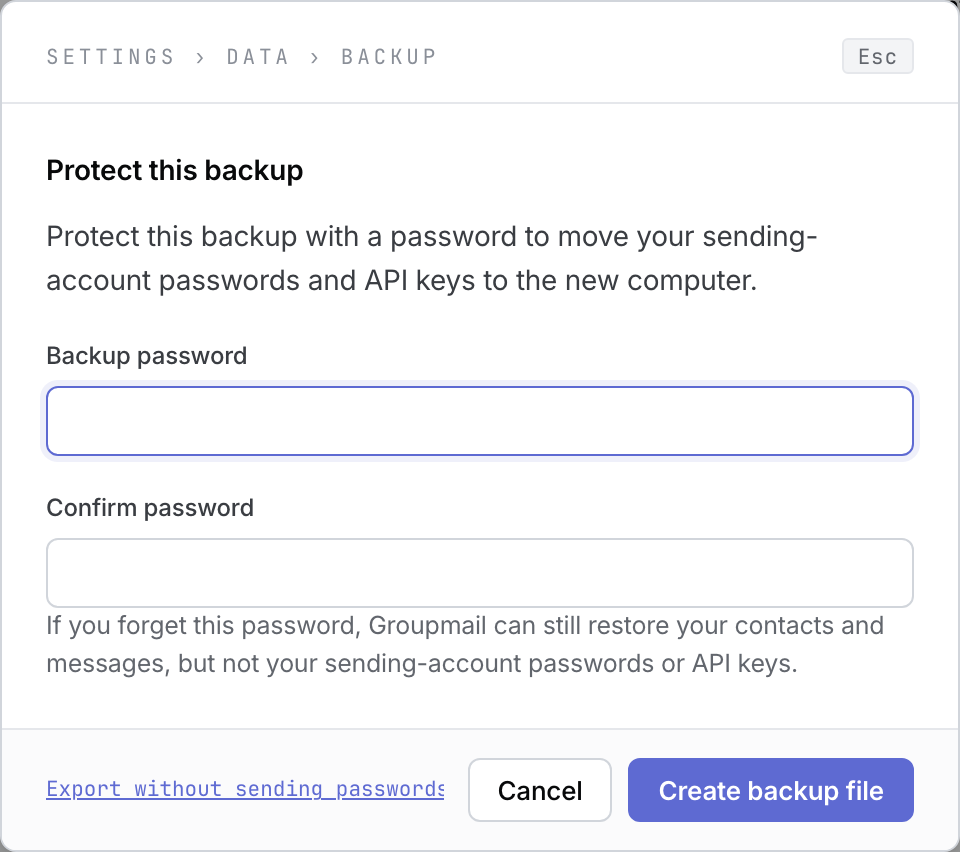 Product illustration from a deterministic empty fixture: protect the backup only when sending credentials should move too. Open the full-size image · Light-theme image · Dark-theme image.
Groupmail refuses a move-computer export while sends are unresolved or in progress. Finish, stop or resolve those sends first. This keeps an active queue from being moved and resumed blindly on another computer.
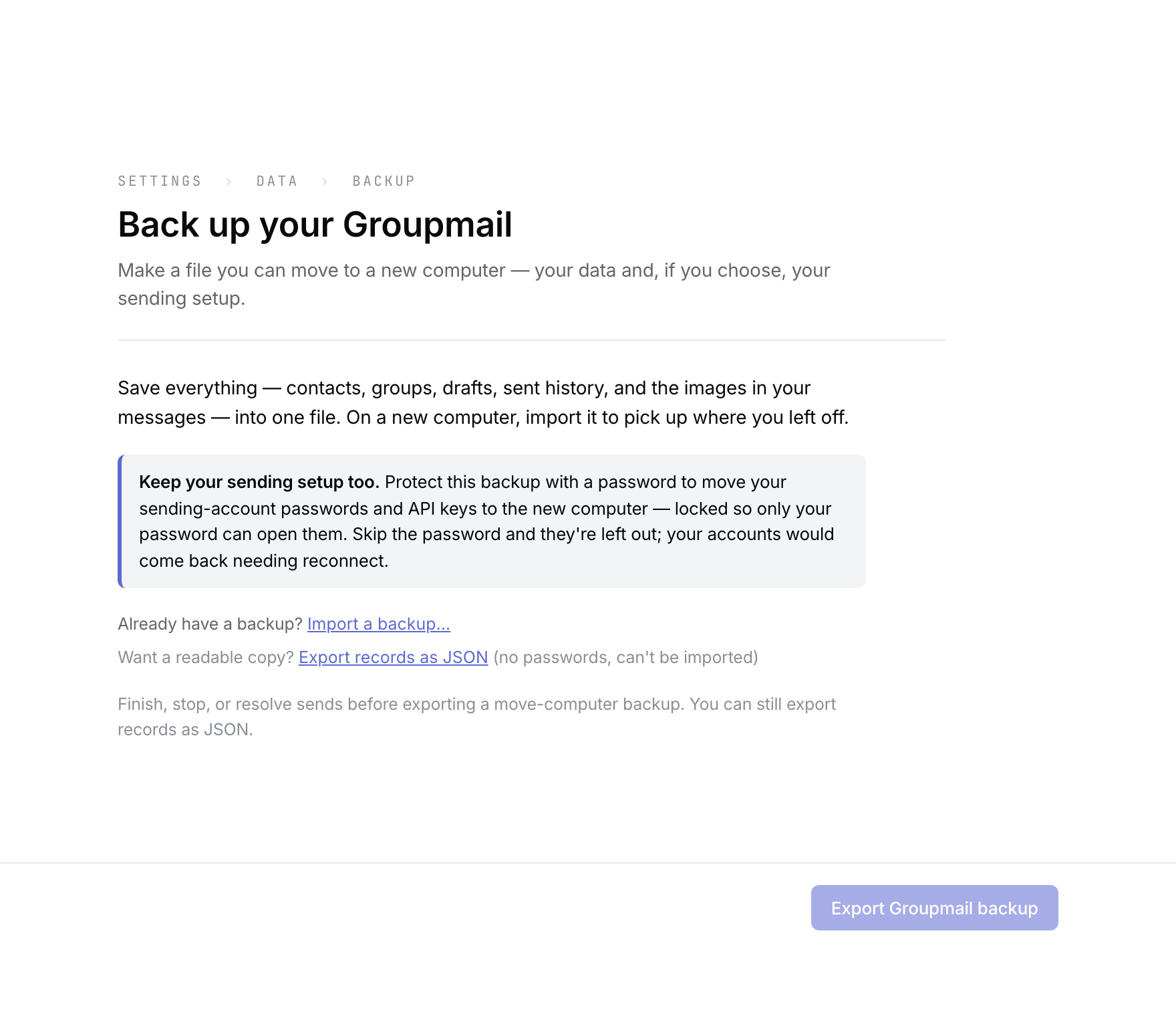 Product illustration from a deterministic send-blocked state: resolve the send before exporting a move-computer backup. Open the full-size image · Light-theme image · Dark-theme image.
Export a readable copy
- On the same Backup page, select Export records as JSON.
- Choose a destination for the
.jsonfile. - Keep the result private: it contains your workspace records, although sending-account passwords and API keys are redacted.
The JSON file is useful as a readable data exit or support artifact. It has no message asset bundle or import contract and cannot be restored. For a group-only spreadsheet, open the group and choose Export contacts as CSV…; that export contains the active contacts in that group, not the whole contact database or sent reports.
Restore on a new computer
Backup restore requires the same workspace schema version. A .gm7backup created by 0.17.0 (schema v62) or 0.21.0 (schema v64) cannot be restored in 0.22.0, which uses schema v68. Keep your older backups and their matching app for separate recovery, and create a new backup with 0.22.0 after upgrading. Your existing workspace upgrades through normal migrations. Opening the upgraded workspace with an older app is not a supported downgrade.
- Install Groupmail on the new computer and open Settings → Data → Backup before adding contacts, groups or messages.
- Select Import a backup…, then Choose backup file….
- Choose the
.gm7backupfile and enter its password if it contains protected sending secrets. - Review the counts and select Restore backup.
- After the restore, open Sending accounts. Reconnect accounts that returned without secrets and send a test email from every restored account before sending to anyone.
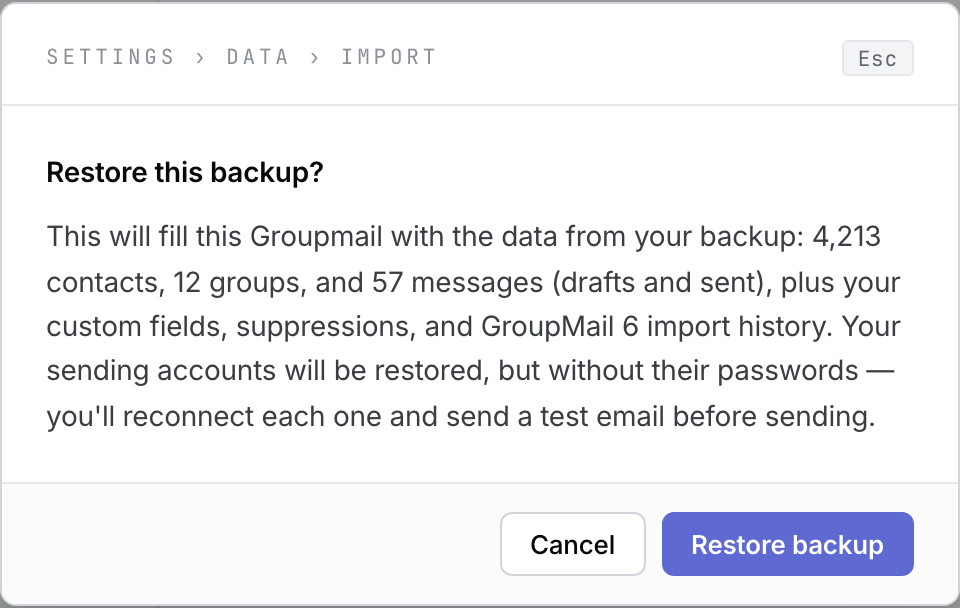 Product illustration from a deterministic fictional backup: review the scope and credential state before restoring. Open the full-size image · Light-theme image · Dark-theme image.
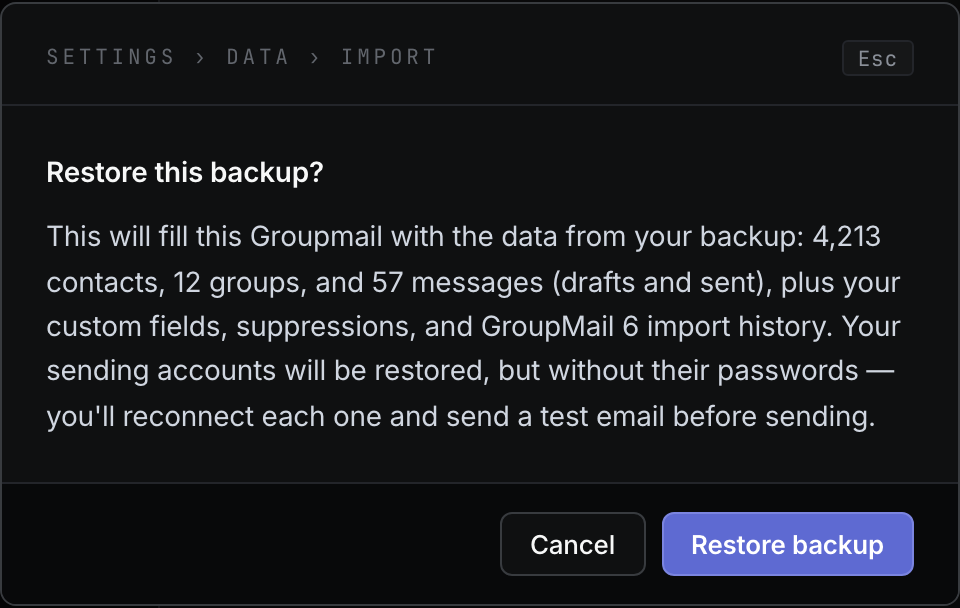
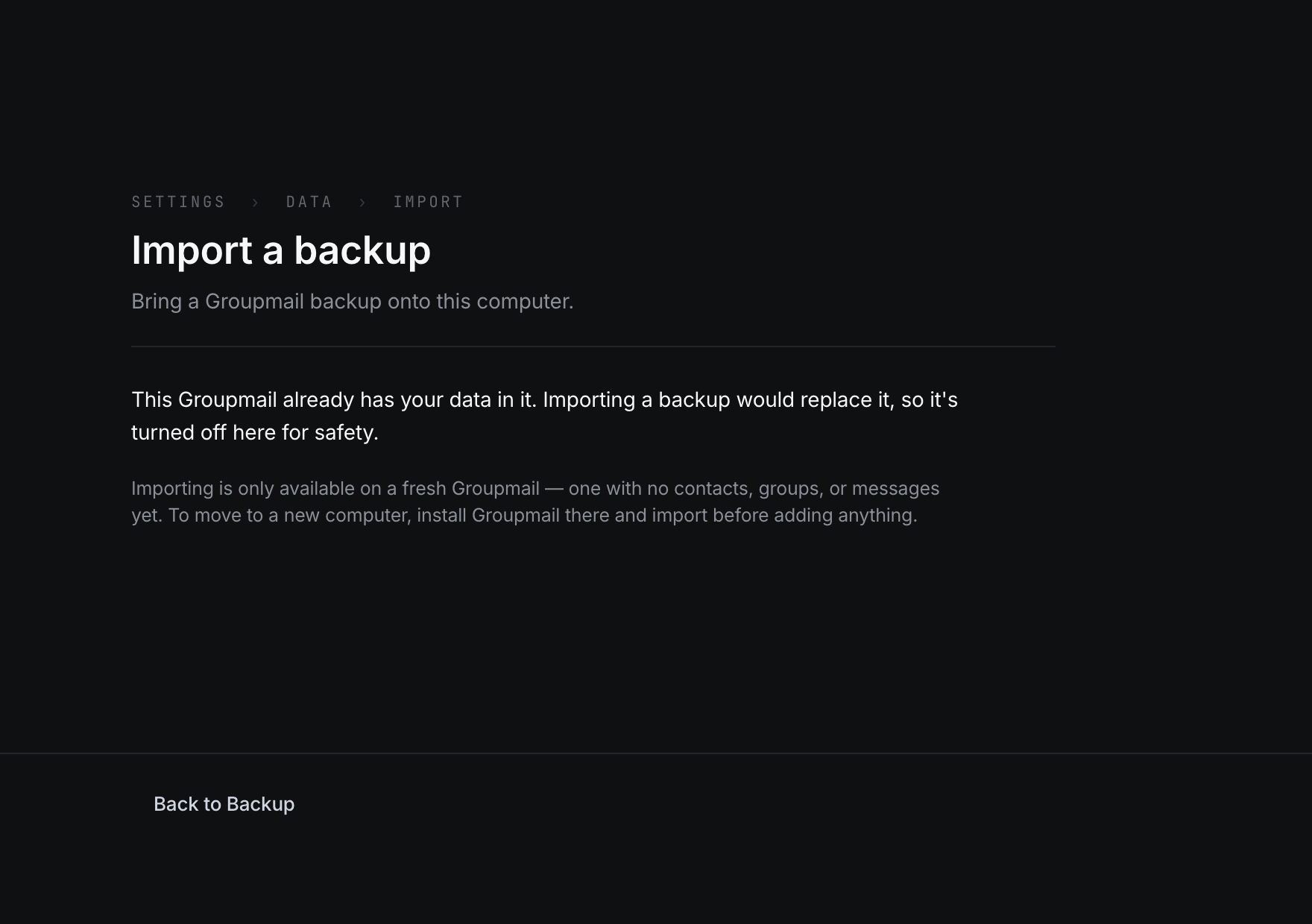
Restore works only in a fresh workspace and replaces that empty workspace atomically. A non-empty workspace is refused; backups are not merged. Scheduled messages restore as ordinary drafts so they cannot fire unexpectedly on the new machine. Schedule them again if you still need them; see How to schedule a message.
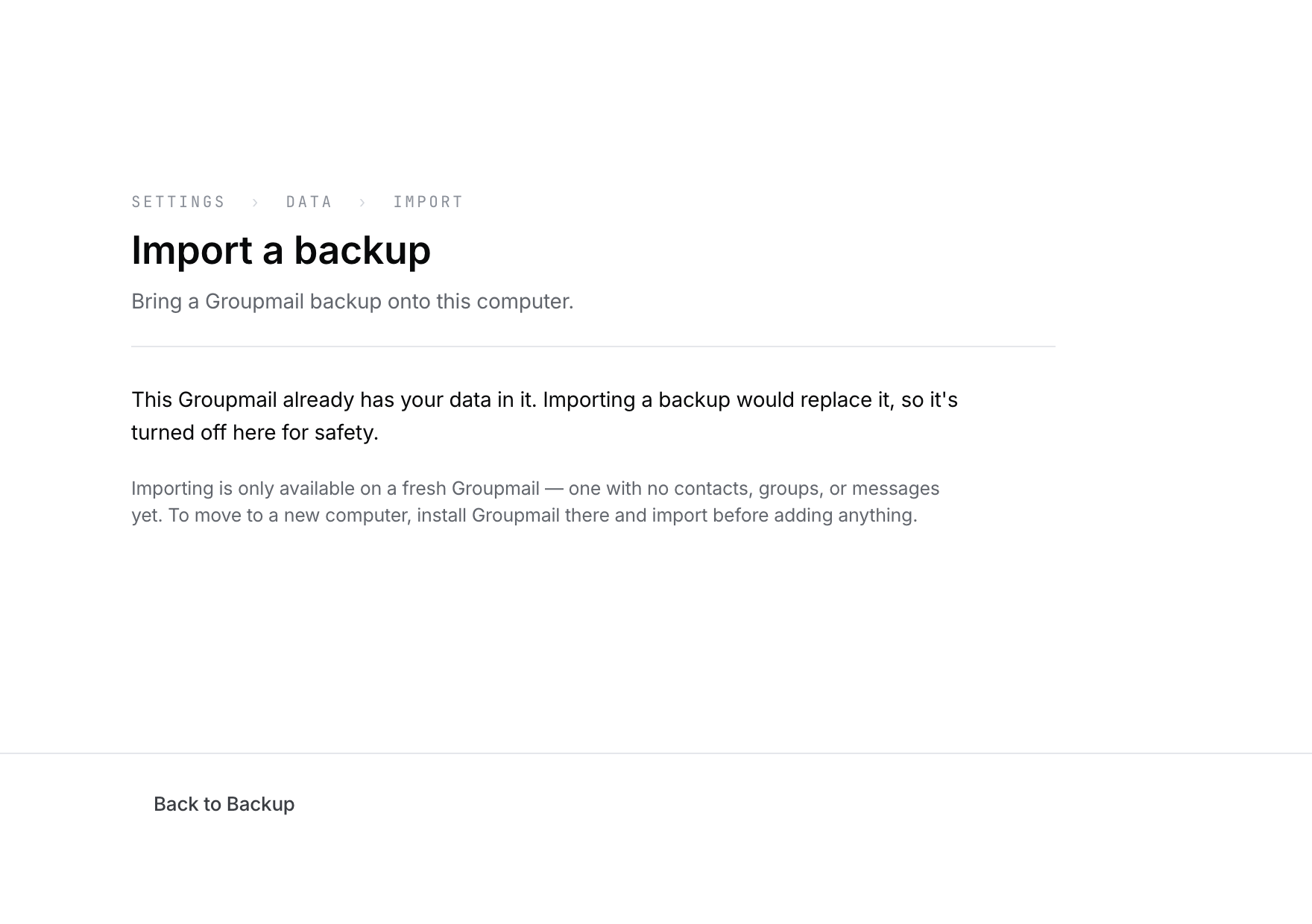 Product illustration from a deterministic non-empty workspace: import on a fresh installation before adding data. Open the full-size image · Light-theme image · Dark-theme image.
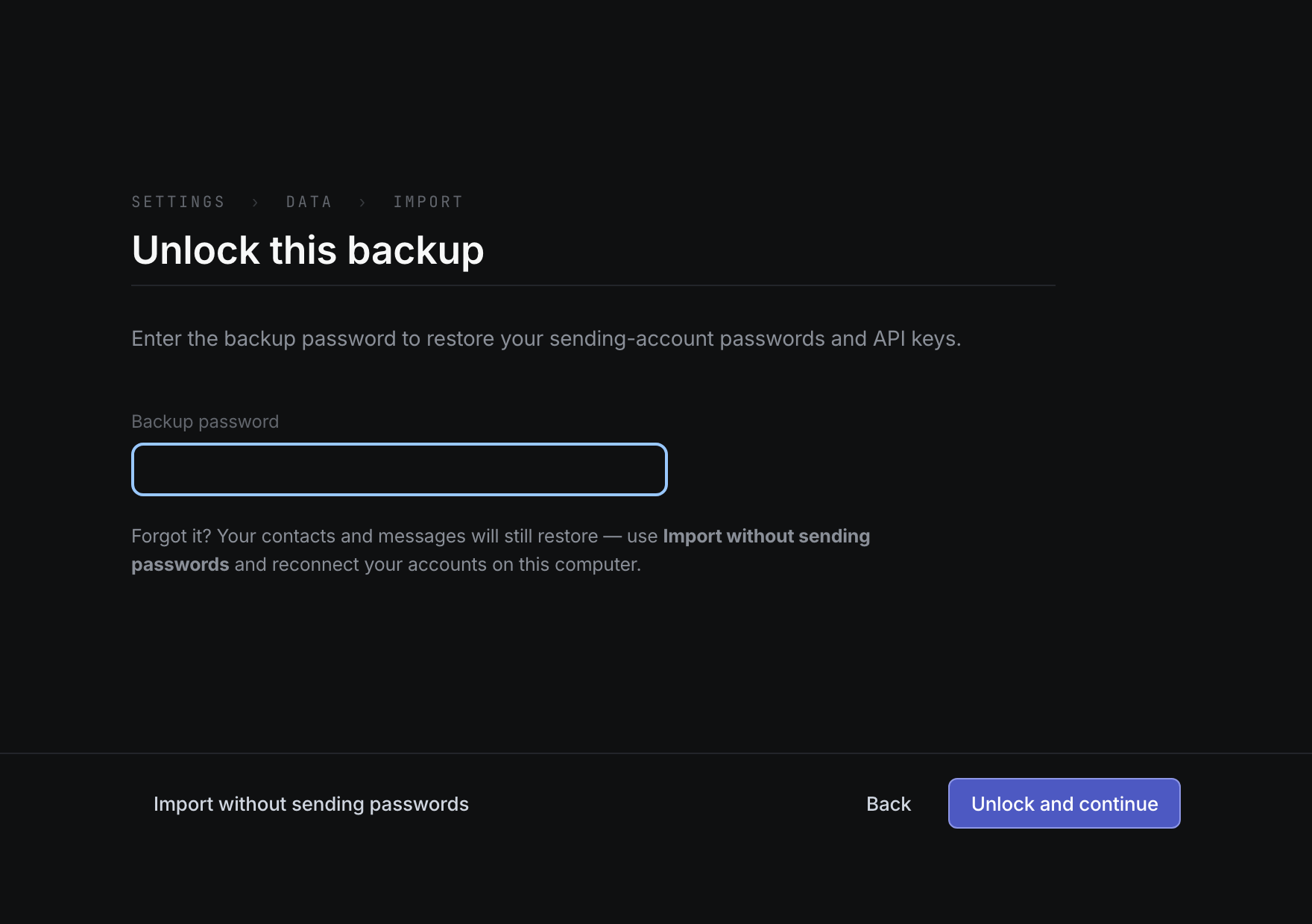
If you have forgotten a backup password, select Import without sending passwords. The data and assets can still restore, but affected sending accounts return needing reconnect.
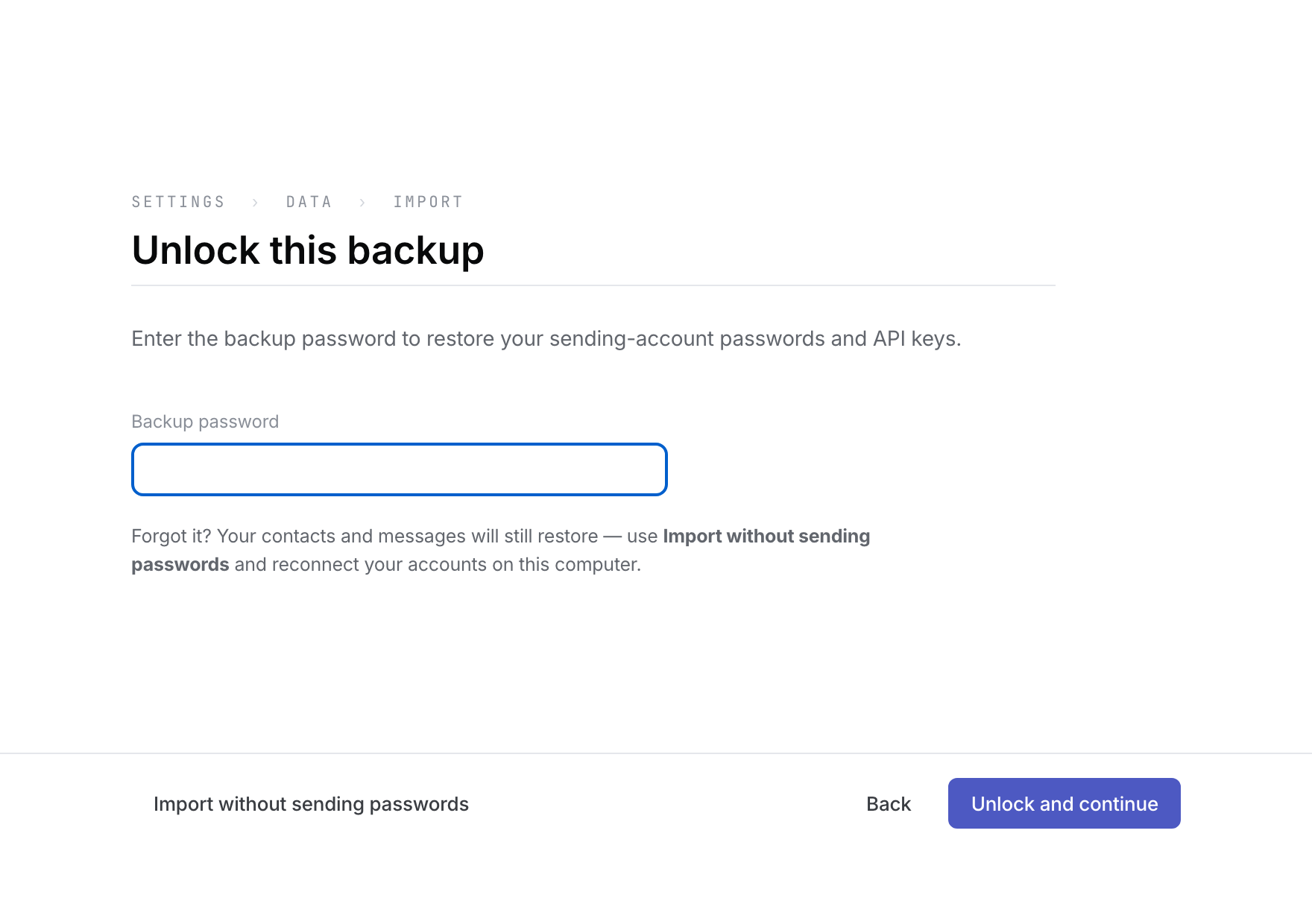 Product illustration from a deterministic fictional protected backup: the import-without-passwords action keeps data recovery available when credentials cannot be unlocked. Open the full-size image · Light-theme image · Dark-theme image.
Understand the recovery boundary
- In 0.15.0 and later, an eligible upgrade converts a readable older workspace so contacts, drafts and messages can still open if the operating system’s credential store is later reset. Sending-account passwords may need to be entered again and provider accounts may need to be reconnected. Keep the computer account, disk and backups protected: the active workspace database is no longer encrypted by a separate Groupmail database key.
- If the old database key was already lost before that upgrade, Groupmail cannot decrypt the older workspace to convert it. Keep all its files and contact support; do not delete the workspace or create a replacement over it.
- An older Groupmail build cannot open a workspace after the 0.15.0 conversion. Use an approved recovery path rather than installing an older version over the same data.
- A
.gm7backupis the self-service restorable format. Test it on the intended new machine before relying on it as your only copy. - A JSON export is readable and redacted but not restorable.
- A group CSV covers one group’s active contacts only.
- Importing a backup cannot merge with existing local work.
- A backup cannot resume an in-progress send, and restored scheduled messages do not stay scheduled.
- Sending credentials excluded from the backup must be entered or reconnected again.
If backup or restore fails
- Export is unavailable: finish, stop or resolve active sends, then retry.
- A sending secret cannot be read: choose Export without sending passwords and plan to reconnect those accounts.
- Restore says this Groupmail already has data: use a fresh installation or fresh workspace; do not delete useful data merely to force the import.
- The file is rejected: keep the original file unchanged. Check the backup password and the workspace schema version. A backup from 0.17.0 or 0.21.0 cannot restore in 0.22.0; contact support before changing or replacing a workspace to recover an older backup.
- Recovery is still uncertain: contact support before overwriting, moving or deleting local Groupmail files. Share the exact error and a redacted JSON export if requested; never send passwords, API keys or an unreviewed customer-data bundle.
Related Docs
- How to update and recover Groupmail 7
- How to import from GroupMail 6
- Troubleshoot import, account and sending problems
- How to schedule a message
Stuck? Contact Groupmail Support with your operating system and Groupmail 7 version. Never email a sign-in link or sign-in code.