On this page
How to import from Groupmail X
Use the Groupmail X import to bring over groups, contacts, exclusions, sending-account settings and your saved emails. Groupmail 7 reads the chosen Groupmail X folder without writing back to it, and nothing imports until you confirm.
Groupmail X is a separate product with its own data format. This is an import, not synchronization: later changes in either product do not update the other.
Keep the source safe
- Close Groupmail X. Data that has not been written out yet can be missed while it is still running.
- Keep an untouched backup of the complete Groupmail folder.
- In Groupmail 7, open Settings and select Import from Groupmail X.
Find and preview your data
-
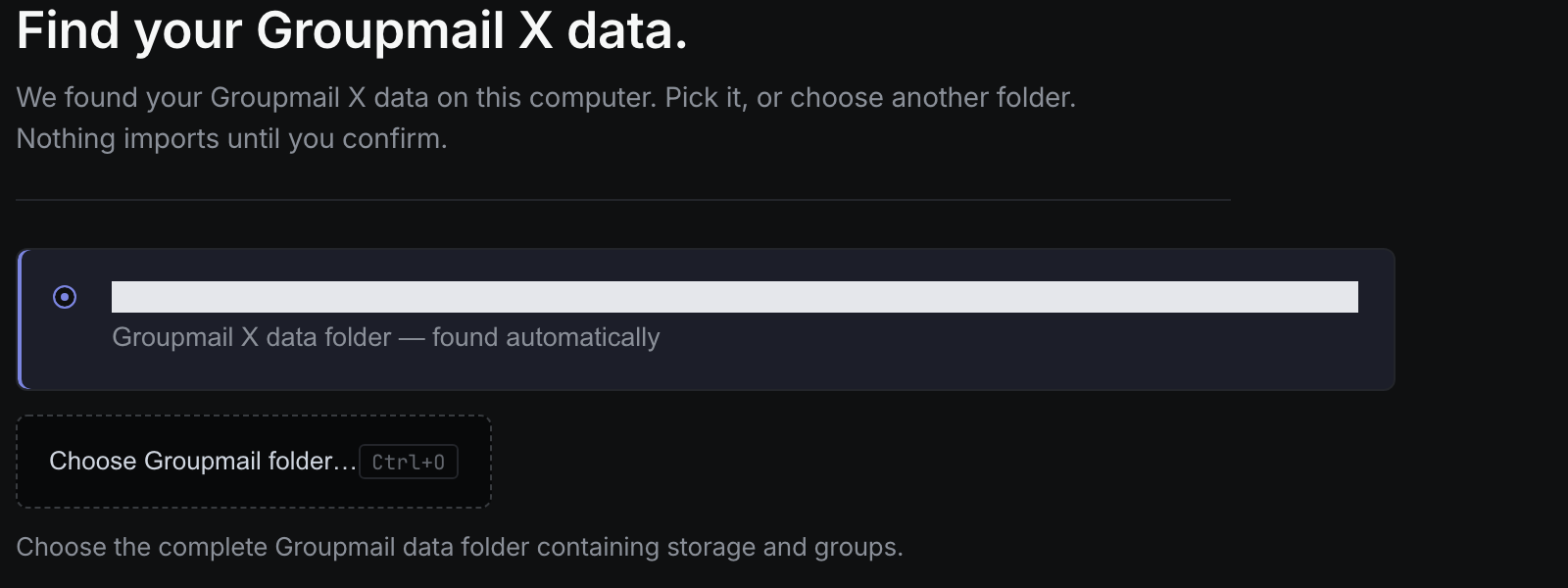
On Find your Groupmail X data, check the detected folder is the one you expect.
-
If nothing is found, select Choose Groupmail folder… and pick the complete Groupmail folder containing both
storageandgroups. A copiedstoragefolder on its own is not enough.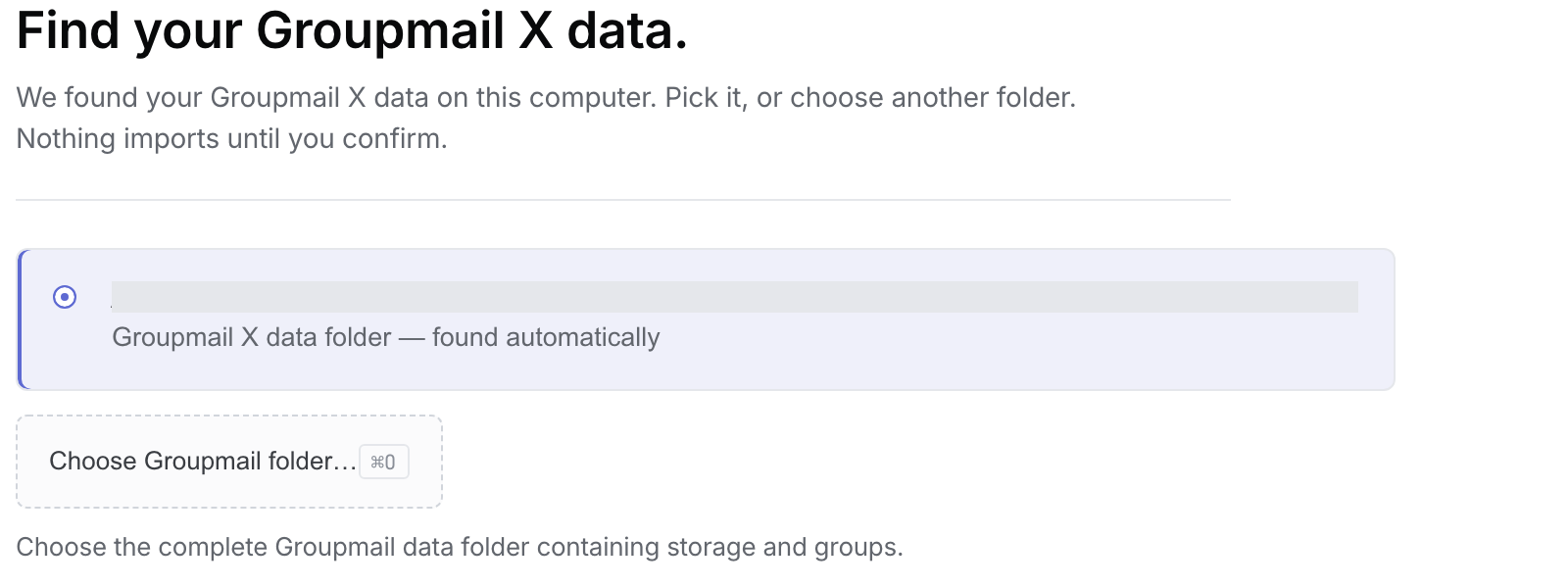 Fictional macOS Find screen; the local folder path is masked. Open the full-size image · Light-theme image · Dark-theme image.
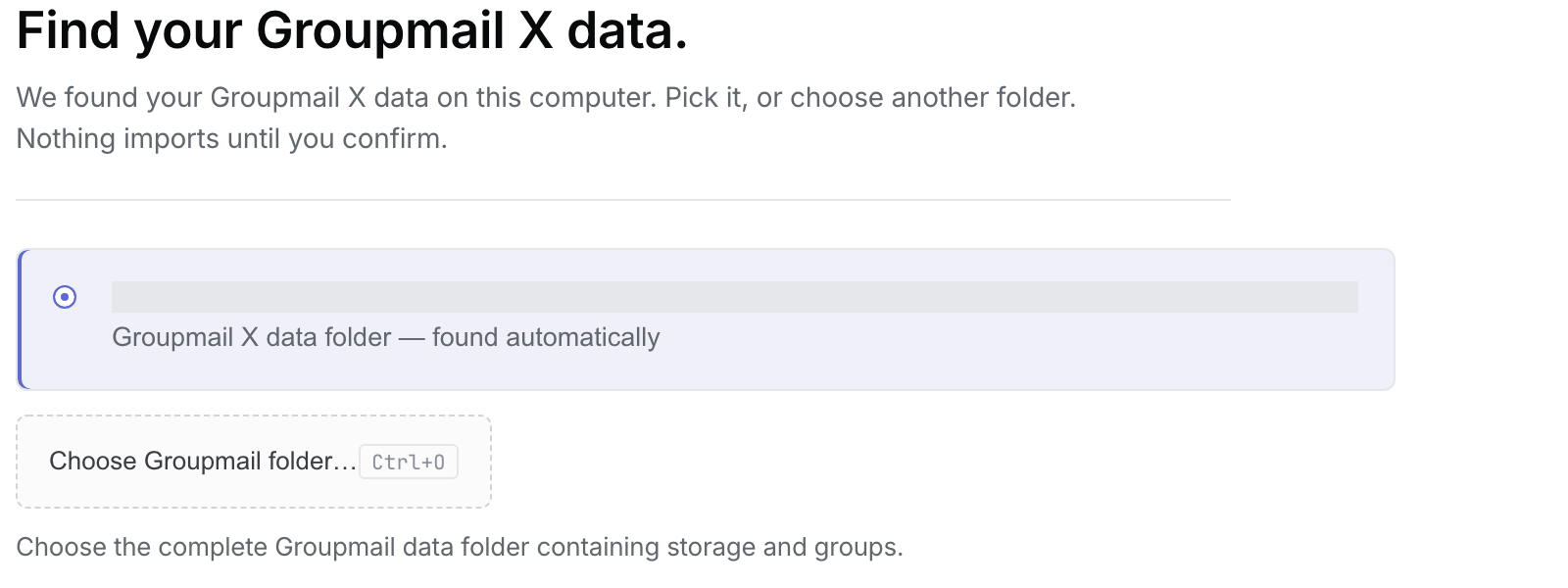 Fictional Windows Find screen; the local folder path is masked. Open the full-size image · Light-theme image · Dark-theme image.
 -
Select Preview →. Reading a large mailing list takes up to a minute.
-
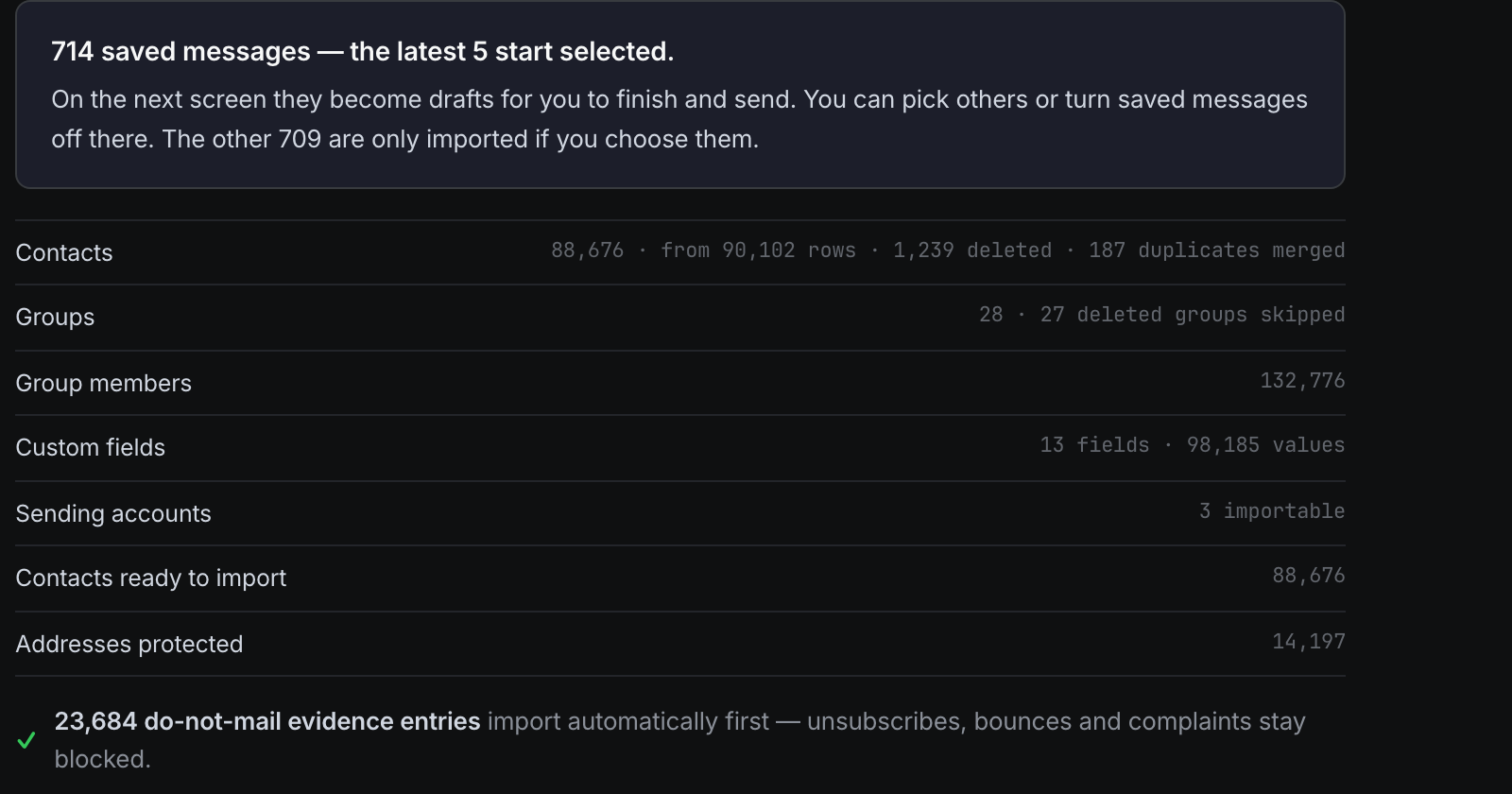
Review the counts for contacts, groups, group members, custom fields, sending accounts and protected addresses.
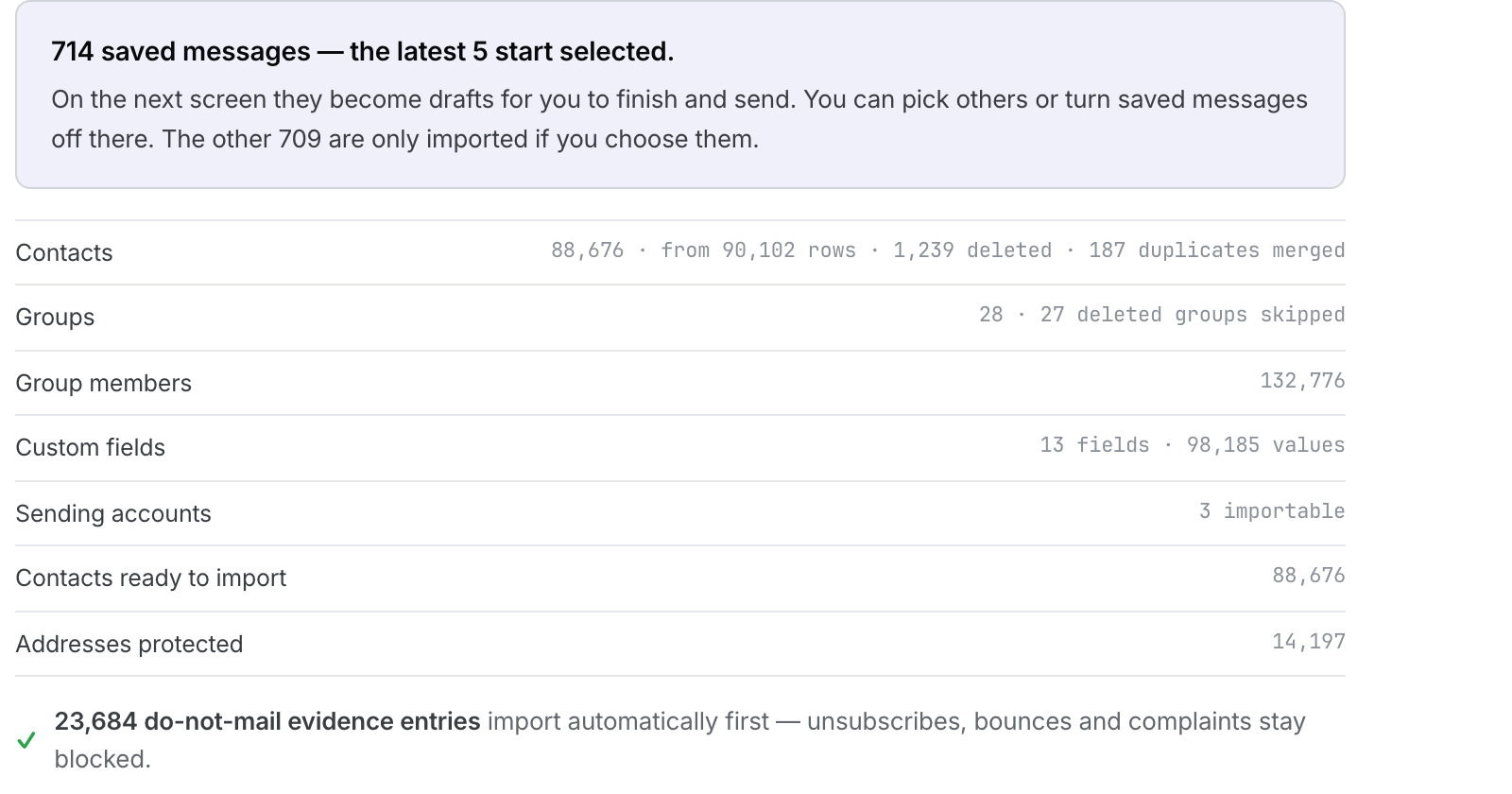 Fictional first-import Preview; the latest five saved messages start selected on the next screen. Open the full-size image · Light-theme image · Dark-theme image.
 -
Read the Found in Groupmail X — detected, not imported section, which lists what is counted but left behind.
 Fictional Preview rows for records that will not import. Open the full-size image · Light-theme image · Dark-theme image.

Nothing has been written at this point. Select Choose what to import → to continue, or Close to stop.
Choose what to bring in
-
Under Saved messages, review the selection. On the first eligible import, up to your latest five saved messages start selected. You can select Turn off if you do not want them. If you imported saved messages from this folder before, the row starts Off; select Turn on to choose more. If they could not be read, it shows Off with Try again. If there are none, it shows None.
 Fictional first-import summary; the latest five messages are selected. Open the full-size image · Light-theme image · Dark-theme image.
 -
Under Groups & contacts, deselect any groups you do not want.
-
Under Sending accounts, review which accounts are selected.
-
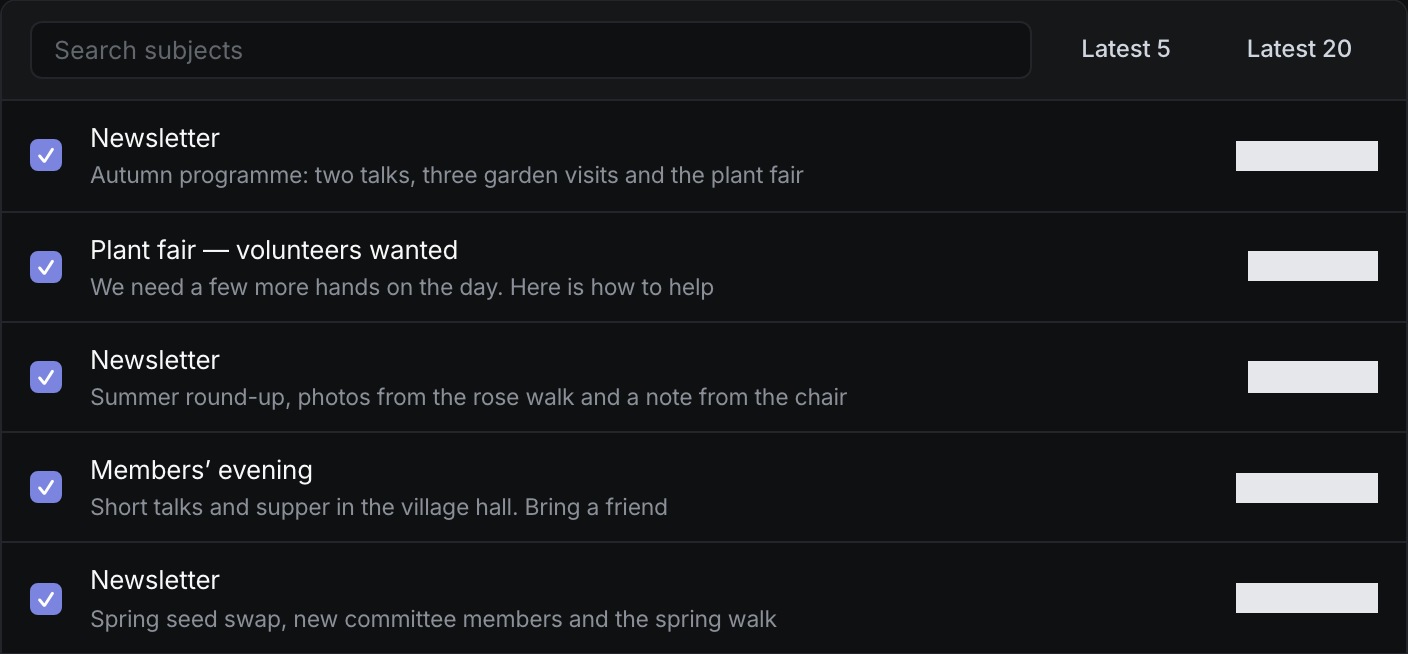
If you want to change which saved messages come across, select Change beside Saved messages (or Turn on if the row is Off), then tick the emails you want. If the row says the messages could not be read, select Try again first. Use the search box to find one by subject, or Latest 5 or Latest 20 to make a new selection. If the row shows None, skip this step.
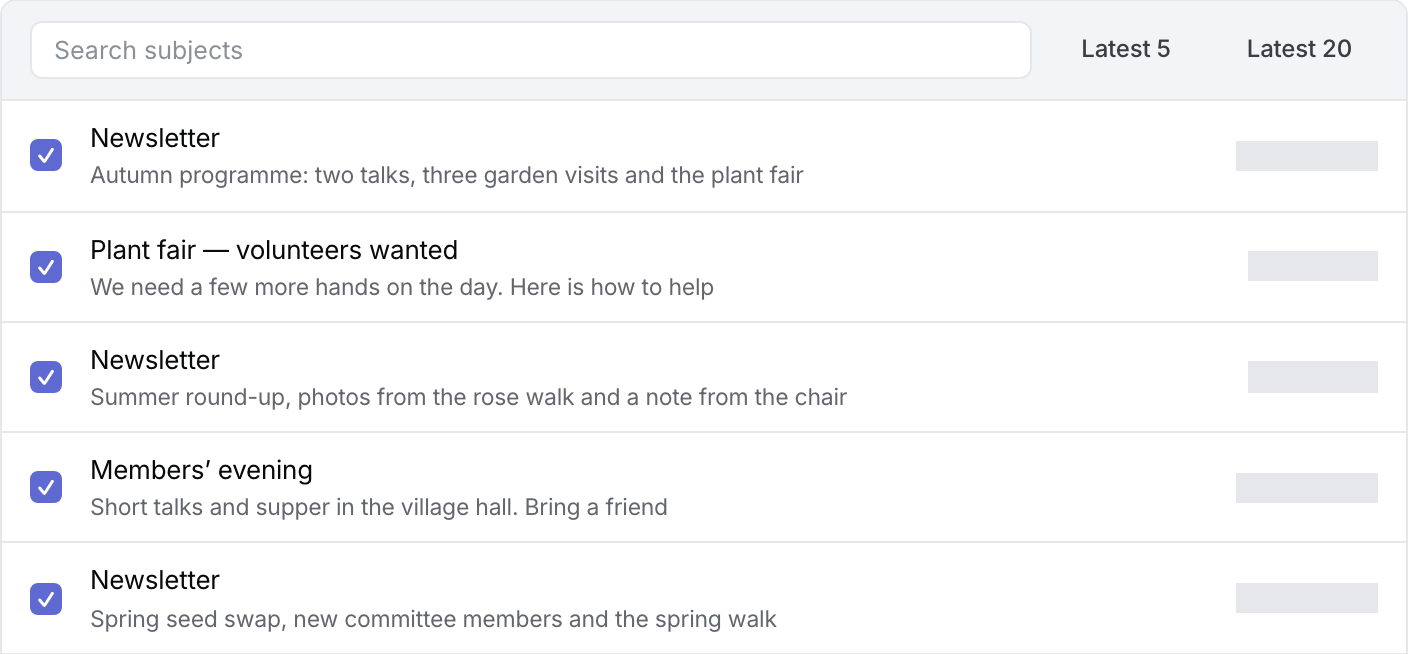 Fictional picker; message dates are masked. Open the full-size image · Light-theme image · Dark-theme image.
 -
If you opened the saved-message picker, select Done · back to summary. Then select Start import.

Starting the import is your consent to copy the selected SMTP passwords into this computer’s secure storage. Google sign-in tokens are never copied. Emails that Groupmail X sent through its own built-in sending service are skipped, because that service is not part of Groupmail 7. Your own SMTP accounts import and stay yours. In 0.18.0 and later, an imported account on a known sending relay starts with 4 simultaneous connections; any other server starts with 1. See How to set up a sending account.
Each email you choose becomes a draft in Groupmail 7, ready to edit and send.
Open an imported email
Imported emails appear in Drafts. Each one opens in one of two ways.
An email that Groupmail can safely take apart opens in the visual editor. Select any part of the email to change the text, select an image to replace it by upload or by web address, and add or remove rows. In 0.16.0 and later, you can also make selected text smaller or bigger and change its colour. See How to design your email.
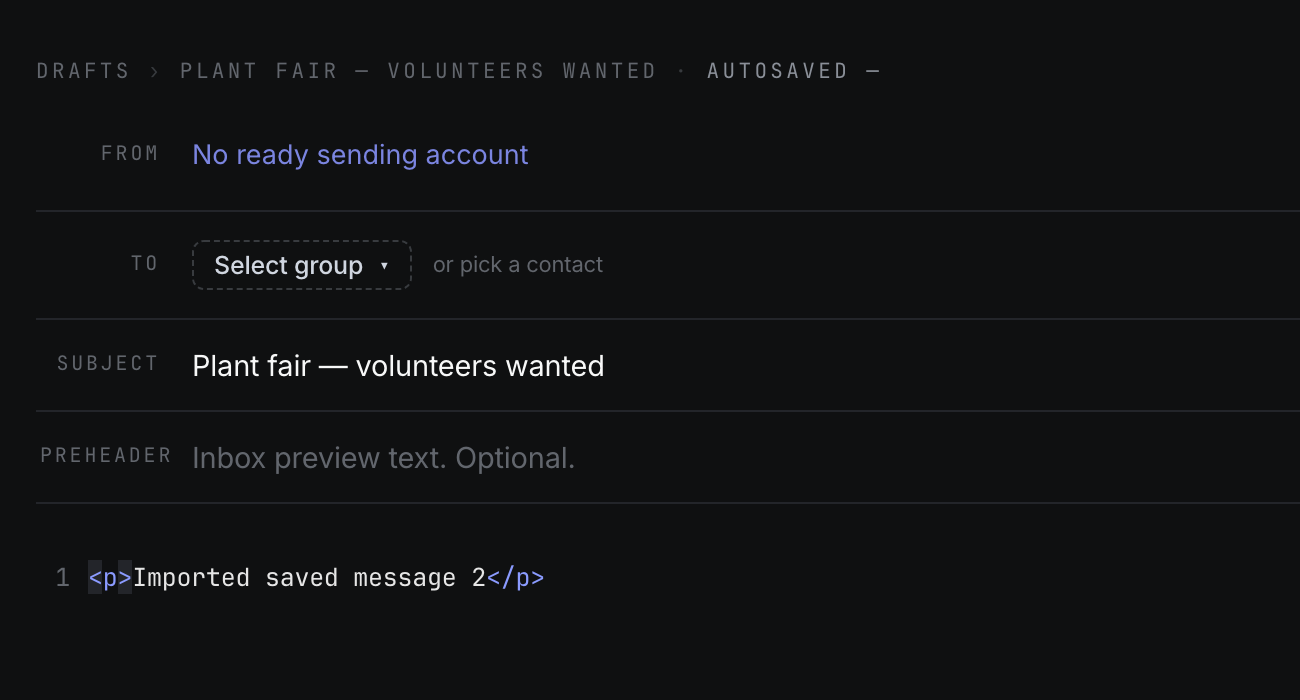
Any other email opens unchanged in HTML Source, shown as it was written. Some emails are built in a way that cannot be taken apart reliably, and Groupmail X HTML is preserved exactly, including its image links, style rules and any Outlook conditional comments. Rather than risk changing how your email looks, Groupmail 7 keeps it whole. The email still works: edit it, preview it and send it as normal.
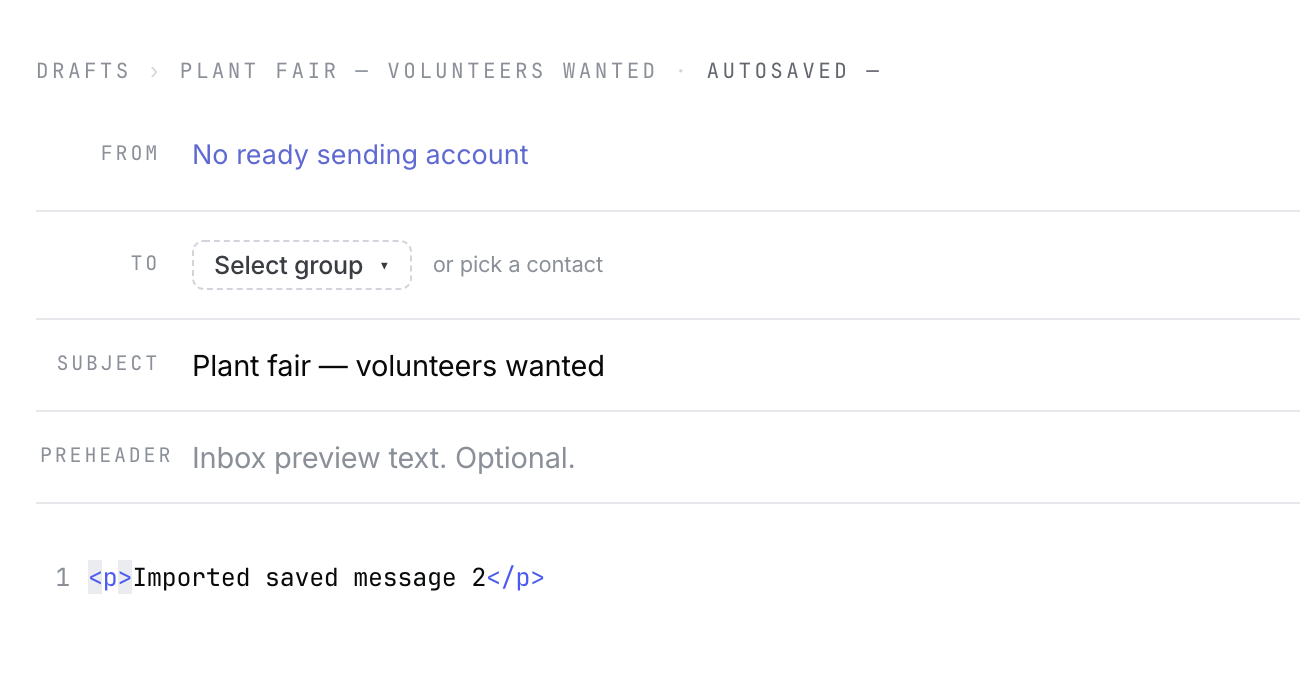 Fictional Windows browser fixture. Some imported messages open in the visual editor instead. Open the full-size image · Light-theme image · Dark-theme image.
Before sending an imported email:
- Make your changes, then wait for the draft to save.
- Close the draft and open it again from Drafts to confirm your changes are kept.
- Select Preview and check the layout, images and links.
- Send yourself a Test send and check the received message.
- If you want to undo your edits, select HTML in the draft footer, then Restore imported version…, then Restore. Your edits are replaced and the message opens as HTML.
To keep the imported original untouched while you experiment, make a copy first with Copy as draft. See How to reuse drafts and starting designs.
If an email opens in HTML Source and you would rather not work that way, a starting design is often quicker than editing code. Templates includes two-column newsletter layouts you can fill with your own images and text.
Understand imported images
Images hosted on the web come across as links and display while that web address still works. In 0.16.0 and later, pictures stored in the email itself are sent at a sensible size (see How to design your email). An image stored only on the computer that made the email cannot be fetched and appears as a missing image for you to replace. An email that arrives needing attention is marked images need review. Attachments are not imported.
Bounces, unsubscribes and Inbox
Bounce, complaint and removal records saved in Groupmail X come across as suppressions, so Groupmail 7 won’t email those addresses. Groupmail X’s incoming mailbox settings aren’t imported, and nothing checks a mailbox automatically after the import.
To use Inbox, connect the mailbox from Inbox. For an account on your own mail server, Groupmail then shows replies and handles new bounces and “Unsubscribe” requests. For an SMTP2Go account, connecting adds replies only; SMTP2Go still handles bounces and unsubscribes. Accounts that used Google sign-in in Groupmail X can’t be checked. See How to use Inbox for replies, bounces and unsubscribes.
Run the import again
Importing the same folder again updates or skips matching records rather than creating duplicate contacts or duplicate imported drafts. Run a second import later to bring across emails you did not tick the first time.
If an import stops with a message about the data being incomplete or unreadable, check that you selected the complete Groupmail folder containing both storage and groups, and that Groupmail X is closed.
Related Docs
- How to import from GroupMail 6
- How to reuse drafts and starting designs
- How to manage exclusions, suppressions and unsubscribes
- How to use Inbox for replies, bounces and unsubscribes
- Troubleshoot import, account and sending problems
Stuck? Contact Groupmail Support with your operating system and Groupmail 7 version. Never email a sign-in link or sign-in code.