On this page
How to manage exclusions, suppressions and unsubscribes
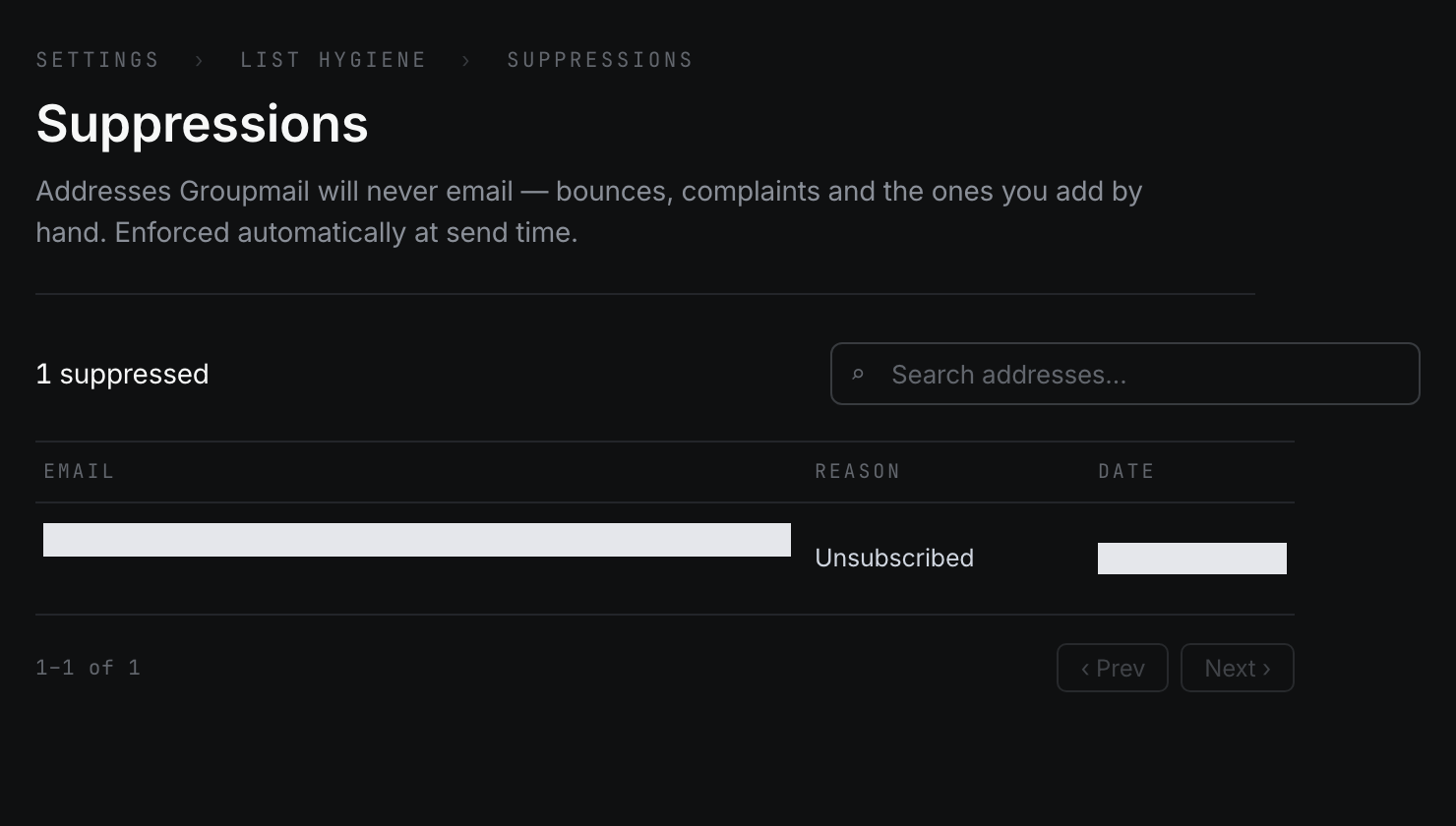
A suppression stops an address from receiving mail from every group. A group exclusion stops it only for one group. Groupmail checks both again at send time, so an excluded address is skipped even if it is still a group member.
Choose the right scope
- Use a global suppression when a person has unsubscribed from everything, marked a message as spam, or must not be emailed for another global reason.
- Use a group exclusion when the person should stop receiving one group’s messages but remain emailable from other groups.
- Removing a contact from a group is different: it changes membership, not the do-not-email record.
- Permanently deleting a contact for an Article 17 request is different again and cannot be reversed.
Add a suppression everywhere
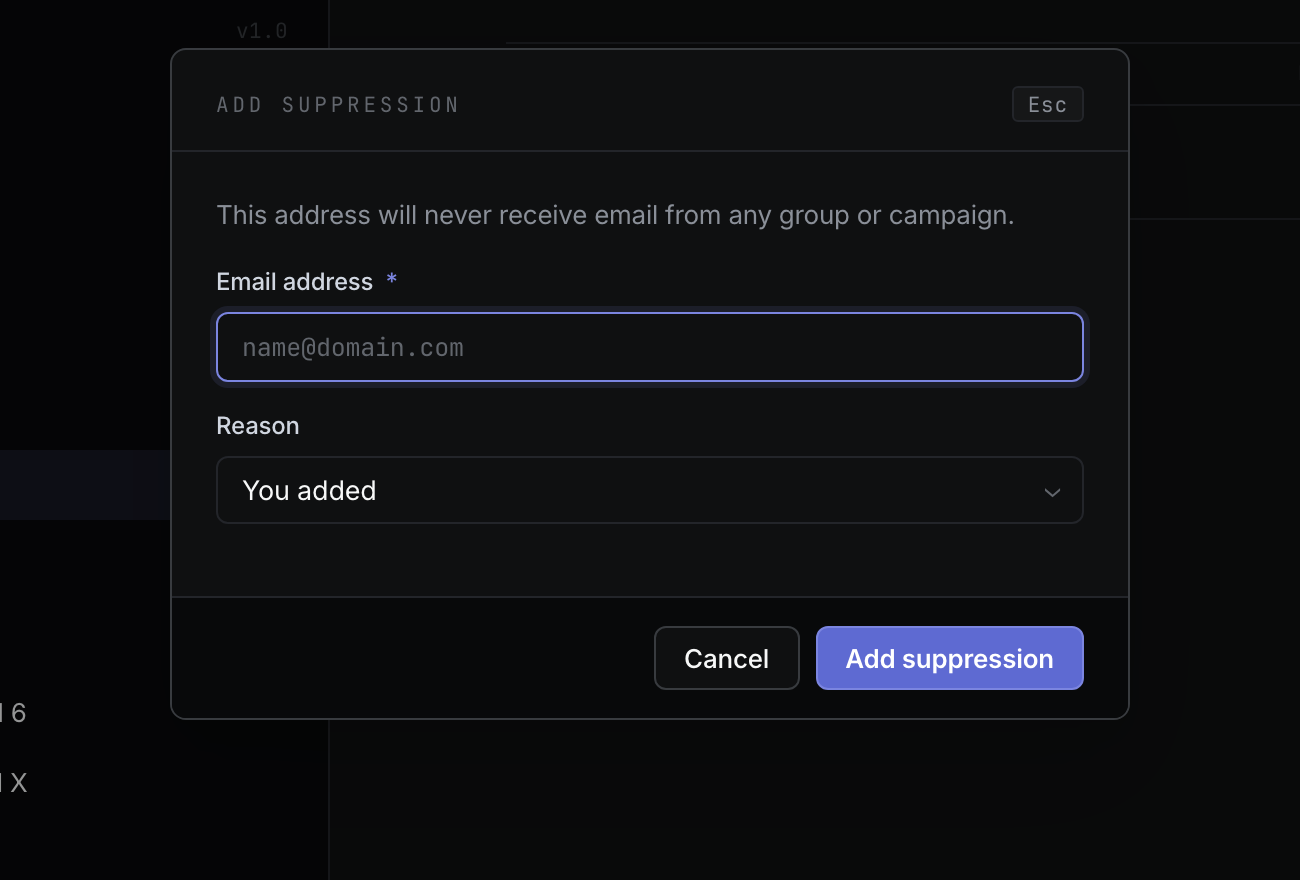
- Open Settings → List hygiene → Suppressions.
- Select Add suppression.
- Enter the email address and choose the reason.
- Select Add suppression.
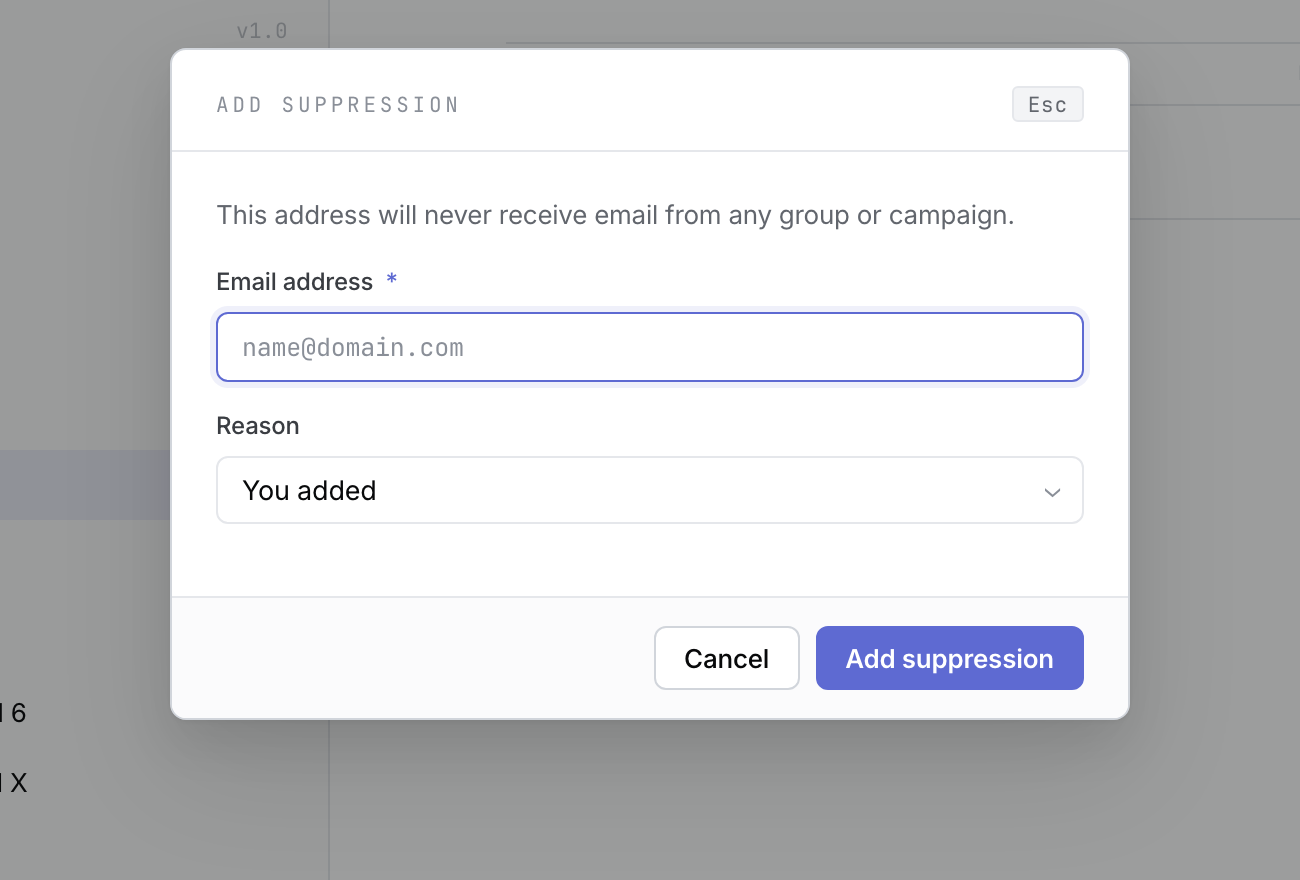 Product illustration with deterministic fictional state: add a global suppression from List hygiene. Open the full-size image · Light-theme image · Dark-theme image.
You can also open a contact’s More actions (⋮) menu and choose Mark unsubscribed everywhere or Mark bounced. The contact can remain in groups, but Groupmail will not email the address.
Recognised SMTP2Go block-list rejections and repeated dead-domain bounces automatically add global suppressions with the provider’s original reason. For an account on your own mail server with a connected mailbox, Inbox also adds matching permanent bounces and “Unsubscribe” requests; pointing at one of these rows shows Added automatically from your mailbox, and you can undo one from its row in Inbox. Automatic additions never replace a suppression you added yourself or one that came from an import. Groupmail also repairs eligible missed dead-domain records after upgrading, without replacing their original reasons. A later bounce result does not restore permanently erased contact details.
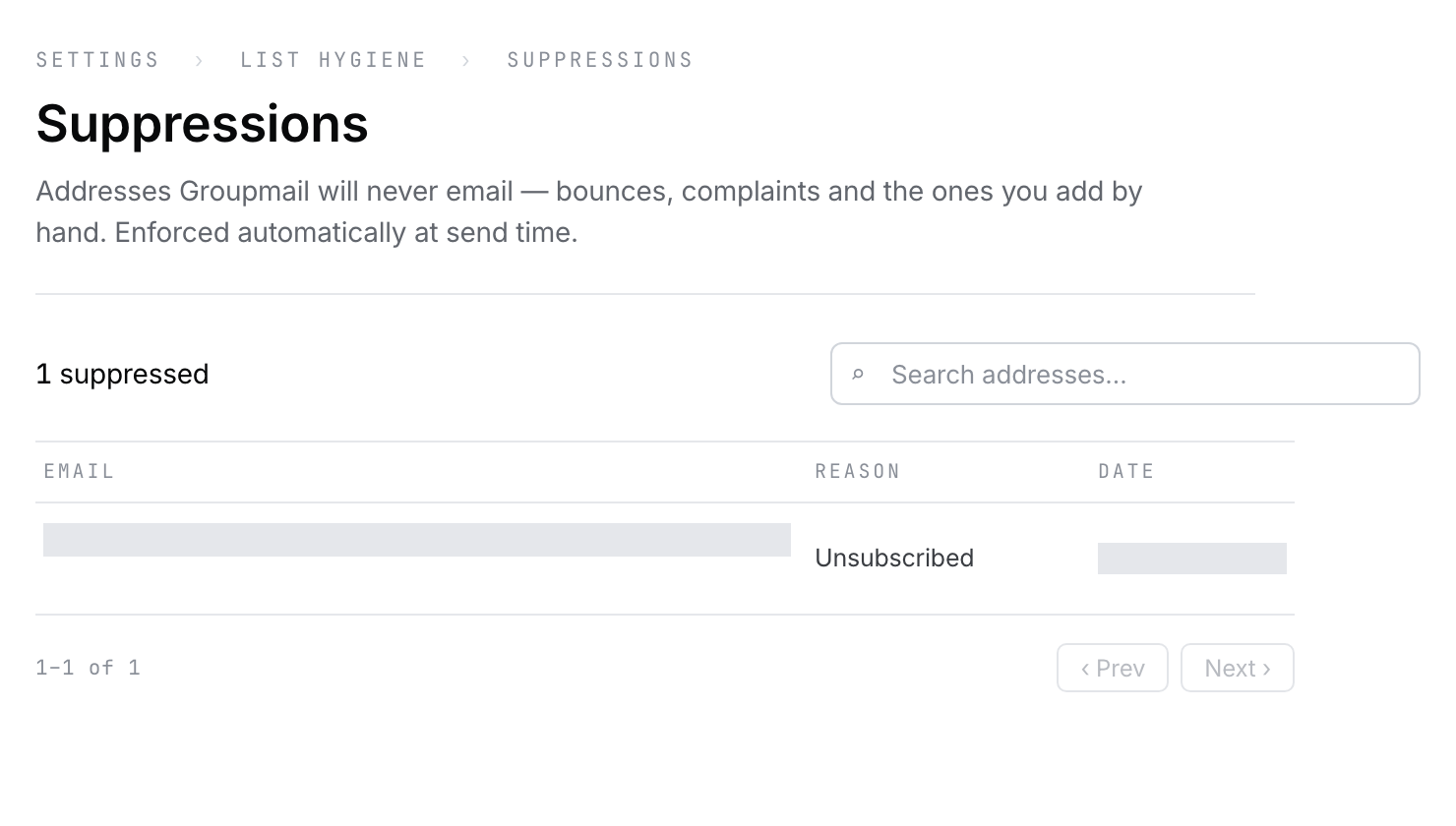 Product illustration with deterministic fictional state and privacy masks: a global suppression applies across every group. Open the full-size image · Light-theme image · Dark-theme image.
Exclude an address from one group
- Open the contact inside the affected group.
- Open More actions (⋮) and select Exclude from this group only.
- Review the named group, then select Exclude from this group.
The contact detail banner changes to Excluded from this group and offers Include in this group. You can also manage all scoped rows through Settings → List hygiene → Group exclusions when that doorway is shown.
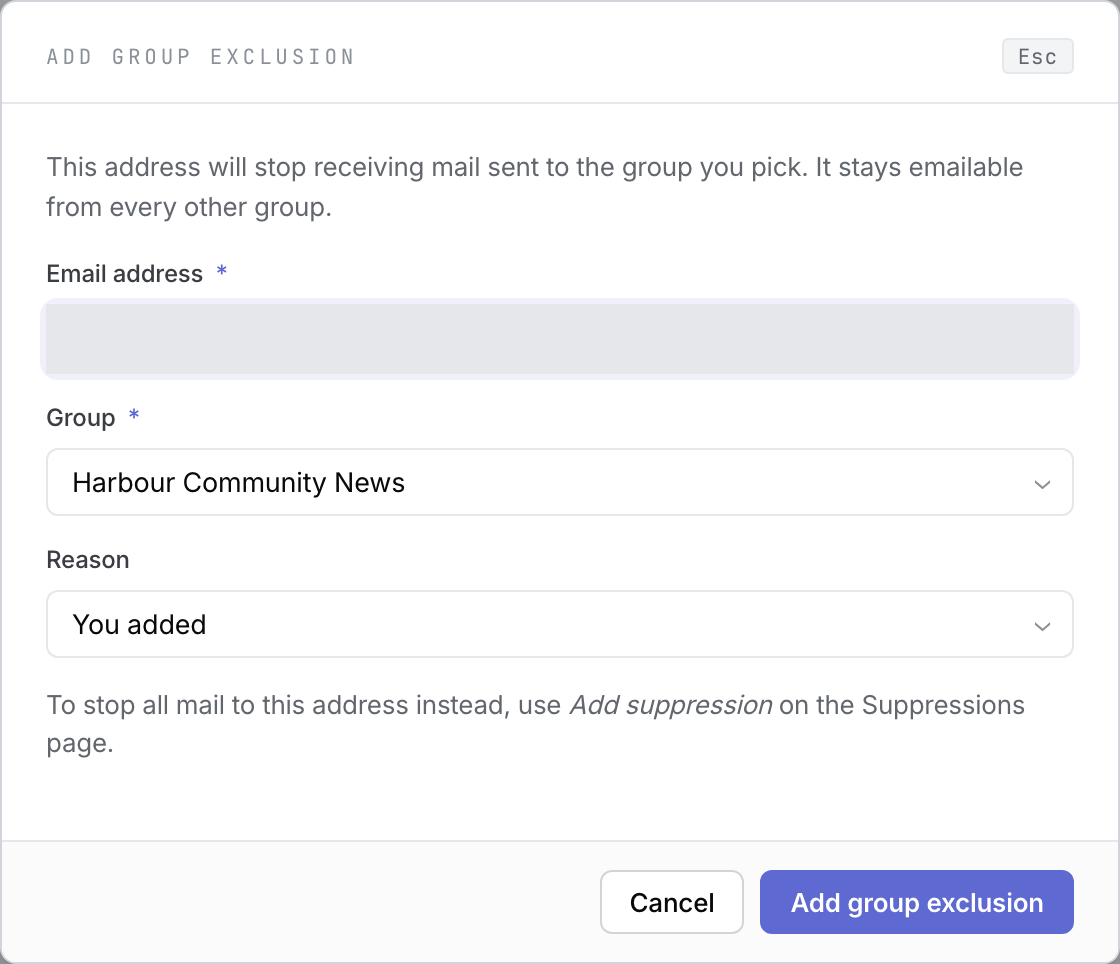 Product illustration with deterministic fictional state and a privacy-masked address: a group exclusion leaves the address emailable from other groups. Open the full-size image · Light-theme image · Dark-theme image.
Import or export do-not-email records
- On Suppressions, select Import CSV to add global suppressions from a file.
- Review the imported, duplicate and skipped counts shown after the import.
- Select Export CSV to save the currently searched global suppression list.
- On Group exclusions, use Export CSV to export the selected scope and filters, including group context.
GroupMail 6 exclusions come through the dedicated migration. An exclusion tied to a known GM6 group remains scoped to that group; the ALL GROUPS entry becomes global. If a named source group cannot be resolved, Groupmail makes the address globally suppressed and reports a warning rather than risk sending to it.
Remove an exclusion carefully
- On Suppressions, select Remove beside a global row. This also clears that address’s active exclusions, and a five-second Undo appears.
- On Group exclusions, select Remove beside a group row to lift only that group’s exclusion. A five-second Undo appears there too.
- From contact detail, select Make emailable everywhere only after reviewing the list of scopes it will clear.
A row retained for permanent data erasure cannot be lifted. A global row in the Group exclusions view must be managed from the contact detail flow, where the full impact is shown.
If someone was emailed or skipped unexpectedly
- Open the contact and read the banner. Suppressed everywhere and Excluded from this group have different reach.
- Open Sent, select the message and choose View audit log. When a suppression prevents a new send, that recipient is recorded as skipped. A suppression learned after provider acceptance does not rewrite the original submission history.
- Check whether a GM6 exclusion was imported with a group name or with global scope.
- If removing an exclusion fails, refresh the view before trying again; a newer rule or permanent-delete record may now own the address.
- Do not remove a rule merely to force a send. Confirm the person’s permission and the intended scope first.
Related Docs
- How to use Inbox for replies, bounces and unsubscribes
- How to add, edit, move and remove contacts
- How to review, test send and understand results
- How to import from GroupMail 6
Stuck? Contact Groupmail Support with your operating system and Groupmail 7 version. Never email a sign-in link or sign-in code.