On this page
How to add, edit, move and remove contacts
Open a contact inside one of their groups to edit their details or memberships. Removing them from a group keeps the contact; Delete contact is the permanent data-erasure action and cannot be undone.
Add one contact
- Open Groups, then open the group that should contain the contact.
- Select + Add one contact.
- Enter the required Email address and any first or last name.
- To add the person to more groups at the same time, select + Also add to… and choose them.
- Select Add contact.
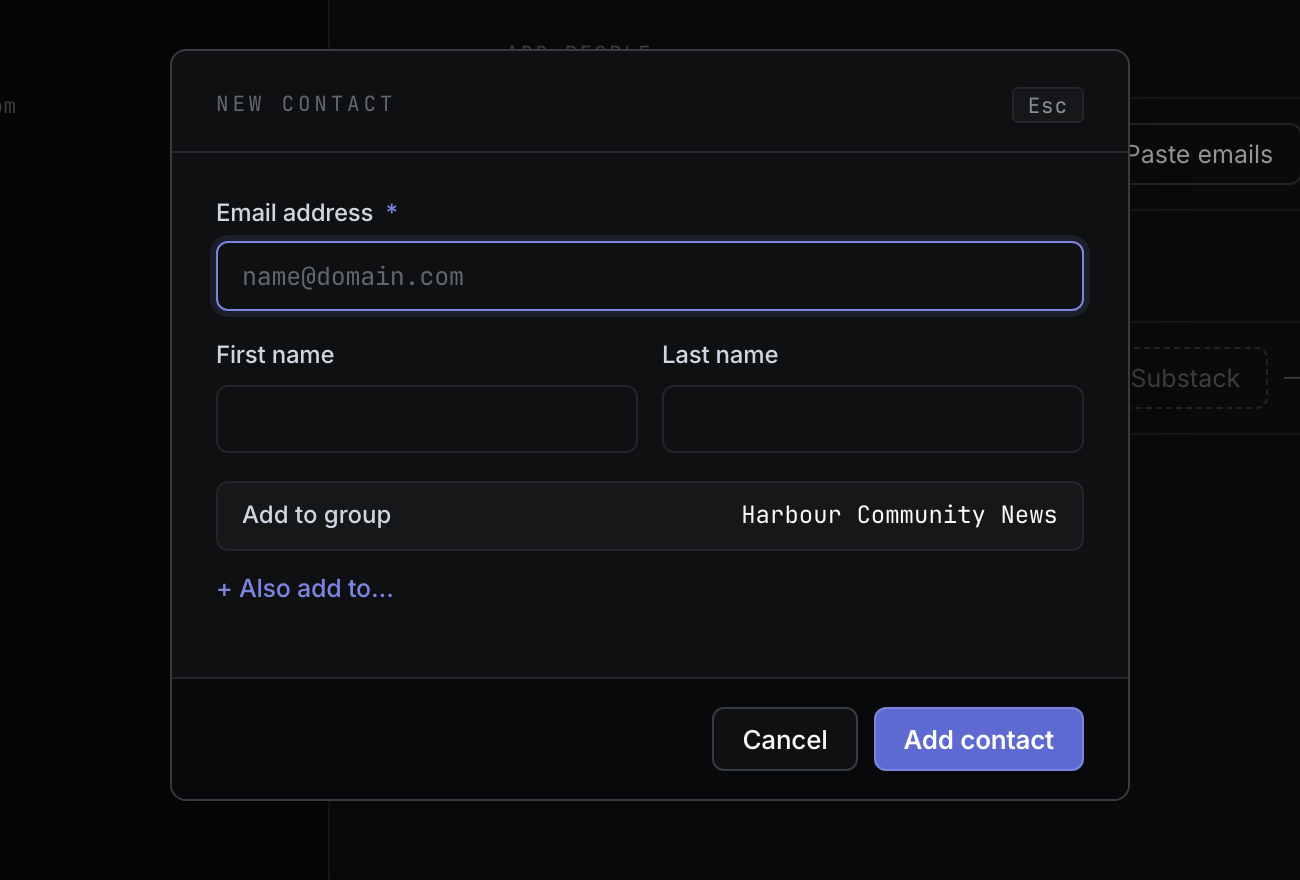
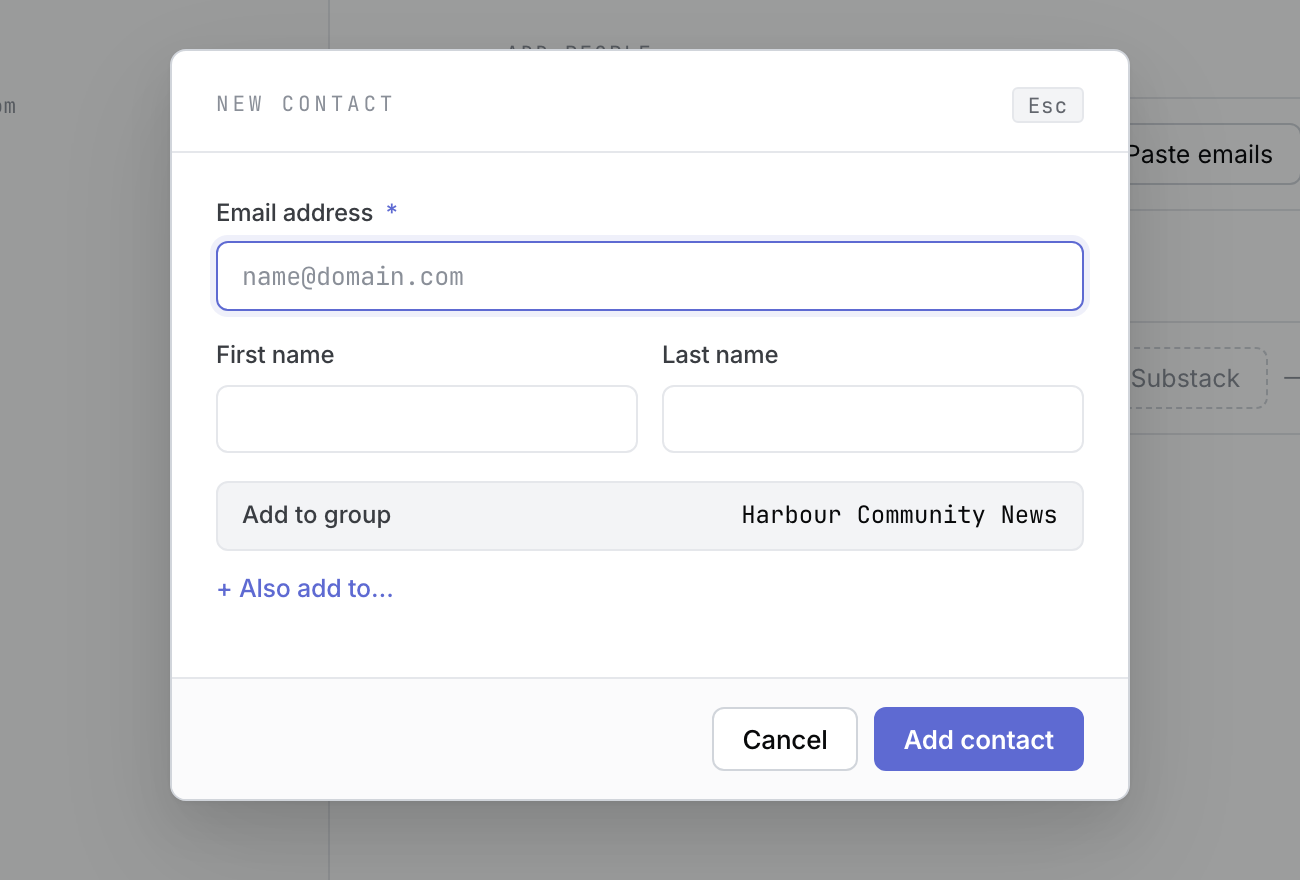 Product illustration with deterministic fictional state: enter one contact and choose any additional groups. Open the full-size image · Light-theme image · Dark-theme image.
Groupmail identifies contacts by their normalized email address. If the address already belongs to a contact, the dialog explains which memberships already exist and adds only the missing ones instead of creating a duplicate.
Edit contact details
- Open a group and select the contact from its member list.
- Select Edit all on the contact detail canvas.
- Change the first name, last name, email or custom-field values.
- Select Save contact.
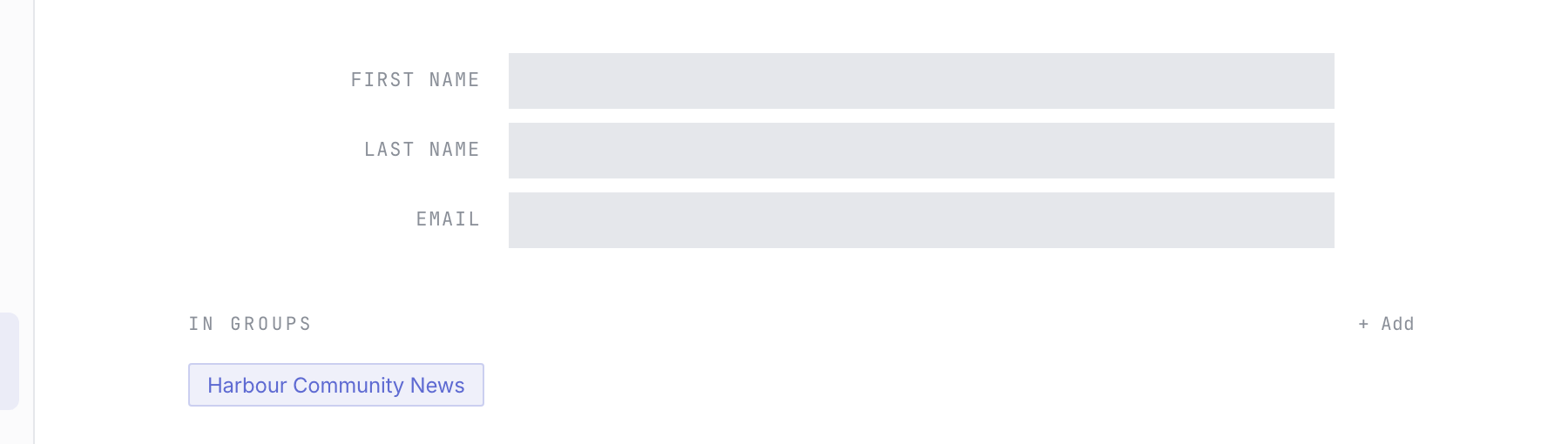 Product illustration with deterministic fictional state: edit identity fields on the contact canvas. Open the full-size image · Light-theme image · Dark-theme image.

An email address cannot be changed to one already used by another contact. Notes are edited separately on the same canvas and save when you leave the notes field.
Add the contact to another group
- Open the contact detail canvas.
- Under In groups, select + Add.
- Choose the destination group.
The contact remains in the current group as well. One contact can belong to several groups, and their details are shared between those memberships.
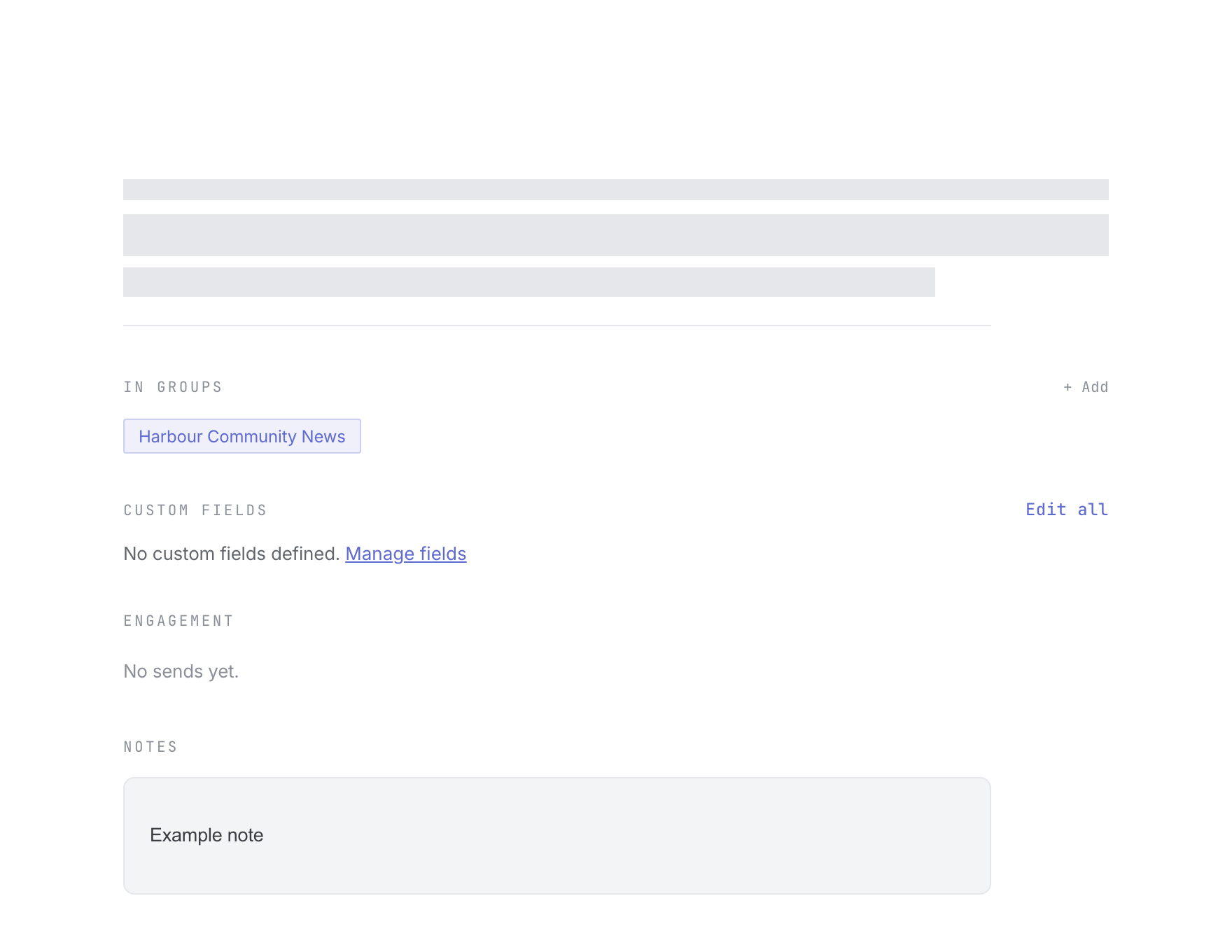 Product illustration with deterministic fictional state and privacy-masked identity: group memberships are managed from contact detail. Open the full-size image · Light-theme image · Dark-theme image.

Move a contact between groups
There is no single Move command. Add the contact to the destination first, check that the new membership appears, then remove only the old membership.
- Under In groups, select + Add and choose the destination group.
- Return to the group you want the contact to leave.
- Open the contact’s More actions (⋮) menu.
- Select Remove from group, review the explanation, then confirm Remove from group.
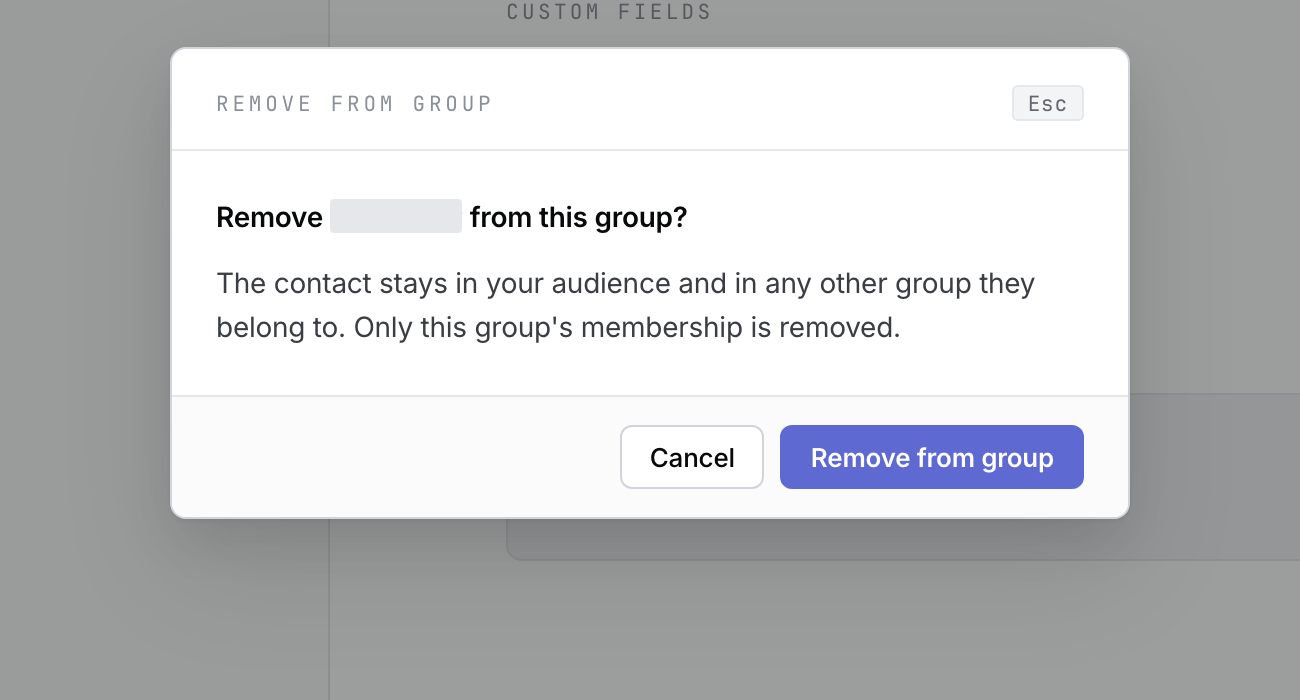 Product illustration with deterministic fictional state: remove one membership without deleting the contact; the name is privacy-masked. Open the full-size image · Light-theme image · Dark-theme image.
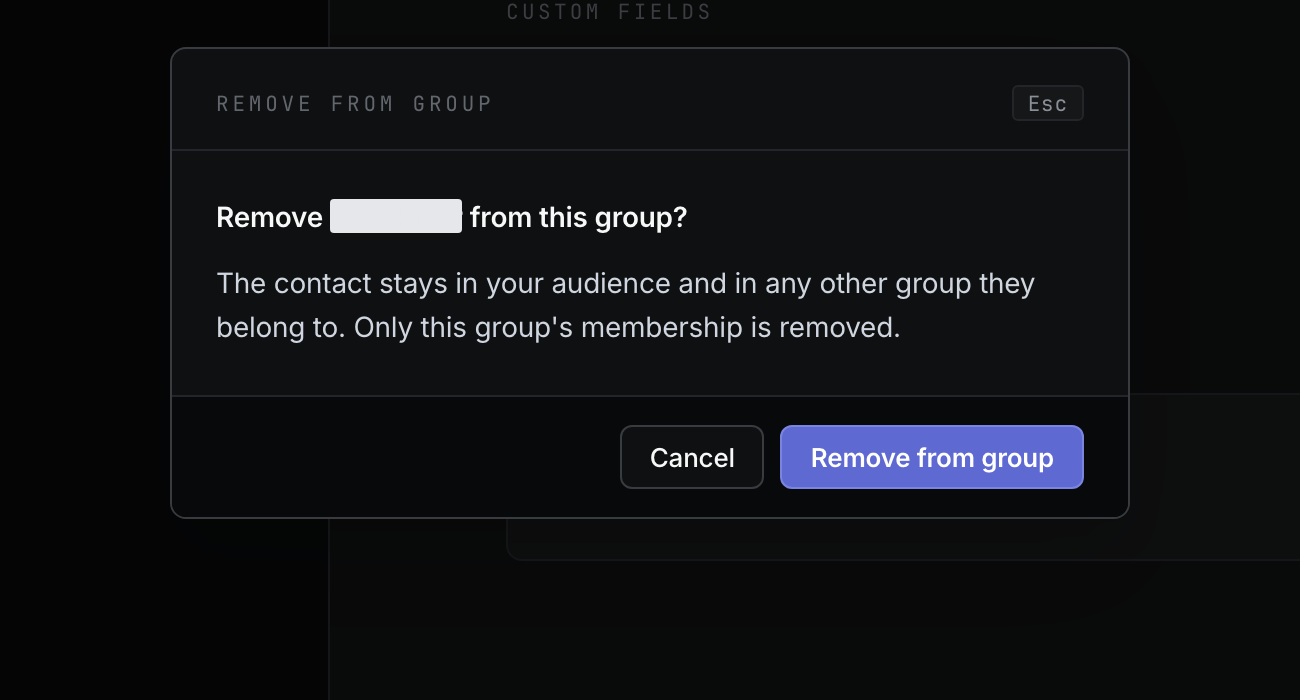
Only the old membership is removed. The contact, their details and their other group memberships remain in Groupmail.
Understand archive and recovery
Group archive is reversible: archiving a group hides it while preserving its contacts and memberships, and Unarchive brings it back. Archiving or deleting a group does not archive its contacts.
There is no contact Archive action or archived-contact recovery view in this release. Use Remove from group for routine membership changes. Use Delete contact only for permanent data erasure.
Permanently delete a contact
Use this only for a genuine data-erasure request, not ordinary list tidying.
- Open the contact’s More actions (⋮) menu.
- Select Delete contact.
- Read the Article 17 warning.
- Type the contact’s email address exactly as requested, then select Delete contact.
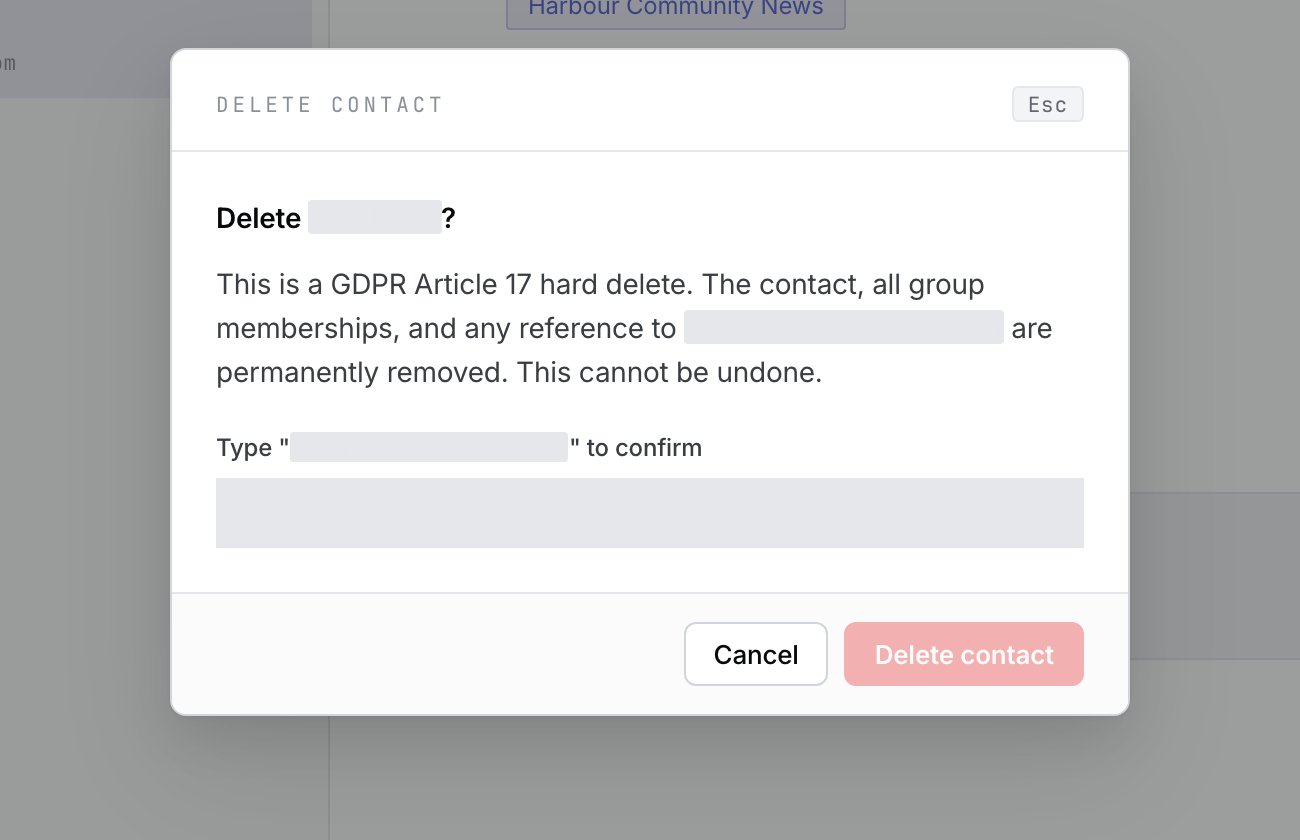 Product illustration with deterministic fictional state: permanent contact deletion requires typed confirmation. Open the full-size image · Light-theme image · Dark-theme image.
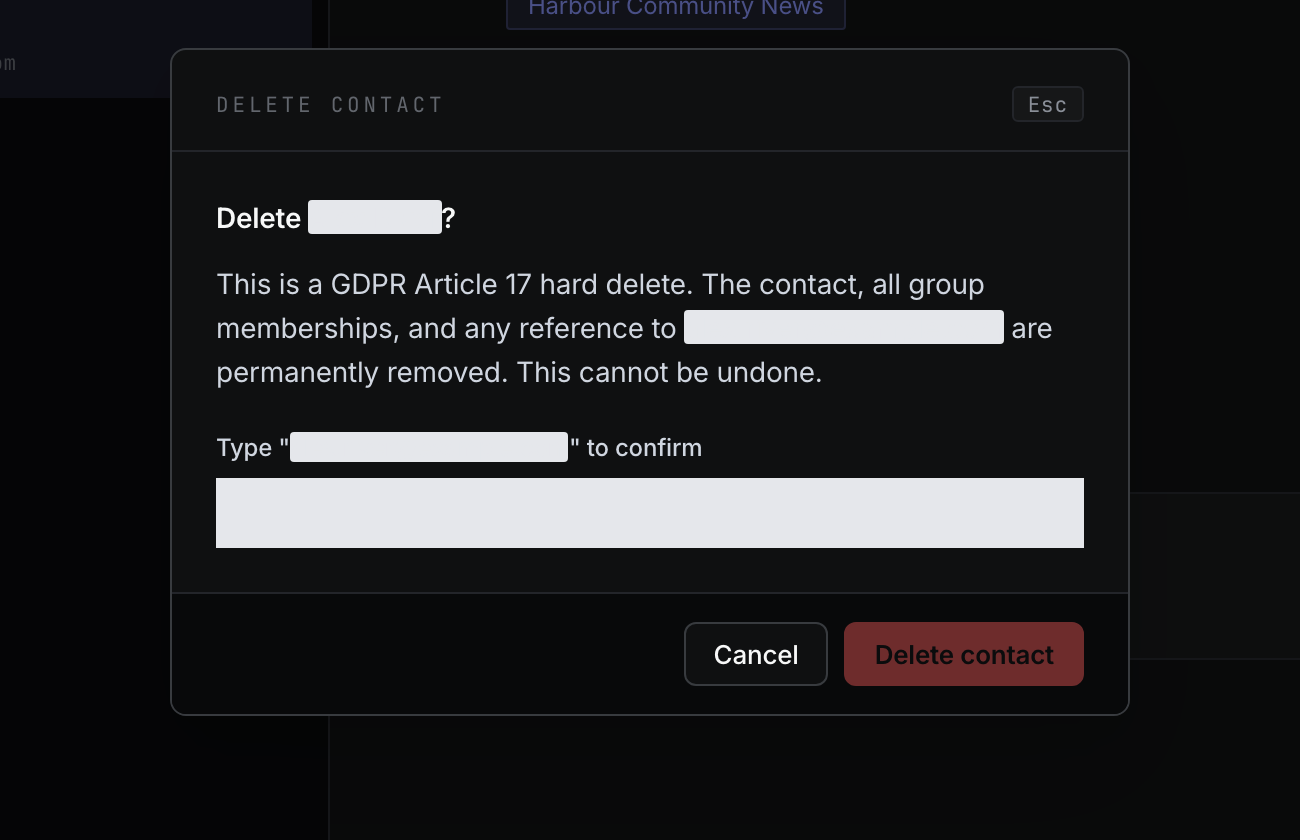
This permanently removes the contact, their notes, custom-field values and every group membership. Groupmail also removes readable address data from related suppression and send diagnostics while retaining a non-readable tombstone so an import cannot silently recreate the address. There is no undo.
If the contact is missing or cannot be changed
- The address already exists: open the existing contact and change its memberships instead of creating another copy.
- A removed contact still appears elsewhere: removing from one group deliberately keeps their other memberships.
- A permanently deleted address will not import: the data-erasure tombstone prevents it from being recreated.
- You meant to empty a group: use the group’s Remove all contacts action. Contacts stay in Groupmail and in other groups, but that bulk membership removal has no undo.
Related Docs
- How to create and manage a group
- How to manage exclusions, suppressions and unsubscribes
- How to import a CSV contact list
Stuck? Contact Groupmail Support with your operating system and Groupmail 7 version. Never email a sign-in link or sign-in code.