On this page
How to design your email: width, text, fonts, colours and pictures
In 0.17.0 and later you can enter an exact accent colour for an Advanced Email draft, choose its width when you start from a template, change text size and font, and control pictures. Preview the result and send yourself a test email to check it in the inboxes your readers use.
Choose the width when you start from a template
Most emails are 600 pixels wide. That suits almost every inbox, and it is the width to use unless you have a reason not to. A wider email gives pictures and columns more room on a large screen. On a phone, an email made in Groupmail rearranges itself to fit whatever width you choose.
- Select Templates in the sidebar, or open the + Write menu and choose Start from template….
- Select the preview of Flyer, Simple Editorial or Bulletin. These are the starters that offer a width choice.
- Above the preview, under Email width, choose 600, 700 or 740. The preview changes to show the email at that width.
- Select Use this starter at the bottom of the preview. The Use this starter button on a gallery card skips the width choice and makes a 600-wide email.
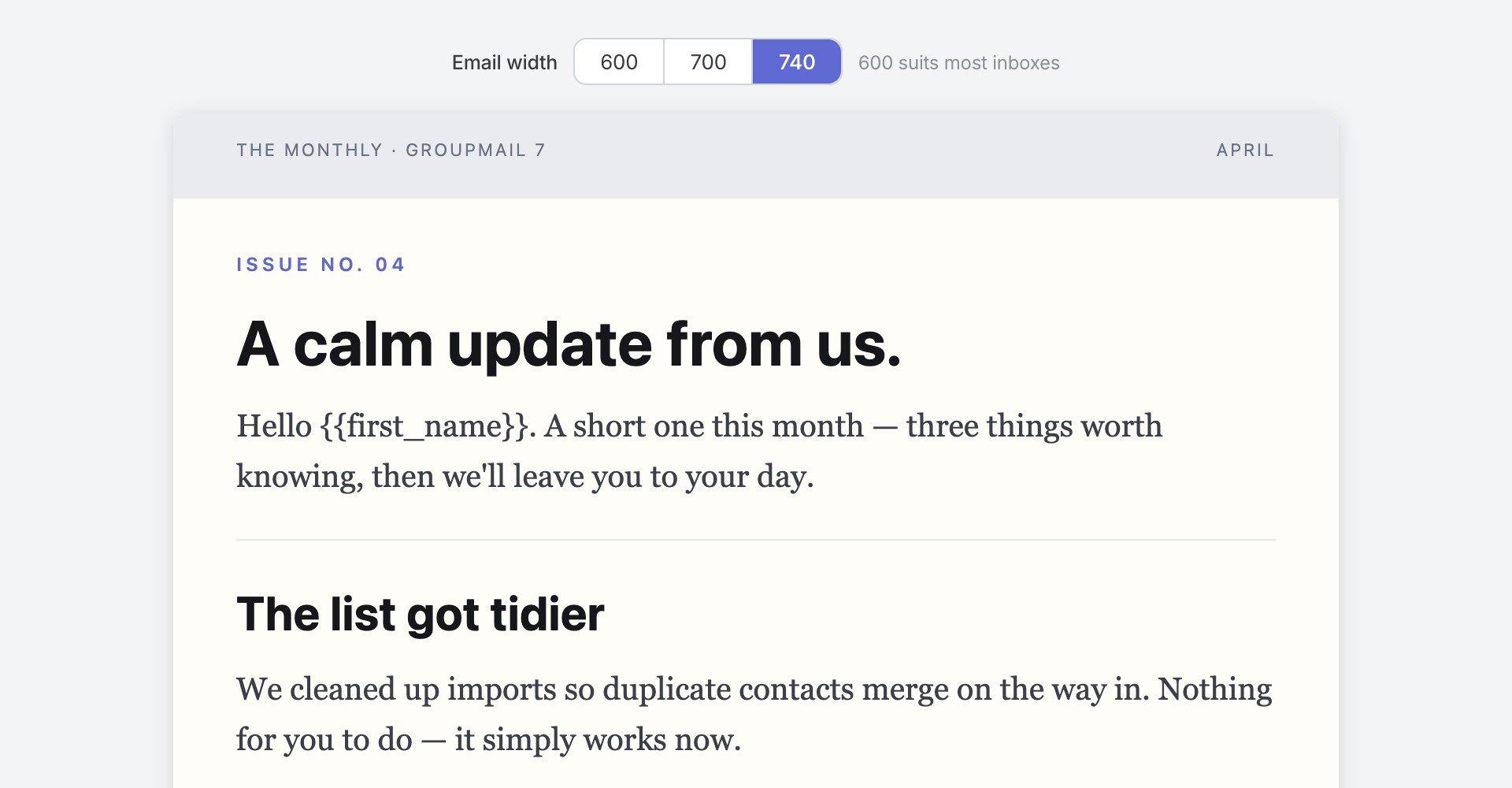 Product illustration from a fictional workspace: choose the width before you create the draft. Open the full-size image · Light-theme image · Dark-theme image.
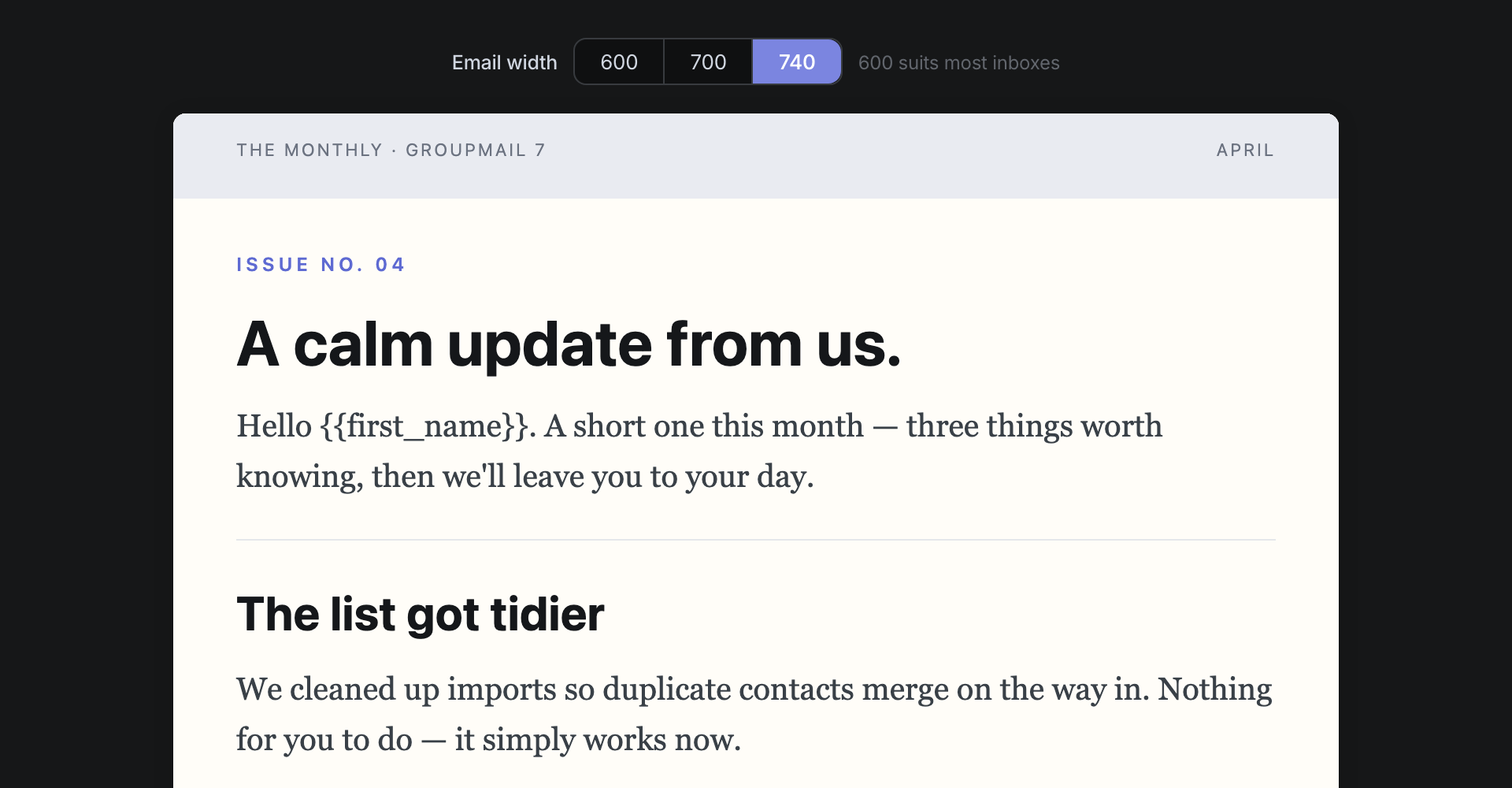
The width is set when the draft is made, and you can’t change it afterwards. To try a different width, start a new draft from the same starter. Other starters are 600 wide and don’t show the width choice.
Choose an exact accent colour
- Open an Advanced Email draft and select Email style ▾ above your email.
- Under Accent, select the Custom… tile with the + symbol after the preset colours.
- In Custom colour, enter a six-digit hex colour, including the
#, such as#FE5000. You can paste your organisation’s colour here. Short hex codes, colour names and transparency values are not accepted. - Select Apply, or press Enter. The accent changes only when you apply a complete valid colour.
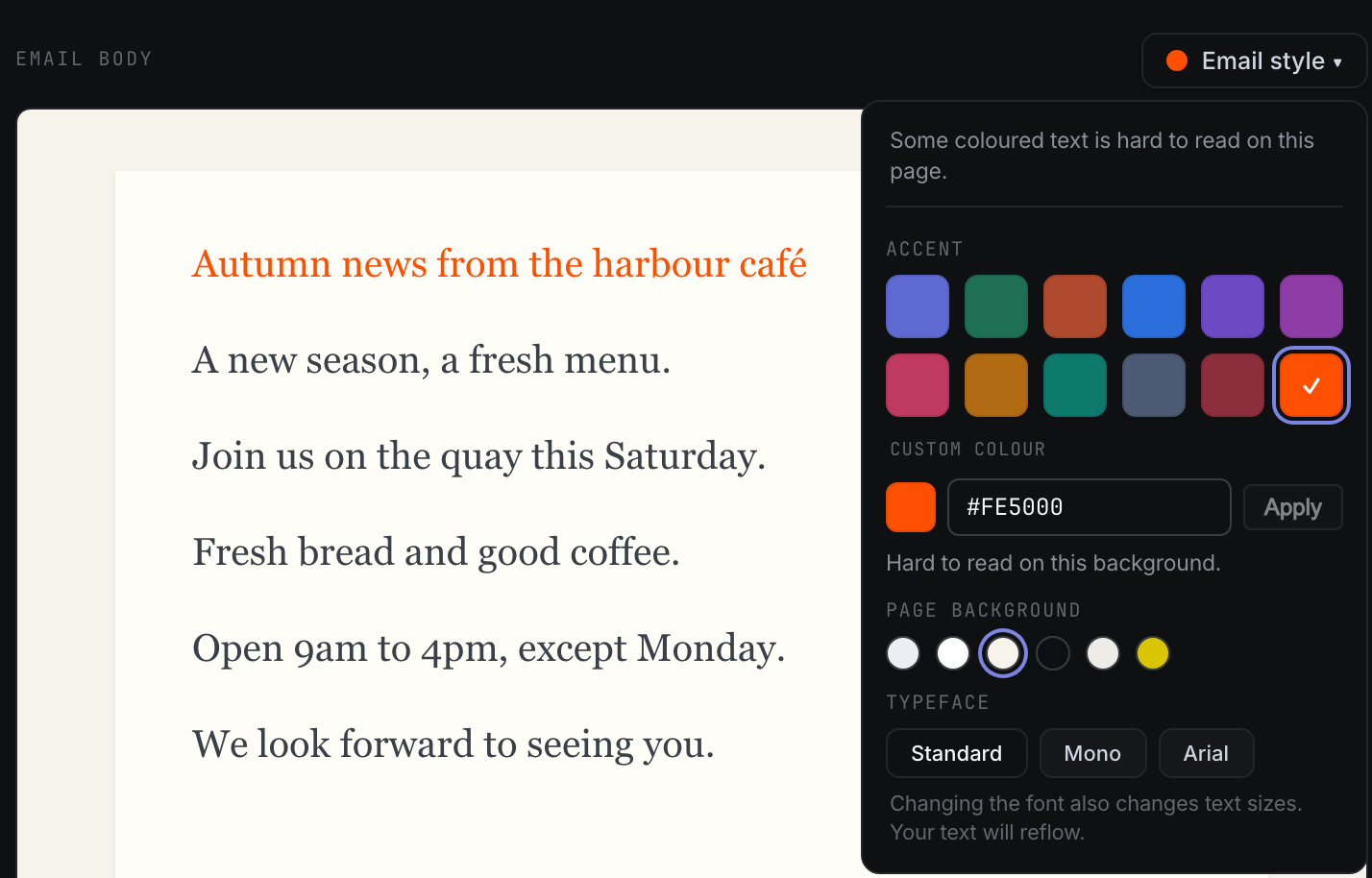
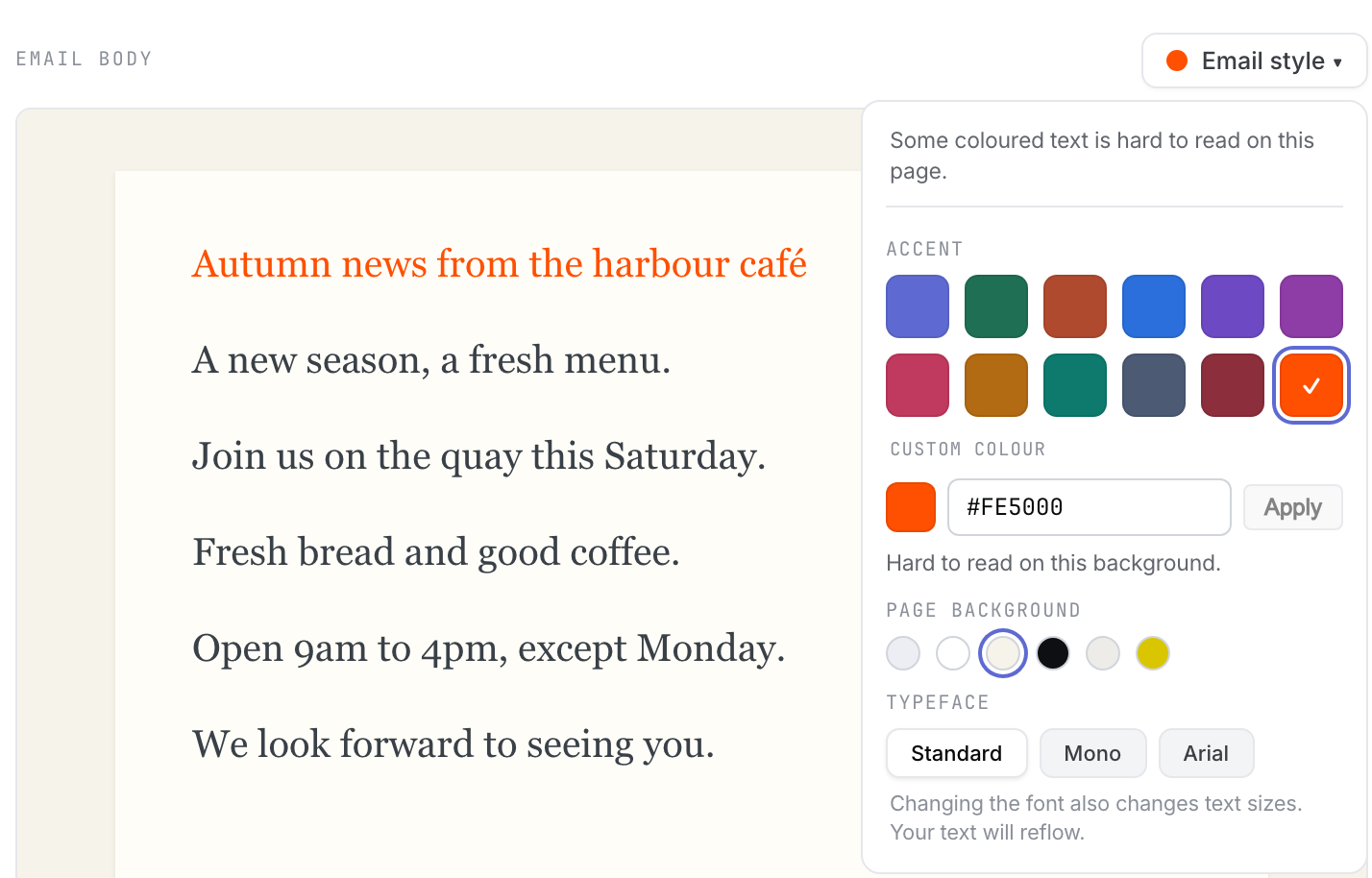 Product illustration from a fictional draft: the exact orange is applied, and the readability note leaves the choice with you. Open the full-size image · Light-theme image · Dark-theme image.
Press Escape to discard any unapplied input and close the field. Your email keeps its last applied colour. Selecting a preset colour replaces your current custom accent. Reset to template default restores the template’s saved style, including its accent.
The email has one accent colour. Label, links, theme-owned filled buttons and text set to Theme accent follow it; accent bands use that colour or a darker shade of it. Colours set directly on individual blocks and parts owned by a template’s design keep their own colours. Changing the accent does not change the page background or offer a second accent.
If Hard to read on this background. appears under the field, you can still apply the colour. Some coloured text is hard to read on this page. may also appear at the top of Email style. Check Theme accent text and links carefully, especially with a bright colour on a pale sheet. You can keep your accent and give selected body text Default text instead. Filled custom-accent buttons and bands choose white or black labels to help them remain readable.
The exact colour is saved with the draft and retained when you reopen it or use Copy as draft from Sent. It applies to this email, rather than setting a colour for every new email. See How to reuse drafts and starting designs.
Some templates fix their colours as part of their design. Their accent controls are disabled with This template’s colours are set by its style. Change colours per block instead. Imported emails keep their original design and do not offer this custom accent control.
Email apps can adjust colours in their own dark mode. Page background → Dark changes the space around the sheet in Groupmail; it does not turn the sheet itself dark or predict an inbox’s dark-mode adjustments.
Change the size of a paragraph
- Select some words in the paragraph.
- In the formatting bar that appears, select Aa.
- Under Size of the whole paragraph, choose Small print, Normal or Large.
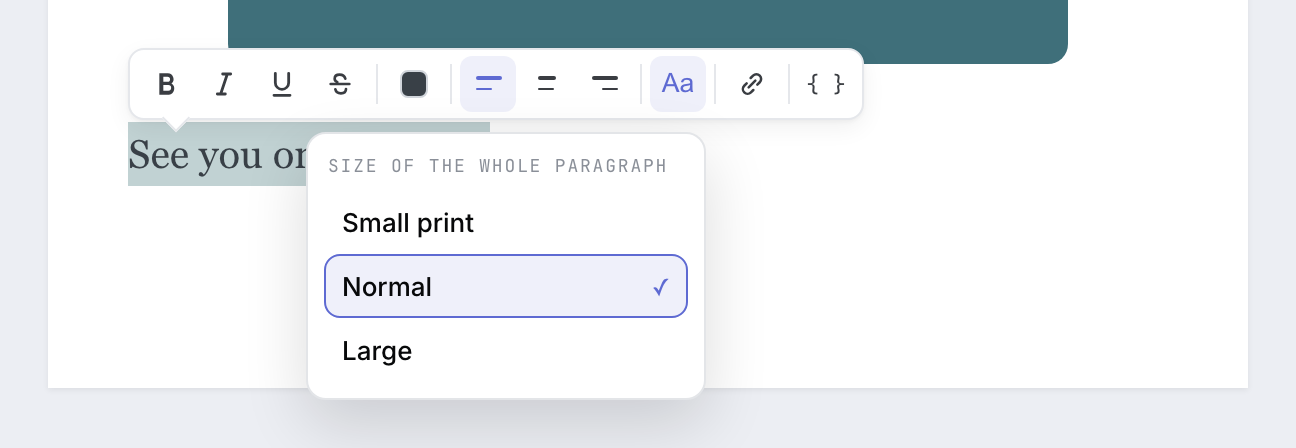 Product illustration from a fictional draft: the size applies to the whole paragraph. Open the full-size image · Light-theme image · Dark-theme image.
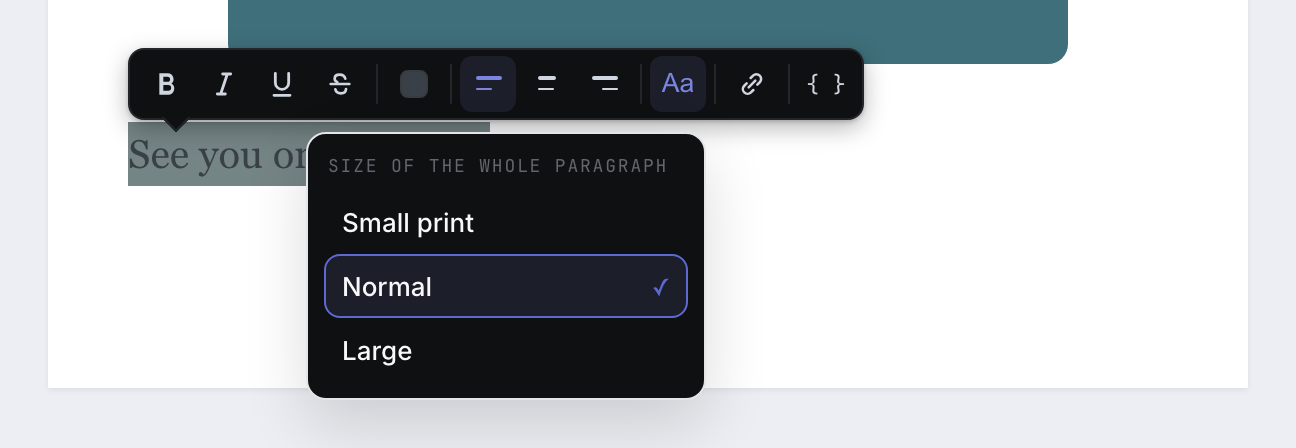
The size always applies to the whole paragraph, so your readers see even lines rather than odd-sized words. You can also press ⌘⇧. to make it bigger and ⌘⇧, to make it smaller on a Mac, or Ctrl+Shift+. and Ctrl+Shift+, on Windows.
Headings don’t use Aa. A heading’s size comes from its level, so the button is greyed out when a heading is selected.
Change the colour of text
- Select the words you want to colour.
- In the formatting bar, select the colour square.
- Choose Default text, Muted text or Theme accent, or one of the five colours under Custom: Red, Green, Blue, Orange or Purple.
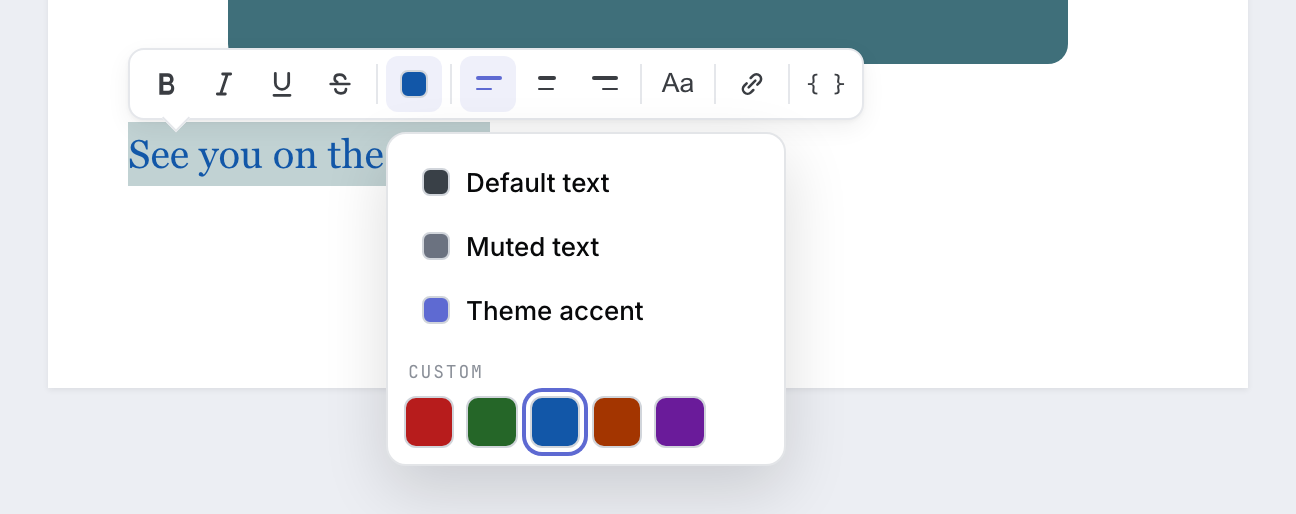 Product illustration from a fictional draft: the chosen colour shows on the selected words straight away. Open the full-size image · Light-theme image · Dark-theme image.
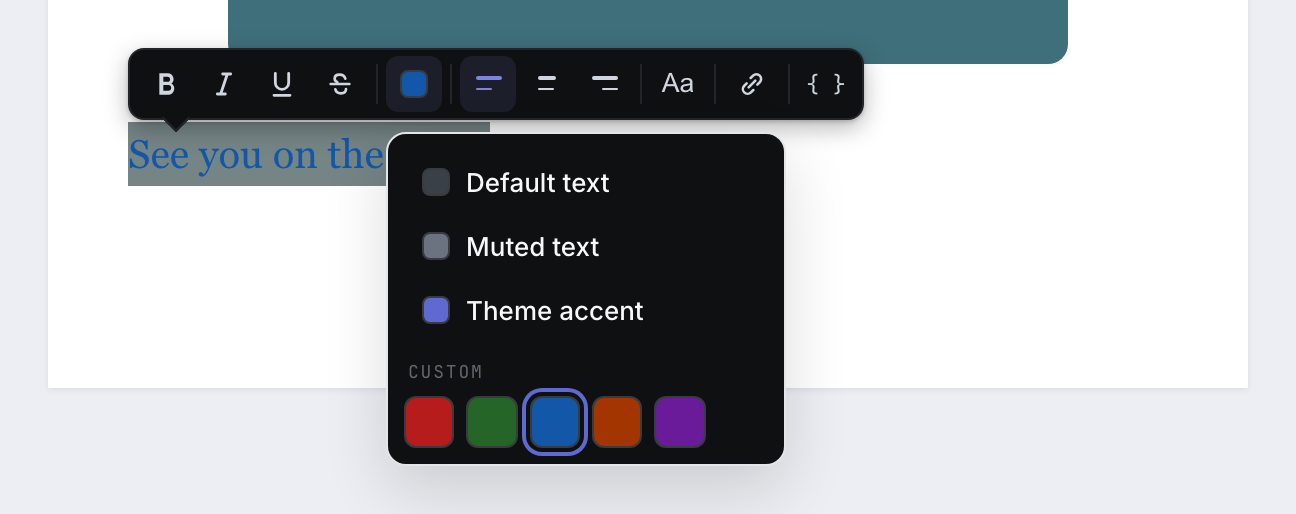
If the colour will be hard to see on your email’s background, the menu says Hard to read on this background. The colour is still applied, so you can decide. If some coloured text is hard to read, Email style also tells you when you open it. Links keep their link colour, so readers can still tell they are links.
Pick a font
- Select Email style ▾ above your email.
- Under Typeface, choose Standard (sans-serif headings with a Georgia body), Mono (a monospace font, like a typewriter) or Arial (Arial or Helvetica throughout).
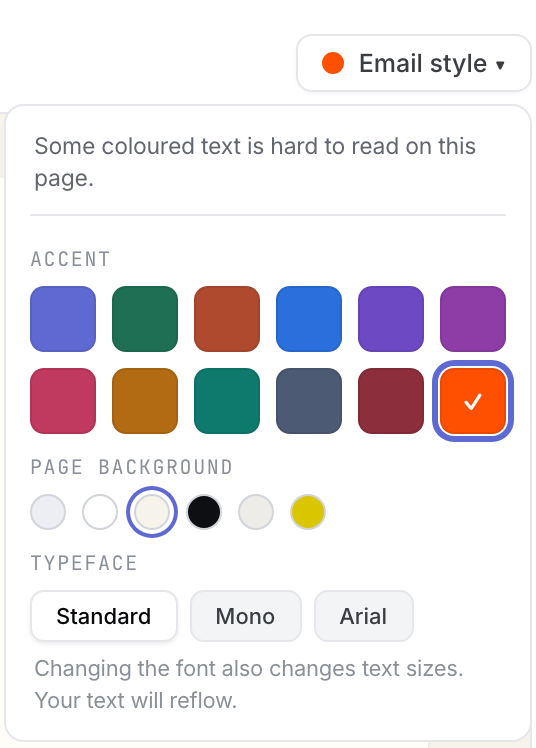 Product illustration from a fictional draft: the font applies to the whole email. Open the full-size image · Light-theme image · Dark-theme image.
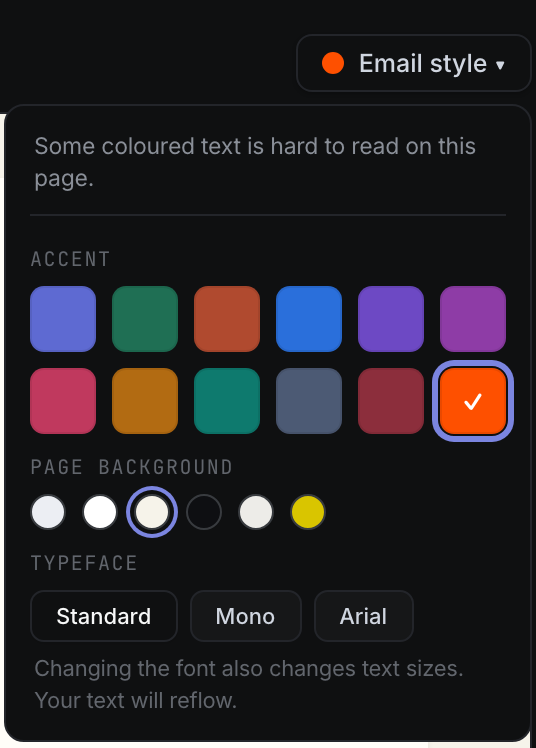
Each typeface comes with its own set of text sizes, so changing it also changes the size of your text and the lines reflow. Read through the email again afterwards.
The Bold Announce, Minimal Monotype and Classic starters have a font that is part of their design, so Typeface is greyed out on them. Imported emails keep their own fonts, so they don’t show Typeface.
Make a picture clickable
- Select the picture.
- In the bar that appears beside the picture, select the link button (Add link).
- In the URL box, type the web address the picture should open, then select Done.
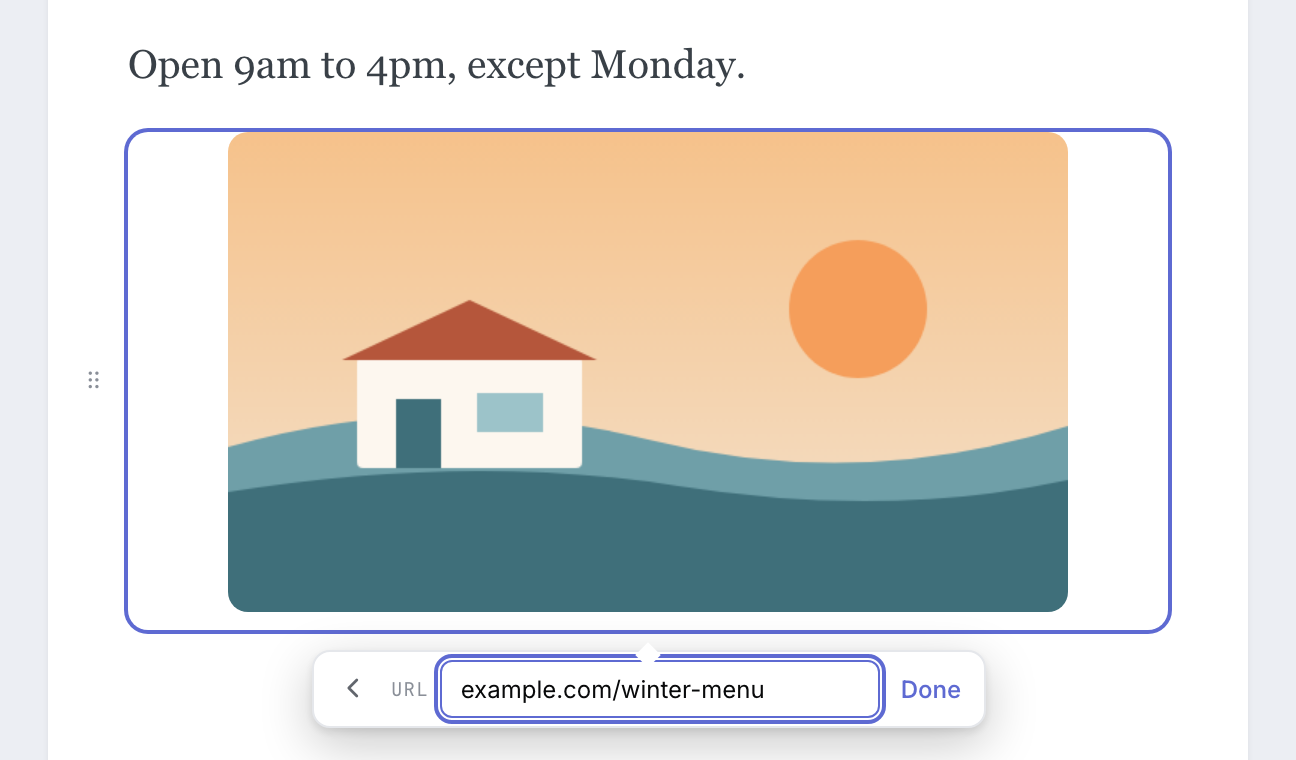 Product illustration from a fictional draft: type or paste the address, then select Done. Open the full-size image · Light-theme image · Dark-theme image.
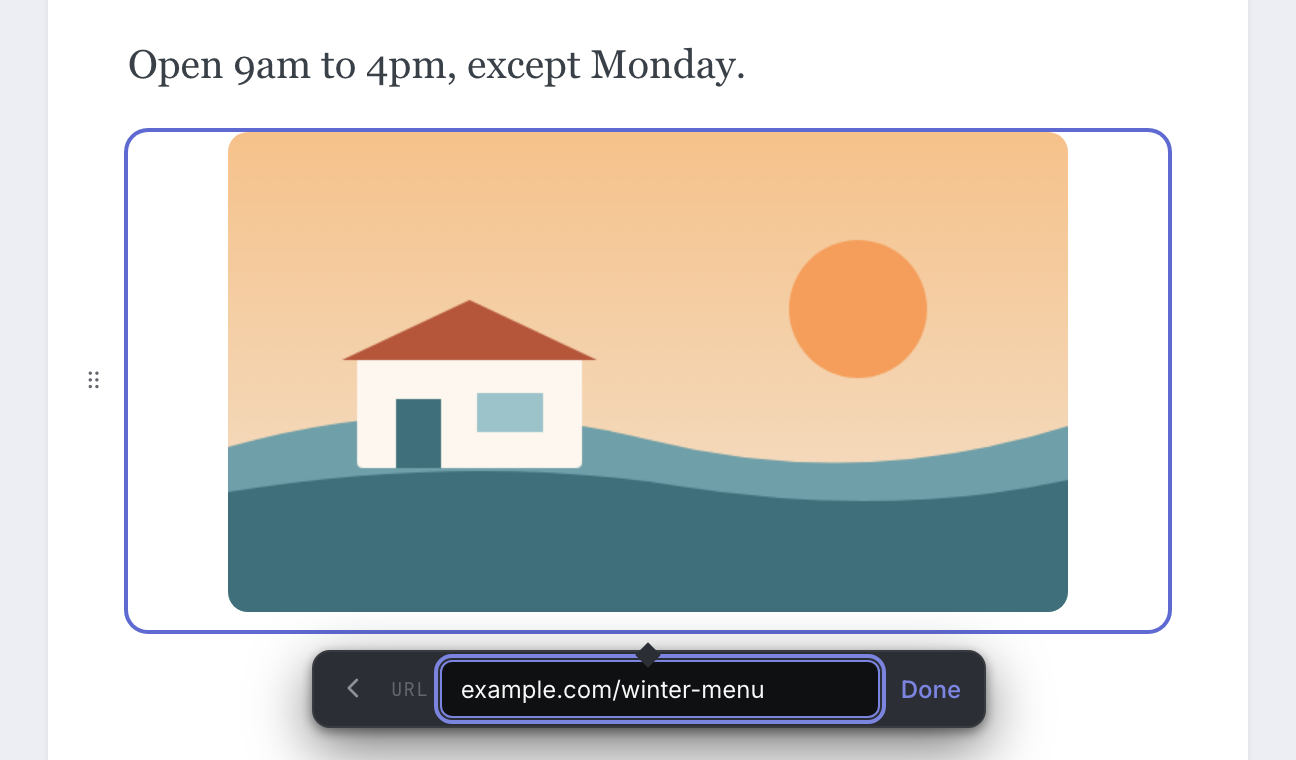
You don’t need to type https://. An address such as example.com is saved as https://example.com. Email, phone and text-message links (mailto:, tel: and sms:) work too. If Groupmail can’t use what you typed, Done stays greyed out until it can. To remove a link, open it again with Edit link, clear the field and select Done.
When a picture is a link, give it alt text. Screen readers read the alt text out, and it is how some readers find out where the link goes.
Set a picture’s alt text, width and space below
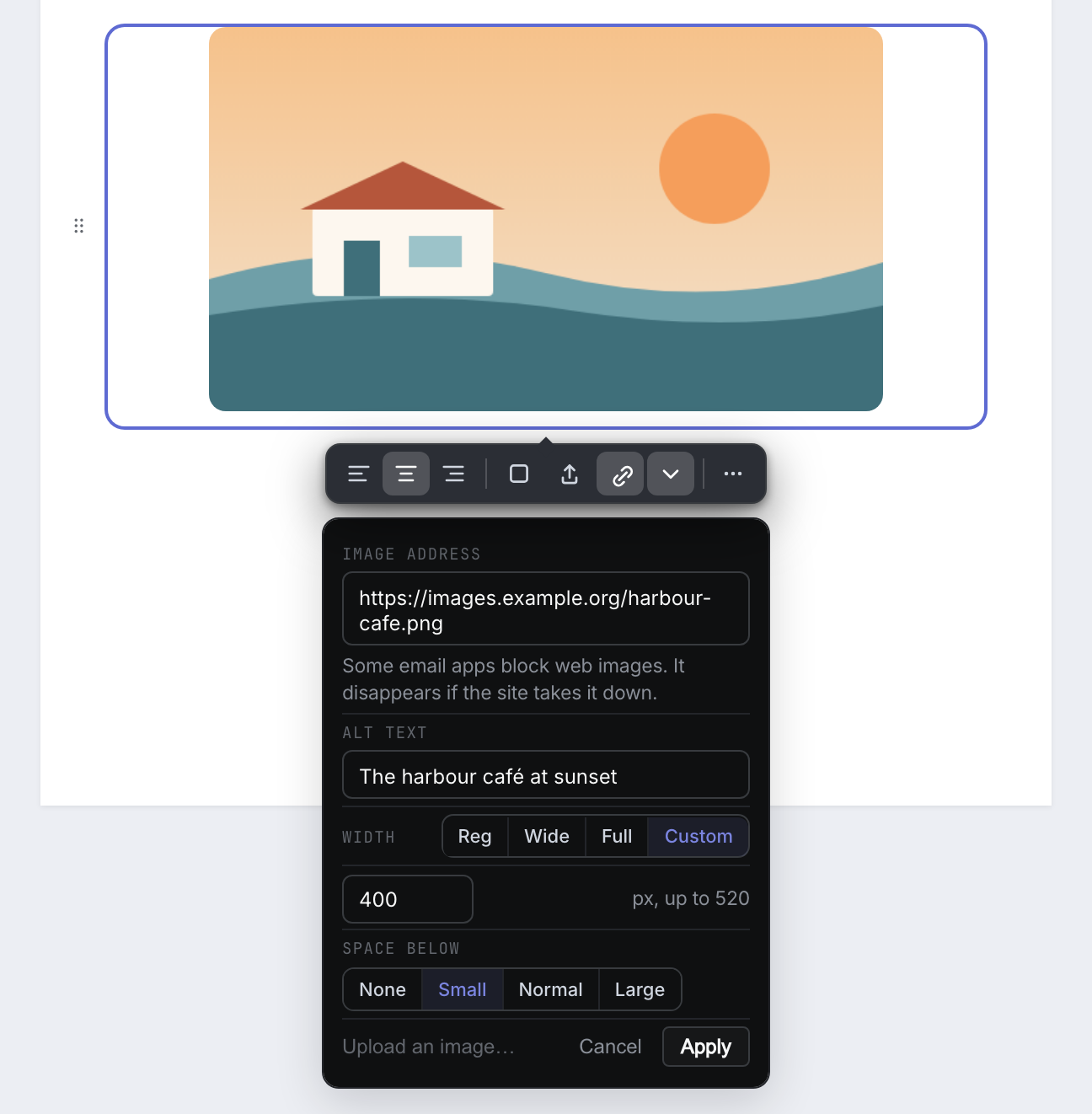
- Select the picture, then select the arrow button (Alt text and width).
- In Alt text, describe the picture for readers who can’t see it.
- Under Width, choose Reg (regular), Wide, Full or Custom. With Custom, type the width in pixels. The largest width you can use is shown beside the box.
- Under Space below, choose None, Small, Normal or Large.
- Select Apply.
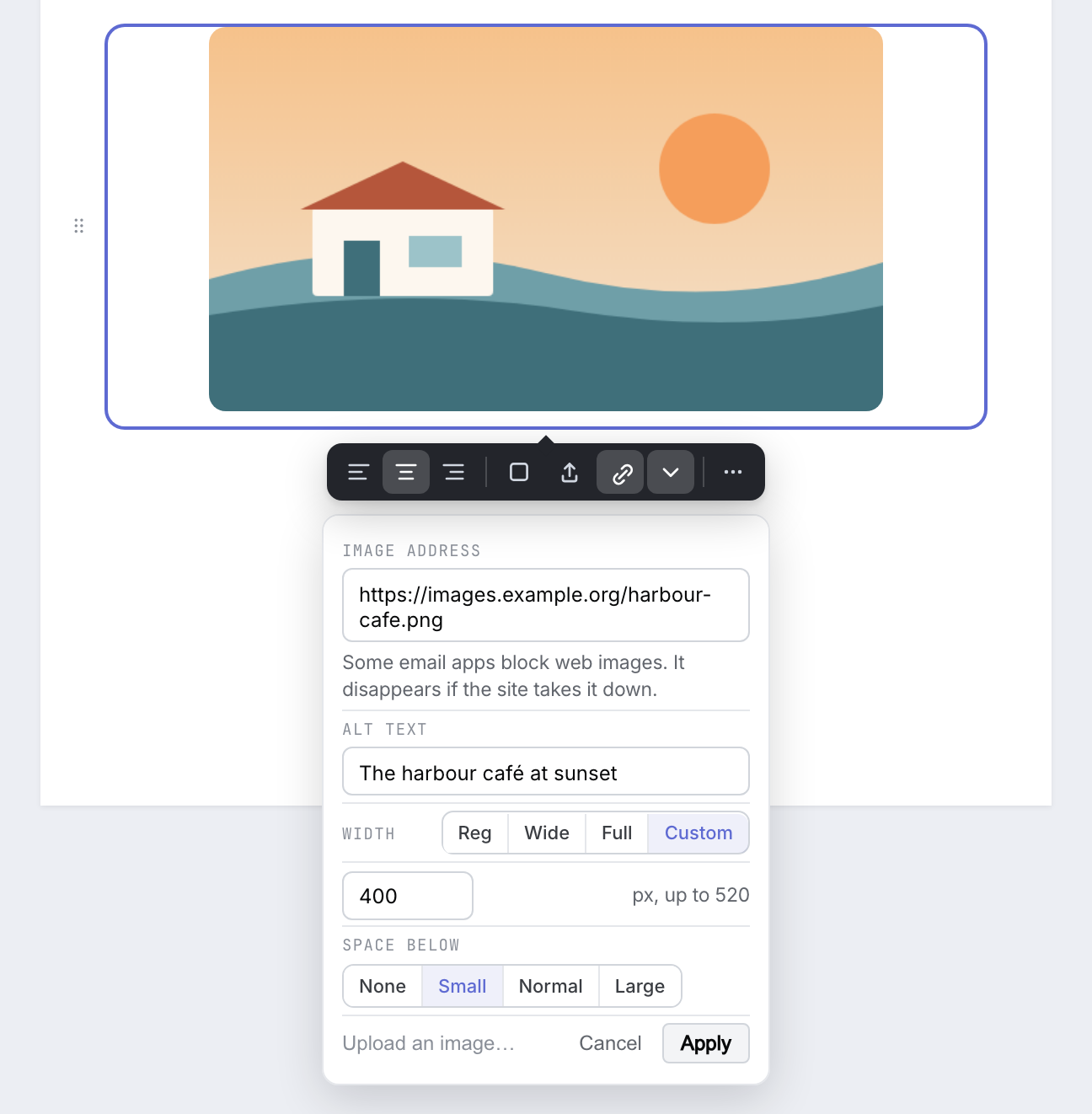 Product illustration from a fictional draft: the limit beside the width box is the widest the picture can be in this email. Open the full-size image · Light-theme image · Dark-theme image.
A picture at the top of the email that is 480 pixels or wider becomes a full-width banner. A banner sits right on the next block, so it has no space below. Pictures inside columns don’t have Space below either.
Put a picture beside a paragraph
- Start a new line and type
/, or select + beside an empty line. - Under Blocks, choose Image + text.
- Add your picture on the left and write your paragraph on the right.
- To swap sides, select the row so its settings bar appears, select ••• and choose Put image on right. Choose Put image on left to swap back.
On a phone the two stack, and the picture always comes first, whichever side it is on.
Picture sizes
You can add a picture at any size, straight from your phone or camera. When the email is sent, Groupmail resizes large JPEG and PNG pictures and sends them at a sensible size (up to 1200 pixels wide, and a full-width banner at the email’s width). That way the email loads quickly on phones and lines up correctly in Apple Mail.
Your original picture in the draft is never changed. Animated GIFs and other picture formats are sent exactly as they are. Preview and a test send show your pictures as they will be sent.
For the sharpest result, use a picture at least twice as wide as it is shown. For example, use 1200 pixels for a Full picture in a 600-wide email.
If your pictures are already online, for example on your website, add them by web address. They stay online and are loaded by your readers’ email apps, so the email stays small. If you remove a picture from your website, it disappears from the email too.
Edit an email brought in from Groupmail X
Emails imported from Groupmail X keep their original design. You can still change their text, but the controls are a little different, so the original layout isn’t broken.
- Select the words you want to change.
- In the formatting bar, select A− to make them smaller or A+ to make them bigger. The keyboard shortcuts are the same as for Aa.
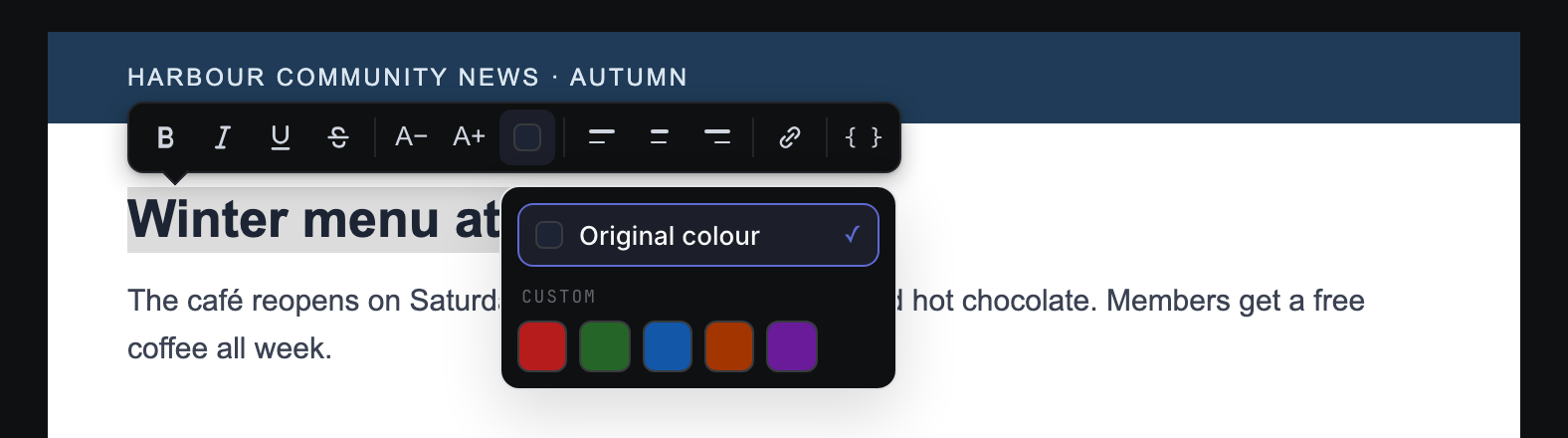
- To colour them, select the colour square and choose Original colour or one of the five custom colours.
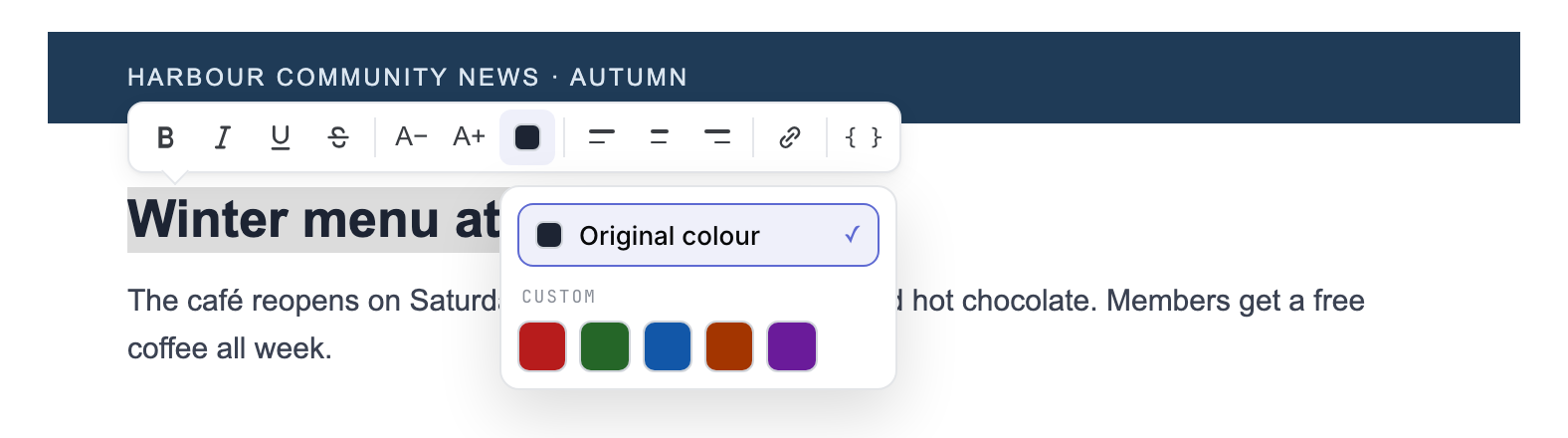 Product illustration from a fictional imported email: A− and A+ change only the selected words. Open the full-size image · Light-theme image · Dark-theme image.
A short note can appear. The first three appear beside the bar, and the last two appear in the colour menu:
- Select text within one block. Your selection runs across two parts of the email. Size and colour only work within one, so select less.
- Phones may show a different size. The original email sets its own size for this text on phones, so phone readers may not see your change.
- Outlook may cut off this line. The line has a fixed height. Bigger text would be clipped in Outlook, so Groupmail stops making it bigger.
- Can’t check contrast here. The text sits on a background picture, so Groupmail can’t tell whether the colour will be easy to read. Check it in Preview.
- Hard to read on this background. The colour you chose is applied, but readers may struggle to see it.
Pictures in an imported email can be Reg, Wide or Full, or Original to put back the size the email came with. Original only appears when Groupmail knows that size. There is no Custom width, Image + text or Typeface in imported emails.
Make a picture clickable in Markdown
- Select the picture in your message.
- In the form that opens, type the web address in Image link. If you leave out
https://, Groupmail shows the full address it will save. - Select Apply.
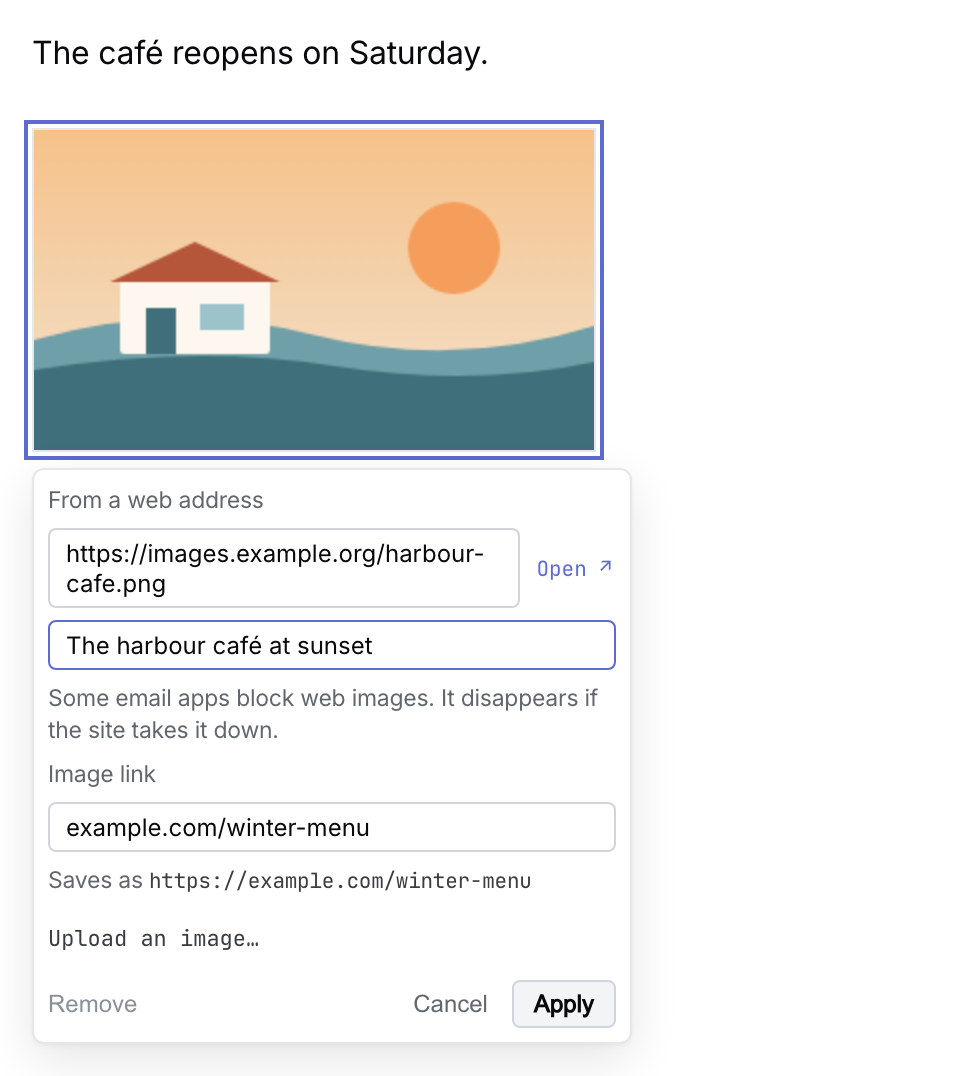 Product illustration from a fictional Markdown draft: the link is optional and sits below the picture’s address and description. Open the full-size image · Light-theme image · Dark-theme image.
Leave Image link empty for a picture that doesn’t link anywhere.
Check how your email looks on a phone
- Select Preview.
- Select the third dot, Mobile, at the top of the preview.
An email made in Groupmail rearranges itself to fit the phone, even at 700 or 740 wide. Text stays readable and columns stack.
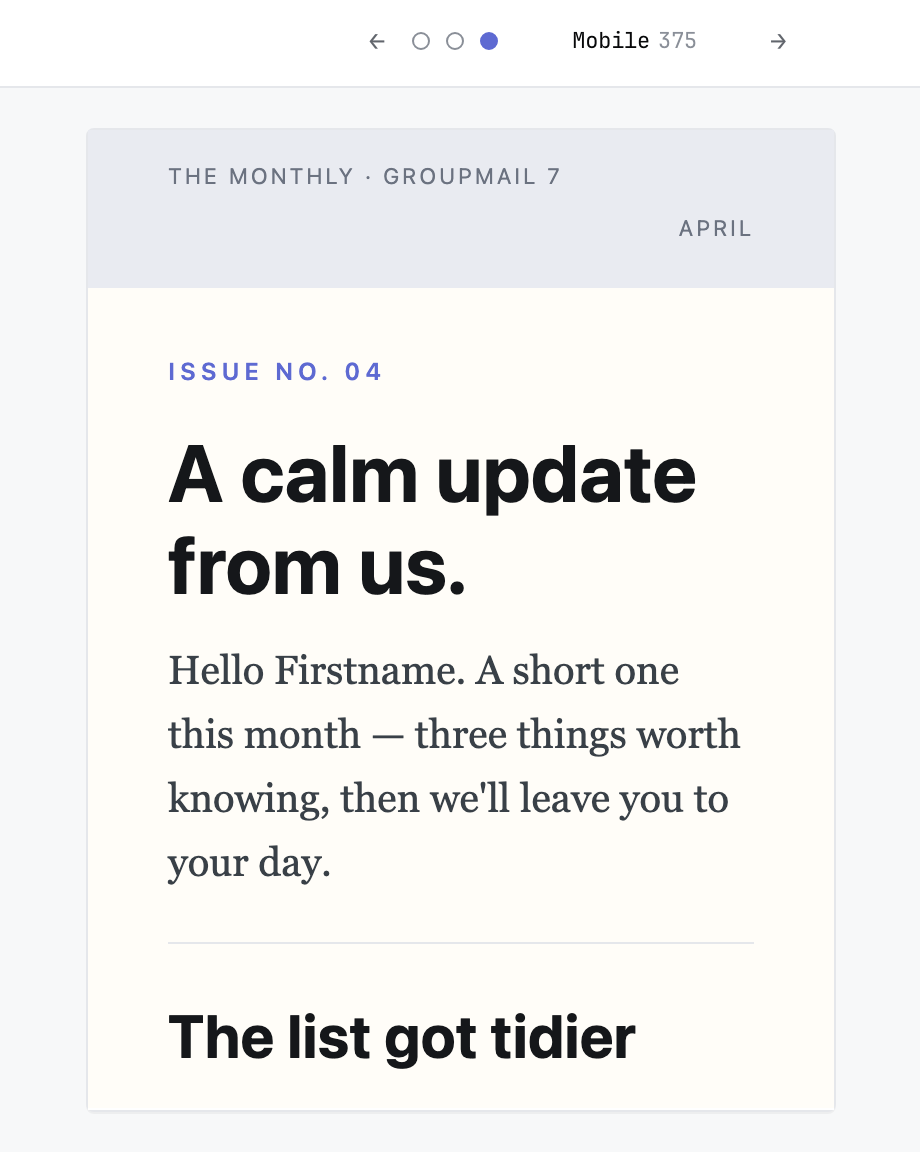 Product illustration from a fictional draft: a 740-wide email made in Groupmail fits the phone without shrinking. Open the full-size image · Light-theme image · Dark-theme image.
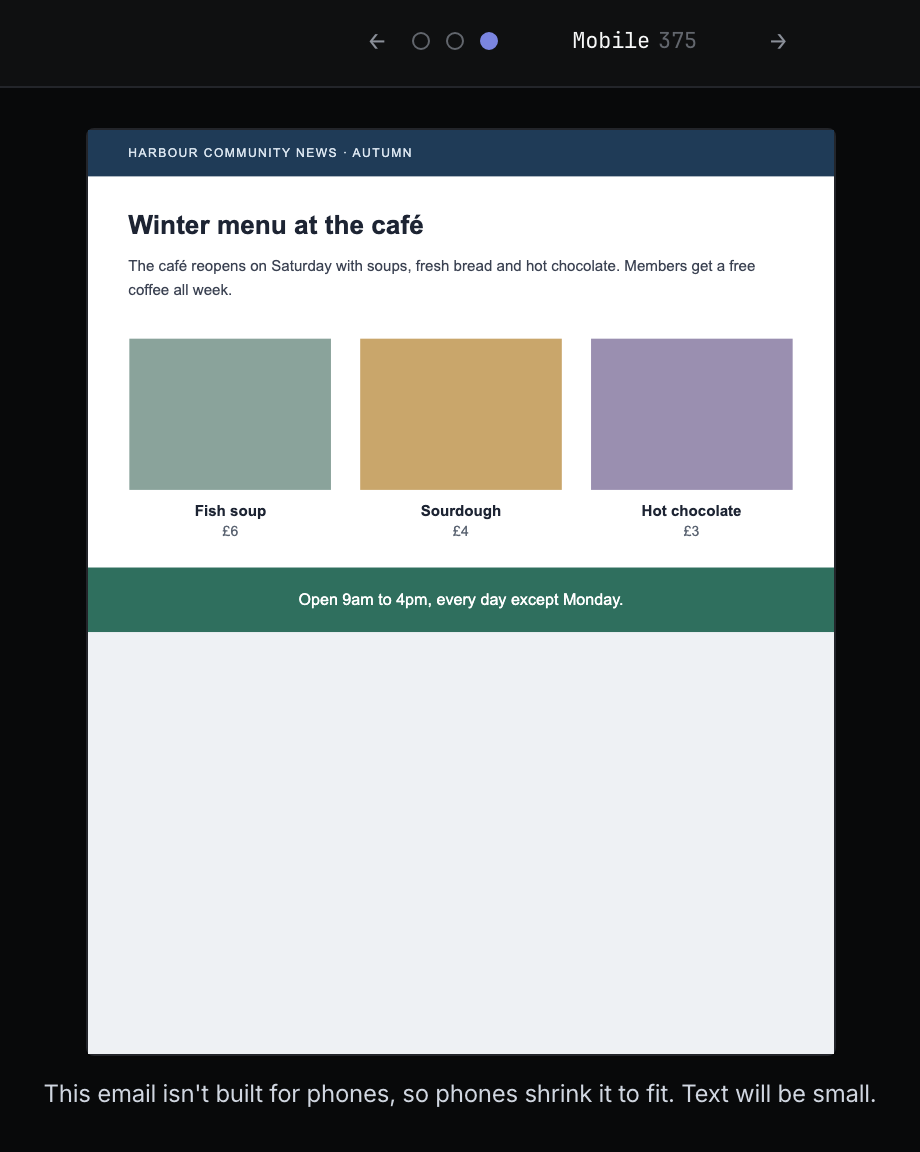
Some imported or HTML emails have a fixed width and weren’t built for phones. Phones shrink those to fit, the way your readers’ phones will. If the shrink is noticeable, Preview says This email isn’t built for phones, so phones shrink it to fit. Text will be small.
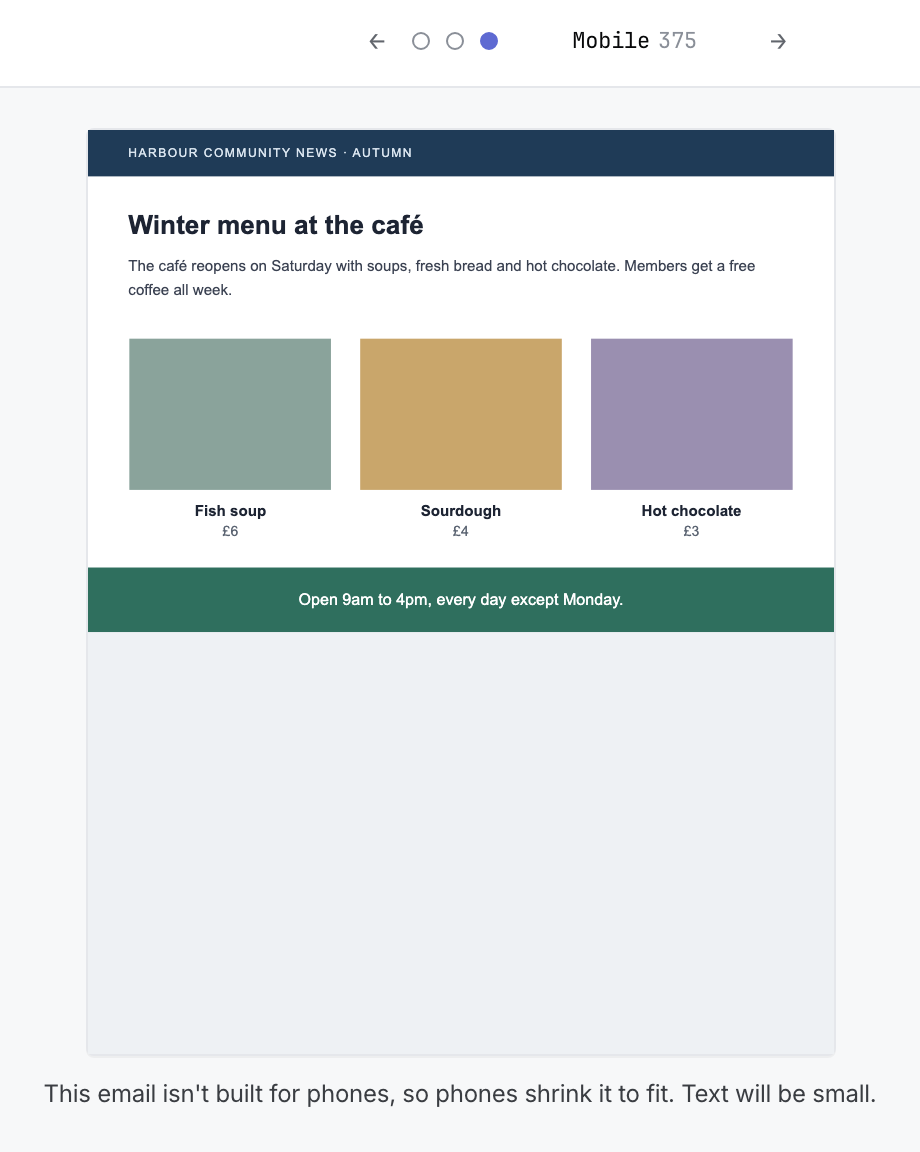 Product illustration from a fictional imported email: the whole email is scaled down, so its text is small on a phone. Open the full-size image · Light-theme image · Dark-theme image.
Why some things can’t be changed
Groupmail offers controls designed for email layouts, but email apps can still render fonts, spacing and colours differently. Some things that are easy in a word processor break in email:
- Placing a picture anywhere on the page. Outlook and many phone apps ignore free positioning, so the picture would land somewhere else or cover your text. Pictures sit in line with your text, or beside a paragraph.
- Any font you like. Most inboxes only show fonts that are already on the reader’s device. An unusual font falls back to something else, often with different sizes, and your layout shifts. The three typefaces use common fonts with fallbacks.
- Any text size or colour. Text sizes come in steps and selected text uses a short palette. For an exact organisation colour, set the email accent and choose Theme accent for the words that should follow it.
- Changing the width after you start. Pictures, columns and text sizes are set for the width you chose. Changing it later would reshuffle the whole email.
If something doesn’t work as expected
-
Apply stays greyed out for Custom colour: enter
#followed by six hex digits (0–9 and A–F), such as#FE5000. Apply is also disabled when the value already matches the applied custom colour. -
The accent changed back after Reset to template default: reset restores the template’s original style. Apply your custom colour again if you want to keep it.
-
An individual block does not change with the accent: it may have its own colour or a template-owned style. Check that block’s controls.
-
Done stays greyed out on a picture link: Groupmail can’t use the address. Check for spaces or a missing part, or paste the address from your browser.
-
The colour menu says Hard to read on this background: choose a darker or lighter colour, or keep it if you’re happy. Check it in Preview.
-
There’s no Email width choice: only Flyer, Simple Editorial and Bulletin offer it. Other starters are 600 wide.
-
Typeface is greyed out: the template’s font is set by its style. Use a different starter if you want to change the font.
-
Aa is greyed out: a heading is selected. Headings change size by level. Select words in a paragraph instead.
-
Width is stuck on Full, or Space below is dimmed: a picture at the top of the email that is 480 pixels or wider becomes a full-width banner, and it sits right on the next block. Pictures in columns have no Space below.
-
An imported email looks tiny in the phone preview: it has a fixed width. To make an email that fits phones, start from a template and copy your text across.
-
A picture looks soft: the original is smaller than the space it fills. Use a larger original.
Related Docs
- How to write and personalize a message
- How to reuse drafts and starting designs
- How to import from Groupmail X
- How to review, test send and understand results
Stuck? Contact Groupmail Support with your operating system and Groupmail 7 version. Never email a sign-in link or sign-in code.