On this page
Get started and send your first test message
Create a group, import a small contact list, connect a sending account and send one real test email before sending to everyone. The test proves the selected account and current message can complete the delivery handoff together.
Before you begin
- Download and install Groupmail 7.
- Have a small CSV with an Email column and fictional or consented test contacts.
- Have the email address and password (or app password) you will send from, an SMTP2Go API key, your sending service’s SMTP settings, or access to the Microsoft or Gmail mailbox you will connect.
- Choose an inbox you control for the test message.
Start fresh
The first time you open Groupmail 7 0.24.0 or later, it first asks for your email: enter it to start your free 30-day trial or to sign in to your licence (see How to sign in to Groupmail 7), or select Open Groupmail without an account to look around first. The welcome screen then asks Welcome. Where would you like to start? You can choose Start fresh, Import from Groupmail X or Import from GroupMail 6. Choose Start fresh to begin with an empty workspace and a short setup checklist. On Windows, if Groupmail finds GroupMail 6 on the computer, Import from GroupMail 6 is highlighted instead; select the Start fresh card instead.
-
Select Start fresh. The checklist Set up what you need first. opens.
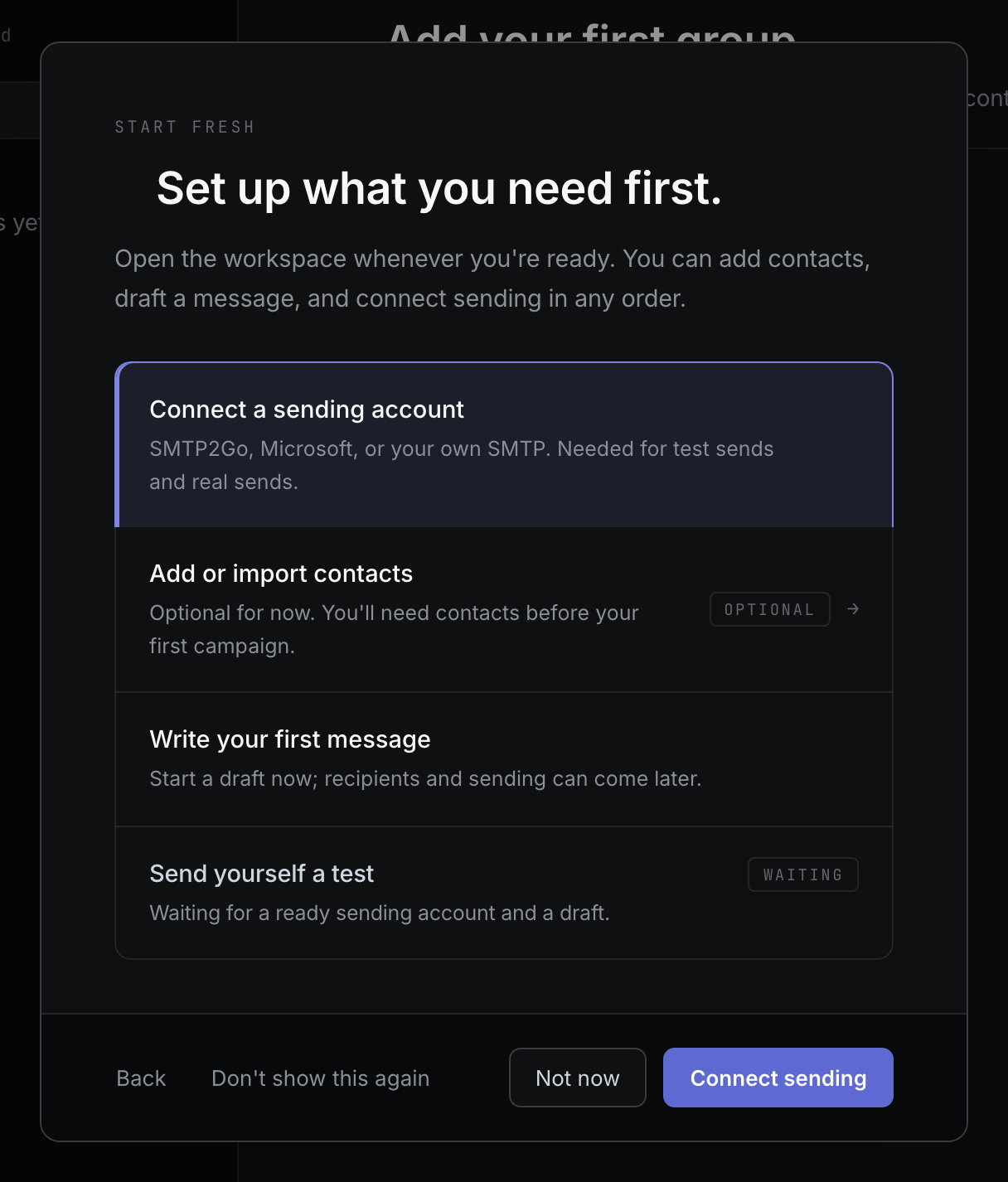
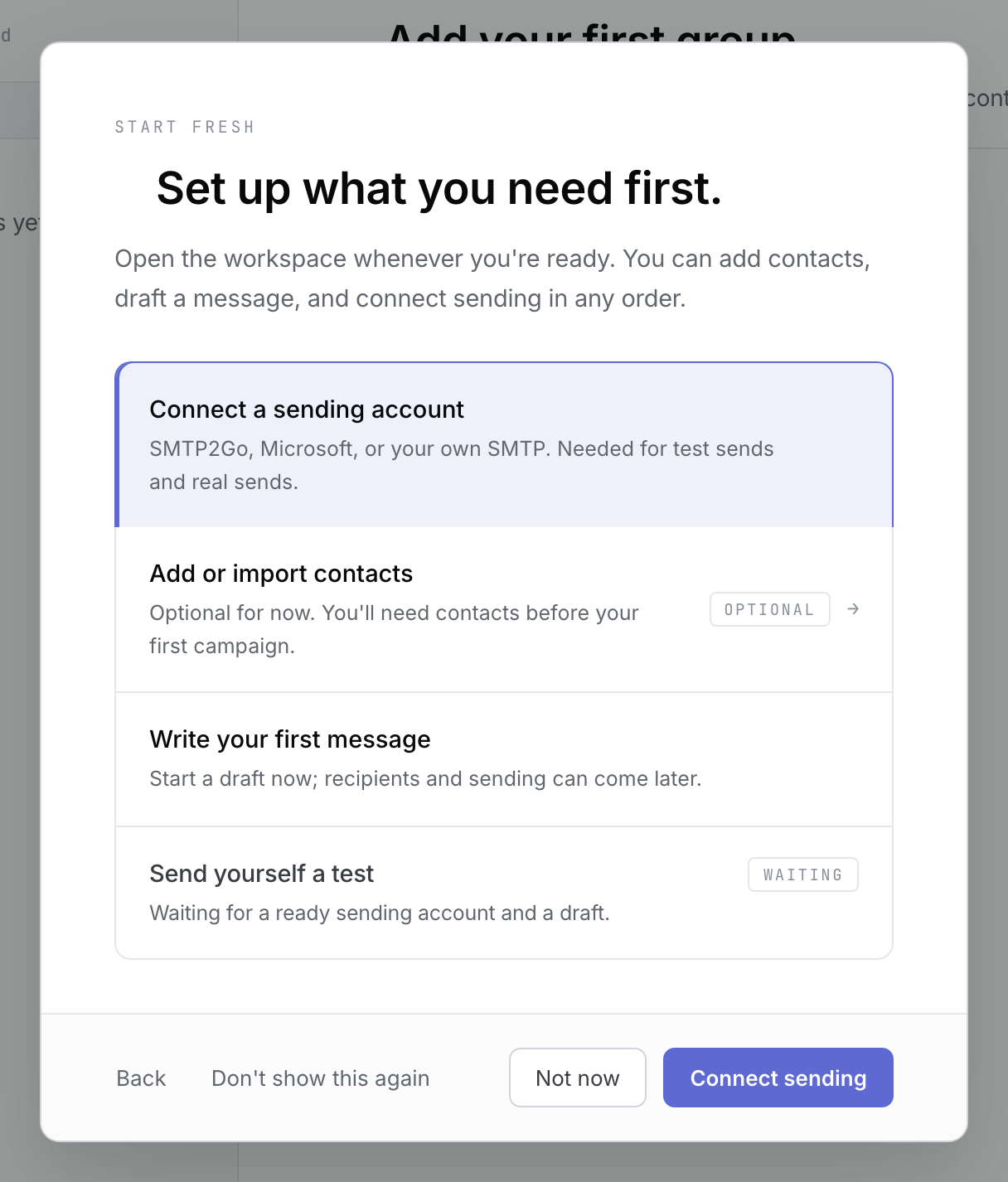 Browser-fixture illustration of the checklist when it first opens. Open the full-size image · Light-theme image · Dark-theme image.
 -
Work through its steps in any order:
- Connect a sending account — SMTP2Go, Microsoft, or your own SMTP. Needed for test sends and real sends.
- Add or import contacts — optional for now. You’ll need contacts before your first campaign.
- Write your first message — start a draft now; recipients and sending can come later.
- Send yourself a test — use Test send in Compose to send your draft to your own address.
-
The checklist counts three required steps, for example 2 of 3 done. Contacts are optional and are not counted.
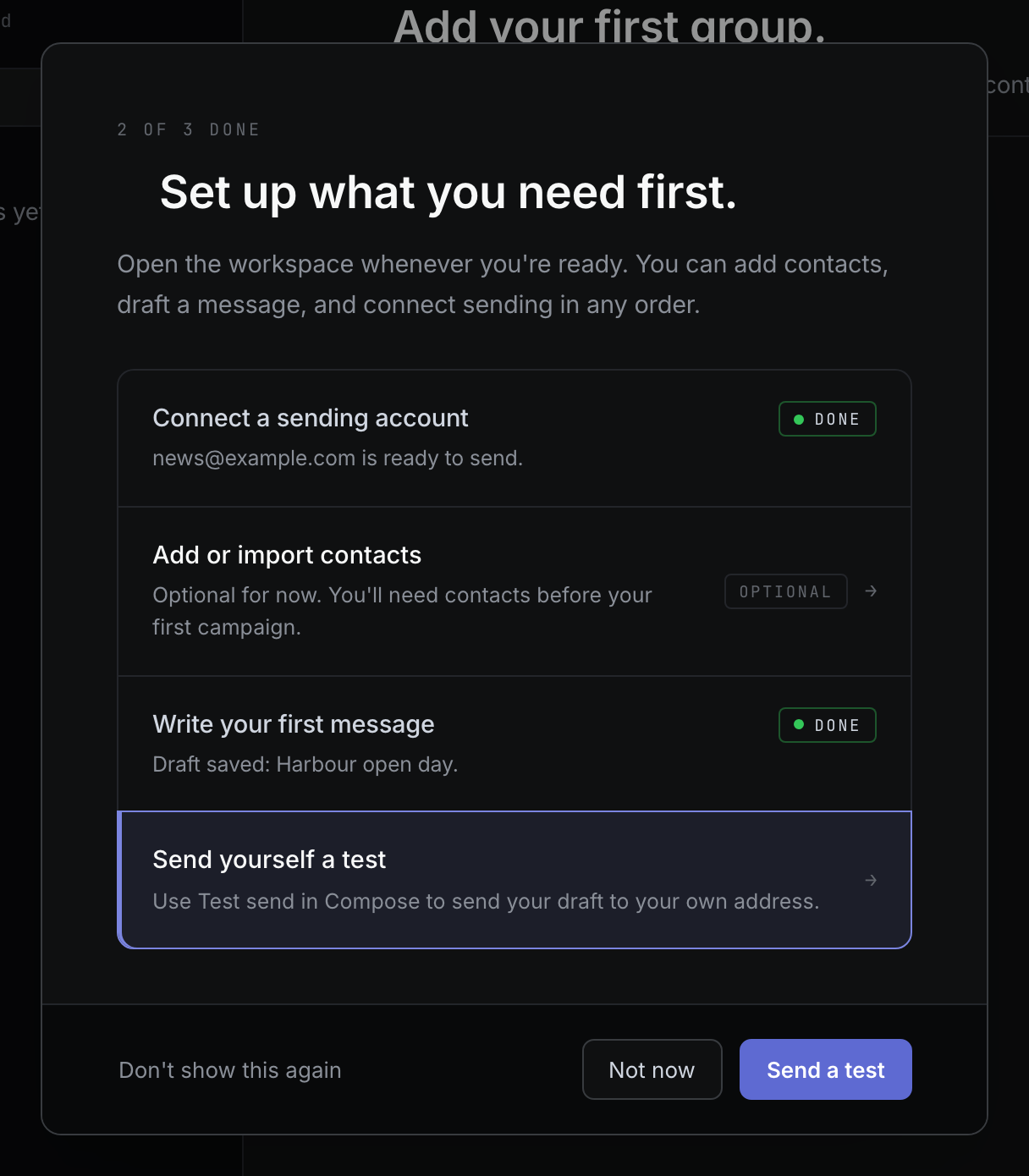
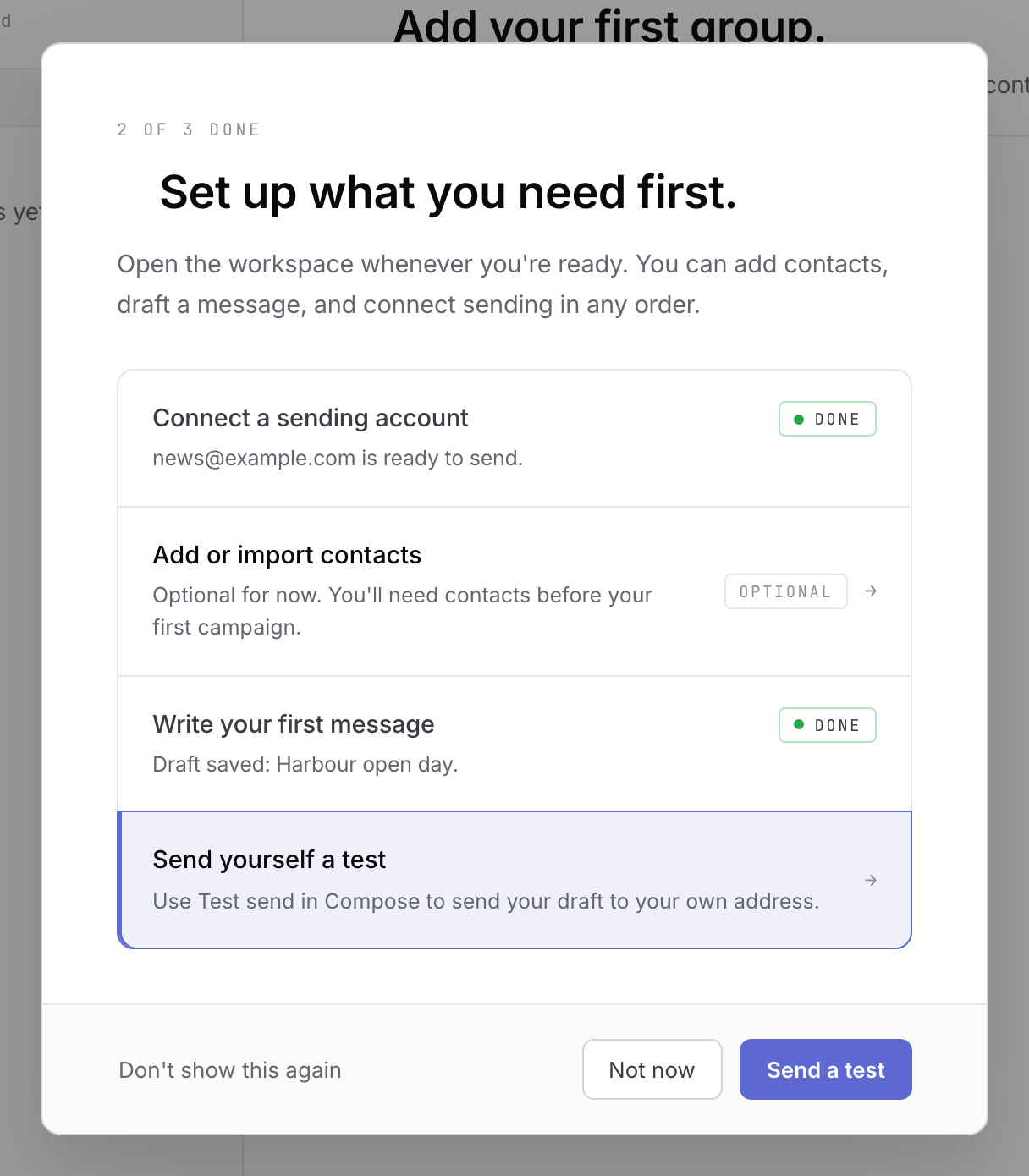 Browser-fixture illustration with a fictional ready account and draft; the test is the last required step. Open the full-size image · Light-theme image · Dark-theme image.
 -
When the test has been sent, the checklist shows You’re set up., then Open Groupmail.
Your own address means the From or Reply-To address of one of your sending accounts, or the address saved for test sends. Groupmail can see that the test was sent, not that it arrived, so check your inbox.
To close the checklist, select Not now. It opens again the next time you start Groupmail, until your test to your own address has been sent. Select Don’t show this again to stop it opening. To bring it back while setup is unfinished, press ⌘K on a Mac, or Ctrl+K on Windows, type setup and choose Show setup checklist.
The rest of this guide covers the same steps in more detail.
Create your first group
-
Open Groups and select + Add group.
-
Enter a clear name, then select Create group.
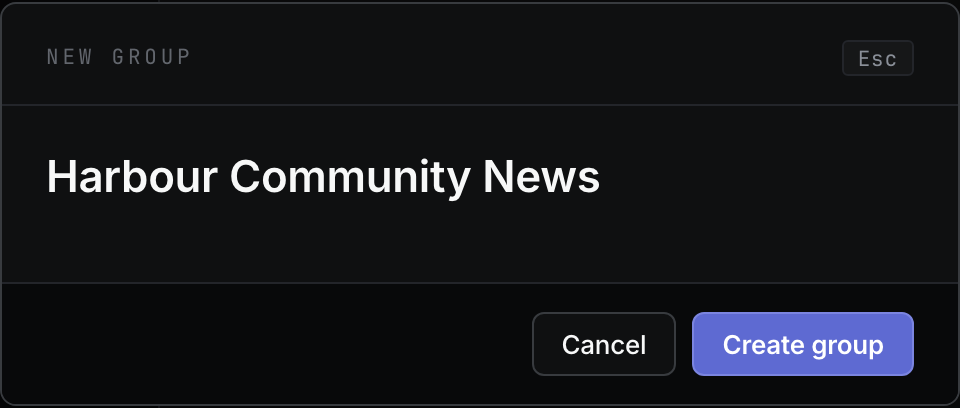
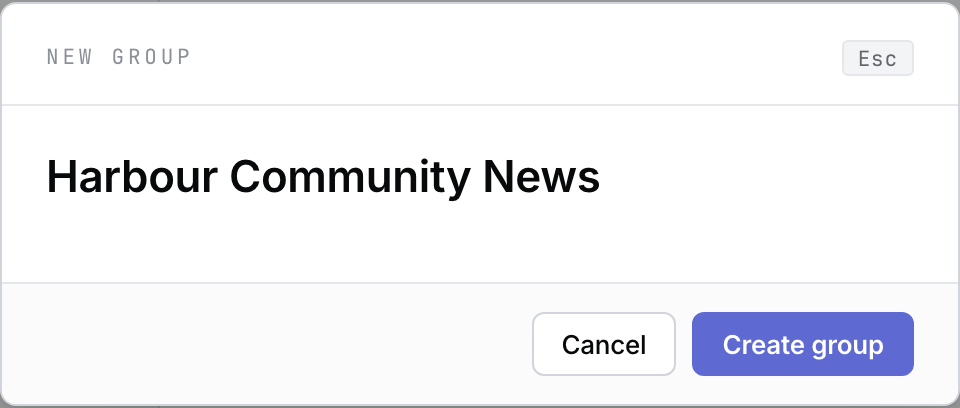 Fictional new-group form. Open the full-size image · Light-theme image · Dark-theme image.
 -
Confirm that the group opens and shows Bring your people in.
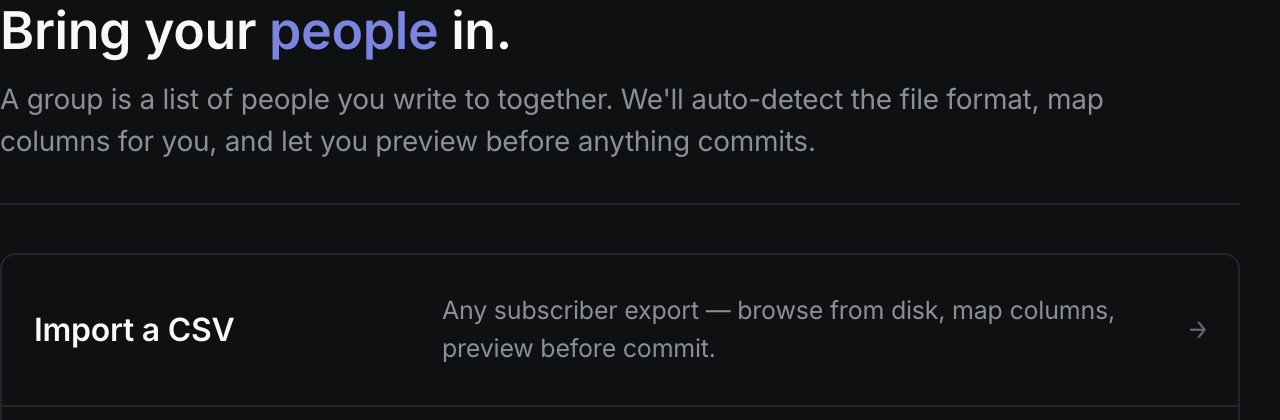
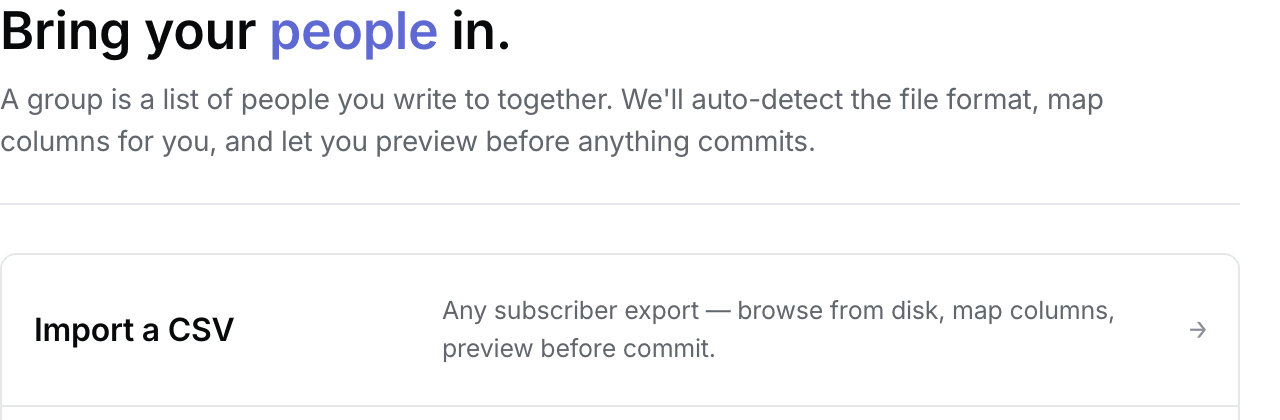 Fictional group ready for its first contact import. Open the full-size image · Light-theme image · Dark-theme image.
You now have a visible destination for contacts and future messages.
Import a small CSV
-
Select Import a CSV, then choose the file.
-
Confirm the Header row and select Next.
-
On Map your columns, confirm the Email mapping and choose whether to add or skip the other fields.
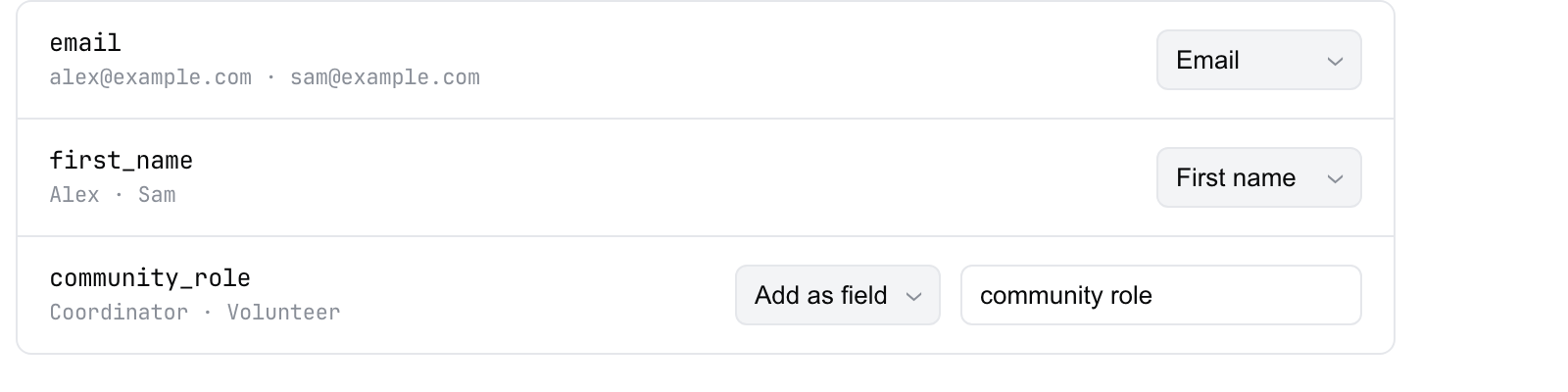 Fictional map; Email is required. Open the full-size image · Light-theme image · Dark-theme image.
 -
Select Next — review, check the calculated counts and sample data, then select Import N contacts.
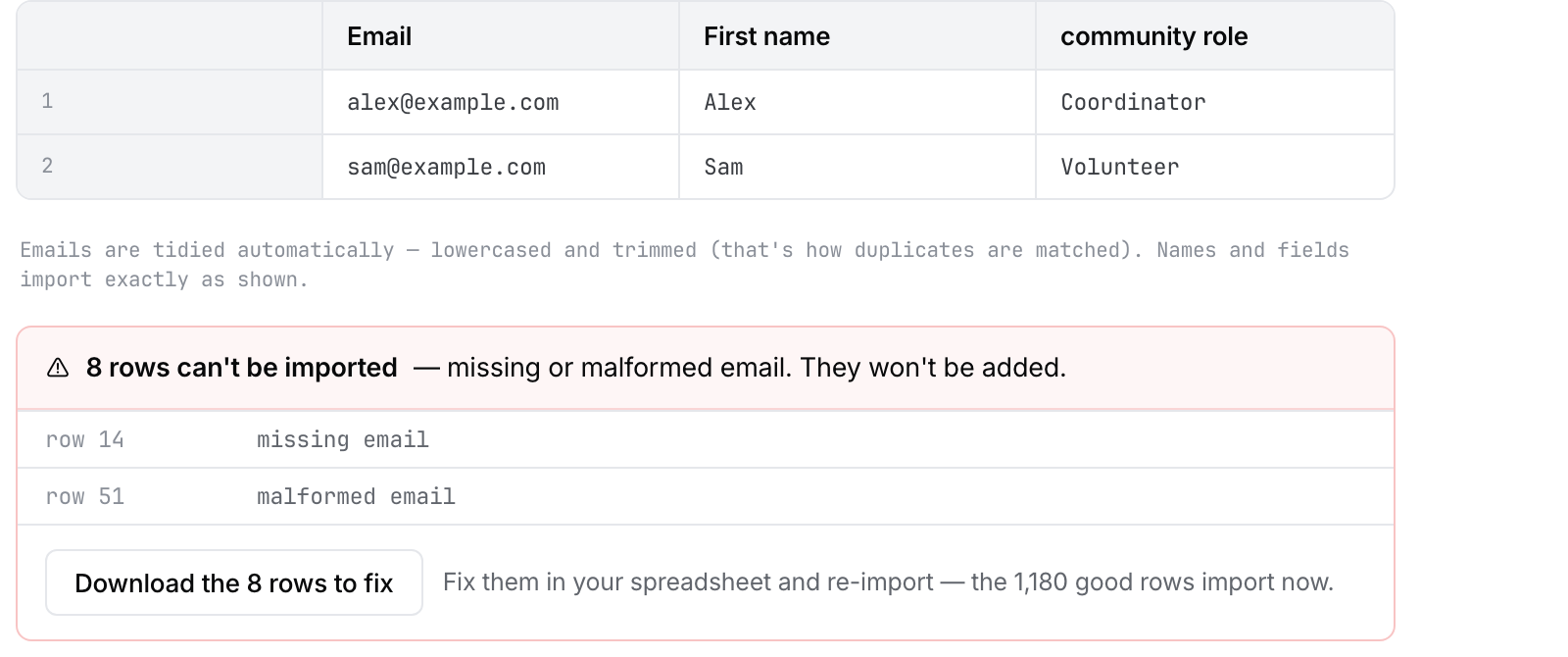 Fictional Review; check your own calculated totals before importing. Open the full-size image · Light-theme image · Dark-theme image.
 -
When the import finishes, select Open group.
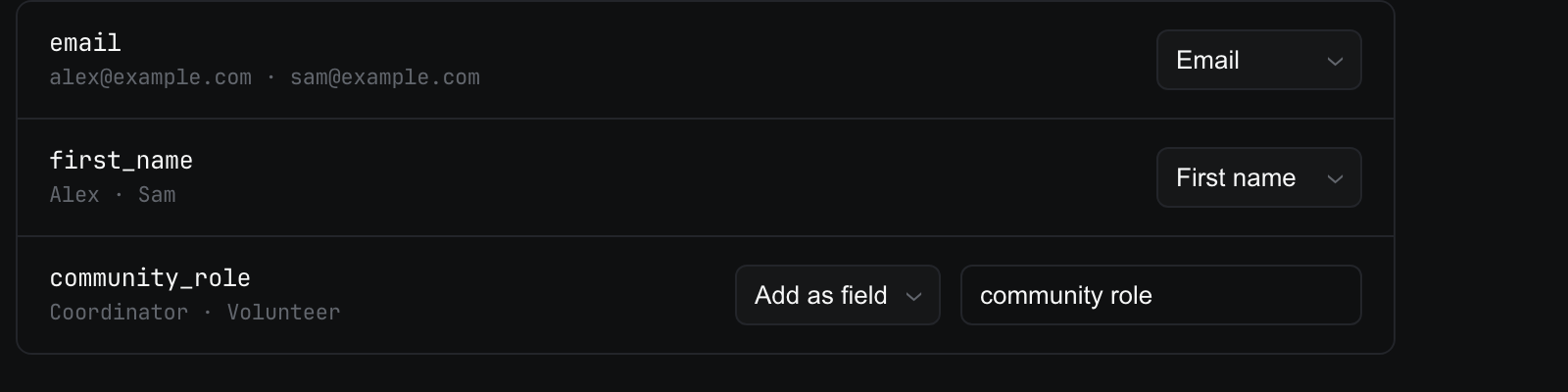
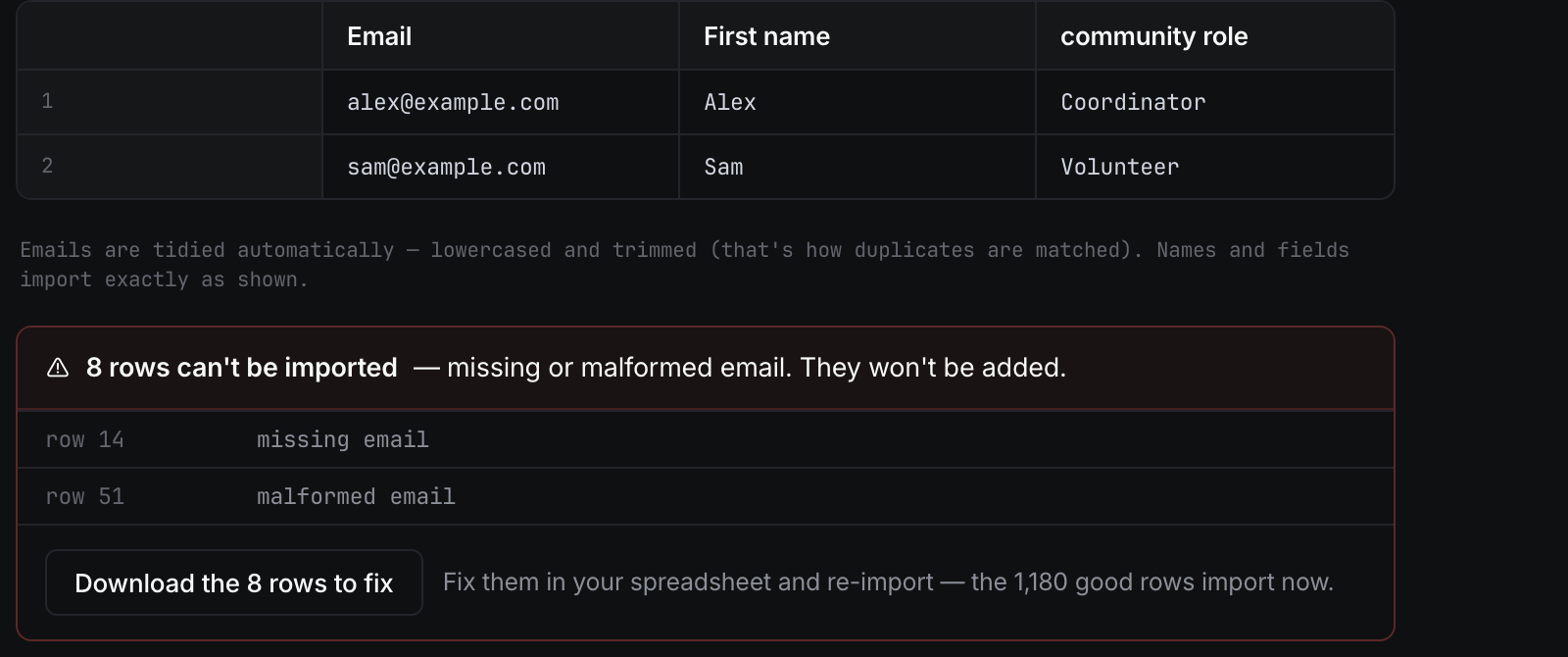
If any rows have a missing or malformed email, download the rows to fix and correct them separately. The valid rows can still be imported.
Set up the sender
-
Open Settings → Sending accounts.
-
Enter an inbox you control in Test sends go to.
-
Select + Add sending account and choose Your email address, Microsoft, Gmail or SMTP2Go.
-
Connect the account:
- For Your email address, enter your Email address and Password or app password, then select Connect. Groupmail finds the sending settings and checks outgoing mail. When it shows CONNECTED and Sending — ready., select Done.
- For SMTP2Go, enter the requested details and an API key, then select Save and verify.
- For Microsoft or Gmail, complete the provider sign-in in your browser.
If Groupmail asks for Microsoft sign-in, an app password or your server settings instead, follow How to set up a sending account. SendGrid, Amazon SES and Mailgun users enter their service’s settings and username under + Advanced — enter server settings yourself.
-
Open the connected account, select Send test email and confirm that the account test reaches your inbox.
 Simulated account-test confirmation; check your own inbox. Open the full-size image · Light-theme image · Dark-theme image.

Do not continue with an account that shows Unvalidated, test failed, Reconnect or Disabled.
Write the message
-
Return to your group and select Send to group-name.
-
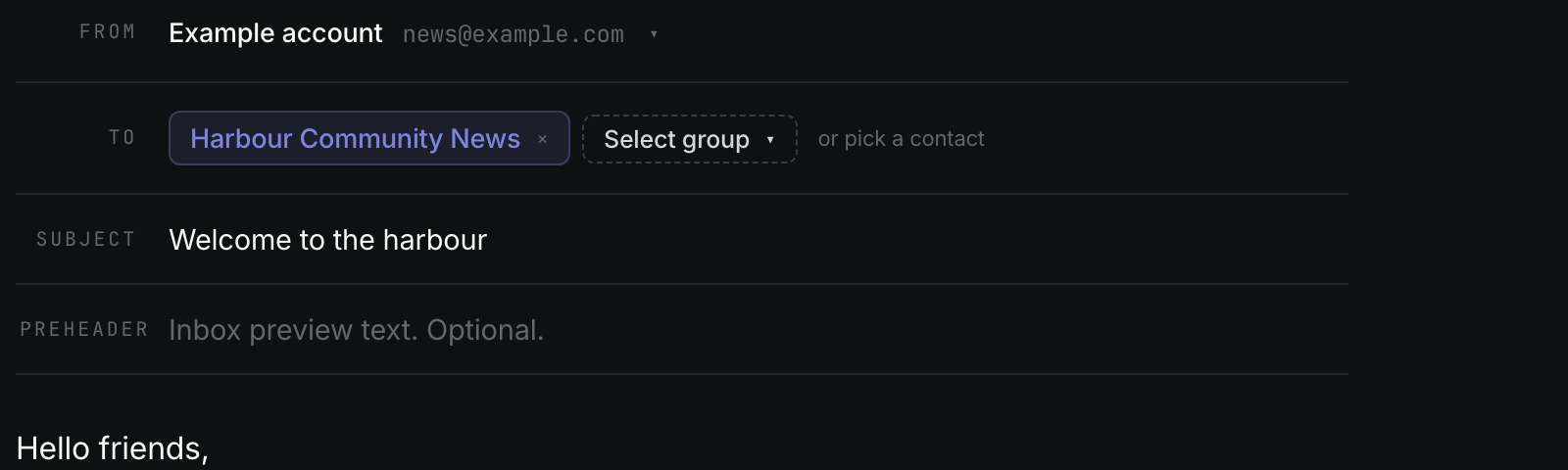
Confirm the group in To and the verified account in From.
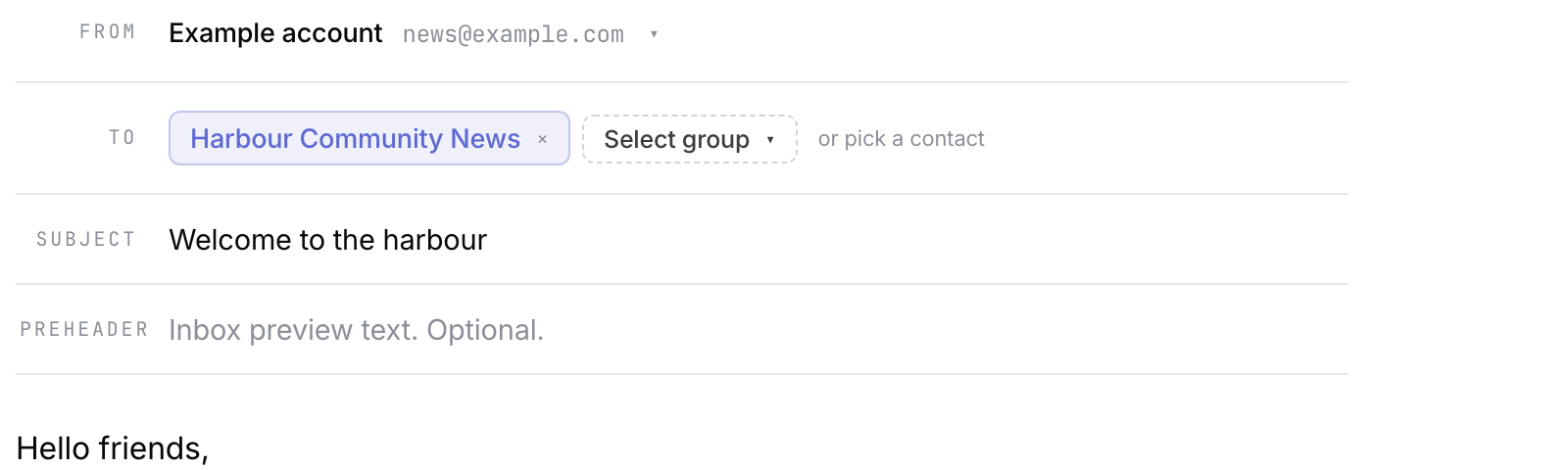 Fictional ready draft with its sender and recipient visible. Open the full-size image · Light-theme image · Dark-theme image.
 -
Add a subject and a short body.
-
To personalize the body, place the cursor, select Merge field and choose a field such as first name.
-
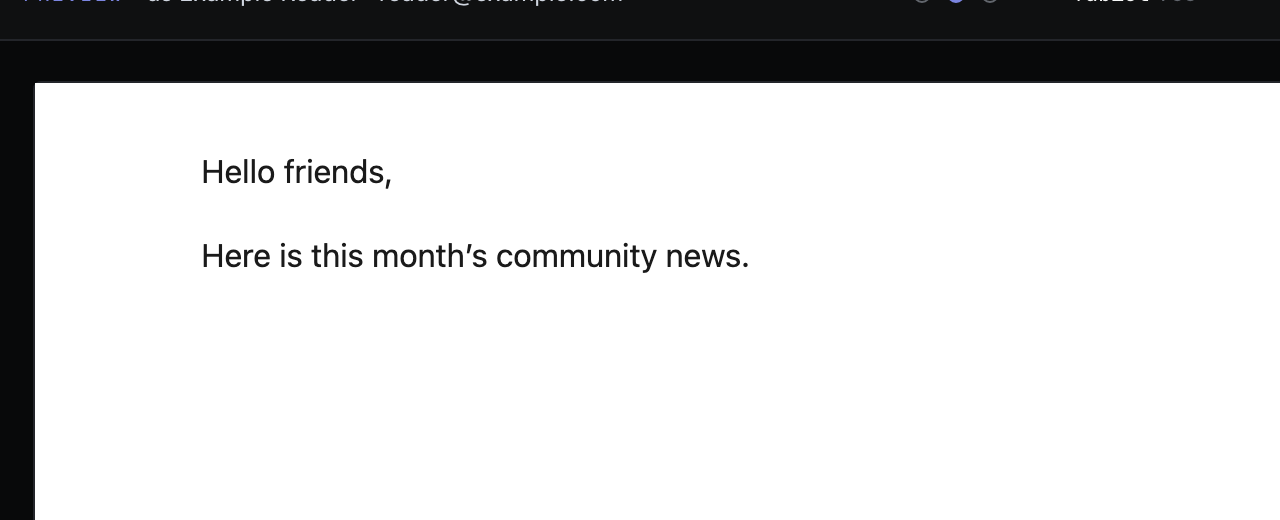
Select Preview and check the rendered message. Check the draft footer too; continue when it shows ✓ ready to send.
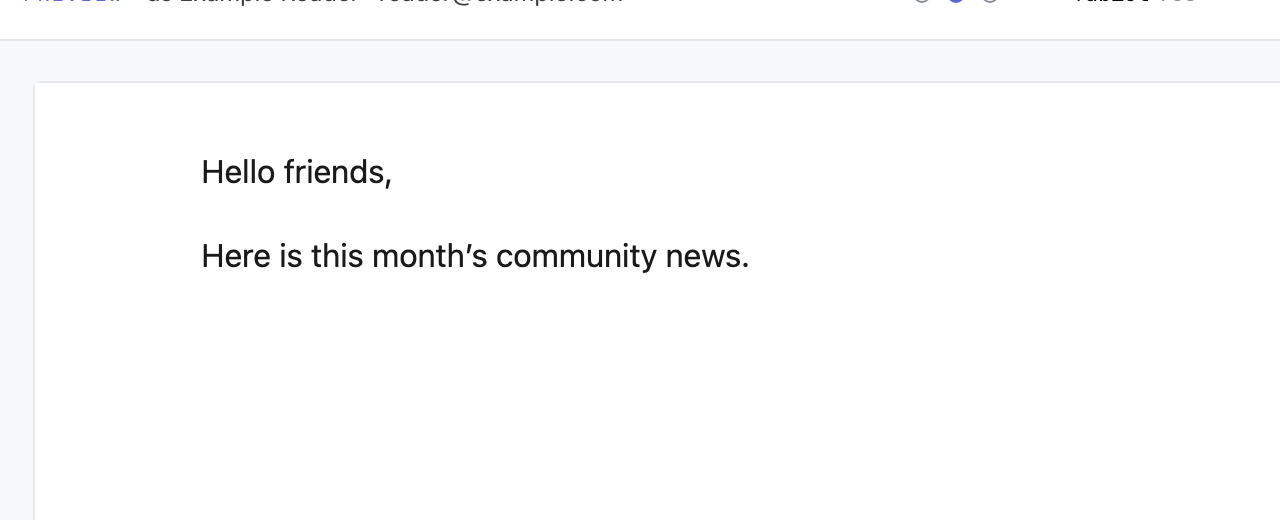 Fictional message Preview. Open the full-size image · Light-theme image · Dark-theme image.
Send the first message test
-
Select Test send in the draft footer.
-
Confirm the address beside Test send to:.
-
Select Send test.
-
Wait for Test sent to address, then open the received email.
 Simulated test-send result; confirm the real message in your inbox. Open the full-size image · Light-theme image · Dark-theme image.
 -
Check its From name, subject, formatting, merge values, links and any images or attachments.

This sends only the test copy. It does not send to the group. Correct anything that looks wrong and repeat the test before sending to everyone. In 0.18.0 and later, select Send or schedule… and then Send to N recipients in the review. In earlier versions, select Send to N recipients in the draft footer.
If you get stuck
- The CSV cannot continue: confirm that one column maps to Email.
- The sender cannot test: save a valid test-recipient address and verify or reconnect the account.
- The draft cannot send: use the footer message to add recipients, a verified sender, a subject or a body.
- The test fails: keep the full message unsent, correct the account or message problem and test again.
Related Docs
Stuck? Contact Groupmail Support with your operating system and Groupmail 7 version. Never email a sign-in link or sign-in code.