On this page
How to use Inbox for replies, bounces and unsubscribes
Inbox shows replies to the emails you sent with Groupmail, and handles matching bounces and “Unsubscribe” requests for you. Connect the incoming mailbox of a sending account that uses your own mail server or SMTP2Go. Inbox is not a general email client: it ignores the rest of your mail and never changes anything in your mailbox.
What Inbox does
Open Inbox in the sidebar, under Activity and Search. Once a mailbox is connected, Groupmail checks it while Groupmail is open and shows three kinds of rows:
- Replies to emails you sent with Groupmail 7. Groupmail keeps the first part of each reply as plain text, on this computer, for 90 days.
- Bounced permanently: the recipient’s mailbox doesn’t exist, so Groupmail stopped emailing that address.
- Asks to be taken off your list: the person replied “Unsubscribe”, so Groupmail stopped emailing that address.
Use All, Replies and Handled above the list to filter it.
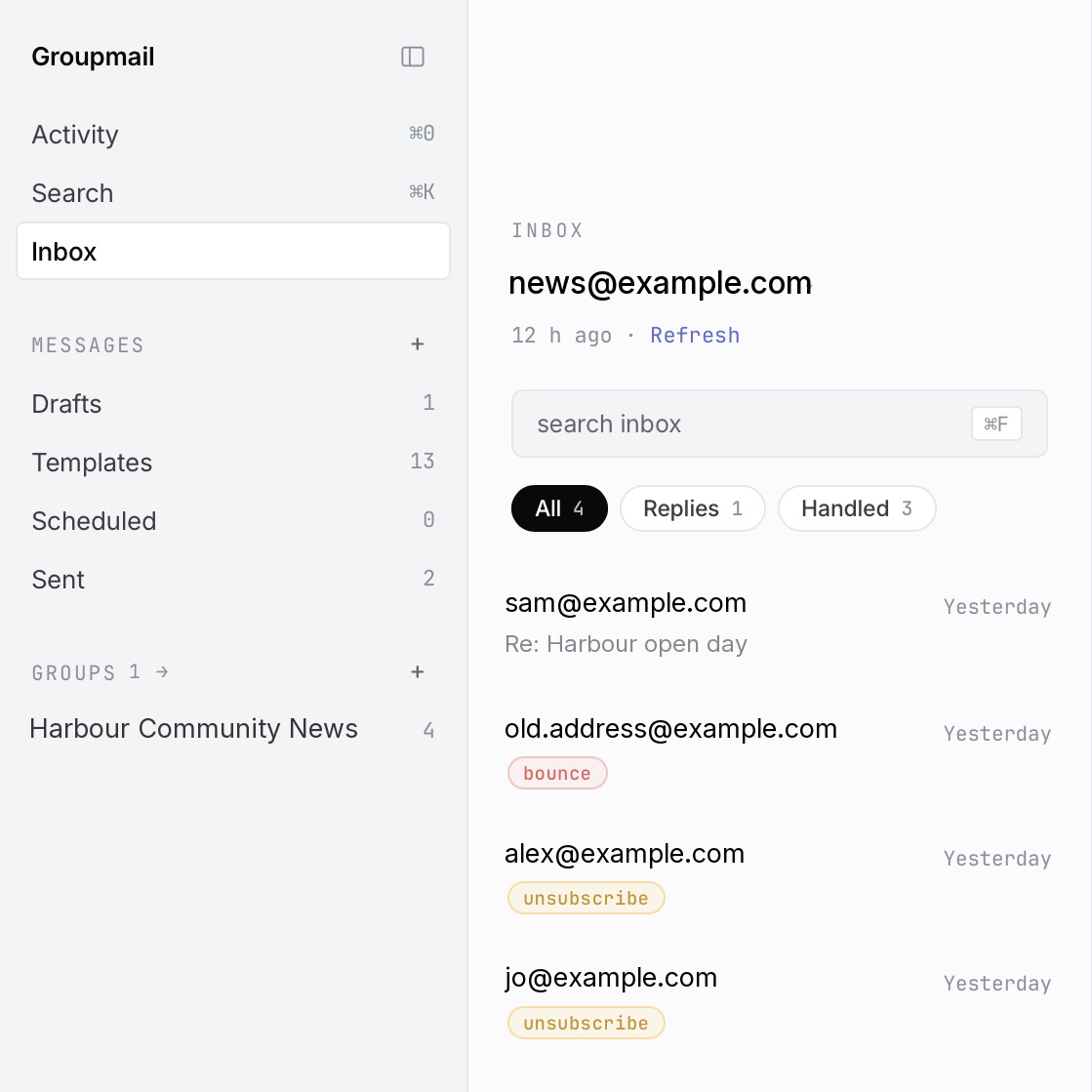 Signed 0.23.0 Mac build; addresses, names, subjects and message text replaced with examples. Inbox sits under Activity and Search; the list shows replies and handled rows. Open the full-size image · Light-theme image · Dark-theme image.
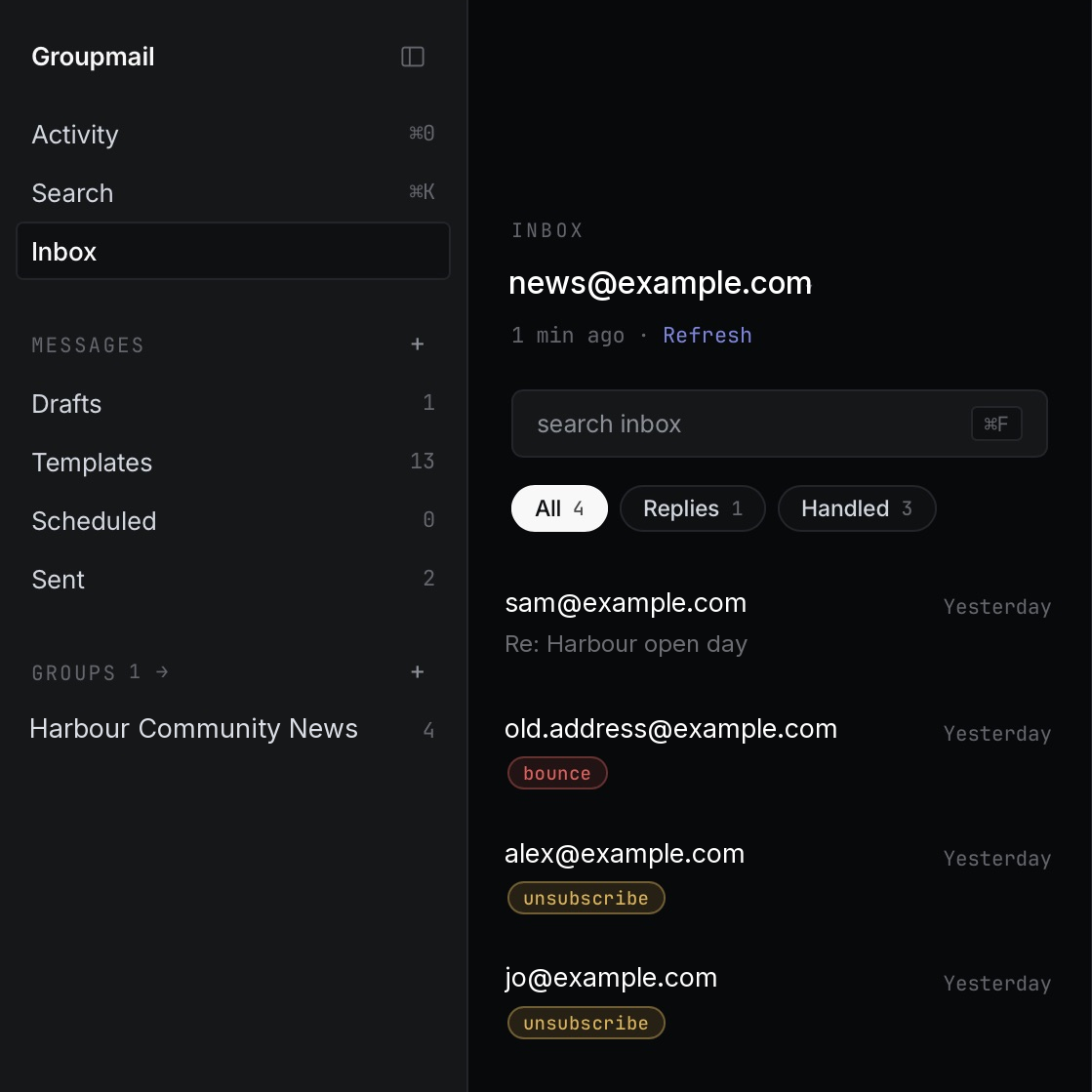
Groupmail reads the mailbox without changing it. It never marks messages as read, moves them or deletes them. Deleting a row in Inbox removes it from Inbox only; the email stays in your mailbox.
Inbox doesn’t cover:
- emails sent before Groupmail 7;
- bounces handled by another sending service;
- mail in your Junk folder (only the mailbox’s inbox folder is checked);
- mail removed from the mailbox before Groupmail checked it.
Which accounts can use Inbox
Sending and checking are separate connections. A sending account sends your emails. The incoming mailbox, connected in Inbox, is where replies and bounces arrive.
| Sending account | What connecting its mailbox adds |
|---|---|
| Your own mail server (shown as Custom SMTP) | Replies, matching bounces and “Unsubscribe” requests |
| SMTP2Go | Replies. SMTP2Go already handles bounces and unsubscribes for this account. |
| Gmail or Microsoft | Not available. Gmail and Microsoft mailboxes can’t be checked. Sending still works. |
Each sending account can have one connected mailbox. The mailbox must use a secure incoming (IMAP) connection, usually port 993.
Connect a mailbox
- Select Inbox in the sidebar.
- Under Connect a mailbox, select Connect with the account’s address.
- Enter the mailbox’s Password or app password. For an own-mail-server account you can select Use the same password as for sending if the mailbox uses that password.
- Select Connect. Groupmail shows Finding your mailbox… and then Signing in….
- When Inbox shows Connected, checking has started.
Checking from now on. Older mail is never read. Groupmail starts from the moment you connect. Mail that was already in the mailbox isn’t imported.
For an SMTP2Go account, enter the mailbox’s own password, not your SMTP2Go API key.
If Groupmail can’t find your mail server, select + Enter server settings yourself and enter the Incoming mail server (IMAP), Port and Username from your mail provider’s help page. Your password is stored securely on this computer.
To add another account’s mailbox later, select the mailbox name at the top of the list, then Connect another mailbox.
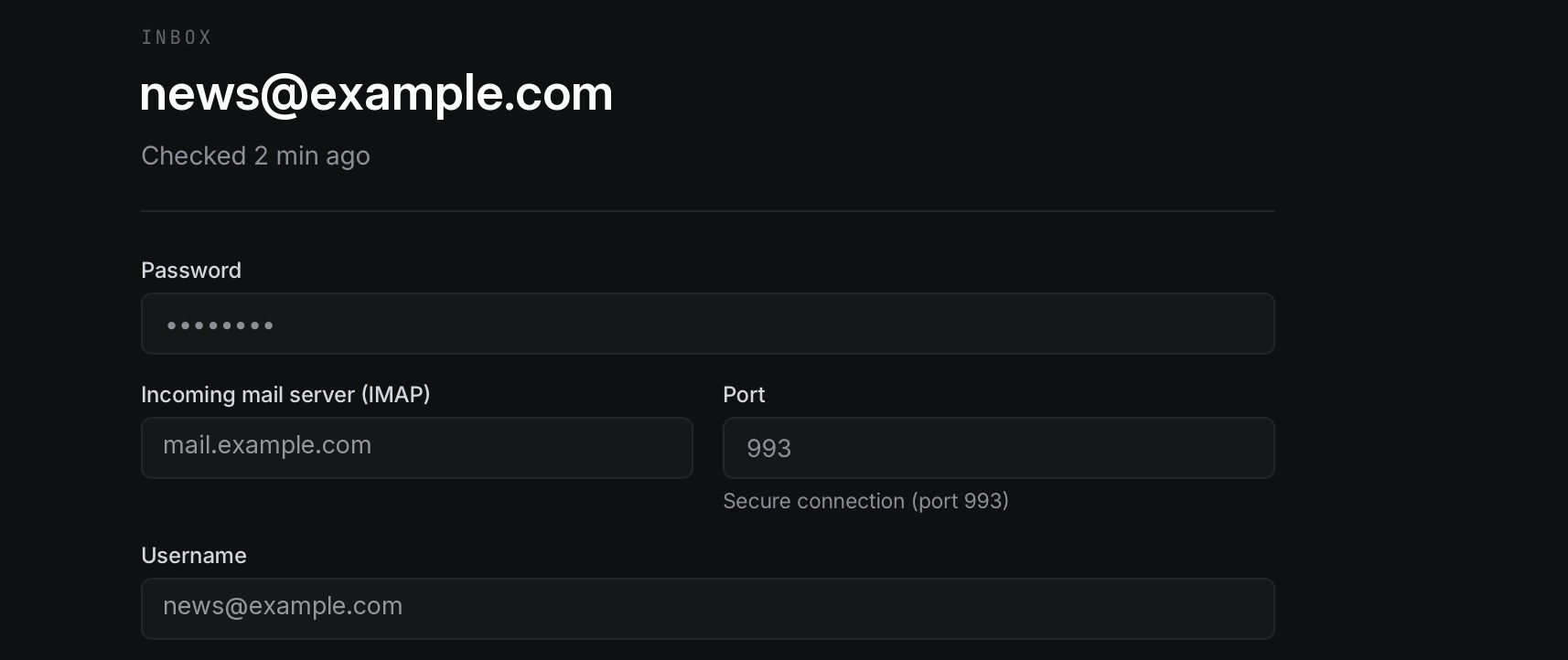
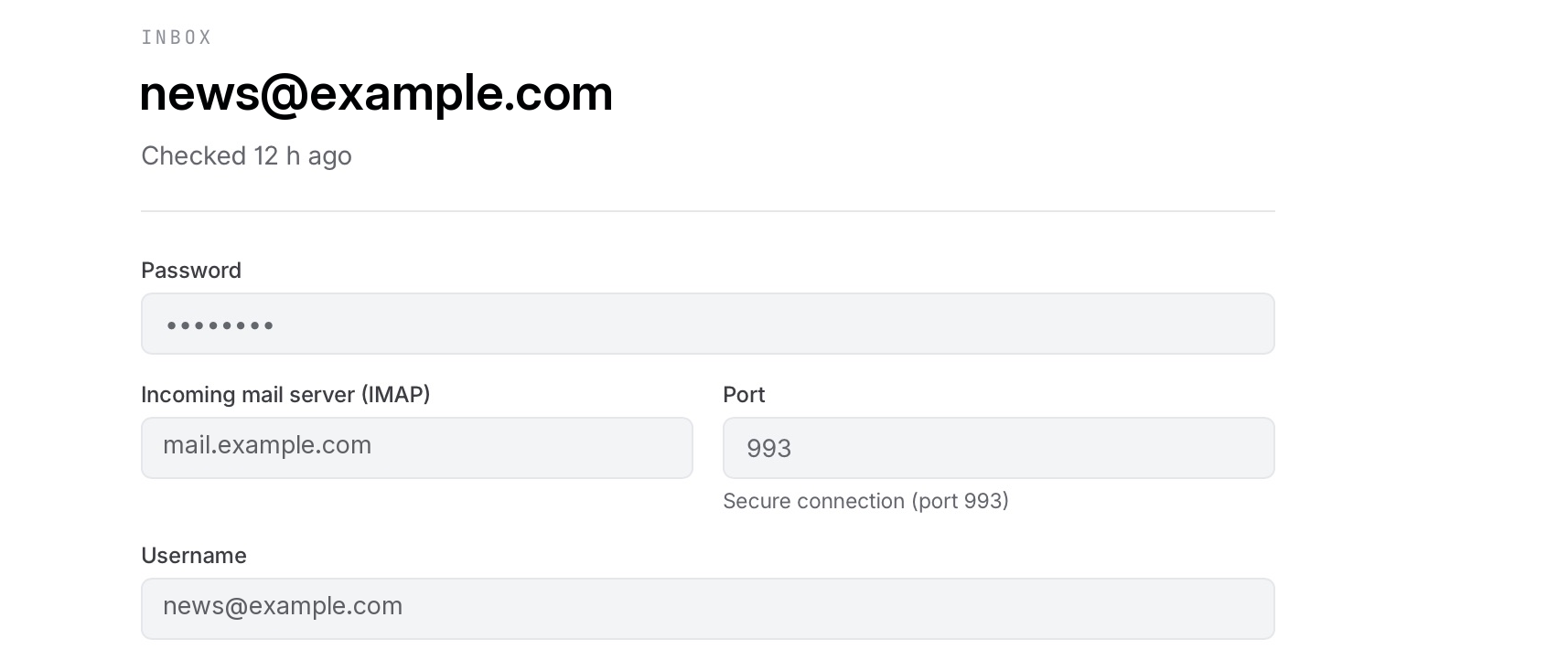 Signed 0.23.0 Mac build; addresses, names, subjects and message text replaced with examples. A connected mailbox shows the settings Groupmail uses to check it. Open the full-size image · Light-theme image · Dark-theme image.
Read the status line
The line above the list shows how checking is going:
| Status | What it means | What to do |
|---|---|---|
| {time} ago · Refresh | The last check finished at that time | Select Refresh to check now |
| Checking… | A check is running | Nothing |
| Catching up… | Groupmail is working through mail that arrived while it was closed | Leave Groupmail open |
| Offline · checked {time} ago | The mail server couldn’t be reached | Groupmail retries automatically; check your internet connection |
| Can’t sign in · Fix | The mailbox password stopped working | Select Fix and enter the current password |
Groupmail checks only while it is open. Each mailbox is checked every few minutes.
Read and answer replies
Select a reply to read it. Opening a reply marks it as read; use Mark as unread to keep it in view. The line under the reply shows which of your emails it answers. Select it to see that email, or select Open in Sent.
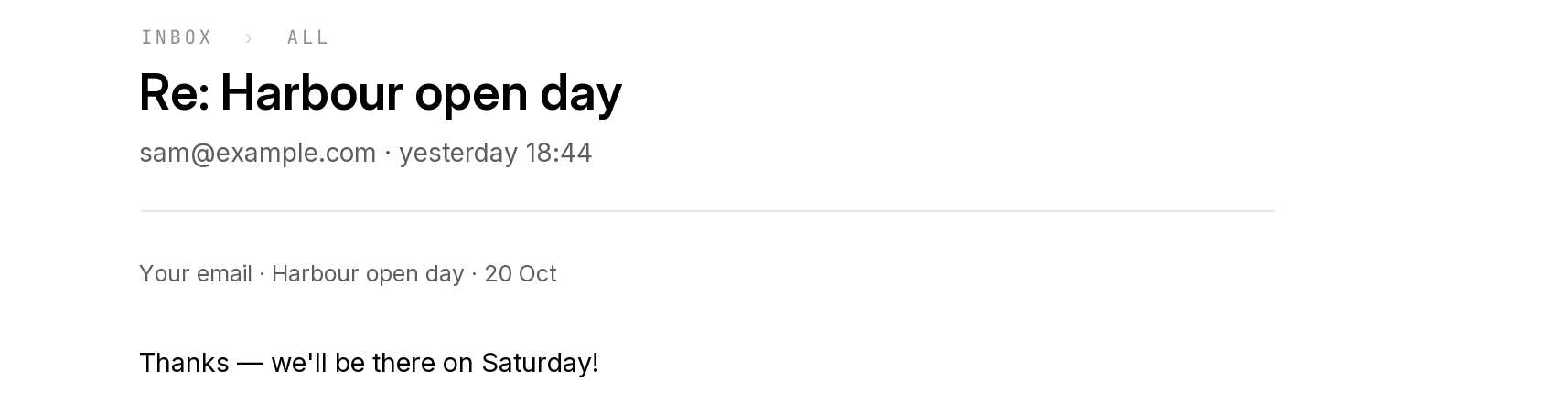 Signed 0.23.0 Mac build; addresses, names, subjects and message text replaced with examples. The line under the heading names the Groupmail email the reply answers; the buttons below are not shown. Open the full-size image · Light-theme image · Dark-theme image.

To answer, select Reply in mail app (on a Mac that uses Apple Mail, Open in Mail). Your usual email app opens a reply addressed to that person. Groupmail itself doesn’t send the reply.
Groupmail keeps only replies to your Groupmail emails. Automatic replies, out-of-office messages, mailing-list mail and calendar responses aren’t kept. Long replies show Trimmed to the first part of the message. Replies clear from Inbox after 90 days.
Bounces and unsubscribe requests
For accounts on your own mail server, Groupmail adds an address to your suppression list for all groups when:
- a permanent bounce arrives: a standard bounce report saying the recipient’s mailbox doesn’t exist, for an email Groupmail 7 sent to that address; or
- an “Unsubscribe” request arrives: a message whose subject is just “Unsubscribe”, “Unsubscribe me” or “Remove me”, from an address you emailed from Groupmail 7.
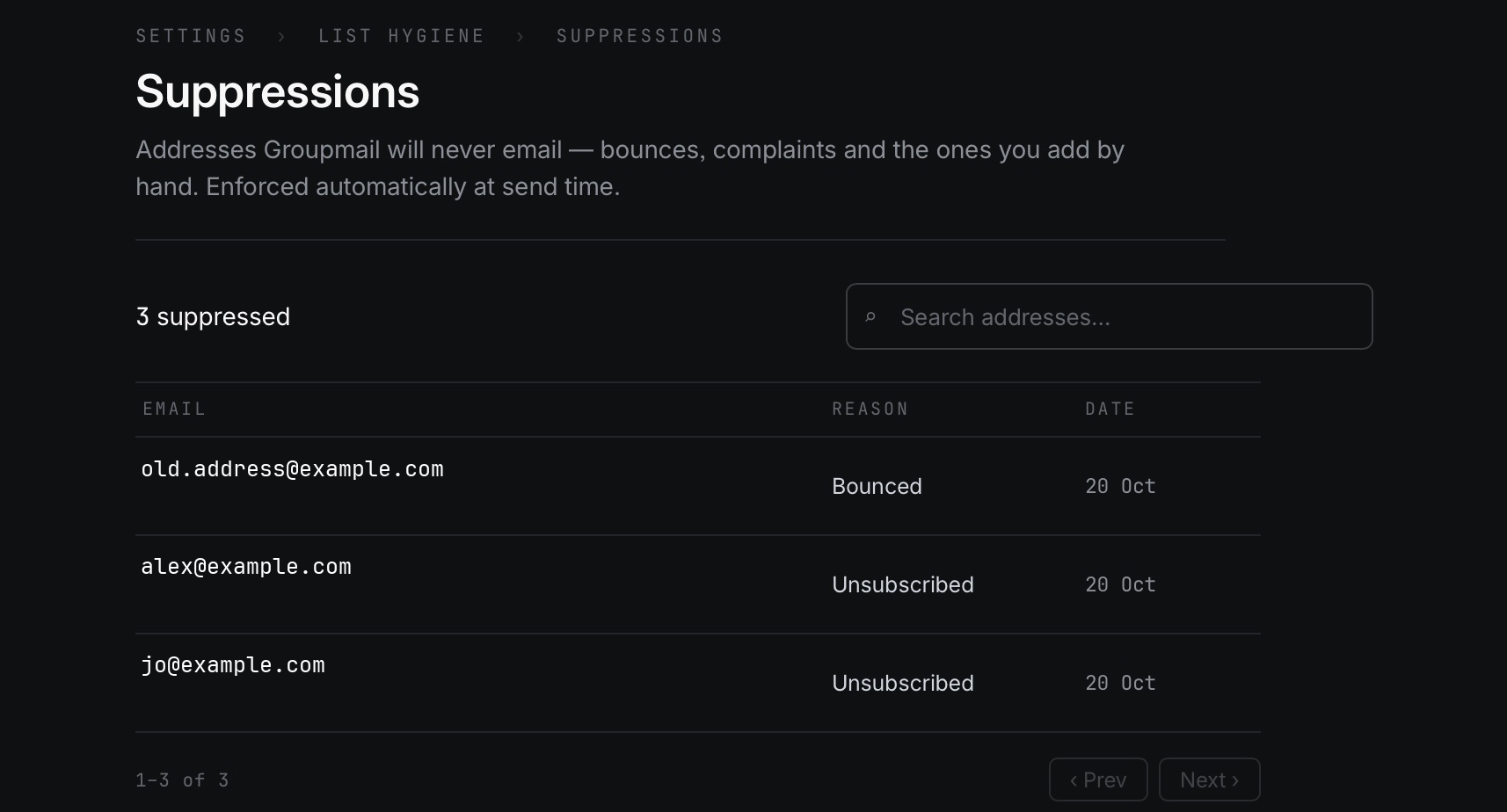
Other mail is left alone, including bounces Groupmail can’t match to one of its sends. In Settings → List hygiene → Suppressions, pointing at one of these rows shows Added automatically from your mailbox. Groupmail never replaces a suppression you added yourself or one that came from an import.
Groupmail doesn’t keep the text of bounce or unsubscribe messages. To read one, open it in your mail app.
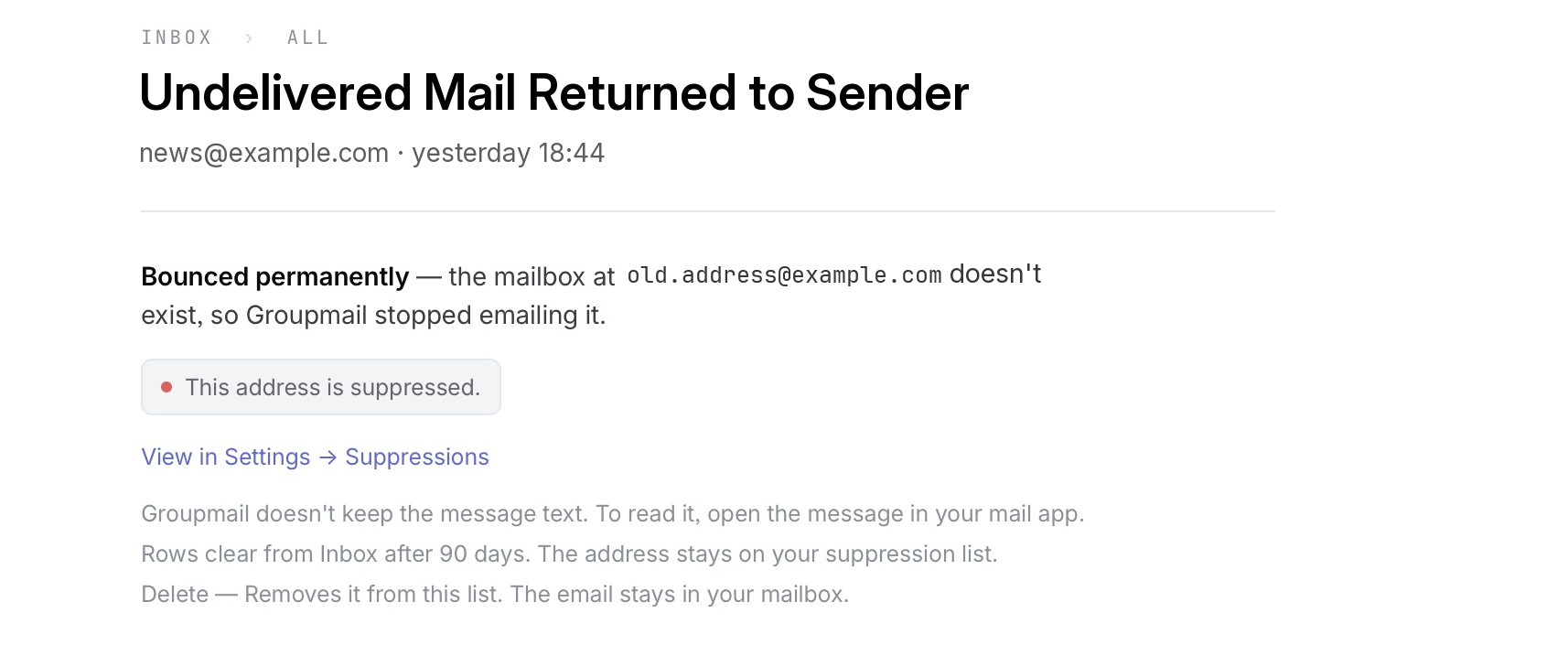 Signed 0.23.0 Mac build; addresses, names, subjects and message text replaced with examples. A permanent bounce: Groupmail stopped emailing the address. Open the full-size image · Light-theme image · Dark-theme image.
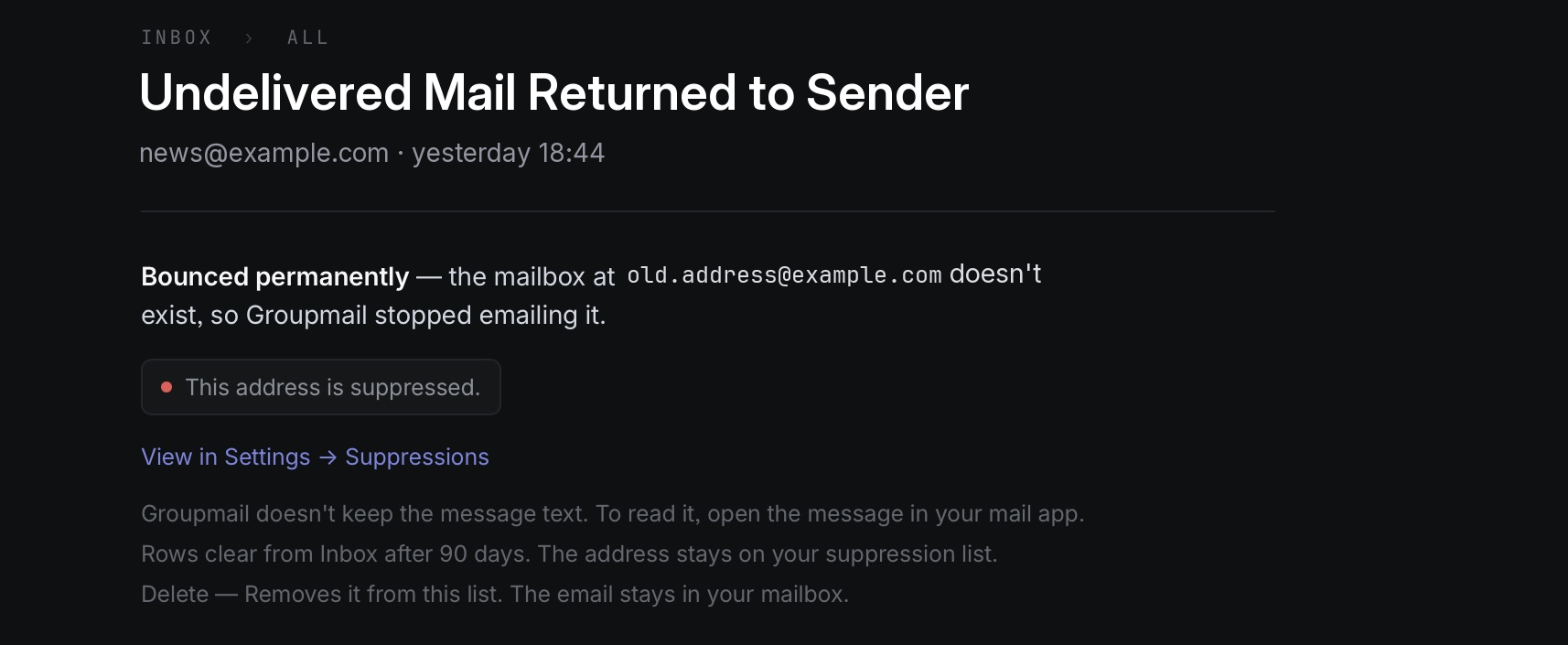
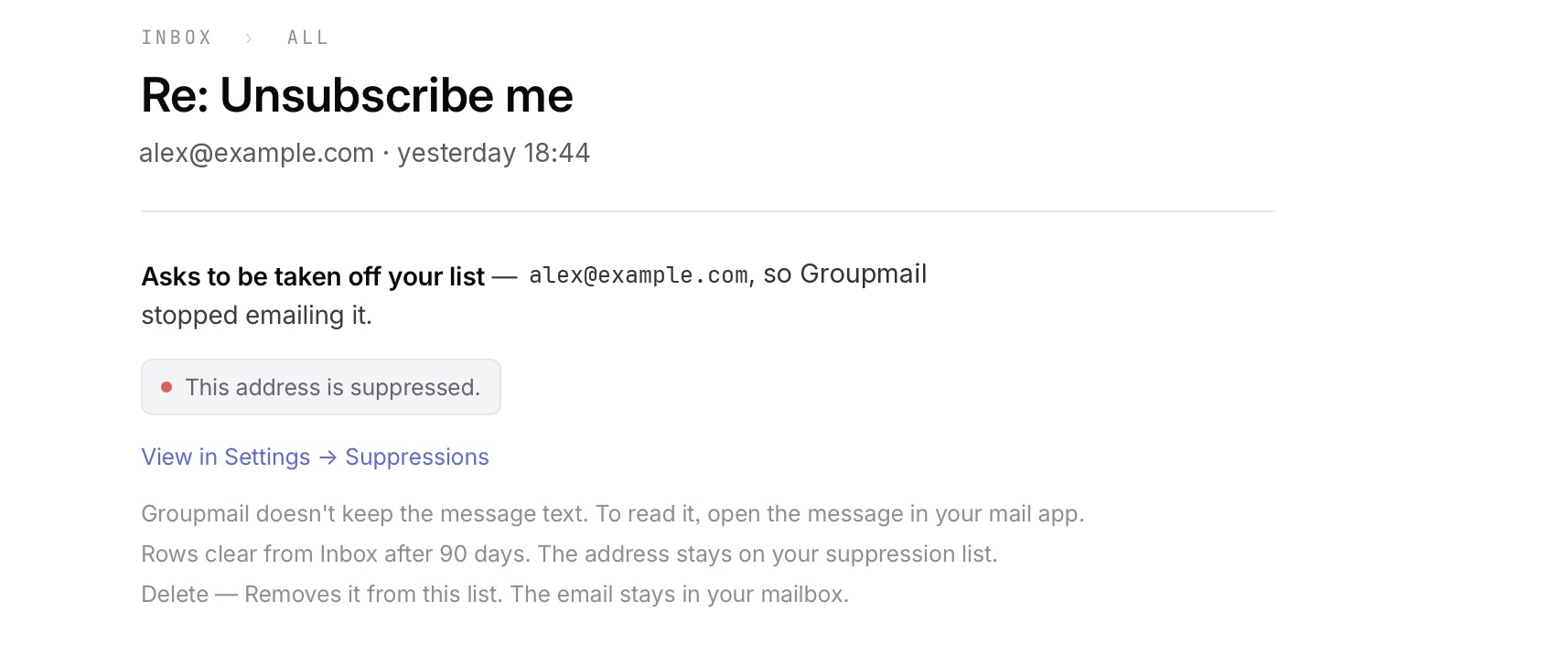 Signed 0.23.0 Mac build; addresses, names, subjects and message text replaced with examples. An “Unsubscribe” request: the address is suppressed for all groups. Open the full-size image · Light-theme image · Dark-theme image.
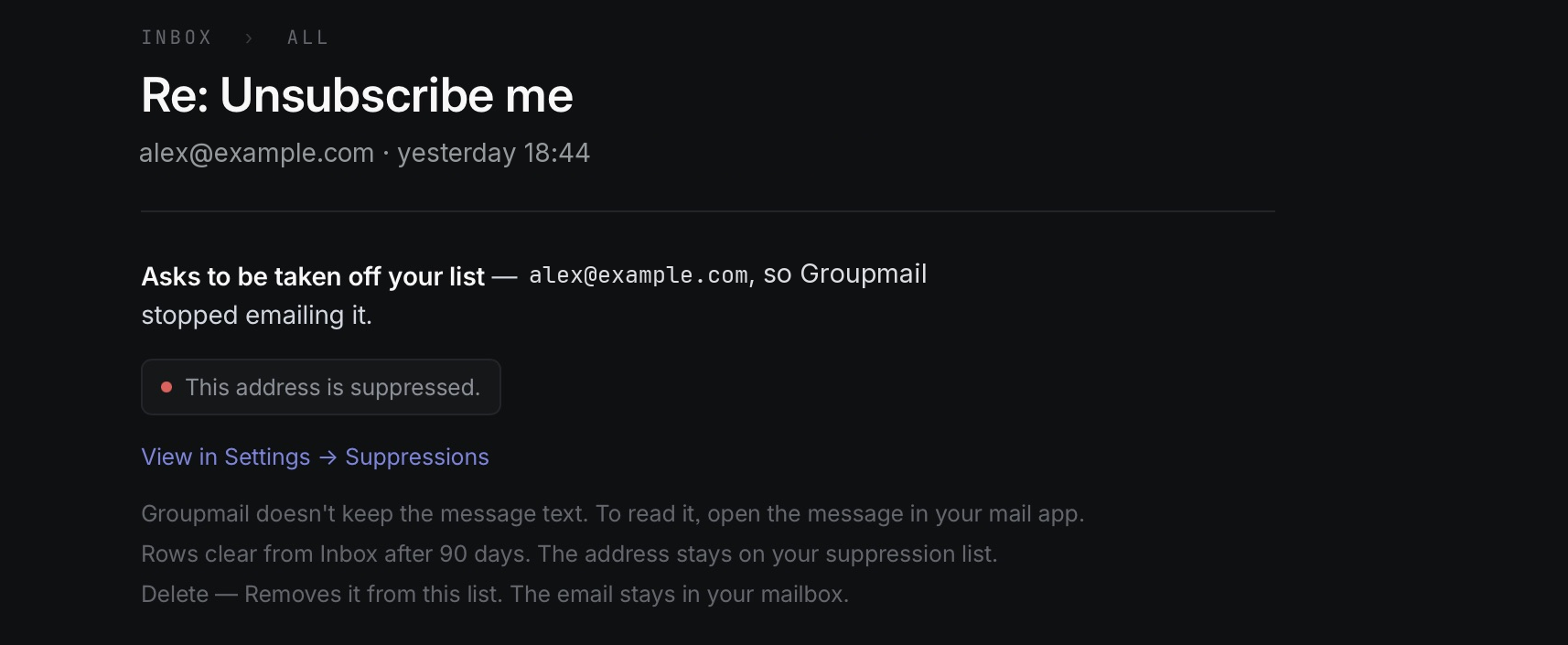
To change a decision, open the row:
- Undo removes only the suppression Inbox added, so future sends to that address resume. Messages that were already skipped stay skipped.
- Add to suppression list suppresses the address again after an Undo.
- View in Settings → Suppressions opens the suppression list.
- Delete removes the row from Inbox. The address stays suppressed and the email stays in your mailbox.
Handled rows clear from Inbox after 90 days. The address stays on your suppression list.
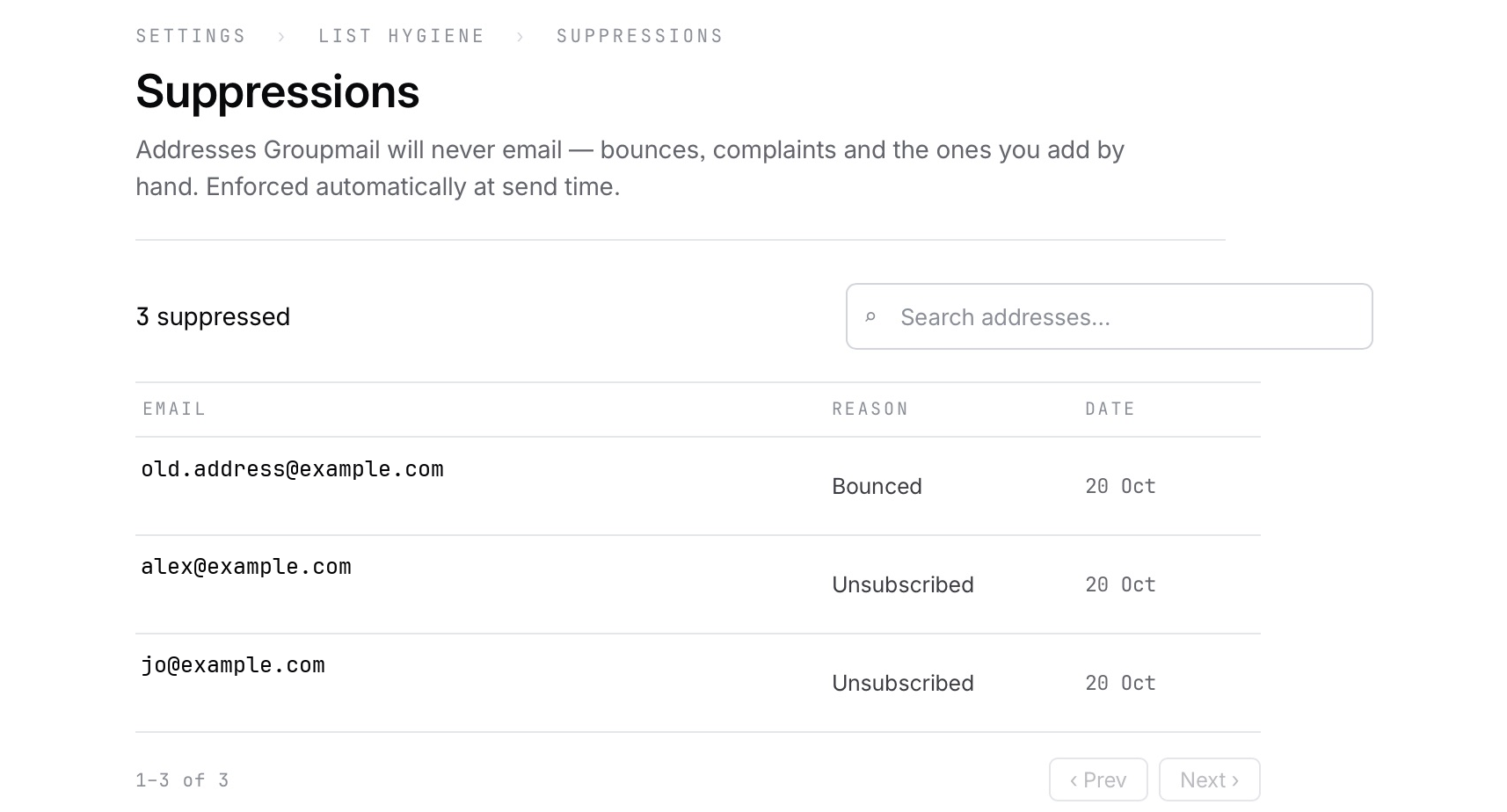 Signed 0.23.0 Mac build; addresses, names, subjects and message text replaced with examples. Addresses Inbox handled appear in your suppression list with their reason. Open the full-size image · Light-theme image · Dark-theme image.
Stop checking, undo or reconnect
- Select the mailbox name at the top of the list, then select the mailbox.
- Select Stop checking. Checking stops immediately.
- To change your mind, select Undo in the message that appears. You have about five seconds.
When stopping is final, Groupmail removes the saved mailbox password. Everything already in Inbox stays there.
To start again, connect the same mailbox from Inbox. Groupmail continues from where it stopped. It picks up mail that arrived in the meantime, up to 30 days old, and remembers what it already handled, so nothing is processed twice.
If Inbox still shows the connect screen after you reconnect, open another section, such as Activity, then select Inbox again.
If Groupmail has been closed, it catches up when you open it again, again for mail up to 30 days old. Until catch-up finishes, an address that bounced while Groupmail was closed may be emailed once more.
Fix Inbox problems
- Can’t sign in · Fix: the mailbox password changed or was rejected. Until you fix it, new replies, bounces and “Unsubscribe” requests aren’t picked up. Select Fix, enter the current password or a new app password, and select Sign in. Groupmail continues from where it stopped. The status line updates after the next check, within a few minutes.
- That password didn’t work. Try again. Check the password. Many providers need an app password for other apps.
- Couldn’t reach {server} on port {port}. Check the server name. Select + Enter server settings yourself and compare the server and port with your provider’s help page.
- Your mail provider doesn’t let Groupmail check this mailbox. Sending still works. The provider has turned off password sign-in for other apps. Turn it on, or create an app password, in your provider’s settings.
- Groupmail can’t check this mailbox yet — its mail server uses a connection type that isn’t supported. The server doesn’t offer a secure IMAP connection. Ask your provider for its secure IMAP settings (usually port 993). POP mailboxes can’t be checked.
- This mailbox is already connected. That mailbox is already connected in Inbox; open it from the mailbox list instead.
- No mailbox to connect: your sending accounts are all Gmail or Microsoft. Add an own-mail-server or SMTP2Go account to use Inbox.
- A reply or bounce doesn’t appear: check that it answers an email you sent with Groupmail 7, that it arrived in the inbox folder and not Junk, and that it wasn’t moved or deleted before Groupmail checked. Bounces for emails you deleted from Sent can’t be matched.
Coming from GroupMail 6 or Groupmail X
GroupMail 6. If GroupMail 6 checked a mailbox for bounces and unsubscribes (with GroupMail Subscriber, or a sending account’s incoming mailbox), the import connects it to Inbox when a Groupmail 7 own-mail-server or SMTP2Go account sends from that address. See Your Subscriber mailbox for details. Subscriber rules, automatic responses and per-group opt-outs aren’t carried over.
Groupmail X. Groupmail X incoming mailbox settings aren’t imported. Past bounces and removals become suppressions during the import. To use Inbox, connect the mailbox from Inbox for an account that uses your own mail server or SMTP2Go.
Questions
Does Groupmail send anything from Inbox? No. Replies open in your own email app, and Groupmail doesn’t reply to unsubscribe requests.
I use Groupmail on two computers. The mailbox password is stored on each computer separately. Connect the mailbox on each computer where you want Inbox.
What about my privacy? Inbox works on this computer. It keeps reply text for 90 days and doesn’t keep your other mail.
Related Docs
- How to set up a sending account
- How to manage exclusions, suppressions and unsubscribes
- How to review, test send and understand results
- How to import from GroupMail 6
- How to import from Groupmail X
Stuck? Contact Groupmail Support with your operating system and Groupmail 7 version. Never email a sign-in link or sign-in code.