On this page
How to update Groupmail 7 or recover from a failed update
Use Groupmail 7’s Software update screen to install releases covered by your account. The app verifies an update before staging it and will not offer an unapproved downgrade as an ordinary update.
Check for an update
- Make sure the computer is online.
- On macOS, choose Groupmail 7 → Check for Updates…. You can also open Settings → Software update.
- On Windows, open Settings → Software update.
- Select Check for updates if a check does not start automatically.
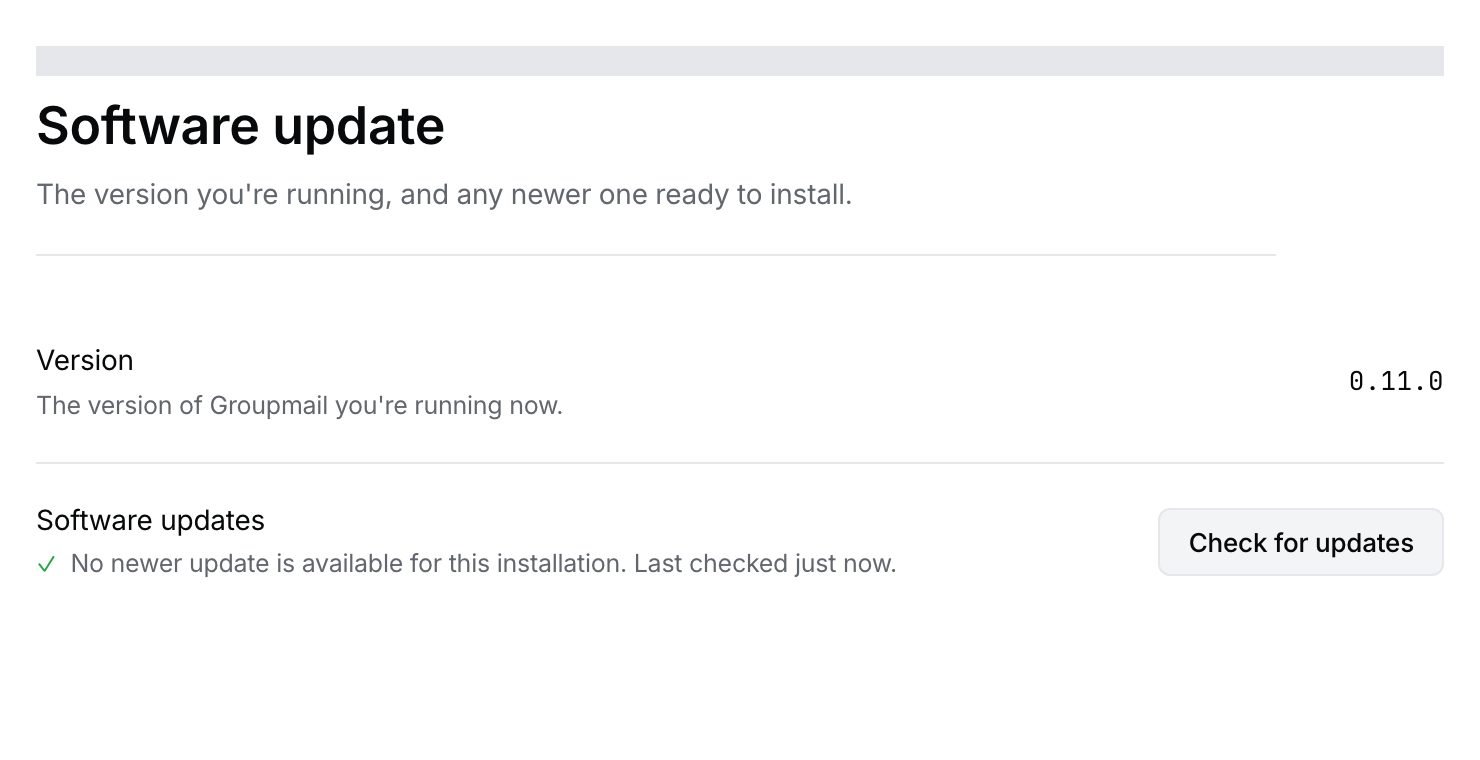
Illustrative capture from the pinned product source using a deterministic fictional fixture; the current release may be newer. Signed physical updater and rollback reports remain the behavioral authority. Open the full-size image · Light-theme image · Dark-theme image.
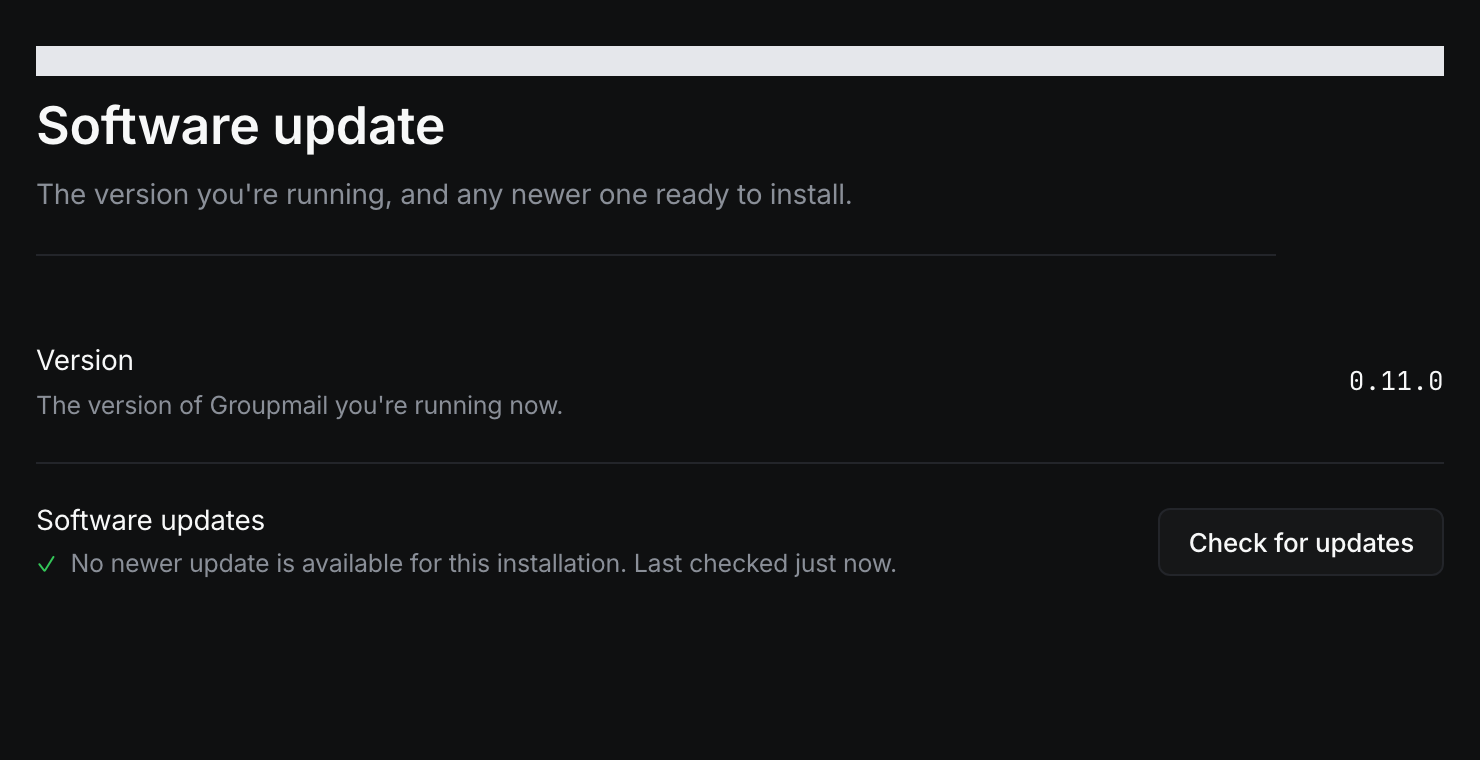
If an eligible update is available, Groupmail downloads and verifies it before showing Relaunch to update.
Install a ready update
- Pause any active send.
- Wait until no recipient is actively sending.
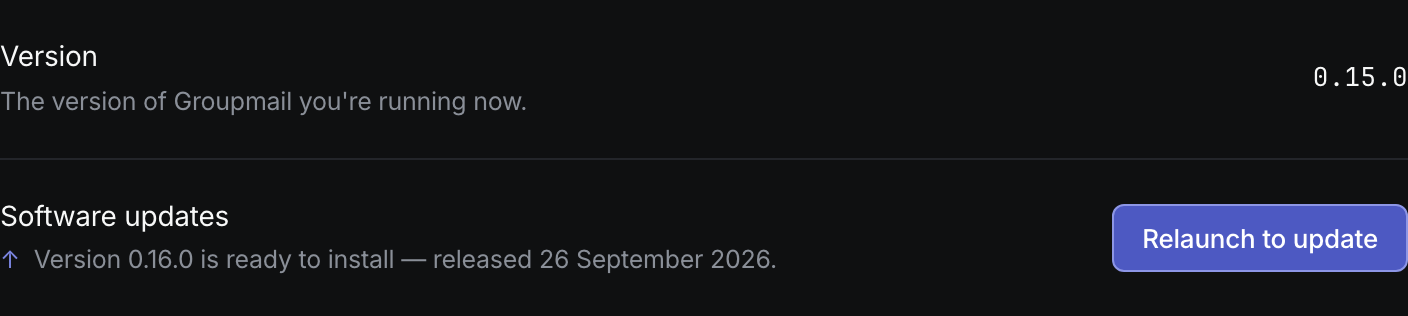
- Select Relaunch to update.
- Let Groupmail close, apply the verified update and reopen.
- Return to Settings → Software update and confirm the installed version.
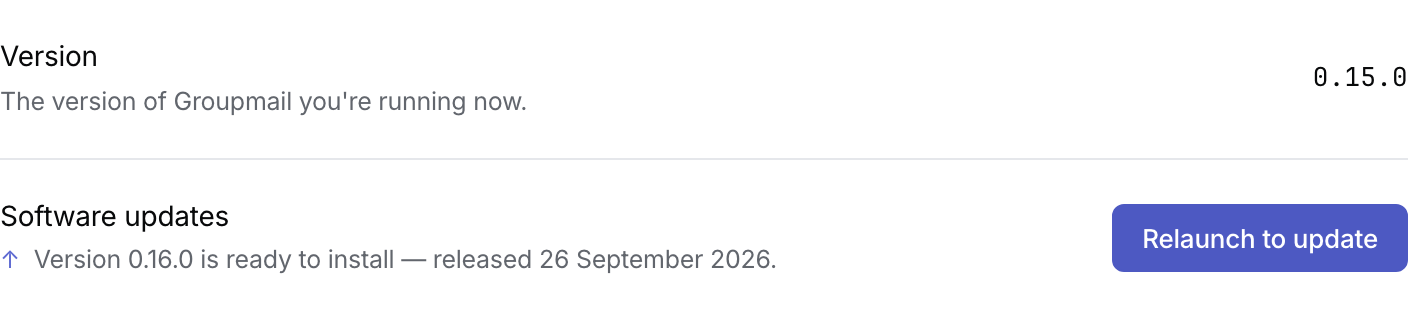 Product illustration from a deterministic fictional update state: use Relaunch to update only after the verified release is ready. Open the full-size image · Light-theme image · Dark-theme image.
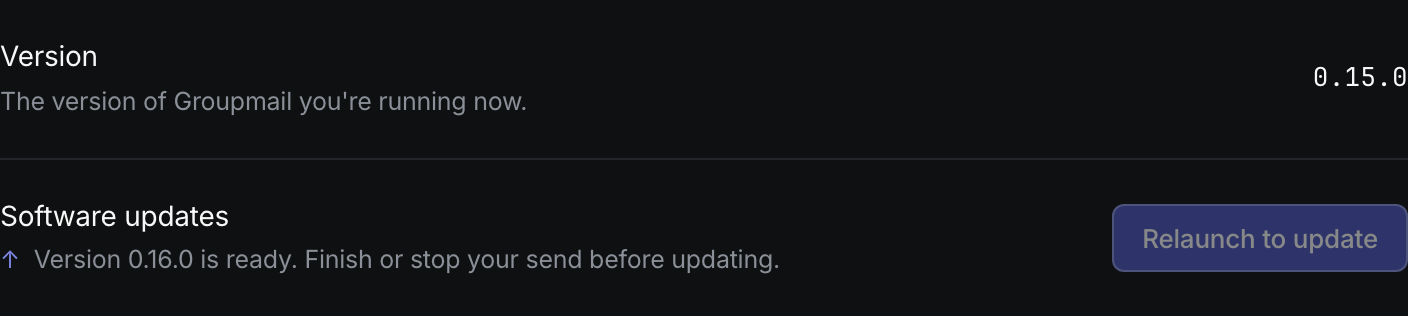
Groupmail blocks its controlled relaunch while a send is active. External installers cannot see that state, so always pause and drain a send before running one manually.
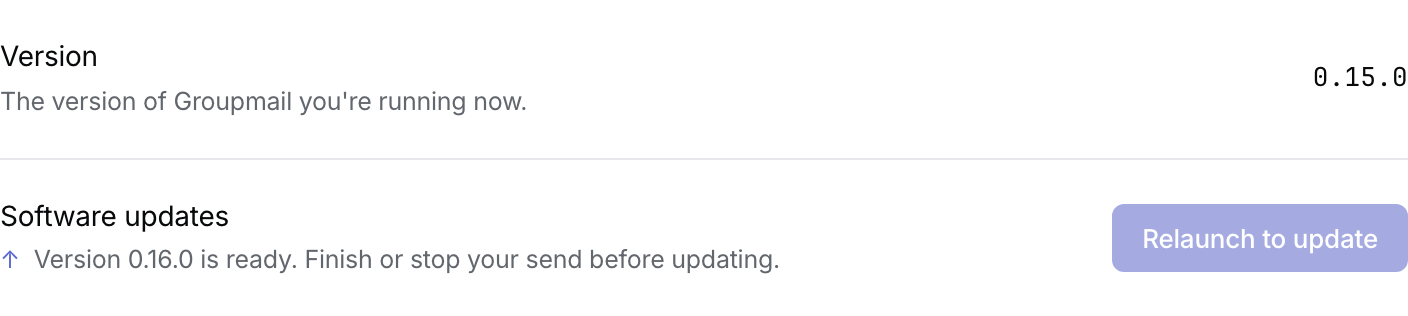 Product illustration from a deterministic active-send block: the disabled relaunch control prevents this in-app update while sending. Open the full-size image · Light-theme image · Dark-theme image.
If your cover has ended
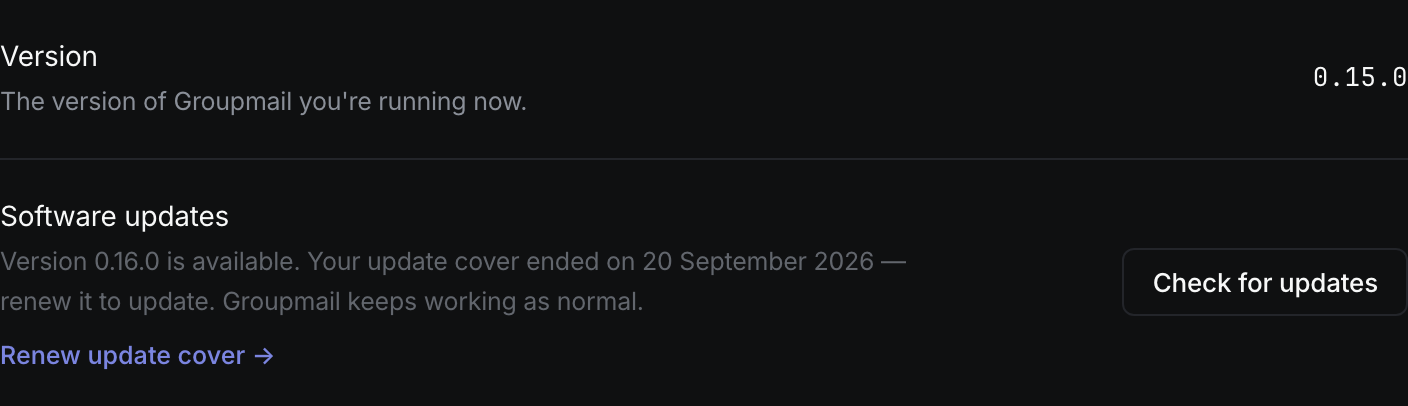
Your installed perpetual version keeps working. A newer release may appear with Renew instead of an install action. Renew cover through the customer portal to become eligible for releases published during the renewed period.
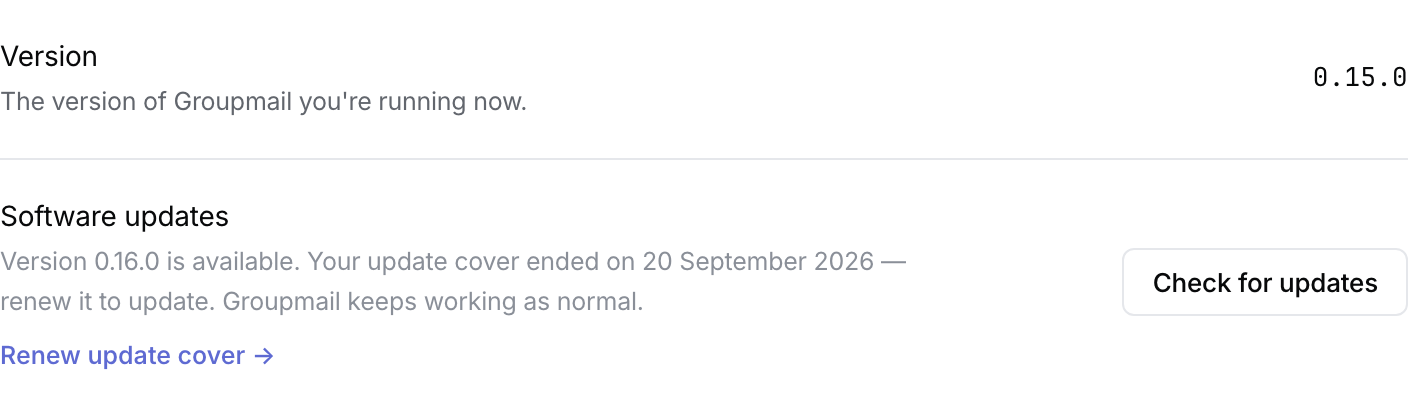 Product illustration from a deterministic fictional cover state: renew cover to become eligible for this release. Open the full-size image · Light-theme image · Dark-theme image.
If an update fails
- Reopen Groupmail 7 if it did not reopen automatically.
- Check the currently installed version in Settings → Software update.
- Retry the update only if Groupmail still offers the same verified release.
- If the update is no longer offered or the app cannot reopen, contact [email protected] before installing an older version.
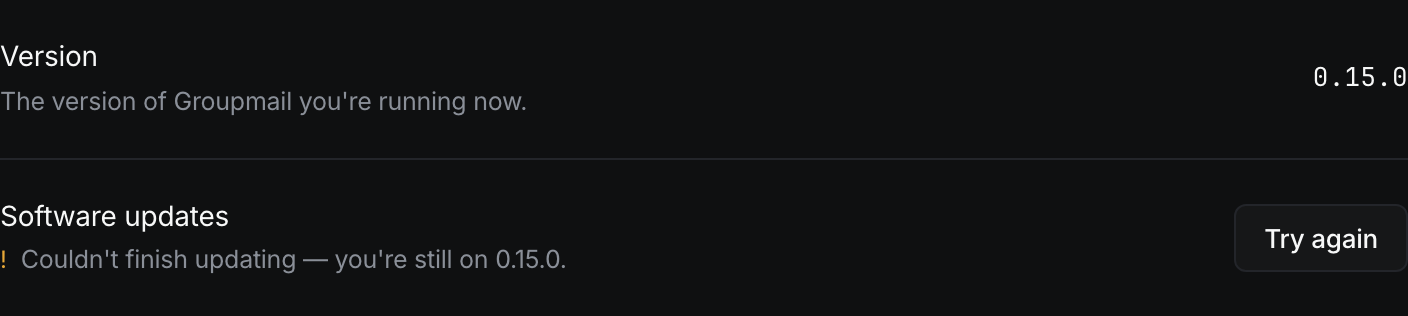
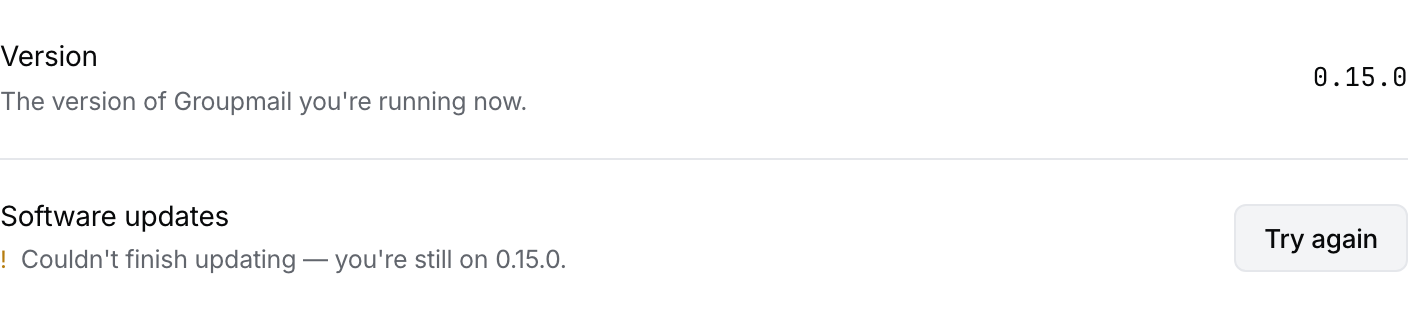 Product illustration from a deterministic failure state: check the installed version before retrying. A browser fixture does not prove signed updater recovery. Open the full-size image · Light-theme image · Dark-theme image.
Do not download an old installer and downgrade by yourself. A newer app may have changed the local database, and only an explicitly approved rollback known to be compatible with your installed version is safe.
If a 0.15.0 workspace cannot open
Version 0.15.0 converts an eligible older encrypted workspace once, while its existing database key can still be read. After conversion, the active workspace no longer needs that key to open. Sending-account passwords may need to be entered again if the operating system’s credential store is later reset.
If the old key was already lost before conversion, Groupmail cannot decrypt the older workspace. The app preserves the files and shows a recovery error. Do not delete, move, replace or install an older version over that workspace to make the error disappear; keep the files and contact support with the exact message. An older Groupmail build cannot open a workspace that has completed the 0.15.0 conversion.
What to send support
Include your operating system, the version you started with, the version offered, what happened after selecting Relaunch to update, and any visible error message. Do not send account codes, sign-in links or local customer data.
Related Docs
Stuck? Contact Groupmail Support with your operating system and Groupmail 7 version. Never email a sign-in link or sign-in code.