On this page
How to schedule a message
Open a draft, select Send or schedule…, choose Schedule, pick a day and a 24-hour time, then select Schedule for that time. Groupmail sends it from this computer, so Groupmail must stay open until the message starts. Scheduling is available in Groupmail 7 0.18.0 and later.
Schedule a message
-
Open the draft and check To, From, Subject and the body. Send yourself a test first.
-
Select Send or schedule…. A review opens showing the subject, who it goes to, how many recipients, the sending account and the pace.
-
Under When, choose Schedule (Pick a day and time).
-
Choose a day. You can pick today or any day up to 90 days ahead.
-
Type the time in 24-hour form, for example
18:00. -
Select Schedule for that time, for example Schedule for 18:00.
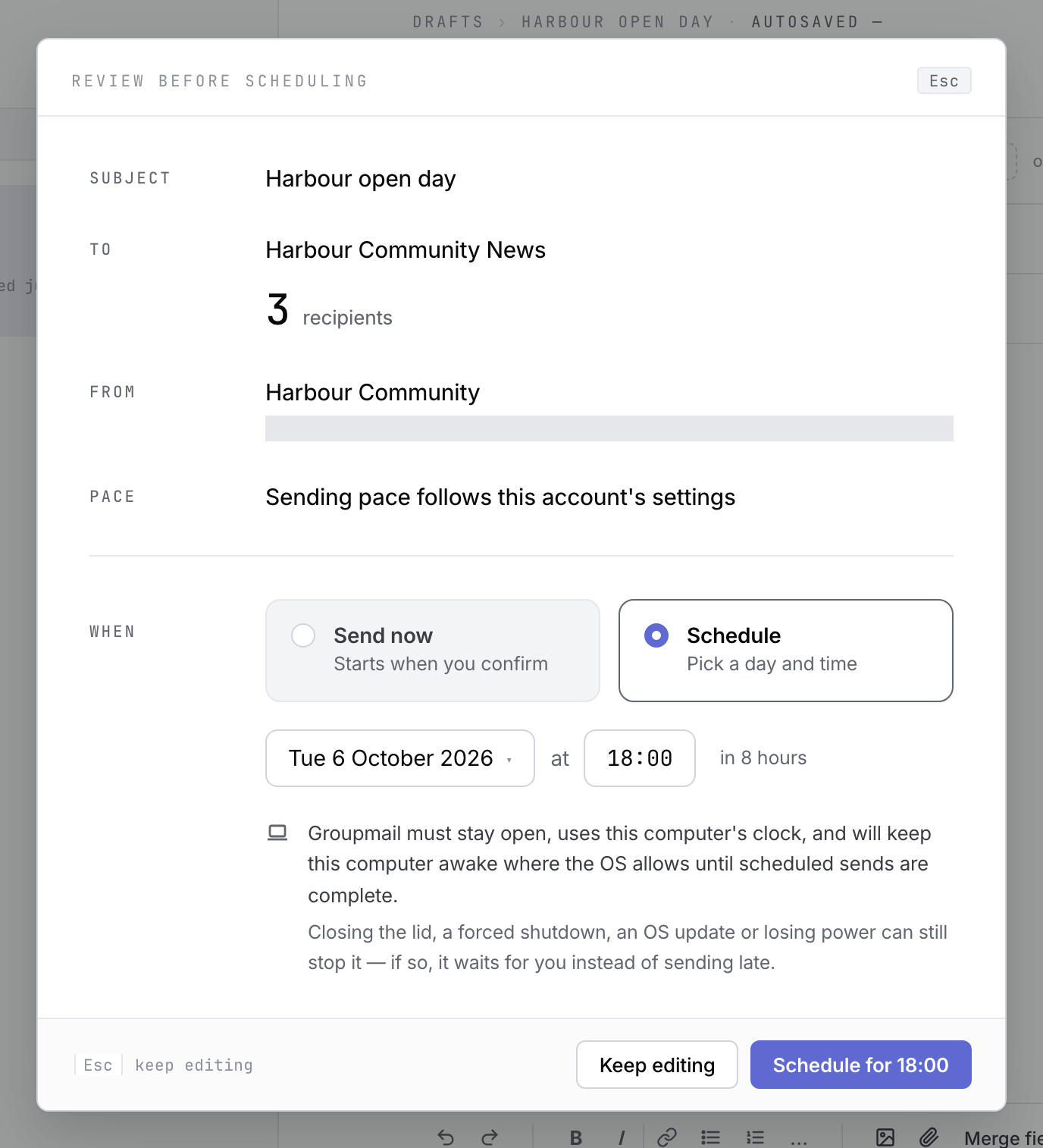 Browser-fixture illustration from a fictional draft at 10:00 Dublin time. The sending address is masked. Open the full-size image · Light-theme image · Dark-theme image.
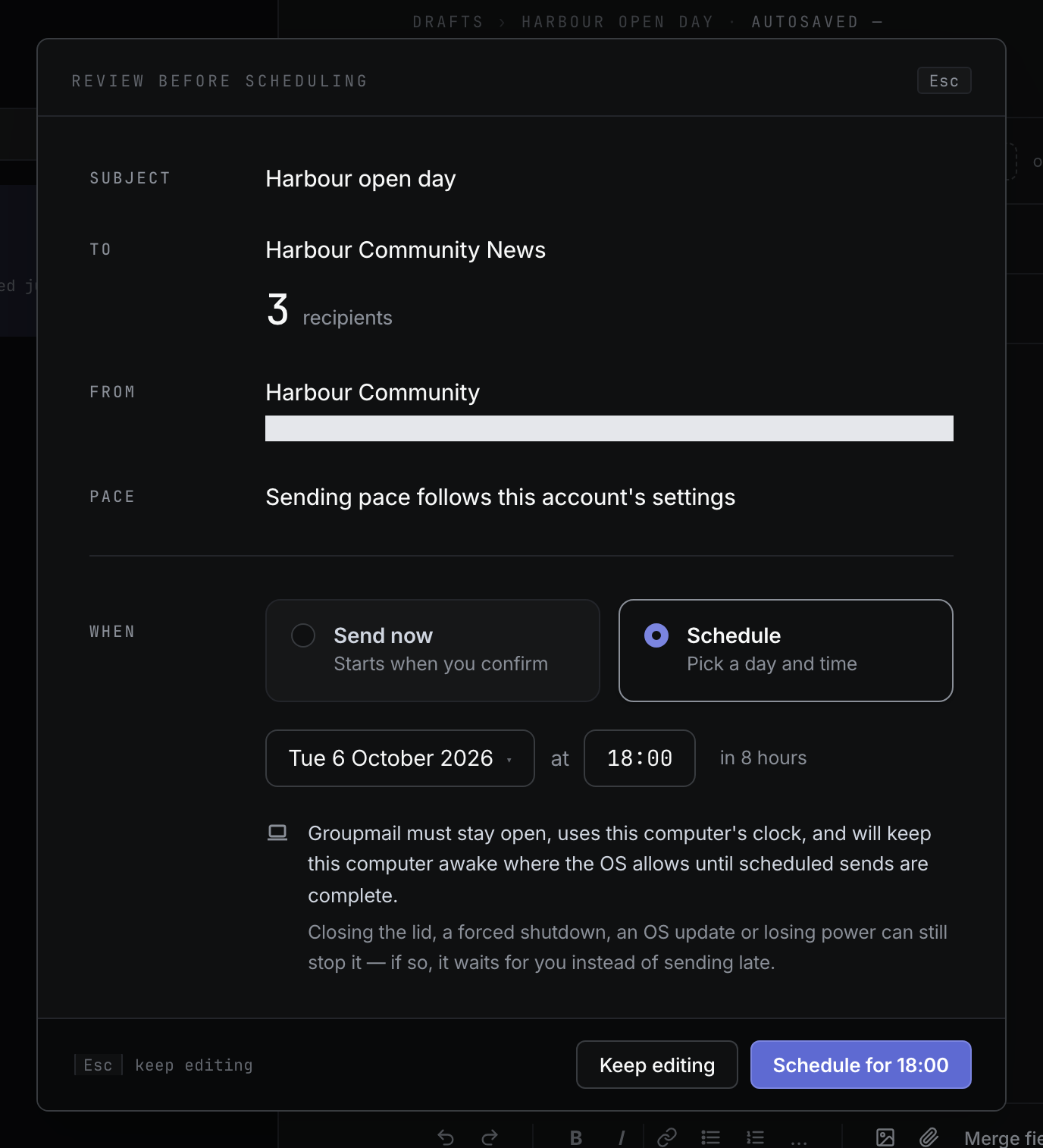
The message moves to Scheduled and waits there. To send straight away instead, leave Send now selected and select Send to N recipients. Keep editing closes the review without sending or scheduling.
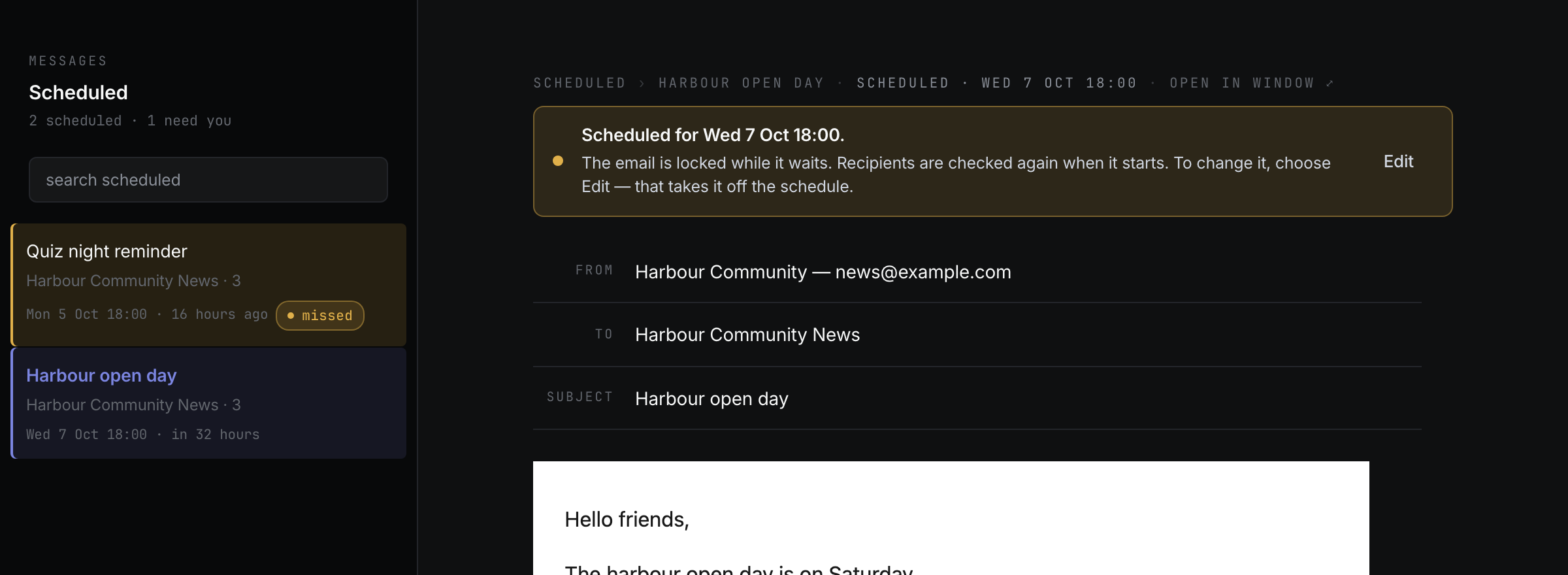
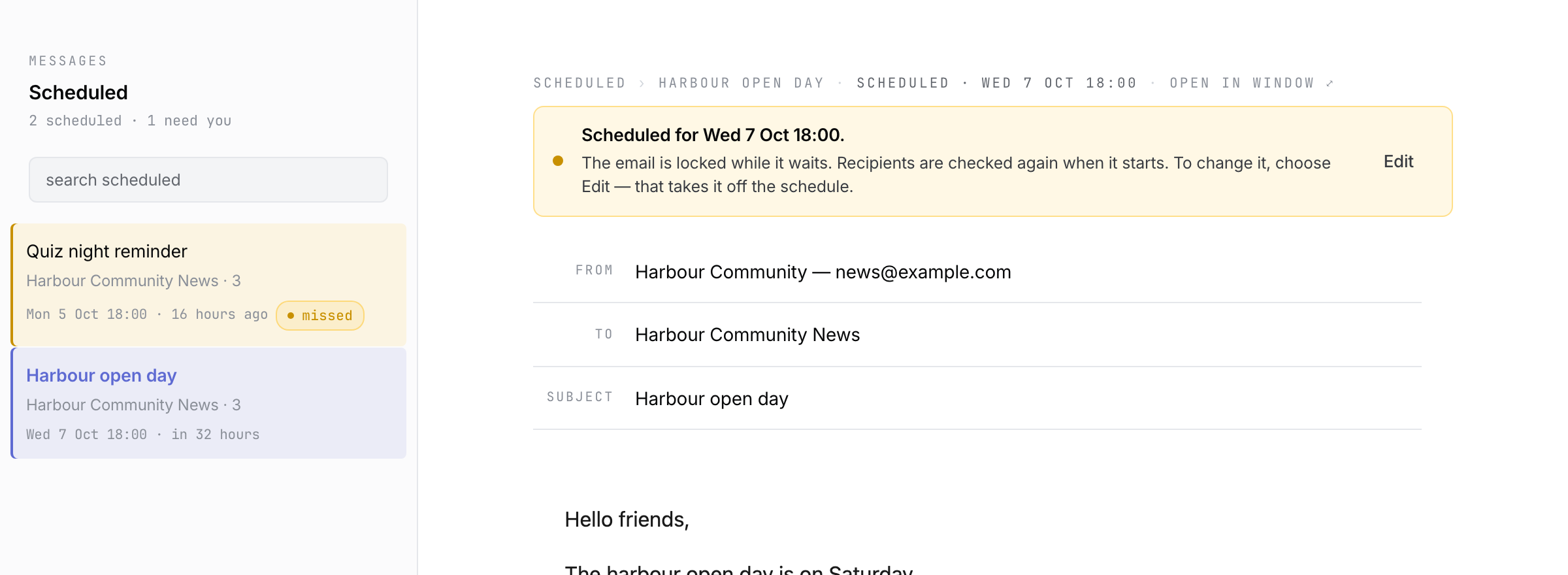 Browser-fixture illustration with fictional scheduled messages; the scheduled message is locked while it waits. Open the full-size image · Light-theme image · Dark-theme image.
If the time has already gone, the review says That time has passed. Pick a later time, or choose Send now.
What has to stay on
The review explains the rule: Groupmail must stay open, uses this computer’s clock, and will keep this computer awake where the OS allows until scheduled sends are complete.
- Leave Groupmail open on this computer until the message starts.
- Keep the computer switched on.
- If a scheduled message shows This computer isn’t letting Groupmail keep it awake. Leave the computer awake yourself, with Groupmail open, until the scheduled time.
If you log out or shut down while a send is waiting, Groupmail may show A scheduled send is waiting and won’t go out if this computer logs out or shuts down now. It does not stop the computer logging out or shutting down. Closing the lid, a forced shutdown, an OS update or losing power can still stop it. If that happens, Groupmail does not send late on its own; the message waits for you to choose. Scheduled messages are sent from your computer, not from Groupmail’s servers.
Quit with a schedule waiting
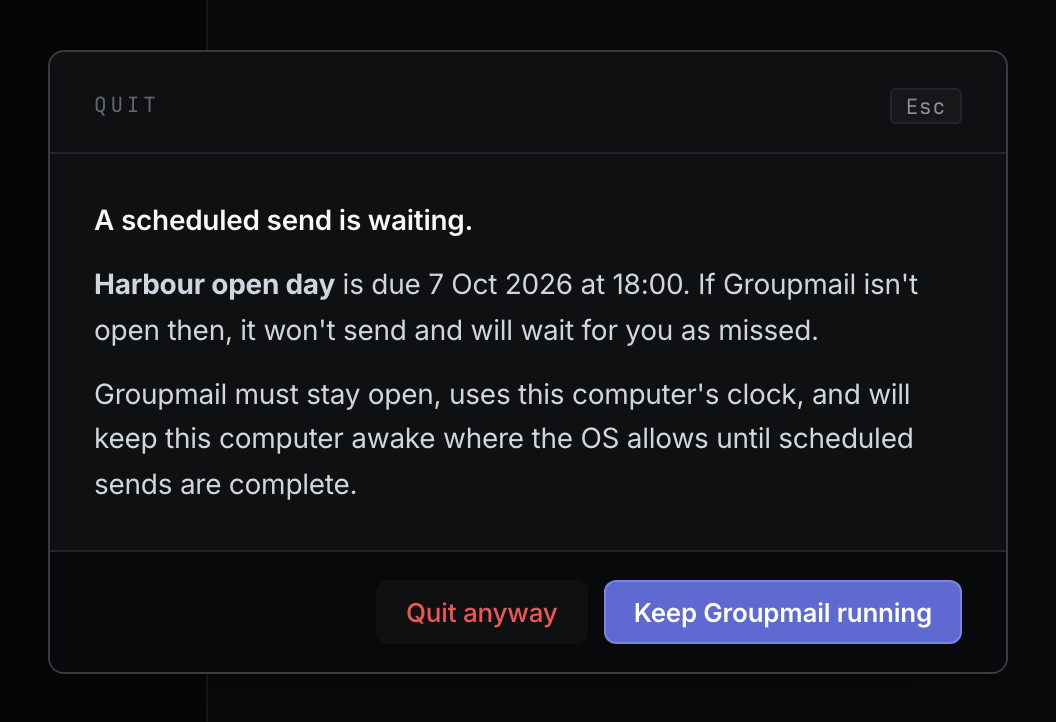
If you quit Groupmail (on Windows, close its window) while a scheduled send is waiting, Groupmail asks first. The message is titled A scheduled send is waiting. (or the number of sends waiting) and names the next one and when it is due.
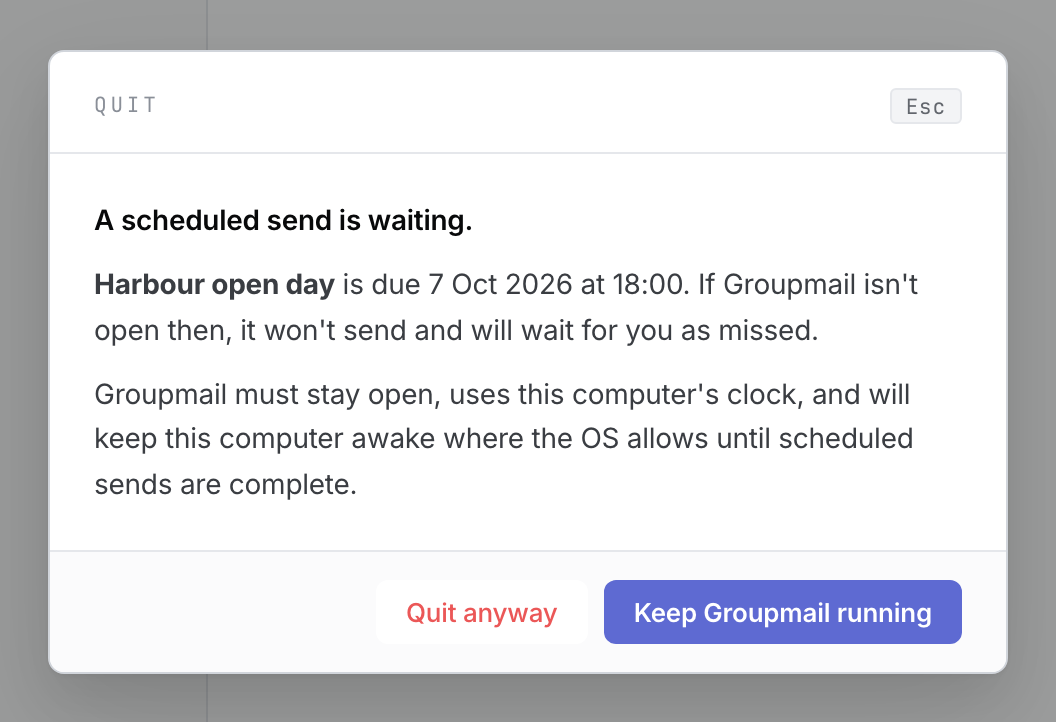 Browser-fixture illustration of the in-app quit warning for one fictional scheduled send. Open the full-size image · Light-theme image · Dark-theme image.
- Select Keep Groupmail running to stay open and keep the schedule.
- Select Quit anyway only if you accept that a send due while Groupmail is closed won’t go out. It will wait for you as missed.
If a schedule is missed
A message that was due but didn’t start, for example because Groupmail was closed, shows Missed — this wasn’t sent. It never sends later on its own.
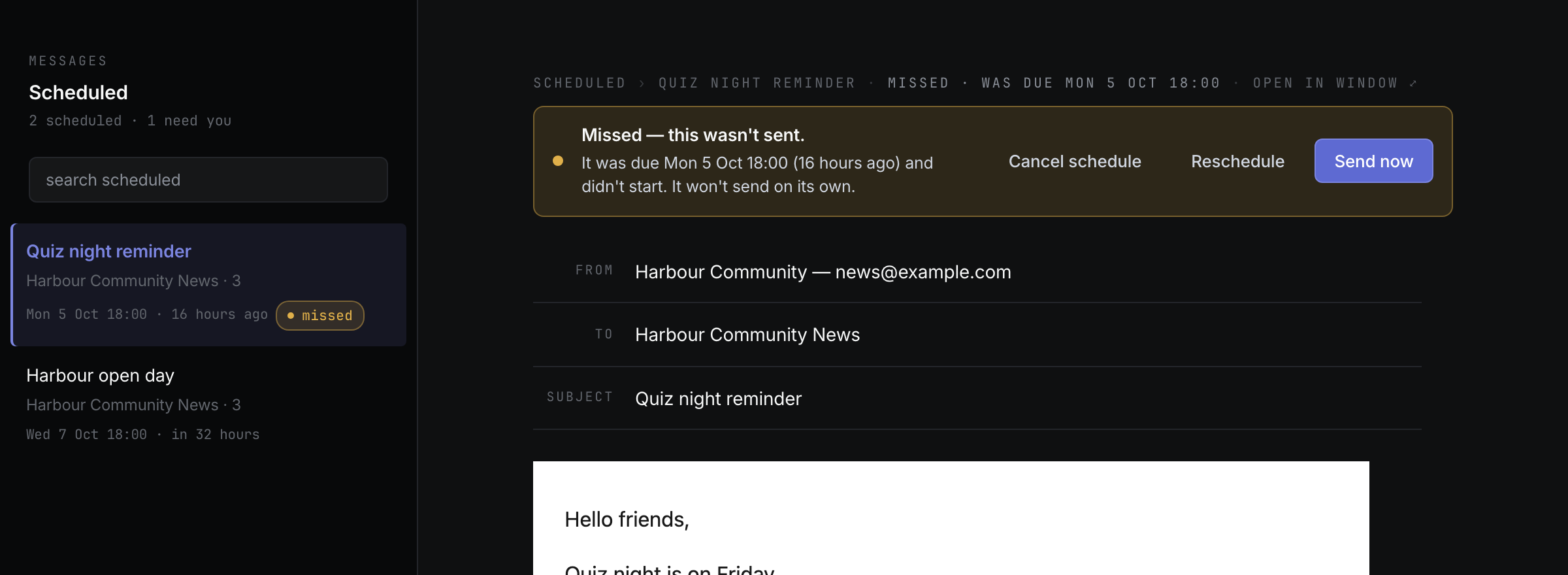
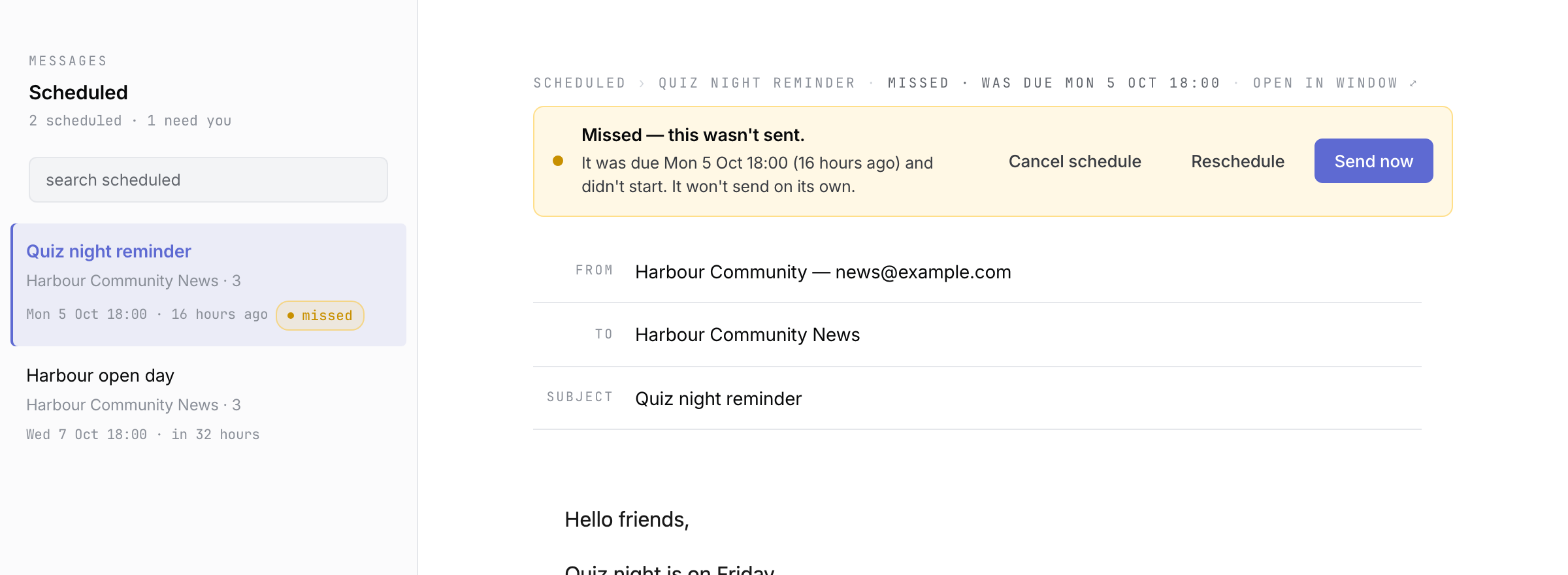 Browser-fixture illustration of a fictional missed schedule; nothing is sent until you choose. Open the full-size image · Light-theme image · Dark-theme image.
- Open Scheduled and select the message marked missed.
- Choose what to do:
- Send now opens the review so you can send it straight away.
- Reschedule opens the review so you can pick a new day and time.
- Cancel schedule returns the message to Drafts without sending it.
If the clock on this computer was moved back, a message may say the scheduled time passed on this computer’s earlier clock. Treat it the same way.
If a scheduled send couldn’t start
A schedule stays with its chosen sending account. It never sends from another account. If that account cannot send at the scheduled time, the message shows Couldn’t start and the reason.
- Open Scheduled and select the message.
- If the account is turned off or isn’t ready, select Sending accounts, turn the account back on or fix it, then choose Send now or reschedule….
- If the account was deleted, select Edit in Drafts. The message comes off the schedule so you can choose another account.
- If the reason isn’t available, select Review send and check the message before trying again.
You can also select Cancel schedule to return the message to Drafts.
Edit or cancel a scheduled message
The email is locked while it waits. Recipients are checked again when it starts.
- Open Scheduled and select the message.
- To change the content, select Edit. This takes the message off the schedule and opens it as a draft. Schedule it again when you are done.
- To change only the time, or to send it now, select Send now or reschedule….
- To stop it without deleting it, select Cancel schedule. It returns to Drafts.
- To remove it completely, select Delete, then confirm. The schedule and message are deleted and nothing is sent.
If another scheduled message on the same sending account goes first, the message shows Goes after that message. Messages on the same sending account send one at a time.
Time zones and clock changes
Groupmail uses this computer’s local time. A scheduled message shows its time and the time zone it was scheduled in, for example Dublin time (UTC+1).
- If you move the computer to another time zone, the message keeps its moment in time. Groupmail tells you the original time and the local time it now sends at.
- If you pick a time that doesn’t exist because the clocks go forward that night, the review asks you to pick a later time.
- If you pick a time that happens twice because the clocks go back, the review asks whether you mean the first or the second one.
Backups and restoring
A restorable backup includes scheduled messages, but they restore as ordinary drafts so they cannot send unexpectedly on another computer. Schedule them again after restoring. See How to back up, export and recover local data.
Related Docs
- How to review, test send and understand results
- How to write and personalize a message
- How to back up, export and recover local data
Stuck? Contact Groupmail Support with your operating system and Groupmail 7 version. Never email a sign-in link or sign-in code.