On this page
Troubleshoot import, account and sending problems
Start with the stage that failed, preserve the visible error, and use the focused guide below. Do not retry a full send until the sending account passes a test and the previous message’s Results show who was or was not submitted.
Sign-in, download or activation
- For a missing sign-in code, expired verification session, unavailable download or computer-limit message, follow Account, download and activation troubleshooting.
- Confirm you are using the same email address that owns the account.
- Request one fresh sign-in code and use only the newest code.
Do not share a sign-in code, activation code or account email in a public report.
CSV import problems
- Return to Check your file and confirm the header row.
- On Map your columns, make sure exactly one column is mapped to Email.
- On Review, use Download the N rows to fix for missing or malformed addresses.
- Correct that local CSV and import it again.
An unterminated quoted field is rejected before contacts are written. Rows already committed before a cancelled CSV import remain, and retrying is safe because contacts match by normalized email and memberships are not duplicated. See How to import a CSV contact list.
GroupMail 6 import problems
- Make an untouched copy of the GM6 source folder before changing anything.
- If detection fails, browse to the folder that contains
Groups\groups.gmg. - If Preview says the data is damaged, stop and obtain a clean source copy; nothing has been written.
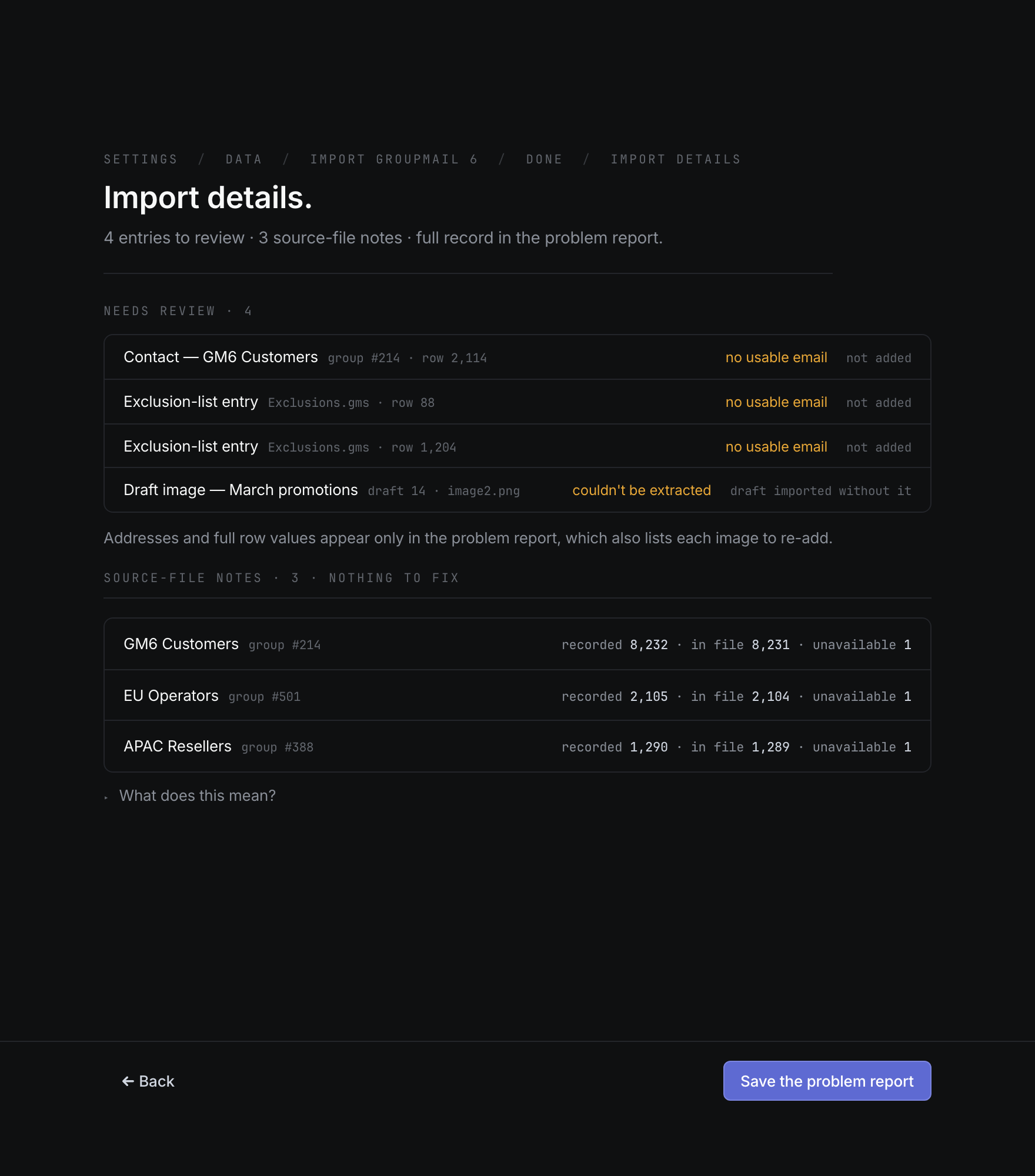
- After import, open Import details and save the problem report for rows or assets that need review.
- Rerun the same folder after correcting the source issue. Matching contacts, groups and imported drafts are not duplicated.
The problem report may contain addresses or source values from your local GM6 data. Review it before sharing. See How to import from GroupMail 6.
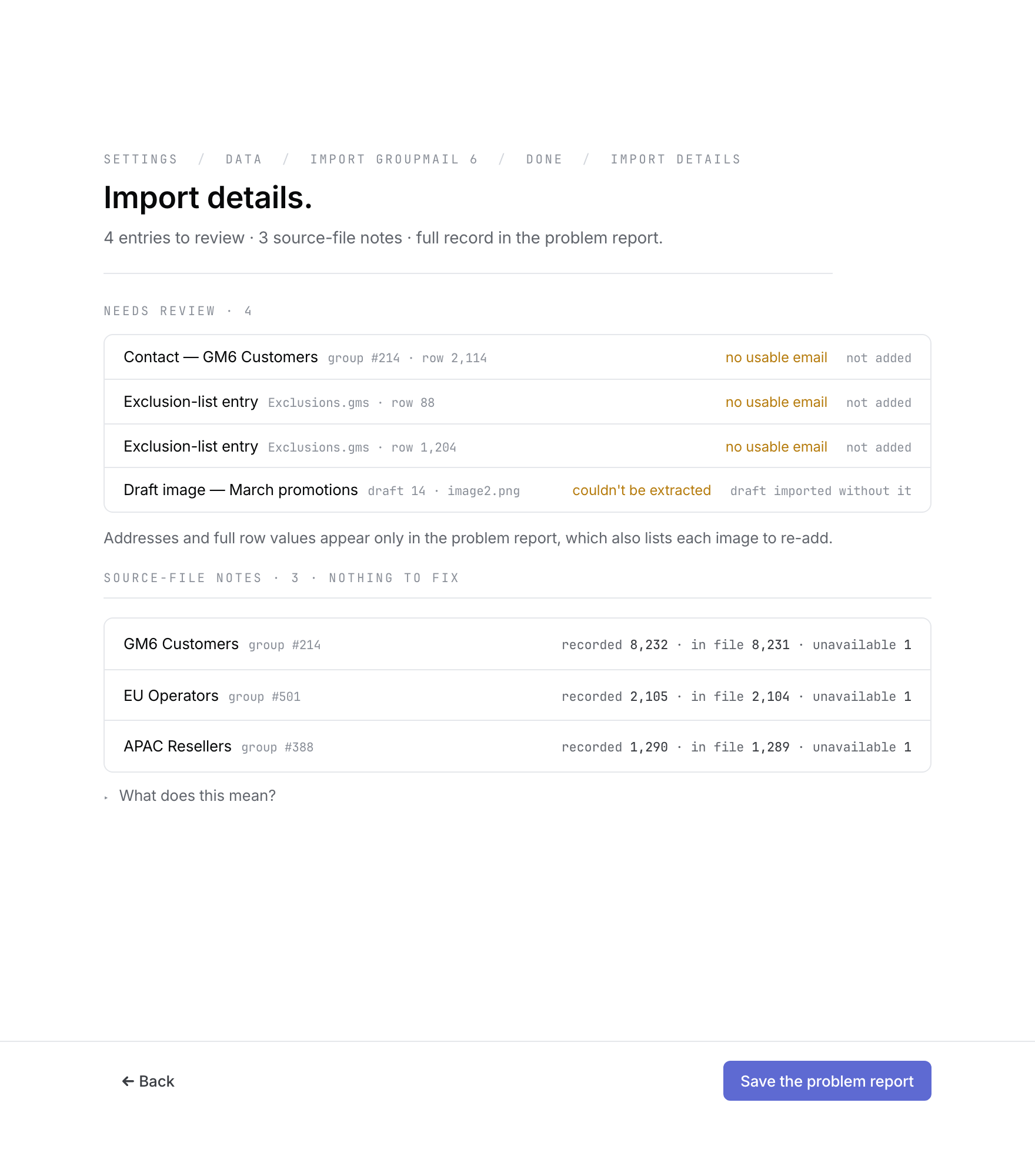 Use Import details to distinguish skipped rows from source-file notes. Open the full-size image · Light-theme image · Dark-theme image.
Sending-account problems
- Open Settings → Sending accounts and expand the affected account.
- Correct the visible host, port, security, username or From details, or reconnect the provider account.
- Enter credentials only in Groupmail’s account form; never put a password, API key or OAuth token in a support message.
- Run the account’s Test send and confirm the message arrives before returning to Compose.
A connection check is diagnostic; the successful account test is what makes an unvalidated imported account ready. See How to set up a sending account.
Test-send or full-send problems
- If Test send is refused, check the recipient address, subject, sending account and visible readiness message.
- If the account test fails, fix the account before testing the draft again.
- If a full send is refused while preparing, correct the visible problem and try again. In 0.18.0 and later, the send review stays open and shows the reason above its buttons; correct it, then select Send to N recipients again. In earlier versions, choose Retry beside the error. Do not assume delivery began.
- If a send reaches Sent, open the message and choose View audit log.
- Distinguish Sent, Failed, Skipped, Cancelled and Bounced before taking another action.
- Use the offered resend action only for recipients Groupmail proves did not receive the previous message. Do not resend delivery-uncertain rows.
If Groupmail refuses a new send because it can’t confirm your licence on this computer, contact [email protected] with the exact message. Don’t reinstall Groupmail or delete files to work around it.
A Sent result means the provider accepted the submission; it is not proof of inbox delivery. See How to review, test send and understand results.
In 0.18.0 and later, a scheduled message that shows Missed — this wasn’t sent. never sends late on its own. See How to schedule a message.
Inbox problems
- If Inbox shows Can’t sign in · Fix, select Fix and enter the mailbox’s current password or app password.
- If connecting fails, compare the incoming (IMAP) server and port with your provider’s help page. Inbox needs a secure IMAP connection, usually port 993; POP mailboxes can’t be checked.
- If a reply, bounce or “Unsubscribe” request doesn’t appear, check that it answers an email sent with Groupmail 7 and that it arrived in the inbox folder, not Junk.
- Gmail and Microsoft mailboxes can’t be checked. Sending from those accounts still works.
See Fix Inbox problems.
Collect safe evidence for support
- Record the Groupmail version, operating system, the exact screen and the action immediately before the error.
- Copy the exact error text and note whether it happened before Preview, during import, during Test send, while preparing, or after the message entered Sent.
- Include aggregate counts and non-sensitive timestamps where useful.
- Use the local problem-row export only when support specifically needs import detail, and review it for customer addresses first.
- Use Export records as JSON only when requested and treat it as private workspace data. It is redacted of sending passwords and API keys, but it is not anonymous and cannot be restored.
Never include passwords, API keys, OAuth tokens, sign-in links, activation codes, raw message bodies, customer lists or an unreviewed backup in ordinary support correspondence.
Related Docs
- How to use Inbox for replies, bounces and unsubscribes
- Account, download and activation troubleshooting
- How to import a CSV contact list
- How to import from GroupMail 6
- How to set up a sending account
- How to review, test send and understand results
- How to schedule a message
Stuck? Contact Groupmail Support with your operating system and Groupmail 7 version. Never email a sign-in link or sign-in code.