On this page
How to write and personalize a message
Start a draft from + WRITE or from a group’s Send to button. Add the audience, choose a verified sending account, write the subject and body, then use Preview and a test send before sending to everyone.
Start the draft
- Select + WRITE in Drafts or the + beside Messages.
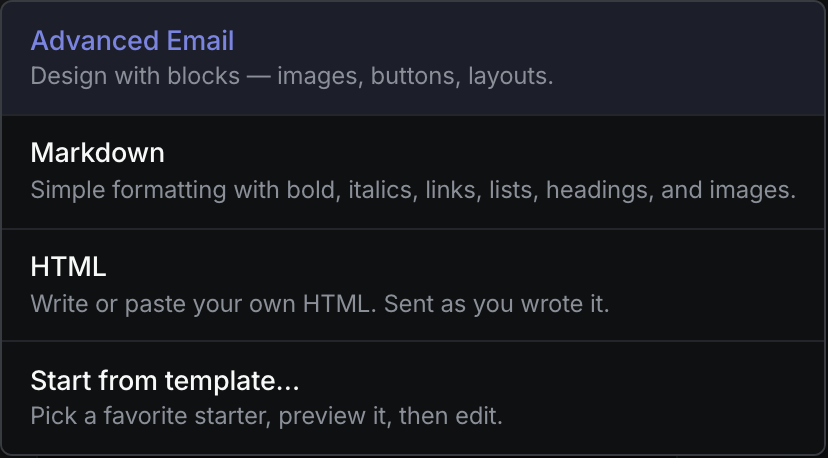
- Choose a writing mode:
- Advanced Email to design with blocks, images, buttons and layouts.
- Markdown for simple formatting, links, lists, headings and images.
- HTML to write or paste your own HTML source.
- Start from template… to choose a starter and edit a new Advanced Email draft.
- Alternatively, open a populated group and select Send to group-name. Groupmail starts a draft with that group already selected.
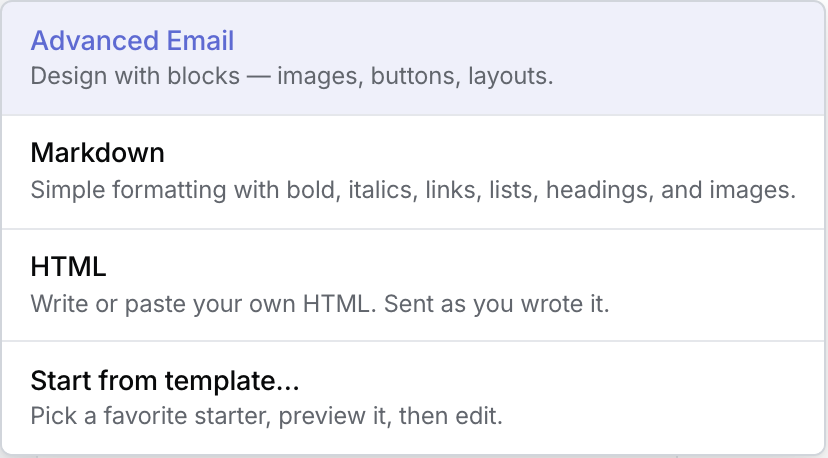 Product illustration with a deterministic fictional workspace: choose the editor before creating a draft. Open the full-size image · Light-theme image · Dark-theme image.
Draft changes are autosaved. In 0.15.0 and later, if Advanced Email cannot save the latest change, Groupmail shows the failure and pauses Preview, Test send, Send and exit until the body saves. Keep the draft open, correct the problem and use Save now before leaving or sending.
Add recipients and a sender
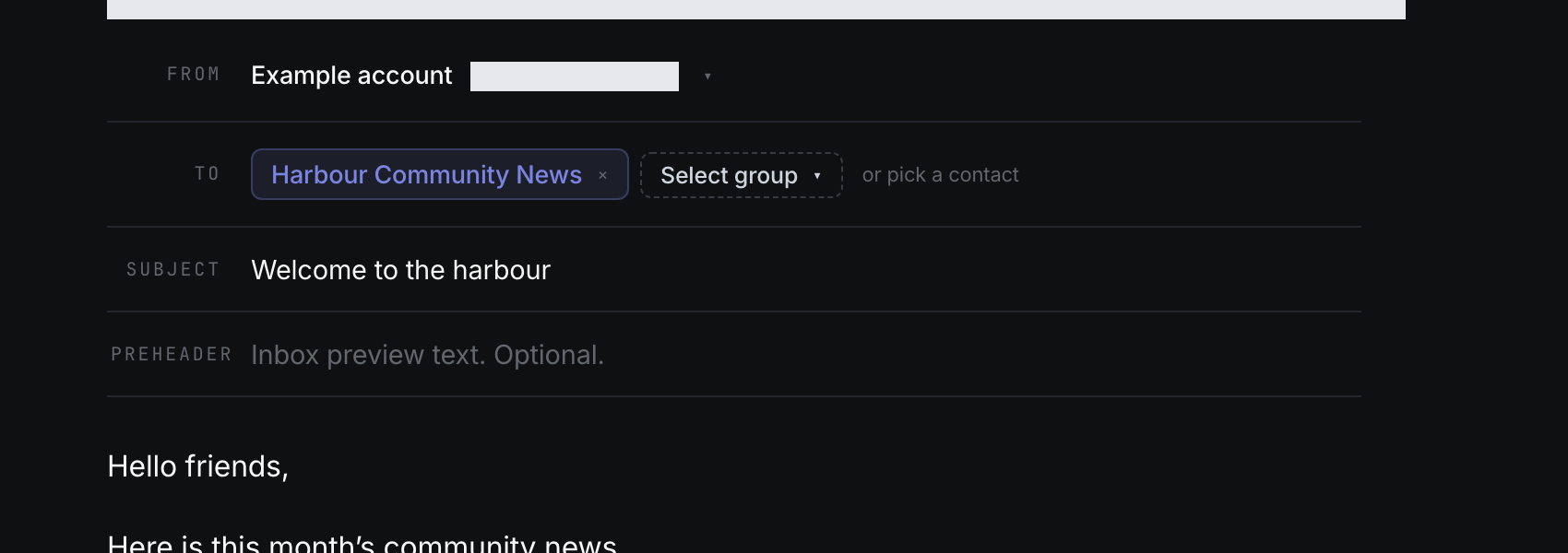
- In To, choose Select group and select one or more groups.
- To send to an individual instead, choose or pick a contact and search by email or name.
- In From, select a verified sending account. A default account may already be selected.
- If the account is Unvalidated, use Verify to open Settings → Sending accounts. If no usable account exists, set one up first.
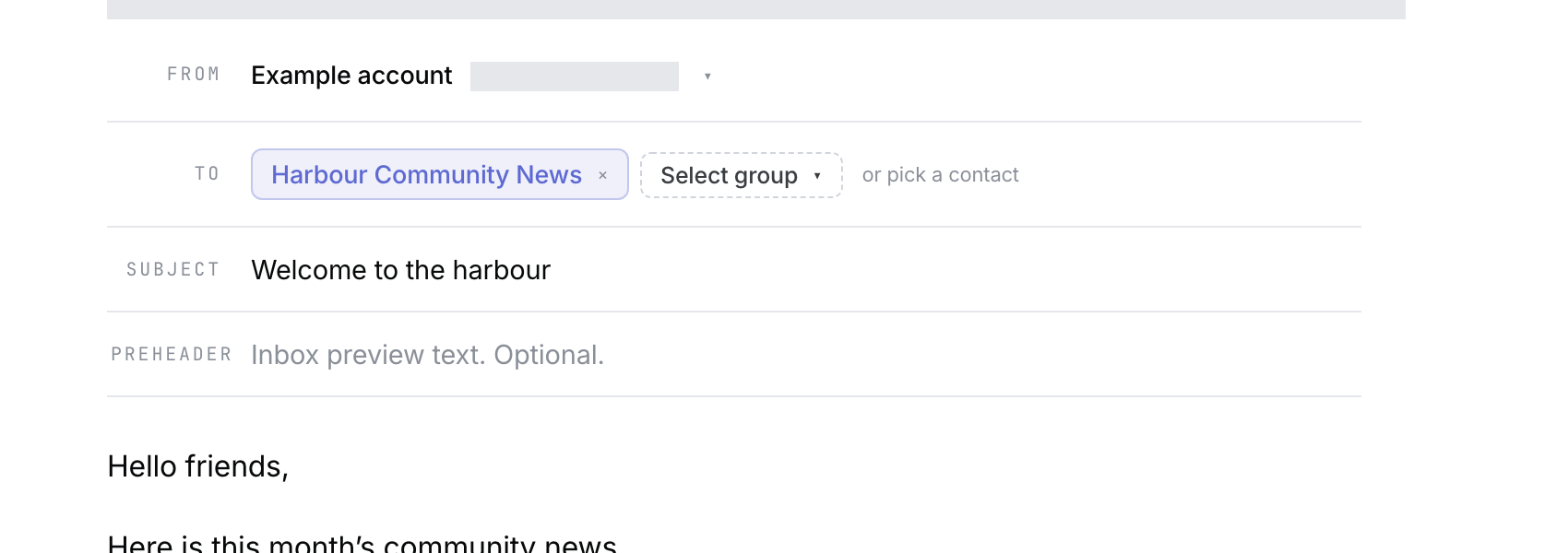 Product illustration with a deterministic fictional draft: check From, To and Subject together before sending. Open the full-size image · Light-theme image · Dark-theme image.
The recipient count reflects the selected audience. Groupmail applies contact identity, group membership, suppression and dispatch checks again when the send is prepared.
Write the subject and body
- Enter a Subject.
- Write the body in the selected editor.
- In Markdown, use the toolbar for bold, italic, links, lists, images, attachments and more formatting. In 0.16.0 and later, a picture can also link to a web page, and you can add a photo at any size because Groupmail sends it at a sensible size. See How to design your email.
- In HTML, keep the source under the 1 MB storage limit and review the sanitizer disclosure for content that will be removed at the send boundary.
- In Advanced Email, build the message with the available blocks and use HTML only to inspect the compiled result. In 0.16.0 and later, you can also change text size, colour and font, and set a picture’s link, width and spacing. See How to design your email.
HTML messages are sent from the stored HTML path. Test HTML carefully before sending to everyone.
Insert a merge field
- Place the cursor where the personalized value should appear.
- Select Merge field.
- Search for and choose a built-in field such as first name, or a custom field.
- Open Preview to check the message with sample or recipient values.
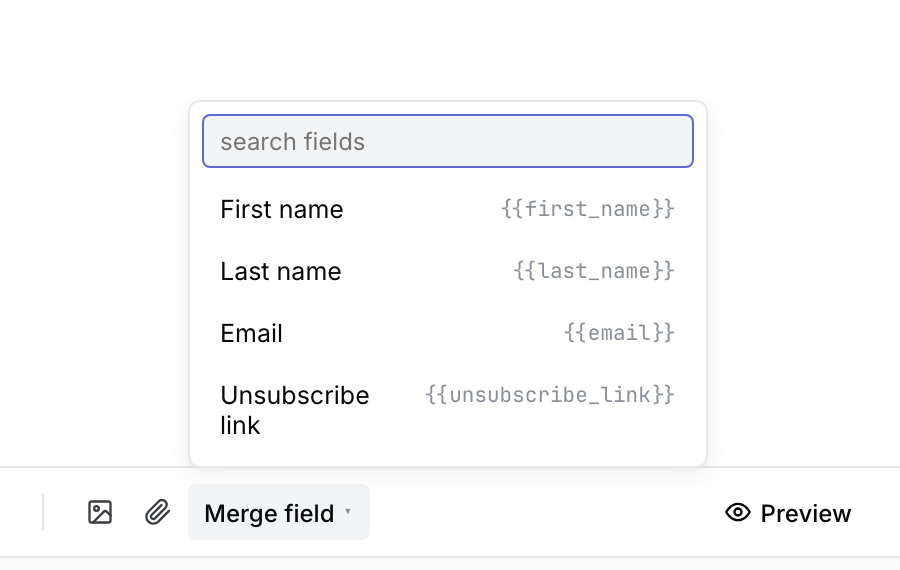 Product illustration with a deterministic fictional draft: insert a merge field at the current cursor position. Open the full-size image · Light-theme image · Dark-theme image.
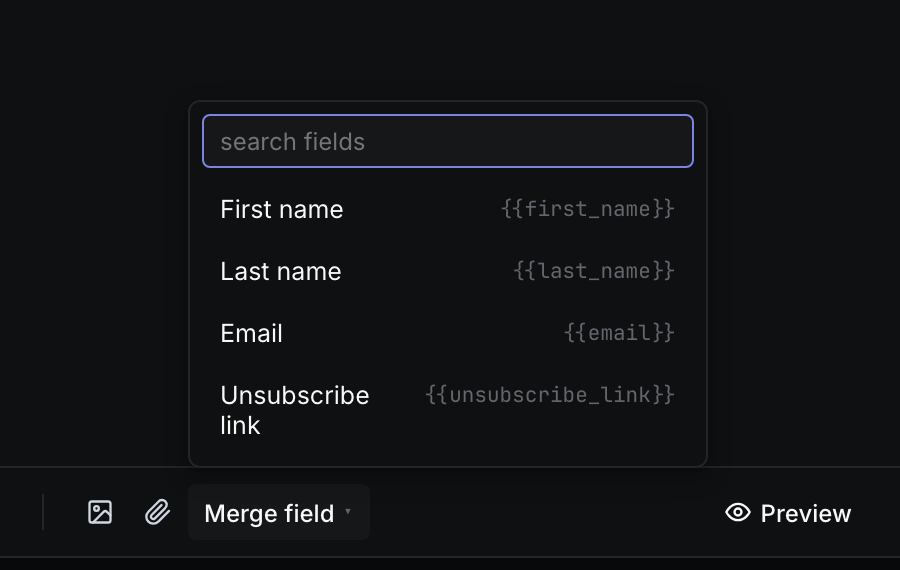
Built-in fields use tags such as {{first_name}}. Custom fields use the {{custom.field_name}} form. The same field registry is used by Markdown, HTML and Advanced Email.
Check that the draft is ready
- Confirm that To, From, Subject and the message body are present.
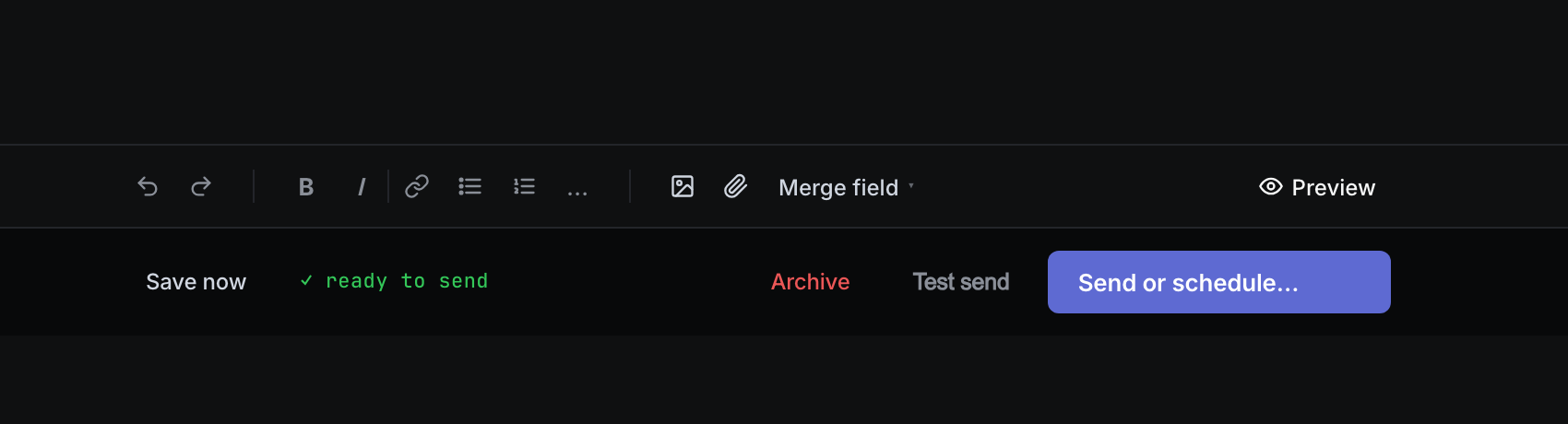
- Read the readiness line in the footer. It names the next missing item or shows ✓ ready to send.
- Select Preview and check the rendered body, links, images, attachments and personalized values.
- Continue with a test send before sending. In 0.18.0 and later, select Send or schedule…, which opens a review where you confirm with Send to N recipients or schedule the message for later. In earlier versions, the footer button reads Send to N recipients.
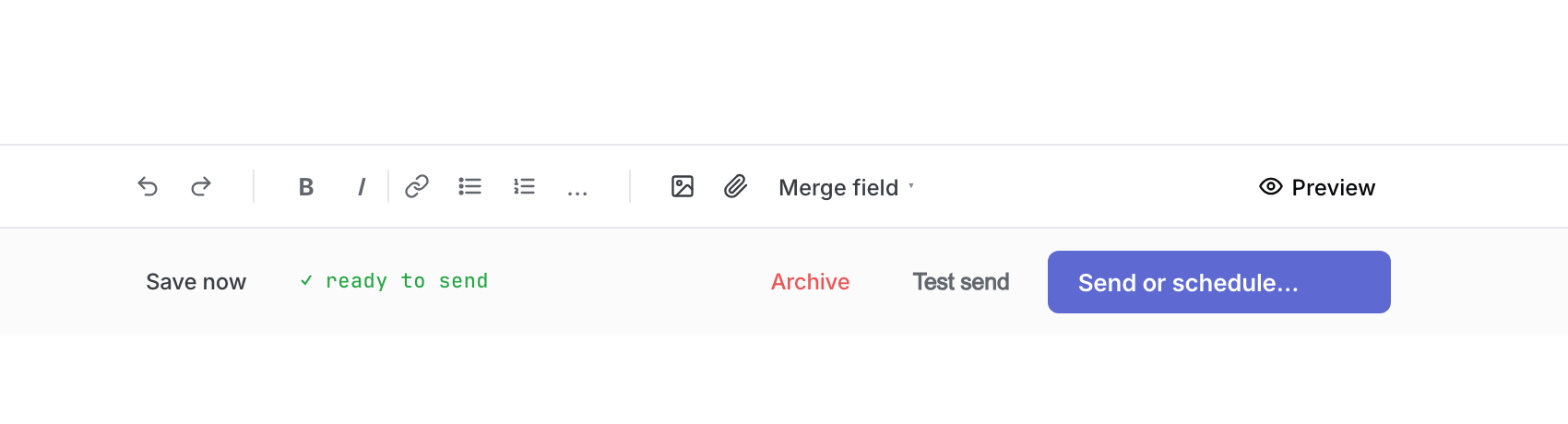 Product illustration from a deterministic fictional draft: the ready line is visible before test or full send. Open the full-size image · Light-theme image · Dark-theme image.
If a control is unavailable
- Send asks for recipients: add a group or contact in To.
- Send asks for a verified sending account: choose a Ready account or verify it in Settings.
- The selected account shows Disabled: enable it in Settings → Sending accounts, or choose another account.
- Merge field says it could not load custom fields: reopen the menu to retry. Built-in fields remain available.
- Preview, test send and send are paused: fix the visible editor or save error first so Groupmail does not use stale content.
Related Docs
- How to set up a sending account
- How to design your email
- How to review, test send and understand results
- How to schedule a message
Stuck? Contact Groupmail Support with your operating system and Groupmail 7 version. Never email a sign-in link or sign-in code.