Guides · AI and email campaigns
Can ChatGPT do a mail merge?
Not on its own. ChatGPT, Claude and other assistants can write the email with merge fields such as {{first_name}} and tidy your spreadsheet, but sending one personal email to each person needs mail merge software. With computer use switched on, Codex or Claude can do the setting up in that software for you, such as Groupmail 7 on your computer, and you approve the send.
Your options compared
Checked 29 October 2026:
| Option | Writes it | One email per person | Who sends |
|---|---|---|---|
| ChatGPT or Claude in a browser | Yes | No | You, elsewhere |
| Claude's Gmail connector | Yes | No mail merge | Claude, after you approve |
| Word with Outlook | Paste it in | Yes | Word and Outlook |
| A script from the AI | Yes | Yes | Your script |
| Codex or Claude + Groupmail 7 | Yes | Yes | Groupmail 7, after you approve |
Details of each are in The other ways, honestly below.
A mail merge sends a separate email to each person, with their own name and details. That's different from one email with everyone in BCC, which can't say "Hi Anna" and is more likely to be treated as spam.
What the AI is good at
- Writing the email with merge fields in the right places.
- Writing three subject lines to choose from.
- Tidying the list: one column each for email, first name and last name, duplicates removed, obviously broken addresses flagged, saved as CSV UTF-8. The steps are in How do you mail merge from Excel to email?.
- Checking for gaps, such as rows with no first name, so nobody gets an odd greeting.
What it can't do by itself is send: plain ChatGPT in a browser has no way to email your list one person at a time.
How to mail merge with ChatGPT, Claude or Codex
1. Ask for the email with merge fields
Write a short email to our customers about [news].
Start with "Hi {{first_name}}," and use {{custom.company}} once in the body.
Under 150 words, plain and friendly, no hype. Sign it from me.
Give me three subject lines.
In Groupmail 7, built-in fields look like {{first_name}}. Your own columns become custom fields such as {{custom.company}}; check the exact name in the Merge field menu (How to write and personalize a message).
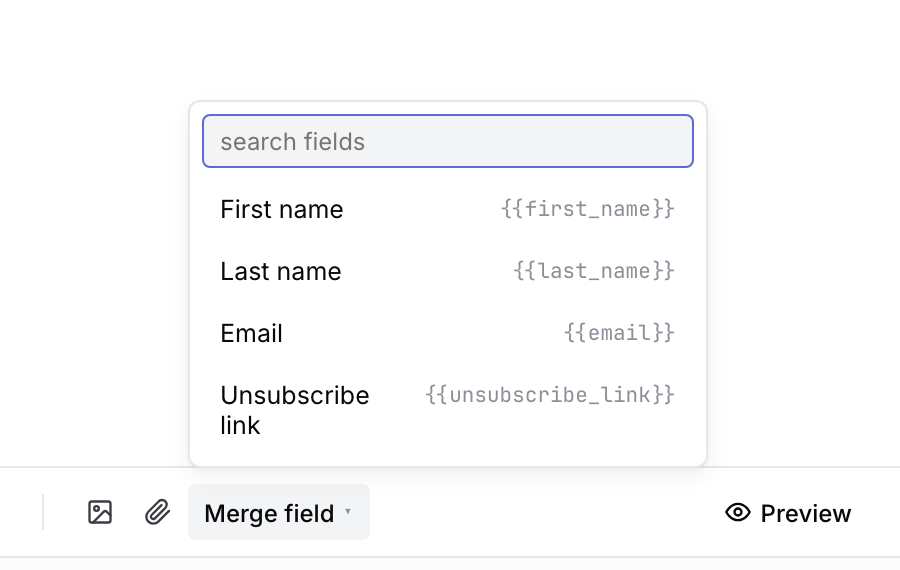 Illustration from a fictional draft: the Merge field menu shows each field's tag.
Read the result yourself and fix any facts. Assistants can be confidently wrong about dates, prices and names.
2. Tidy the spreadsheet
Upload or paste your export and ask:
Clean this list for a mail merge: one row per person, columns email, first_name,
last_name, company. Remove duplicates, flag addresses that look broken,
and list any rows with no first name. Give it back as CSV UTF-8.
If your list holds other people's personal details, read Is it safe to give AI your mailing list? first. You can do this step in Excel yourself instead.
When the file is imported, each extra column, such as company, can be kept as its own field:
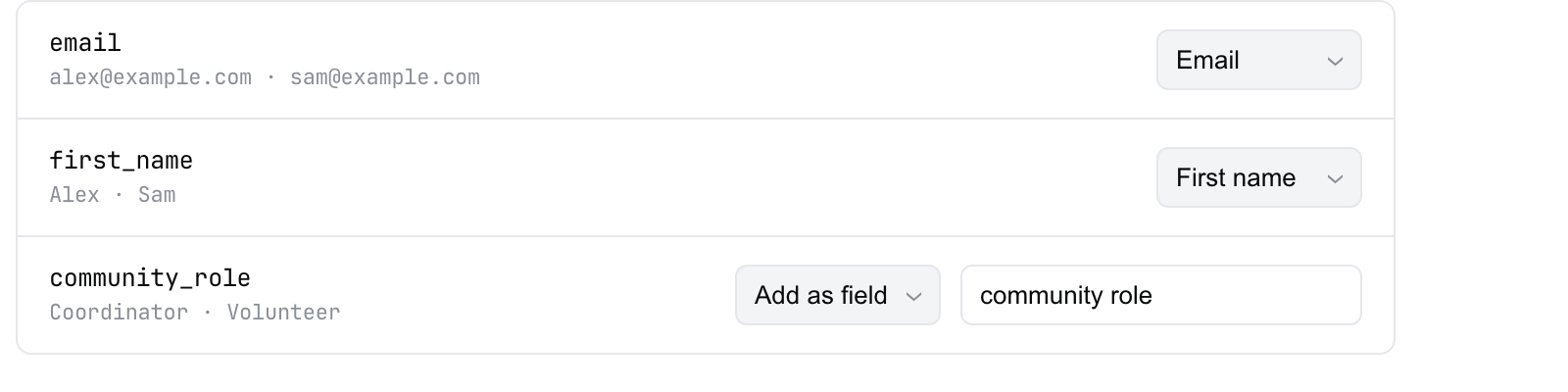 Illustration from a fictional import: extra columns become fields you can merge.
3. Let the assistant set it up in Groupmail 7
This step needs an assistant that can use apps on your computer:
- Codex: Computer Use in the Codex app, on Mac or Windows, in OpenAI's supported regions. Those include the UK, Ireland and the rest of the EEA since June 2026.
- Claude: the Claude desktop app on Mac (macOS 14 or later) or Windows, on a Pro plan ($20 a month), Max or Ultra, with computer use switched on. Anthropic calls it a preview.
Then ask:
In Groupmail 7: import customers.csv into a new group called "Customers – November",
create a new message with this subject and body, insert the merge fields,
choose that group, send from my SMTP2GO account, and send a test to me.
Open Preview so I can check the names. Don't send or schedule anything.
4. Check the test and the preview
Open the test on your computer and your phone. In Preview, look at a few real people from the list: the greeting, the company name and the links.
5. Approve the review, then send or schedule
Ask the assistant to open Send or schedule… and stop at the review. It shows the subject, the group, how many people and the sending account. When it's right, tell it to send now or schedule for a time. Groupmail sends a separate email to each person, and checks your unsubscribes and exclusions as it sends.
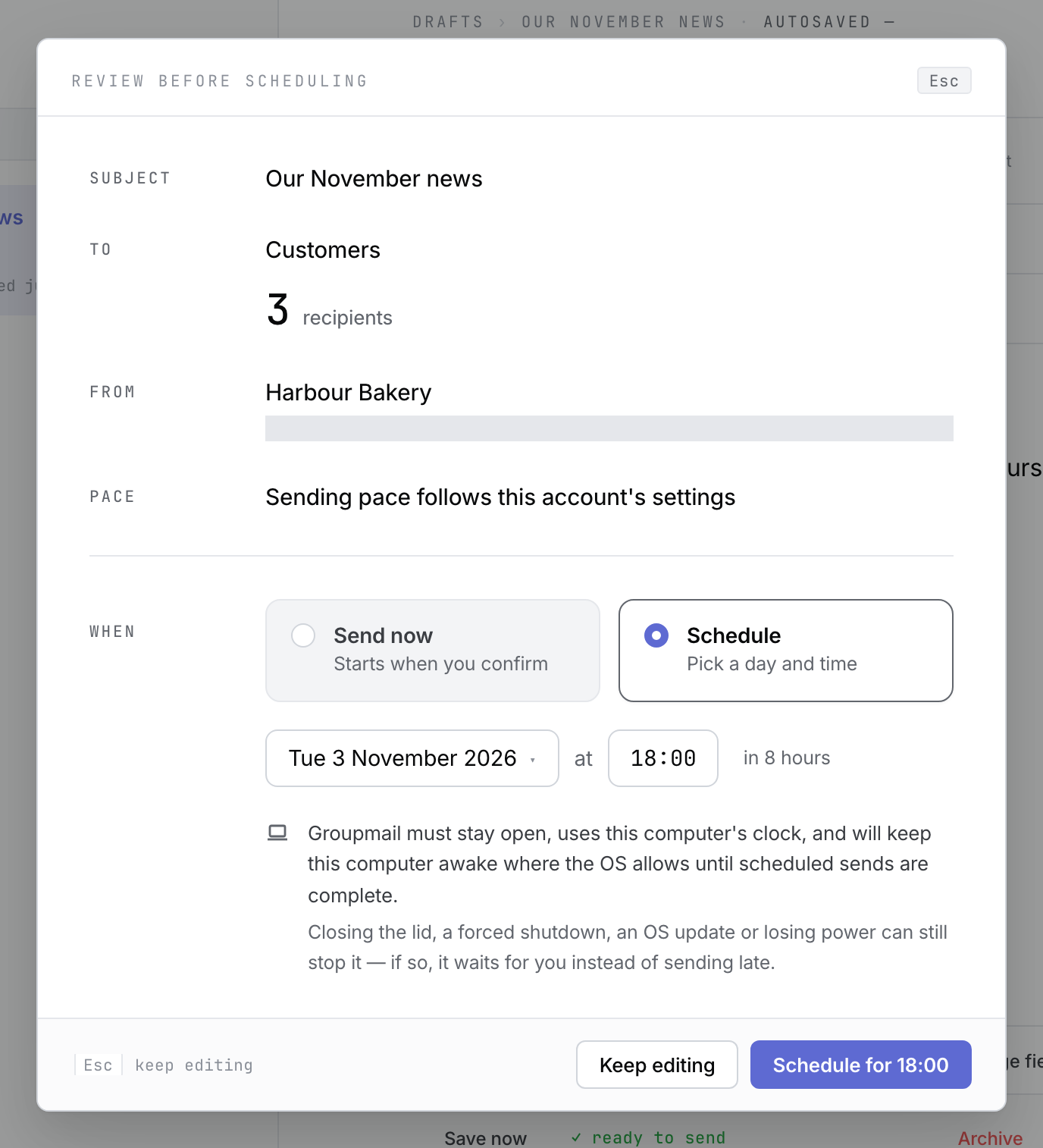 Illustration from a fictional draft; the sending address is masked. Nothing is sent until this review is approved.
Groupmail sends from your computer, so it must be open, and the computer awake, until the send finishes. A scheduled send that's missed never goes out later on its own; you choose what happens (How to schedule a message).
Which address to send from
- Your Microsoft 365 or Gmail address suits personal emails to people you know: clients, members, colleagues. Microsoft allows 10,000 recipients a day per mailbox (the limits); Gmail allows far fewer (Gmail's limits).
- A sending service such as SMTP2GO suits newsletters and marketing. Gmail expects a one-click unsubscribe on marketing email, which Groupmail can't add when it sends through Gmail or Microsoft sign-in.
The other ways, honestly
- Word and classic Outlook. Paste the AI's text into Word and run the mail merge. It's free if you have Office. On Windows it needs classic Outlook, because the new Outlook can't do it yet; on a Mac, Word can mail merge when Outlook is your default mail app. See How do I mail merge in Outlook?.
- A script. ChatGPT can write a short program that sends through your mail server. That suits developers. You then own the pacing, the unsubscribes, the errors and the sending limits.
- Claude's Gmail connector. It can send an email for you, and by default asks you to approve it first; organisations can change that. Anthropic doesn't document a mail merge with it, so it suits a few messages, not a list.
Before you start
- Groupmail 7 on an Apple silicon Mac or Windows. It's $599, with a free 30-day trial, and the licence is yours to keep. The first year of updates and support is included; updates then renew at $175 a year until you cancel, and if you cancel you keep using the version you have. Your AI plan and sending service are separate.
- Privacy. Groupmail keeps your list on your computer. What your assistant sees on screen, including names and addresses, is sent to its AI company for processing. Anthropic advises against letting Claude use apps that show other people's personal information. If you follow that, use the AI only to write the email (step 1), and tidy the list and do the Groupmail steps yourself.
What Groupmail 7 can't do
- It has no AI of its own. You use your own assistant and plan.
- It can't send while it's closed or the computer is asleep.
- It can't add a one-click unsubscribe when it sends through Microsoft or Google sign-in.
Questions people ask
Can ChatGPT send bulk emails?
Not by itself. It can write them and prepare the list. The sending needs email software, such as Word with classic Outlook, or Groupmail 7 set up by Codex or Claude with computer use.
Can Claude do a mail merge?
Claude can write the email and tidy the list. With computer use in the desktop app, it can also set up the mail merge in Groupmail 7, and you approve the send.
What's the best AI for mail merge?
Any good assistant writes the email. For the setting up, you need one that can use apps on your computer: Codex with Computer Use, or Claude's desktop app on Pro, Max or Ultra.
Is it safe to upload my contact list to ChatGPT?
It depends on your plan's data settings and on whose details are in it. Read Is it safe to give AI your mailing list? before you do.
Will each person see the other recipients?
Not with a mail merge. Each person gets their own email, addressed only to them.
How many emails can I send?
That depends on your sending account, not the AI. A Microsoft 365 mailbox allows 10,000 recipients a day, and Groupmail paces Microsoft and Gmail mailboxes automatically. A sending service such as SMTP2GO has its own plan limits. See the Microsoft 365 limits and Gmail's limits.
Try Groupmail 7 free for 30 days.
No card needed. Then $599 once, with a 30-day money-back guarantee.